RST 指南与速查表
通用指南
在为文档做贡献时,请遵循下面的 RST 指南,以帮助保持与文档其余部分的一致性,并便于团队进行审阅:
格式
使用特定的格式标记来提升清晰度和可读性。例如,对菜单路径使用 菜单选择,对字段、按钮和选项等其他用户界面元素使用 GUI(图形用户界面) 元素,对注释使用 备注,对示例使用 示例,等等。
注解
在不同的块级元素之间(如段落、列表和指令)添加空行,以确保正确渲染和格式化。
缩进
仅使用空格(切勿使用制表符)。
在缩进行开头使用所需数量的空格,使其与上一行标记的第一个字符对齐。这通常意味着三个空格,但例如项目符号列表只需两个空格。
示例
第一个 : 位于 i 的下方(三个空格):
.. image:: media/example.png
   :alt: example
:titlesonly: 和页面引用从 t 的下方开始(三个空格):
.. toctree::
   :titlesonly:

   payables/supplier_bills
   payables/pay
续行从 “Invoice” 各 I 的下方开始(两个空格):
- Invoice on ordered quantity: invoice the full order as soon as the sales order is confirmed.
- Invoice on delivered quantity: invoice on what was delivered even if it is a partial
  delivery.
100 字符上限
在 RST 中,可以在一行中途换行,而不会在渲染后的 HTML 中强制换行。请利用这一特性,做到 每行最多 100 个字符。不要在行末留下用于分隔单词的多余空白。
小技巧
在任意空格处换行都是安全的,即使在
:menuselection:和:doc:这类标记内部也是如此。某些外部超链接可能超过 100 个字符,但将它们保留在一行是可以接受的。
大多数 IDE(集成开发环境) 都提供在指定字符上限处自动换行或显示视觉参考线的设置。
标题
对于每条格式线(例如 ===),写入与标题字符数相同数量的符号(=)。使用下面的符号来格式化标题:
标题级别 |
格式 |
|---|---|
H1 |
=======
Heading
=======
|
H2 |
Heading
=======
|
H3 |
Heading
-------
|
H4 |
Heading
~~~~~~~
|
H5 |
Heading
*******
|
H6 |
Heading
^^^^^^^
|
重要
每个文档必须 恰好有一个 H1 标题。
标记
强调(斜体)
用于强调文本的一部分。该文本以斜体显示。
请在保存表单 之前 填写信息。 |
Fill out the information *before* saving the form.
|
强烈强调(粗体)
用于强调文本的一部分。该文本以粗体显示。
子域 是另一个域的一部分。 |
A **subdomain** is a domain that is a part of another domain.
|
技术术语(字面量)
用于书写技术术语或需要插入的特定值。该文本以字面量形式显示。
插入打印机的 IP 地址,例如 |
Insert the IP address of your printer, for example, `192.168.1.25`.
|
定义
使用 dfn 标记定义术语。
文档使用 RST 编写,需要经过构建(即 转换为 HTML)才能良好显示。 |
The documentation is written in RST and needs to be built (:dfn:`converted to HTML`) to
display nicely.
|
缩写
使用 abbr 标记书写可自我解释的缩写,该缩写以工具提示的形式显示。
Odoo 使用 OCR(光学字符识别) 和人工智能技术来识别文档内容。 |
Odoo uses :abbr:`OCR (optical character recognition)` and artificial intelligence
technologies to recognize the content of the documents.
|
小技巧
对反复出现的缩写使用 替换。
GUI(图形用户界面) 元素
使用 guilabel 标记来标识用户界面中的任何文本,例如标签。
更新您的凭据,然后点击 保存。 |
Update your credentials, then click on :guilabel:`Save`.
|
注解
在指代概念或通用术语时,避免使用 guilabel 标记。
示例
- 良好示例:要创建红字应收单(贷项凭证),请转到 ,打开发票,然后点击 贷项凭证。
- 错误示例:要创建 贷项凭证,请转到 ,打开 发票,然后点击 贷项凭证。
菜单选择
使用 menuselection 标记引导用户依次浏览一系列菜单,起始项为应用名称。
要查看销售业绩,请转到 。 |
To review sales performance, go to :menuselection:`Sales --> Reporting --> Dashboard`.
|
注解
在 menuselection 标记中只包含实际的菜单项:
对其他用户界面元素(如按钮和区块标题)使用 GUI(图形用户界面) 元素 标记:
To configure the bill control policy, navigate to :menuselection:`Purchase --> Configuration
--> Settings`, and scroll down to the :guilabel:`Invoicing` section. Under :guilabel:`Bill
Control`, select either :guilabel:`Ordered quantities` or :guilabel:`Received quantities`.
不要包含菜单区块的名称。例如,在下方的截图中,
Journals不应包含在菜单路径 中:
文件
使用 file 标记指示文件路径或名称。
使用仓库根目录中的 |
Create redirections using the :file:`redirects.txt` file found at the root of the
repository.
|
命令
使用 command 标记突出显示命令。
运行命令 make clean html 以删除现有的构建文件,并将文档构建为 HTML。 |
Run the command :command:`make clean html` to delete existing built files and build the
documentation to HTML.
|
图标
使用 icon 标记来添加图标的类名。Odoo 中使用了三套图标:FontAwesome4 (fa-*)、Odoo 界面 (oi-*) 以及 Odoo 电子表格 (os-*) 图标。
在图标后面跟上它的工具提示(如果可能),或用方括号中的 GUI(图形用户界面) 元素 名称作为描述词,除非图标后面紧跟着一个 UI 元素。
图表视图由 (图表) 图标表示。
数据透视视图由 (数据透视) 图标表示。
点击电子表格右上角的 筛选。
|
| The graph view is represented by the :icon:`fa-area-chart` (:guilabel:`Graph`) icon.
| The pivot view is represented by the :icon:`oi-view-pivot` (:guilabel:`Pivot`) icon.
| Click :icon:`os-global-filters` :guilabel:`Filters` at the top right of the spreadsheet.
|
列表
项目符号列表
|
- This is a bulleted list.
- It has two items, the second
  item uses two lines.
|
编号列表
|
#. This is a numbered list.
#. Numbering is automatic.
|
|
a. Use this format to start the numbering with a different marker or a number other than
   one.
#. The numbering is automatic from here.
|
小技巧
为获得更好的代码稳定性,建议使用 #. 自动编号列表,而不是 1.、2. 等。
嵌套列表
小技巧
在列表中的嵌套元素之前添加一个空行。
正确缩进 嵌套列表,使子项与父项对齐。
|
- This is the first item of a bulleted list.

  #. It has a nested numbered list
  #. with two items.
|
超链接
外部超链接
外部超链接是带自定义标签的 URL 链接。其语法为:`label <URL>`_。
重要
当指向另一个文档页面时,请使用 文档页面超链接。
For instance, `this is an external hyperlink to Odoo's website <https://www.odoo.com>`_.
|
别名
外部超链接别名可以为外部超链接创建快捷方式。定义语法如下:.. _target: URL。根据使用场景,有两种引用方式:
target_会创建一个以目标名称为标签、URL 为引用的超链接。请注意,_移到了目标名称之后。`label <target_>`_其中标签替换目标名称,而目标则被 URL 替换。
.. _proof-of-concept: https://en.wikipedia.org/wiki/Proof_of_concept

   A proof-of-concept_ is a simplified version, a prototype of what is expected to agree on
   the main lines of expected changes. `PoC <proof-of-concept_>`_ is a common abbreviation.
|
内部文档链接
重要
在重构(在不添加新内容的前提下改进)章节标题或超链接目标时,请确保不要破坏指向这些目标的任何超链接引用,或者相应地更新它们。
相对链接
当引用 内部文档页面 或与当前页面不在同一目录中的 文件 时,请使用 相对文件路径 而不是 绝对文件路径。这样可以确保即使发生版本更新、文件夹名称变更和目录结构重组,链接仍然有效。
绝对文件路径从根目录开始指明目标的位置。相对文件路径使用智能写法(例如 ../ 表示上级文件夹)来指明目标 相对于 源文档的位置。
示例
注解
下面这个示例旨在说明绝对链接与相对链接的区别。在引用文档页面时,请始终使用 文档页面超链接。
假设源文件树如下::
documentation
├── content
│   └── applications
│   │   └── sales
│   │   │   └── sales
│   │   │   │   └── products_prices
│   │   │   │   │   └── products
│   │   │   │   │   │   └── import.rst
│   │   │   │   │   │   └── variants.rst
│   │   │   │   │   └── prices.rst
可以从 import.rst 中按如下方式引用 prices.rst 和 variants.rst:
绝对路径:
documentation/content/applications/sales/sales/products_prices/prices.rstdocumentation/content/applications/sales/sales/products_prices/products/variants.rst
相对路径:
../prices.rstvariants.rst
文档页面超链接
doc 标记可用于通过相对文件路径引用文件树中任意位置的文档页面。使用 doc 标记有两种方式:
:doc:`path_to_doc_page`会创建一个指向文档页面的超链接,并以页面标题作为标签。:doc:`label <path_to_doc_page>`会创建一个指向文档页面的超链接,并使用给定的标签。
Please refer to the :doc:`Accounting documentation <../../../applications/finance/accounting>`
to learn more about :doc:`../../../applications/finance/accounting/customer_invoices`.
|
重要
使用相对链接 来链接文档页面。
自定义锚点
自定义锚点遵循与 外部超链接别名 相同的语法,但不包含任何 URL。它们允许将 target 用作锚点来引用 RST 文件的特定部分。当用户点击该引用时,会被带到文档页面中定义该 target 的位置。
定义语法为:.. _target:。引用它们有两种方式,均使用 ref 标记:
:ref:`target`会创建指向该锚点的超链接,并以下方定义的标题作为标签。:ref:`label <target>`会创建一个指向该锚点的超链接,并使用给定的标签。
重要
由于使用 ref 标记引用时,target 在整个文档中都可见,因此请在 target 名称前加上 应用/章节名称 和 文件名,并以斜杠分隔,例如 accounting/taxes/configuration。
注解
为所有标题添加自定义锚点,以便可以从任何文档文件中或在 Odoo 内通过文档链接引用它们。
请注意,与 外部超链接 不同,末尾没有
_。
 .. _contributing/rst/external-hyperlinks:

 External hyperlinks
 -------------------

.. _contributing/rst/external-hyperlink-aliases:

Aliases
~~~~~~~

Please refer to the :ref:`contributing/rst/external-hyperlinks` section to learn more
about :ref:`aliases <contributing/rst/external-hyperlink-aliases>`.
|
文件下载
download 标记可用于引用源码树中可供下载的文件(这些文件不一定是 RST 文档)。
下载此 |
Download this :download:`module structure template <rst_guidelines/my_module.zip>` to start building your module.
|
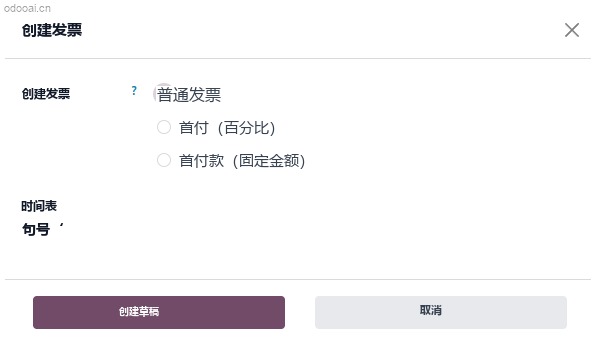
图片
image 标记可用于在文档中插入图片。
|
.. image:: rst_guidelines/create-invoice.png
   :alt: Create an invoice.
|
小技巧
图片通常应左对齐,这是默认行为。可使用
align参数更改对齐方式,例如:align: center。使用
alt参数添加 ALT 标签,例如:alt: Activating the developer mode in the Settings app。使用
scale参数缩放图片,例如:scale: 75%。
更多内容
提示块(admonition)
另请参阅
.. seealso::
   - :doc:`Accounting documentation <../../../applications/finance/accounting>`
   - :doc:`../../../applications/sales/sales/invoicing/proforma`
   - `Google documentation on setting up Analytics for a website <https://support.google.com/analytics/answer/1008015?hl=en/>`_
|
备注
注解 使用此提示块吸引读者的注意,并突出显示重要的补充信息。 |
.. note::
   Use this alert block to draw the reader's attention and highlight important additional information.
|
提示
小技巧 使用此提示块告知读者需要执行操作的实用技巧。 |
.. tip::
   Use this alert block to inform the reader about a useful trick that requires an action.
|
示例
示例 使用此提示块展示示例。 |
.. example::
   Use this alert block to show an example.
|
练习
练习 使用此提示块向读者建议练习。 |
.. exercise::
   Use this alert block to suggest an exercise to the reader.
|
重要
重要 使用此提示块通知读者重要信息。 |
.. important::
   Use this alert block to notify the reader about important information.
|
警告
警告 使用此提示块要求读者谨慎对待警告中所述的内容。 |
.. warning::
   Use this alert block to require the reader to proceed with caution with what is described in the warning.
|
危险
危险 使用此提示块提醒读者注意严重威胁。 |
.. danger::
   Use this alert block to bring the reader's attention to a serious threat.
|
自定义
标题 使用您自选的 标题 自定义此提示块。 |
.. admonition:: Title

   Customize this alert block with a **Title** of your choice.
|
表格
列表表格
列表表格使用两级项目符号列表将数据转换为表格。第一级表示行,第二级表示列。
|
|||||||||
.. list-table::
   :header-rows: 1
   :stub-columns: 1

   * - Name
     - Country
     - Favorite colour
   * - Raúl
     - Montenegro
     - Purple
   * - Mélanie
     - France
     - Turquoise
|
小技巧
使用特定参数调整列表表格的外观和布局:
:class: table-striped:应用交替行颜色。:class: table-sticky-header:滚动时保持表头行固定。:widths::定义各列的比例。避免使用auto。例如::widths: 25 25 50。
网格表格
网格表格以渲染后的表格形式呈现,使用起来更直观。
|
|||||||||||
+-----------------------+--------------+---------------+
|                       | Shirts       | T-shirts      |
+=======================+==============+===============+
| **Available colours** | Purple       | Green         |
|                       +--------------+---------------+
|                       | Turquoise    | Orange        |
+-----------------------+--------------+---------------+
| **Sleeves length**    | Long sleeves | Short sleeves |
+-----------------------+--------------+---------------+
|
小技巧
使用
=而不是-来定义表头行。删除
-和|分隔符以合并单元格。可以使用 这个便捷的表格生成器 来构建表格。然后,将生成的格式复制粘贴到文档中。
代码块
使用 code-block 指令显示示例代码。指定语言(例如 python、xml 等),以便按照该语言的语法规则格式化代码。
def main():
    print("Hello world!")
|
.. code-block:: python

   def main():
       print("Hello world!")
|
折叠内容
42 |
.. spoiler:: Answer to the Ultimate Question of Life, the Universe, and Everything

   **42**
|
内容选项卡
基本选项卡
基本选项卡可用于将内容拆分为多个选项。tabs 标记用于定义一系列选项卡,随后用 tab 标记加一个标签来定义每个选项卡。
专为 Odoo Online 用户提供的内容。 面向 Odoo.sh 用户的备选方案。 面向本地部署用户的第三个版本。 |
.. tabs::

   .. tab:: Odoo Online

      Content dedicated to Odoo Online users.

   .. tab:: Odoo.sh

      Alternative for Odoo.sh users.

   .. tab:: On-premise

      Third version for On-premise users.
|
嵌套选项卡
选项卡可以相互嵌套。
离我们最近的恒星。 离我们第二近的恒星。 即北极星。 环绕地球运行。 环绕木星运行。 |
.. tabs::

   .. tab:: Stars

      .. tabs::

         .. tab:: The Sun

            The closest star to us.

         .. tab:: Proxima Centauri

            The second closest star to us.

         .. tab:: Polaris

            The North Star.

   .. tab:: Moons

      .. tabs::

         .. tab:: The Moon

            Orbits the Earth.

         .. tab:: Titan

            Orbits Jupiter.
|
分组选项卡
分组选项卡基于共享的分组标签进行同步:在一个分组中选择某个选项卡,会自动选中其他所有使用该标签的分组中对应的选项卡。最后选中的分组会被记住,并在页面重新加载或导航到包含同一选项卡分组的其他页面时自动重新选中。使用 group-tab 标记定义分组选项卡。
C++ Python Java int main(const int argc, const char **argv) {
return 0;
}
def main():
return
class Main {
public static void main(String[] args) {}
}
|
.. tabs::
.. group-tab:: C++
C++
.. group-tab:: Python
Python
.. group-tab:: Java
Java
.. tabs::
.. group-tab:: C++
.. code-block:: c++
int main(const int argc, const char **argv) {
    return 0;
}
.. group-tab:: Python
.. code-block:: python
def main():
    return
.. group-tab:: Java
.. code-block:: java
class Main {
    public static void main(String[] args) {}
}
|
代码选项卡
使用 code-tab 标记创建代码选项卡,其本质上是 分组选项卡,会将选项卡的内容视为 代码块。指定语言,以便按照该语言的语法规则格式化代码。如果设置了标签,则会用它代替语言名称来对选项卡分组。
#include <iostream>

int main() {
    std::cout << "Hello World";
    return 0;
}
print("Hello World")
console.log("Hello World");
|
.. tabs::

   .. code-tab:: c++ Hello C++

      #include <iostream>

      int main() {
          std::cout << "Hello World";
          return 0;
      }

   .. code-tab:: python Hello Python

      print("Hello World")

   .. code-tab:: javascript Hello JavaScript

      console.log("Hello World");
|
卡片
.. cards::

   .. card:: Documentation
      :target: ../documentation
      :tag: Step-by-step guide
      :large:

      Use this guide to acquire the tools and knowledge you need to write documentation.

   .. card:: Content guidelines
      :target: content_guidelines

      List of guidelines, tips, and tricks to help you create clear and effective content.

   .. card:: RST guidelines
      :target: rst_guidelines

      List of technical guidelines to observe when writing with reStructuredText.

   .. card:: Card with image
      :target: ../documentation
      :large:
      :image: placeholder-image.png
      :alt: Placeholder card image

      Lorem ipsum dolor sit amet, consectetur adipiscing elit. Sed do eiusmod tempor incididunt ut labore et dolore magna aliqua.
|

子页面
toctree 指令用于将文档组织为带子页面的章节。它会在当前位置(即父页面)添加一个目录,该目录由指令中列出的文件构建而成。除非使用了 orphan 元数据标记,否则所有 RST 文件都必须包含在目录树中。
示例
文档主目录中的目录树:
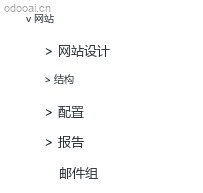
website.rst中的toctree指令(即父页面):.. toctree:: :titlesonly: website/web_design website/pages website/configuration website/reporting website/mail_groups
替换
当在整个 RST 文件中反复使用 缩写 或较长的官方名称(例如政府机构的名称)时,使用替换定义会很有帮助。替换定义由可复用的替换引用及其替换文本组成。当在行内文本中使用该替换引用时,渲染后的 HTML 中会将其替换为替换文本。
使用以下语法在文件顶部附近插入替换定义:.. |substitution reference| replace:: replacement text。
一旦授权生效,使用 SDD 支付方式进行的所有后续付款都会复用该授权。 |
.. |sdd| replace:: :abbr:`SDD (SEPA Direct Debit)`

Once a mandate is active, it is reused for all subsequent payments made with the |sdd|
payment method.
|
文档元数据
Sphinx 支持用于指定整个页面行为的文档级元数据标记。它们必须放在源文件顶部的冒号(:)之间。
元数据 |
用途 |
|
使包含 目录树 的 RST 文件的内容在文档主目录中可见并可访问。 |
|
使用 |
|
隐藏“本页内容”侧边栏,并让内容使用整页宽度。 |
|
将文档从搜索结果中排除。 |
|
免除将该文档包含在 目录树 中的要求。 |
|
显示一个动态侧栏,可用于展示交互式教程或代码摘录。
例如,请参阅 财务报告清单。
|
|
将 CSS 文件(以逗号分隔)链接到该文件。 |
|
将 JS 文件(以逗号分隔)链接到文档。 |
|
将指定的类分配给该文件的 |
格式提示
换行但不分段
第一行很长,您在 -> 此处 <- 将其断成两行,渲染后仍是单独一行。
紧随换行之后的第二行。
|
| A first long line that you break in two
  -> here <- is rendered as a single line.
| A second line that follows a line break.
|
转义标记符号
使用反斜杠(\)转义的标记符号会按普通文本渲染。例如,this \*\*line of text\*\* with \*markup\* symbols 会渲染为“this **line of text** with *markup* symbols”。
说到反引号(`)时,它在许多场景中都会用到,例如 外部超链接;此时已无法再用反斜杠转义,因为外层反引号会解释其中包含的反斜杠,从而使它们无法转义内层反引号。例如,`\`this formatting\`` 会产生 [UNKNOWN NODE title_reference] 错误。而应改用 ```this formatting``` 来得到如下结果:` this formatting `。
本站校对说明
本篇《Odoo 20.0 documentation》翻译自 Odoo 20.0 官方文档的社区贡献章节。文中涉及的编码规范、文档撰写要求与提交流程,已按 20.0 分支的实际情况核对;官方仓库的分支策略与评审流程会随时间调整,实际提交前请先阅读仓库中最新的 CONTRIBUTING 说明。中文翻译的术语对照表由本站维护,若你打算参与中文文档贡献,可先对照本页用词,减少来回修改。如与官方英文版表述不一致,以 odoo.com 官方文档与仓库规范为准。
内容源自 Odoo S.A. 官方文档,依 CC BY-SA 4.0 许可翻译与校对,版权归 Odoo S.A.。本站为第三方中文文档站点,非 Odoo 官方网站。遇到与官方表述冲突之处,请以 odoo.com 官方文档 为准;版本选型可参考 社区版与企业版对比。