An aircraft maintenance and cleaning management App. It fully implements the “APS” management concept of aircraft maintenance to further improve scientific maintenance practices and establish a “scientific, comprehensive, and standardized” maintenance system.
With the Internet+ mindset, by integrating the computer management backend, WeChat enterprise account, DingTalk, and the company's own App, the APS concept of “Arrangements” for production preparation, “Program” for construction procedures, and “Standard” for work standards is fully implemented in on-site production management.
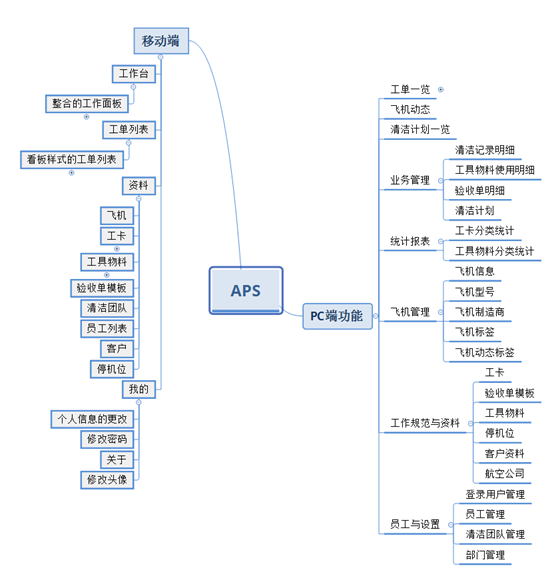
I. Overall Functions of the Aircraft Maintenance APS Platform
Contact us to get a demo system
II. Common Operations FAQ
(1) How to place orders, dispatch orders, and manage -> Work Order List
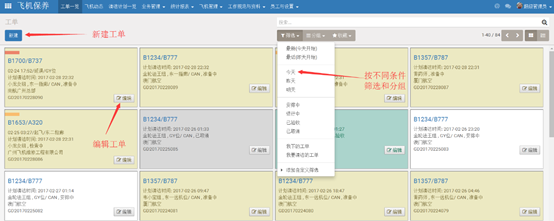
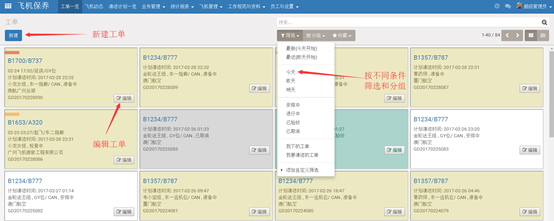
The Work Order List is the core function. Upon entering the page, you can view existing work orders and filter them by time, location, cleaning team, and other groupings. In-progress work orders are displayed in yellow, completed work orders in green, canceled work orders in gray, and white indicates work orders that have not yet been dispatched. On this page, you can create new work orders and edit existing ones.
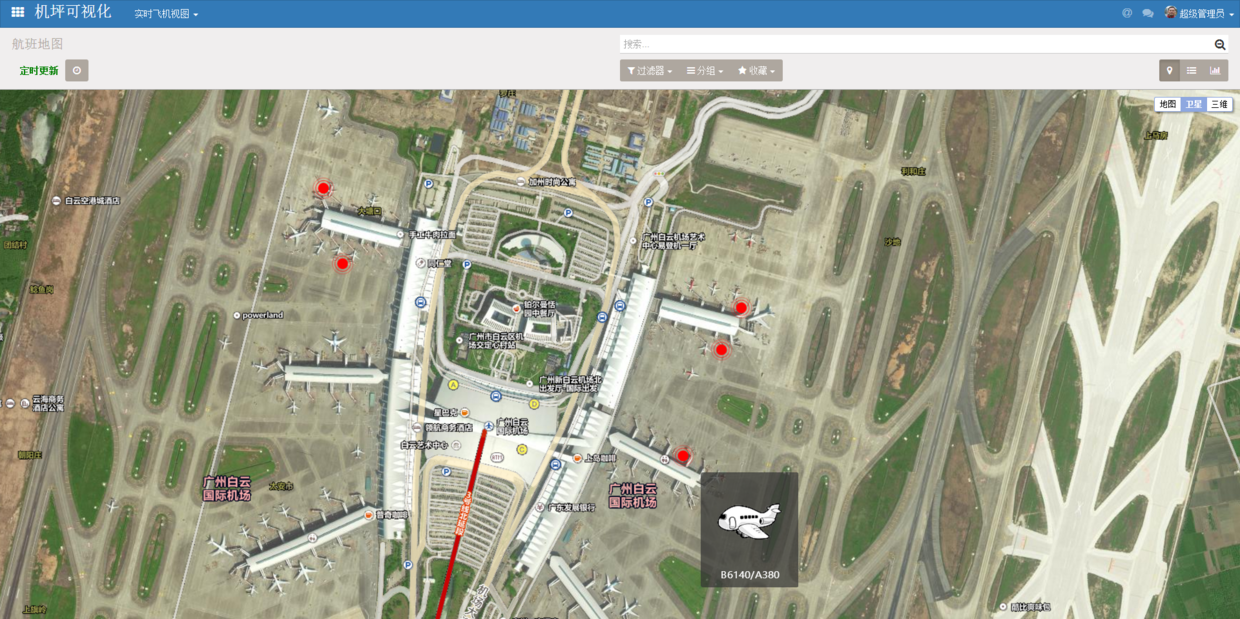
You can also see the location and on-site status of each aircraft and each maintenance team on the real-time map.
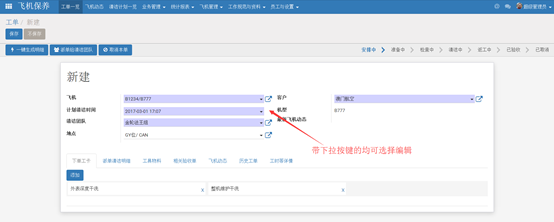
In the new work order, all fields with a drop-down menu icon can be selected, filled in, and edited.
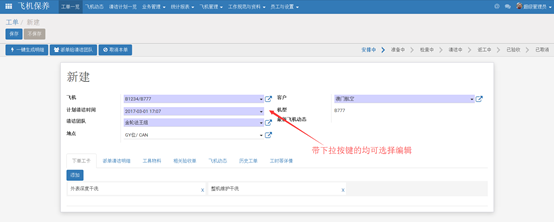
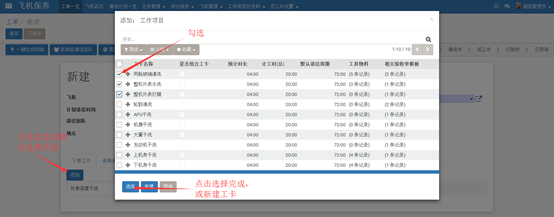
Click the New button under [Work Items] to pop up specific cleaning options. Here you can select specific cleaning tasks, and you can also create new ones.
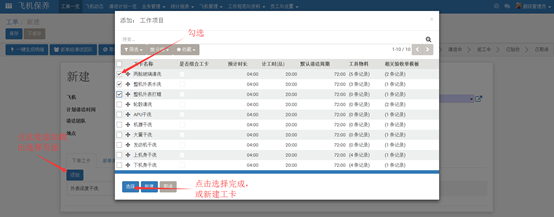
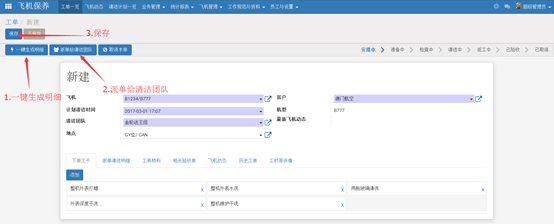
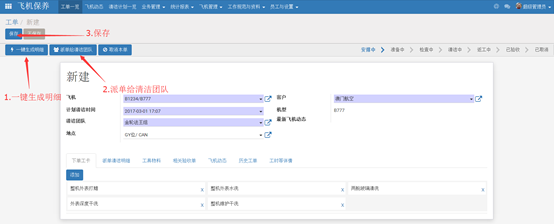
After completing the work order, the ordering steps are as shown below.
1. Click One-Click Generate Details. The system will automatically generate the required materials and related acceptance forms and other details.
2. Dispatch the order to the cleaning team. The system will automatically generate a work order and send it to the relevant work team.
3. Save. The system automatically archives.
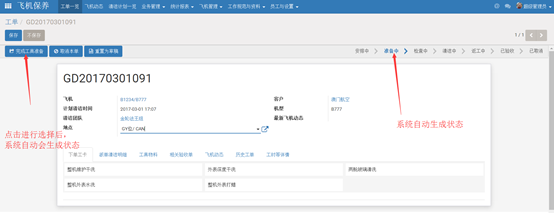
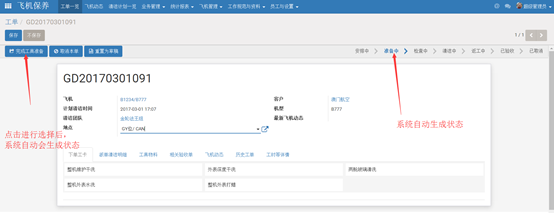
The two arrows in the figure below indicate the work order status. Click the red arrow to select the status; the system will automatically generate the current status at the green arrow.
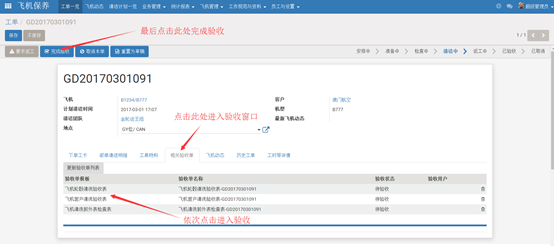
In the acceptance step, click the relevant acceptance form to enter the acceptance window, and click each item in turn to accept.
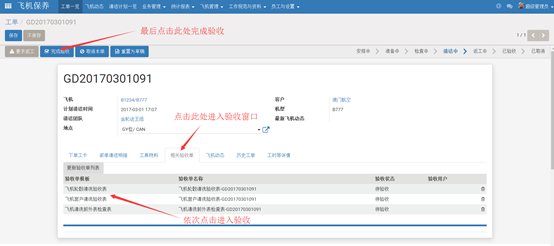
See the figure below for details of item-by-item acceptance.
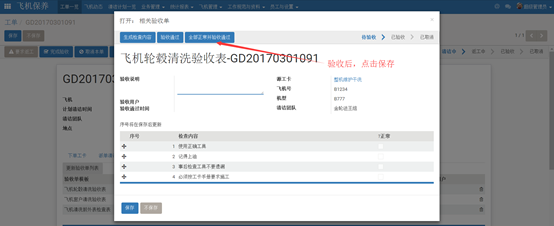
(2) Work Order Operation Process
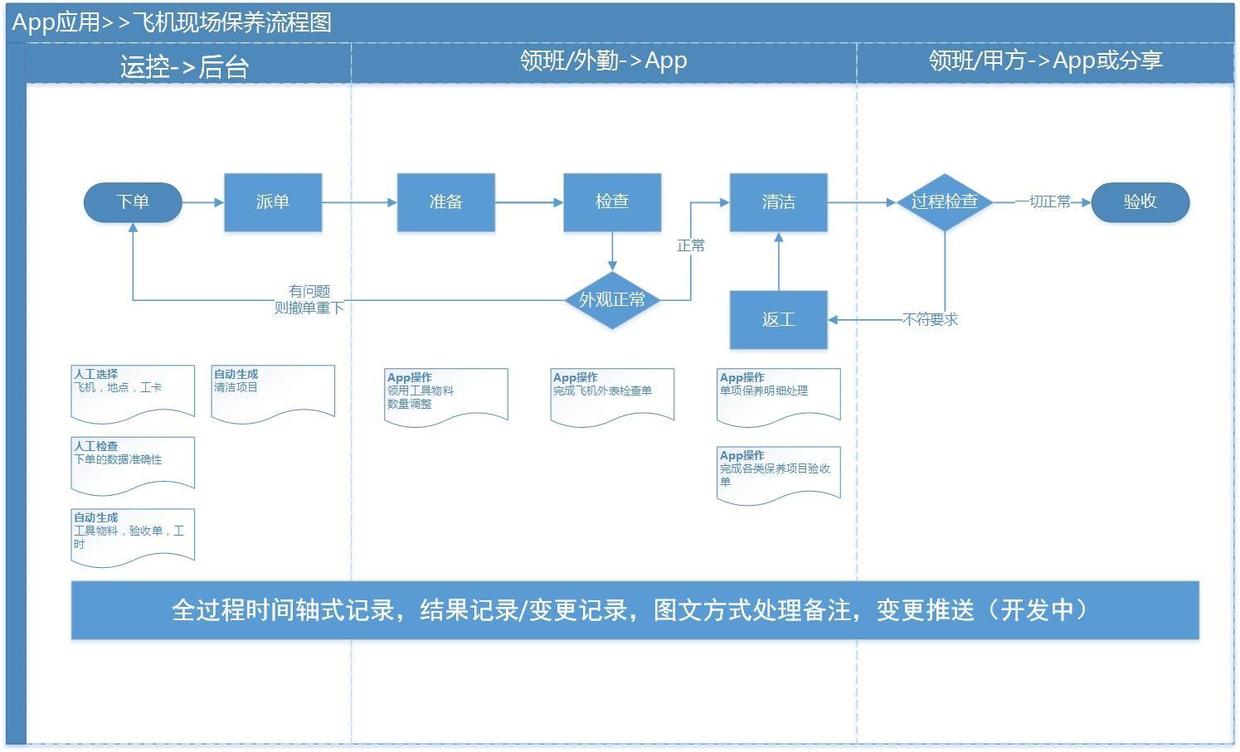
(3) View Aircraft Updates
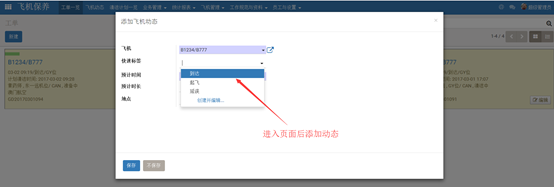
Aircraft updates can be accessed through the following two entry points. After adding an update, the system will automatically add the update to the work orders associated with that aircraft. You can view the updates in the work order.
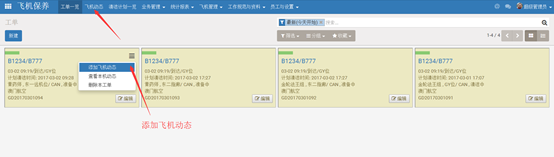
After entering, the following page is displayed, where you can add updates for that aircraft yourself.
(4) How to view aircraft due for cleaning soon → Cleaning Plan Overview
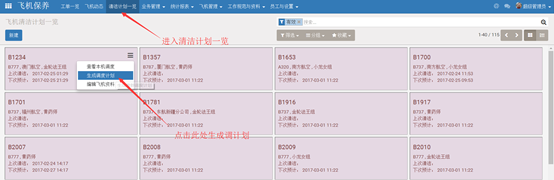
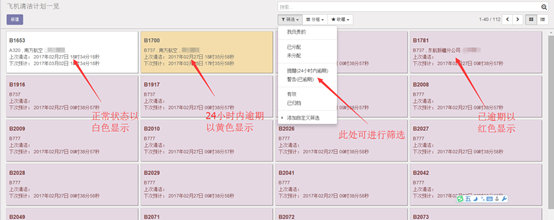
In the Cleaning Plan Overview, all flights are color-coded to indicate the status of upcoming cleaning plans. White indicates normal status, yellow indicates due within 24 hours, and red indicates overdue and requiring immediate cleaning.
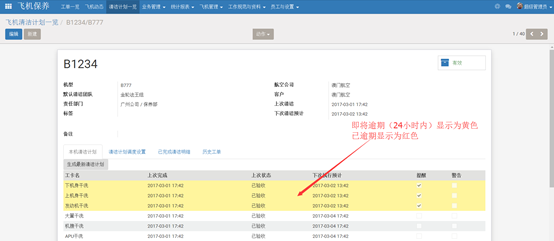
In the overview, the color indicates the overall cleaning status of the flight. Click to enter the details page, which will specifically show that a certain work card for the flight needs cleaning, and that item will turn yellow.
For how to schedule cleaning plans for all flights, see Chapter 5 ---- Work Cards.
In the Cleaning Plan Overview, click [Generate Scheduling Plan]. After the previous cleaning of the flight is completed and the work order [Completion Acceptance] is done, the system will automatically generate the next cleaning time.
After clicking to enter, you can see the latest cleaning plan time. Items about to expire are shown in yellow, and overdue items are shown in red.
(5) How to add and manage system users
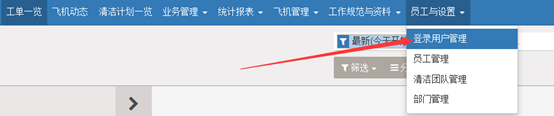
Click Employees & Settings → Login User Management to add or modify system users.
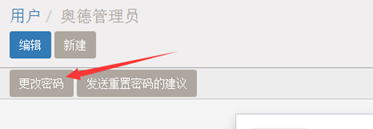
Click Change Password to set an initial password for the user.
The system mainly has three roles:
• Administrator: i.e., operations control, can manage system settings and dispatch work orders. Automatically has [Supervisor] and [Employee] permissions.
• Supervisor: Uses the App to perform aircraft cleaning operations. Can only view work orders assigned to them. Automatically has [Employee] permissions.
• Employee: i.e., cleaner (not used in this phase), performs aircraft cleaning work.
After clicking New, set the relevant roles. The email address is the username (please use a valid email address).
*Note: The application module settings are recommended as follows:
Administrator: Employee List - Supervisor, System Management - Settings, Aircraft Cleaning - Administrator
Supervisor: Employee List - Employee, System Management - None, Aircraft Cleaning - Supervisor
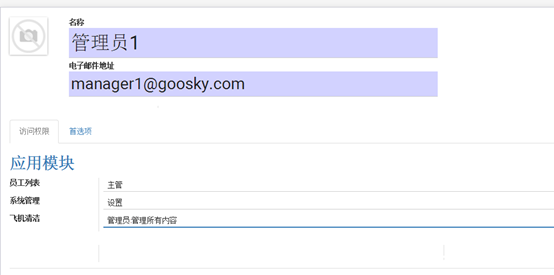
After setting up the login user, associate the user with the specified employee.
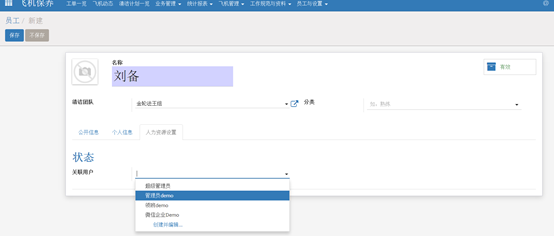
Go to Employees & Settings → Employee Management, edit the relevant employee, and select the associated user in the Human Resources tab.
III. General Operation Instructions
(1) Basic Interface
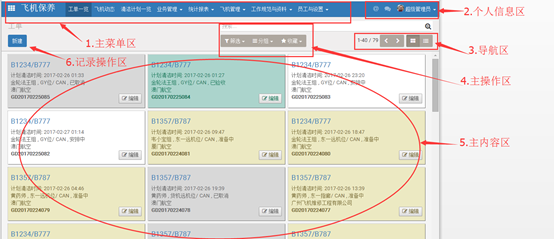
All operation interfaces of the system adopt the same style, roughly as follows:
1. Main Menu Area: Used to access related functions
2. Personal Information Area: You can change personal information, view personal subscription information, and chat with colleagues
3. Navigation Area: You can navigate pages or records, and switch views (including list view, kanban view, calendar view, pivot view, etc.)
4. Main Operation Area: You can search, filter, and group information
5. Main Content Area: This is the list of record contents
6. Record Operation Area: You can add, edit, and delete corresponding records
When you click to enter a detailed record, you can generally perform the following operations:
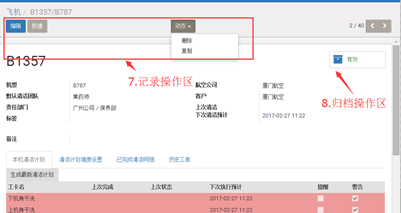
7. Record Operation Area: Same as 6, there are more operable contents in the Action area. Using the Duplicate function, you can quickly duplicate the current record and generate an identical record.
8. Archive Operation Area: Archiving will archive the record information, and the information will no longer be seen in the system. It is only visible when the filter condition is set to Archived = True.
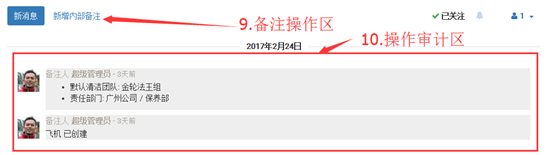
9. Notes Operation Area: Users can add notes to the record, supporting text/images/attachments, etc.
10. Operation Audit Area: Key operations performed by users on the current record can be seen here. If you follow this record, you will receive push notifications for such operations.
(2) Other Operation Instructions
1. Key functions to master in operations: Action—Delete/Duplicate.
On pages with the [Action] function, clicking the dropdown will display the Delete/Duplicate functions.
Delete: Click to directly delete the current page.
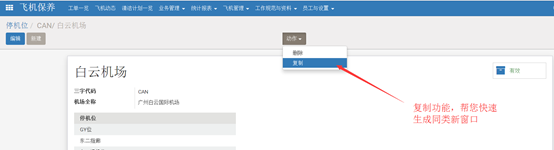
Duplicate: For repeated similar entries, you can use the Duplicate function. After clicking Duplicate, a new window will be automatically generated, which saves part of the original page content. You do not need to select again; just modify the required options in the window and save after editing. This saves a lot of time for repeated similar entries.
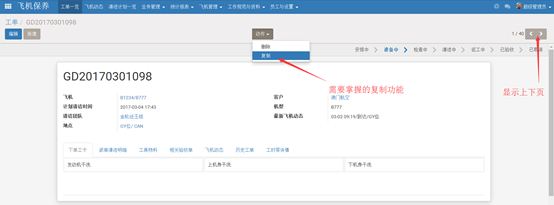
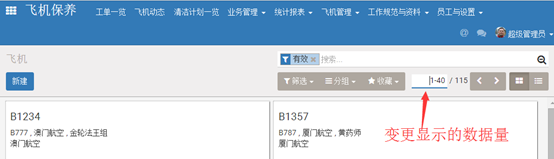
2. View a specified number of records
Click the mouse on the record navigation bar to change the number of displayed records.
IV. Overview of Work Orders, Aircraft Updates, and Cleaning Plans
(1) Work Orders
See Chapter 2 for details
The Work Order List is the core function. Upon entering the page, you can view existing work orders and filter them by time, location, cleaning team, and other groupings. In-progress work orders are displayed in yellow, and completed work orders are displayed in green. On this page, you can create new work orders and edit existing ones.
In the new work order, all fields with a drop-down menu icon can be selected, filled in, and edited.
Click the New button under [Work Items] to pop up specific cleaning options. Here you can select specific cleaning tasks, and you can also create new ones.
After completing the work order, the ordering steps are as shown below.
4. Click one-click generate details. The system will automatically generate the required materials and related acceptance forms and other details.
5. Dispatch the order to the cleaning team. The system will automatically generate a work order and send it to the relevant work team.
6. Save. The system automatically archives.
The two arrows in the figure below indicate the work order status. Click the red arrow to select the status; the system will automatically generate the current status at the green arrow.
In the acceptance step, click the relevant acceptance form to enter the acceptance window, and click each item in turn to accept.
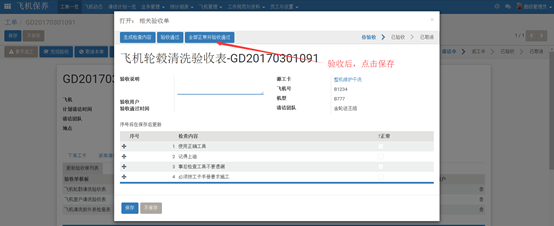
(2) Real-time Aircraft Updates
See Chapter 2 for details
Aircraft updates can be accessed through the following two entry points. After adding an update, the system will automatically add the update to the work orders associated with that aircraft. You can view the updates in the work order.
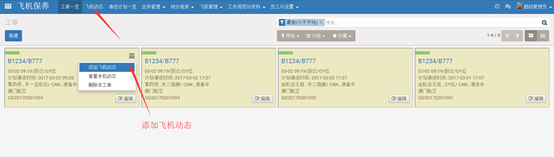
After entering, the following page is displayed, where you can add updates for that aircraft yourself.
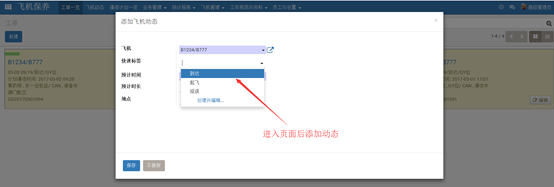
(3) Aircraft Cleaning Plan Overview
See Chapter 2 for how to view aircraft due for cleaning soon → Cleaning Plan Overview
V. Business Management
(1) Cleaning Record Details
Cleaning record details include aircraft type, work card content, completion time, cleaning team, work order number, completion status, and other information. Click an item to view details. You can select items to export. You can view by status/group.
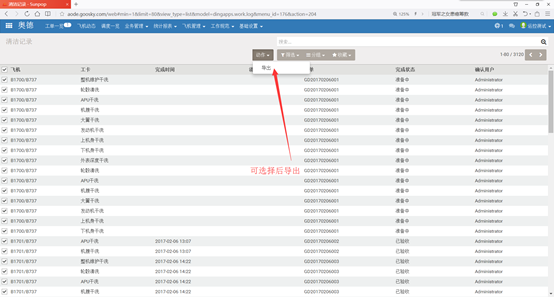
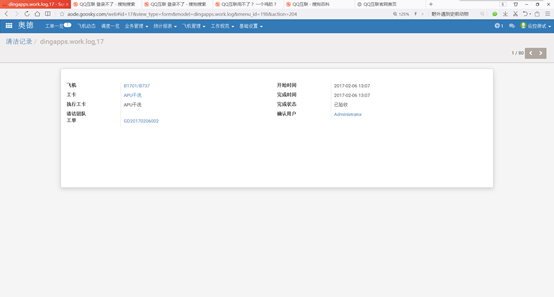
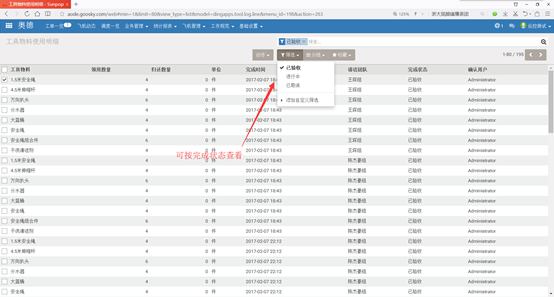
(2) Tool and Material Usage Details
Includes the issued quantity of tools and materials, return quantity, completion time, cleaning team, completion status, and other information. Click an item to view details. You can select items to export.Can be viewed by status/group.
(3) Acceptance Form Details
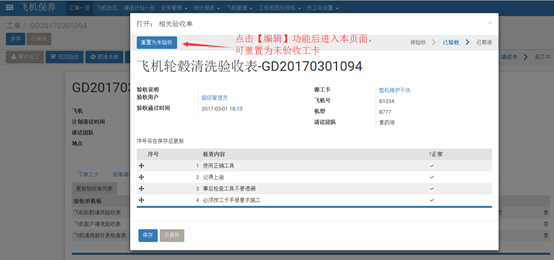
Includes the work order number, aircraft number, customer, acceptance pass time, status, and other information of the acceptance form. Click an item to view details. You can select items to export. You can view by status/group.
After clicking an item, you can use the edit function to reset the work card to an unaccepted work card.
(4) Regular Cleaning Plan
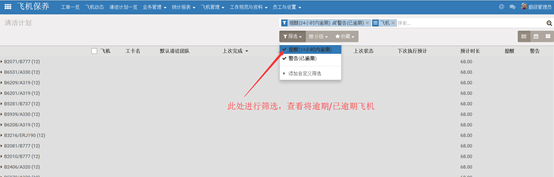
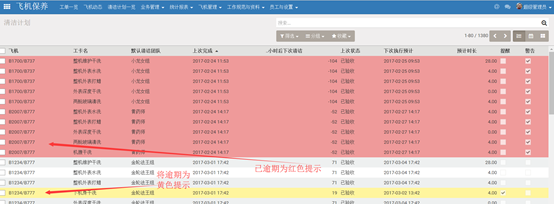
In the Regular Cleaning Plan section, back-office administrators can use the filter function to clearly view aircraft cleaning statuses that are about to expire or have expired. Items about to expire are displayed in yellow, and expired items are displayed in red. The displayed results include the configured next execution time. Items about to expire within 24 hours trigger a reminder, and expired items trigger a warning.
VI. Statistical Reports
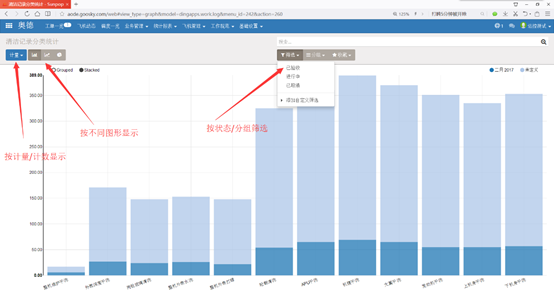
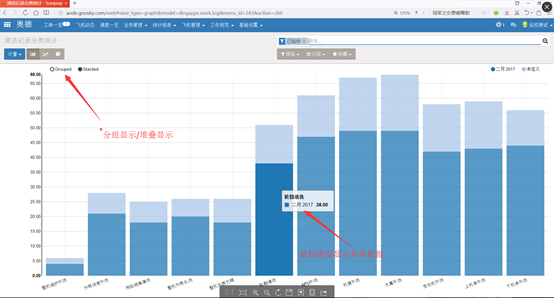
(1) Work Card Classification Statistics
In this section, you can view statistical data for work cards. Multiple display modes are available.
(2) Tool and Material Classification Statistics
Refer to (1) Work Card Classification Statistics
VII. Aircraft Management
(1) Aircraft Information
Aircraft information management is mainly used to manage basic aircraft information.
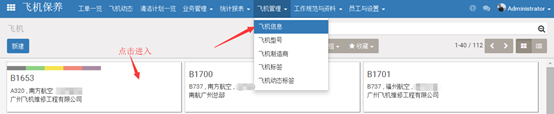
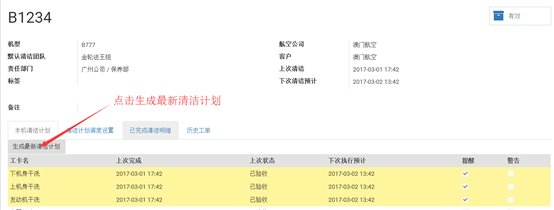
Click to enter the aircraft details interface, where you can manage and view information such as its default cleaning team, affiliated airline, customer, and historical cleaning plans.
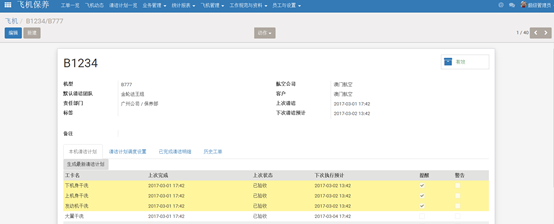
Click [Generate Latest Cleaning Plan] to generate the latest cleaning plan based on the work cards and the cleaning plan schedule configured for that aircraft.
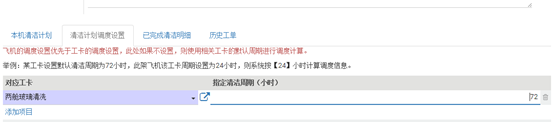
The cleaning plan settings are key to scheduling. For each aircraft, you can set the cleaning cycle for the corresponding work cards, and the system will automatically schedule the next cleaning time based on the settings. As shown in the figure, set "Two-cabin glass cleaning" to be cleaned every 72 hours.
(2) Aircraft Model
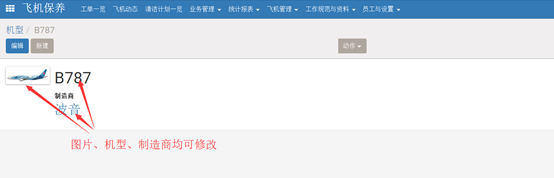
Aircraft model information includes exterior diagram, model, and manufacturer, all of which can be created and modified.
(3) Aircraft Manufacturer
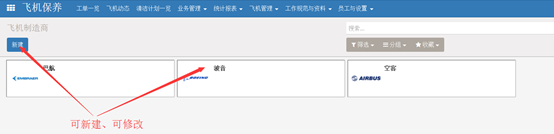
You can create/edit aircraft manufacturers such as Boeing and Airbus.
(4) Aircraft Tags
Manage aircraft characteristic tags, such as [New Aircraft], [Key Focus], and other characteristic information.
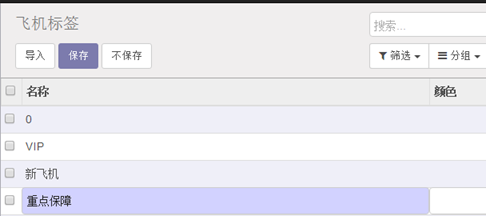
Characteristic tags are used to mark the features of the aircraft. They can be viewed in the aircraft management interface and are highlighted with special colors.
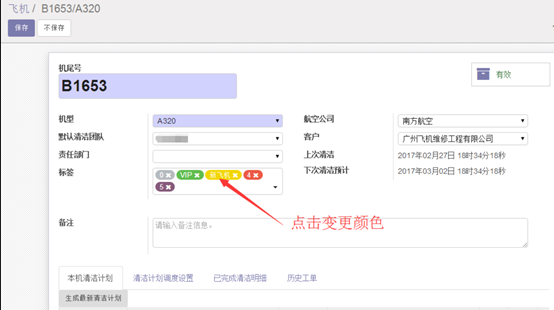
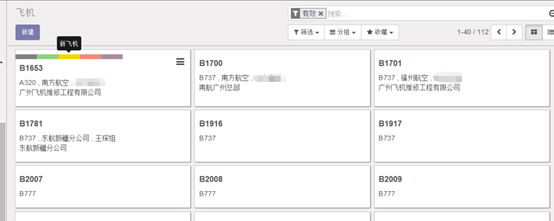
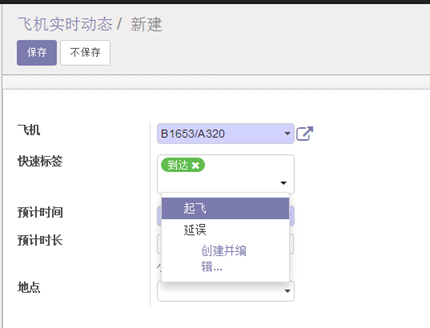
(5) Aircraft Update Tags
Add type tags to aircraft updates so staff can view the associated flight status.
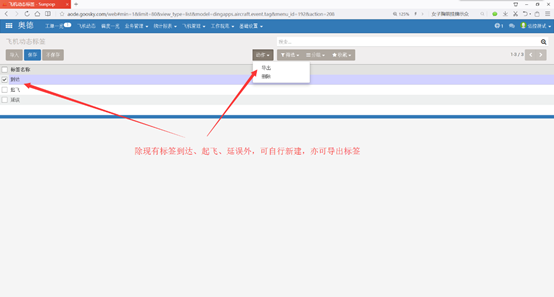
This tag can be used when processing real-time aircraft updates, and you can click to change its color.
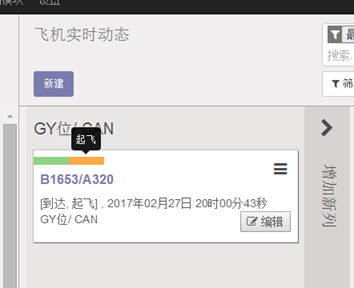
The configured tags will display their content and color in the aircraft updates overview.
VIII. Work Standards and Materials
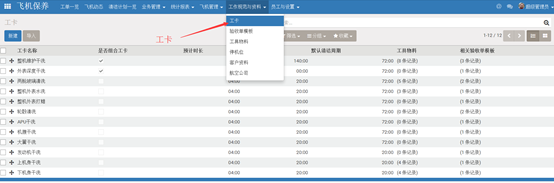
(1) Work Cards
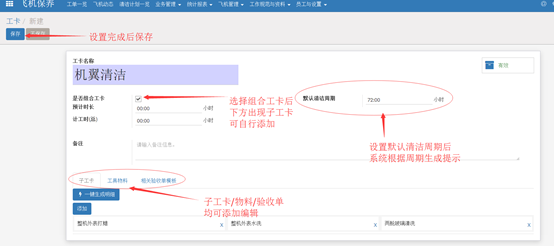
After clicking to enter the work card settings page, you can configure work cards in detail. The two more important items are: first, setting up sub-work cards, which means combining several cleaning items into one work card, for example (whole aircraft maintenance dry cleaning); second, setting the default cleaning cycle, after which the system will automatically schedule cleaning plans.
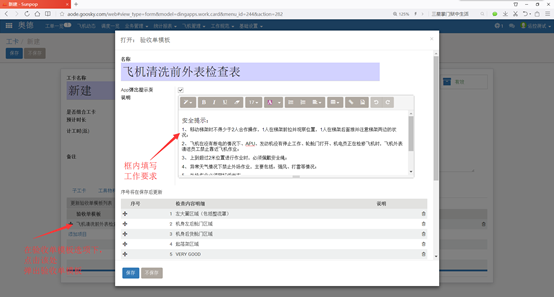
(2) Acceptance Form Templates

You can edit and modify acceptance form templates on this page.
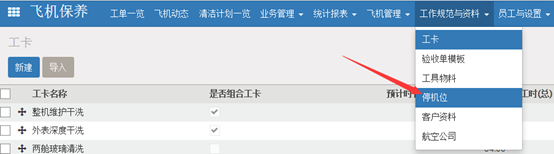
(3) Stand Management
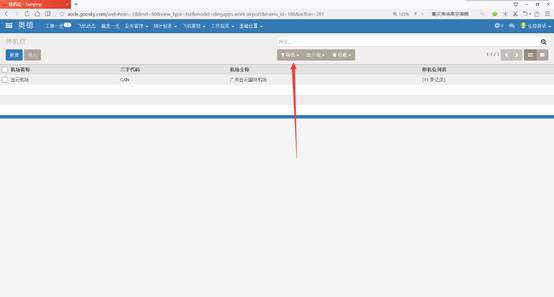
Stand management also has a filtering function
You can create, edit, and modify on your own.
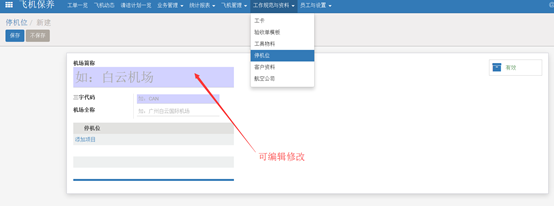
For repeated similar entries, you can use the copy function. After clicking copy, a new window will be automatically generated; modify and edit in the window and then save.
(4) Tools and Materials
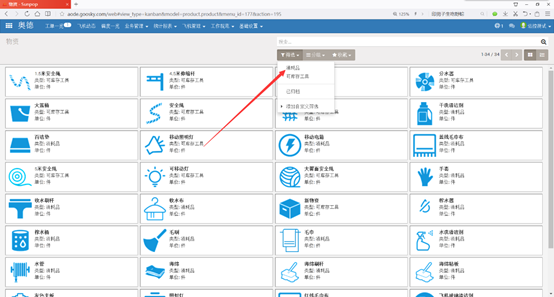
In tools and materials, you can view all materials needed and view them by category: [Consumables] [Stockable Tools]
You can also view by product type grouping and edit the grouping types yourself
You can save the current search mode according to your usage habits
(5) Customer Information
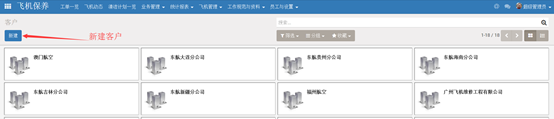
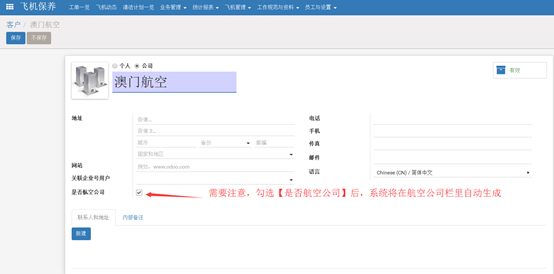
You can enter customer information by creating a new customer
Options with a drop-down arrow can all be created and edited on your own; after creating, just save.
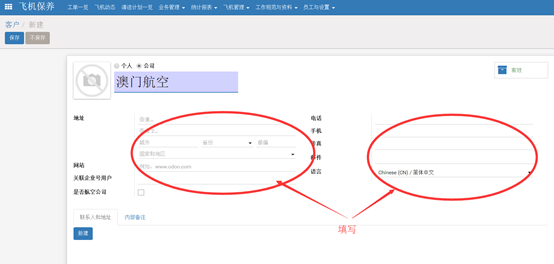
Note: After checking [Is Airline], the system will automatically generate airline information for the customer in the [Airline] field.
(6) Airlines
(For management, see the previous chapter [Customers])
IX. Employees and Settings
(1) Login User Management
See Chapter 2 for how to add and manage system users
(2) Employee Management
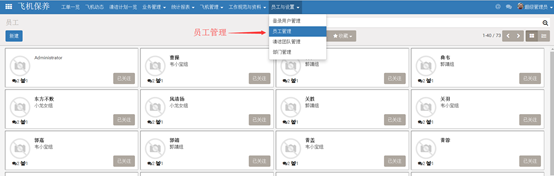
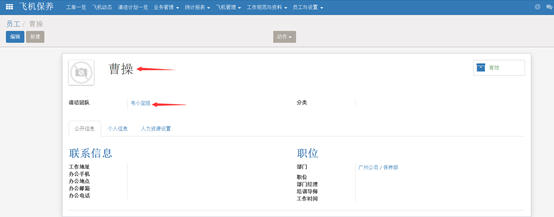
An important feature in employee management is editing employee groups. Click to set which employees belong to which group and who the person in charge is. Click the group name to edit.
(3) Cleaning Team Management
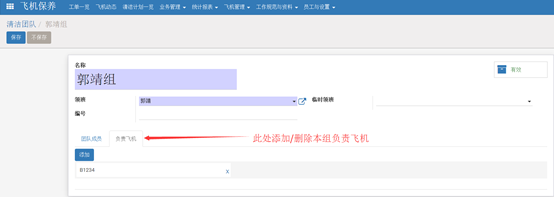
Cleaning management team: you can create new teams or edit existing teams.
In the edit, you can set the supervisor, temporary supervisor, and team members.
In Responsible Aircraft, you can set a specific aircraft that this group is responsible for. After successful setup, when you select that aircraft in the operations of the Work Order List, the system will automatically assign the associated team for cleaning. [See (Work Order List)].
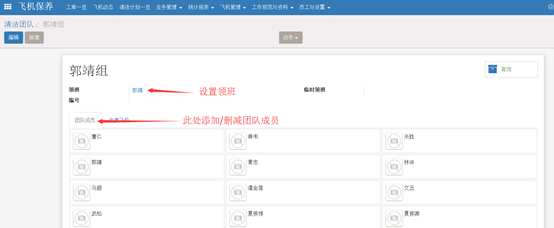
There is an important feature here: Responsible Aircraft—after editing the aircraft that the group is responsible for, when creating a work order, if you select an aircraft type that the group is responsible for, the responsible work group will automatically generate an associated work group. For example, if you select B1234, the responsible group will be automatically assigned to Guo Jing's group unless otherwise assigned.
(4) Department Management
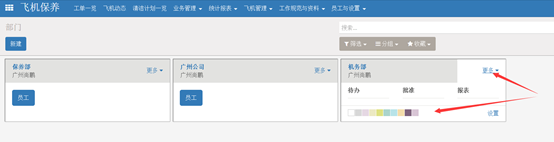
In department management, you can view employee groups and view [To-Do/Approval/Reports]

X. Mobile Operation Guide