An aircraft maintenance and cleaning management App. It fully implements the “APS” management concept of aircraft maintenance to further improve scientific maintenance practices and establish a “scientific, comprehensive, and standardized” maintenance system.
With the Internet+ mindset, by integrating the computer management backend, WeChat enterprise account, DingTalk, and the company's own App, the APS concept of “Arrangements” for production preparation, “Program” for construction procedures, and “Standard” for work standards is fully implemented in on-site production management.
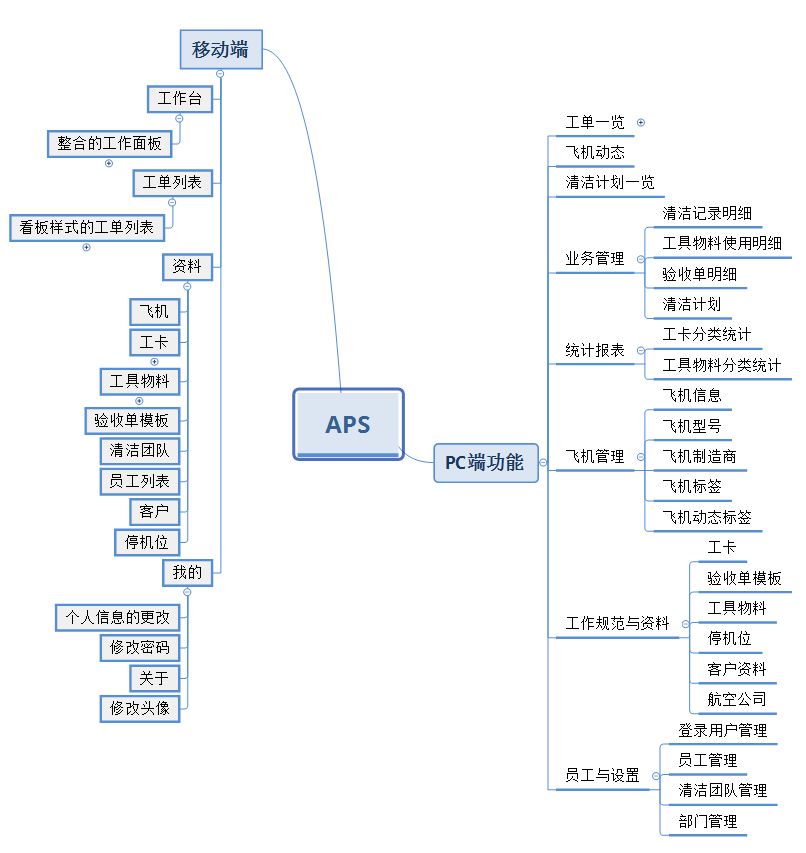
APS Platform Features
Download and Login
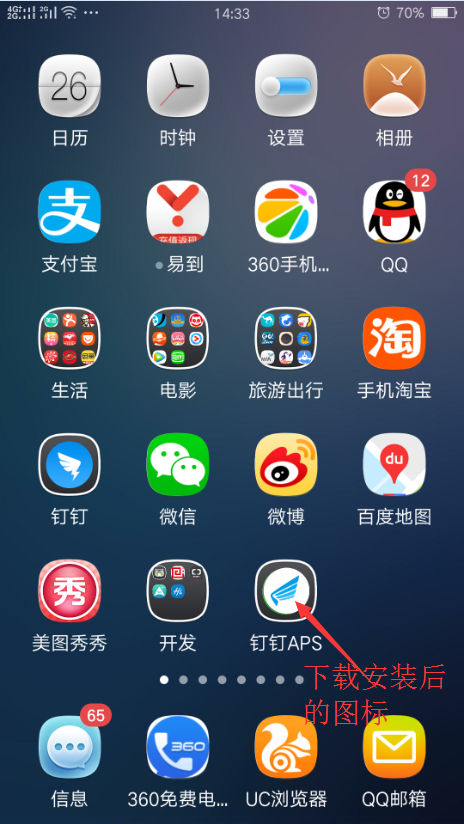
After downloading and installing, the DingTalk APS icon will appear on your phone's home screen. Tap to open the app.
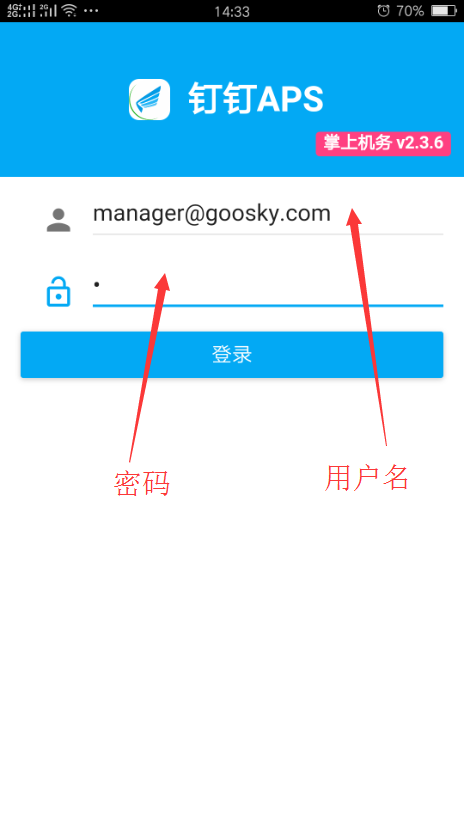
Enter your username and password to log in, as shown in the figure below.
Workbench
Workbench Interface Overview
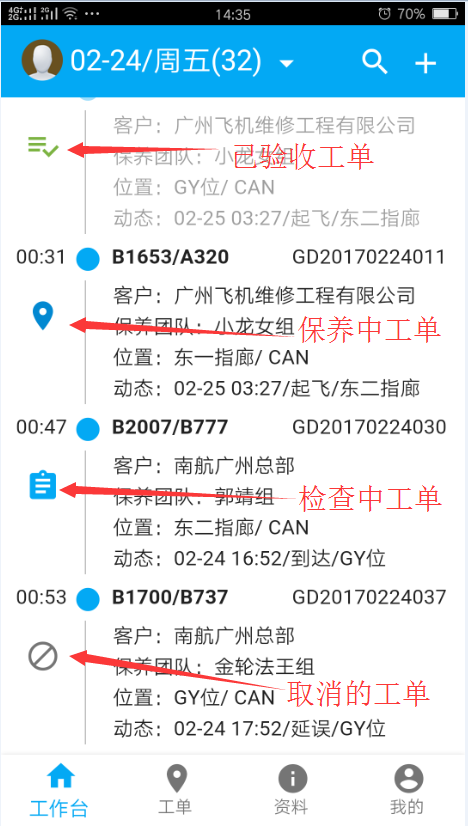
The workbench interface displays all work orders by date, and the date can be manually selected. The work order status can be distinguished by the icons shown in the figure below.
Open Work Order
Work orders can be categorized by status into [Pending Work Orders], [Accepted Work Orders], and [Cancelled Work Orders], as shown in the figure below.
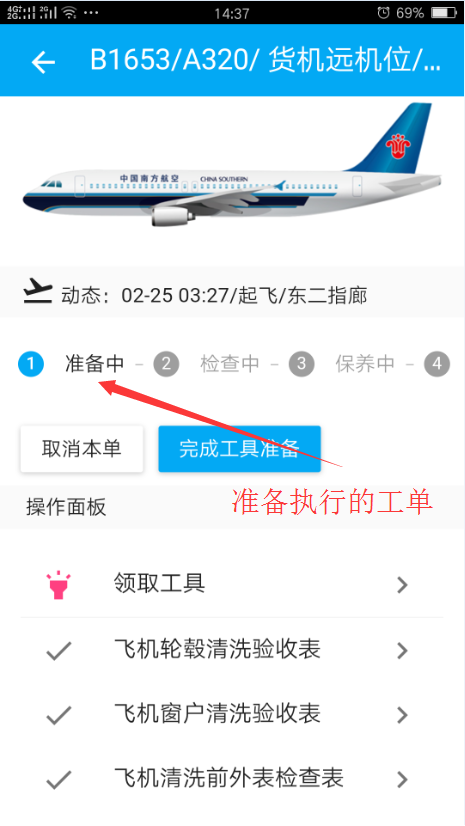
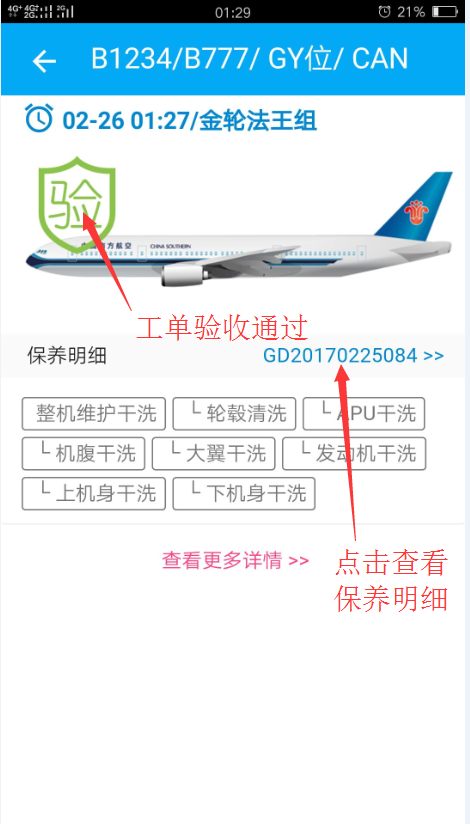
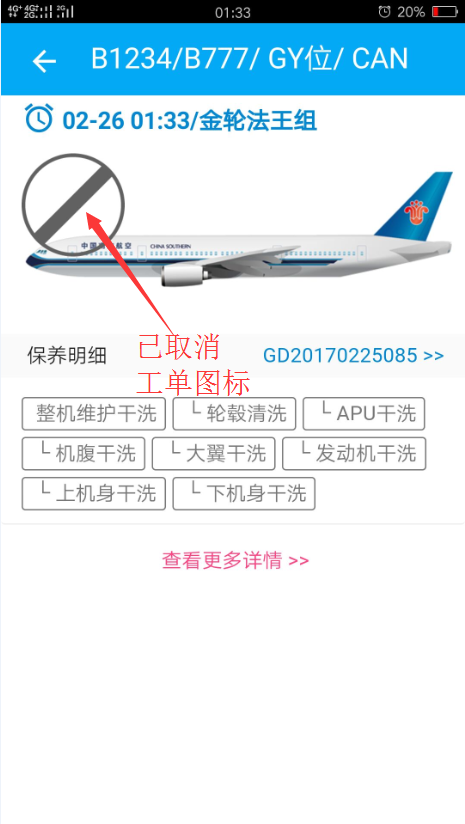
[Work Order] Operation Process
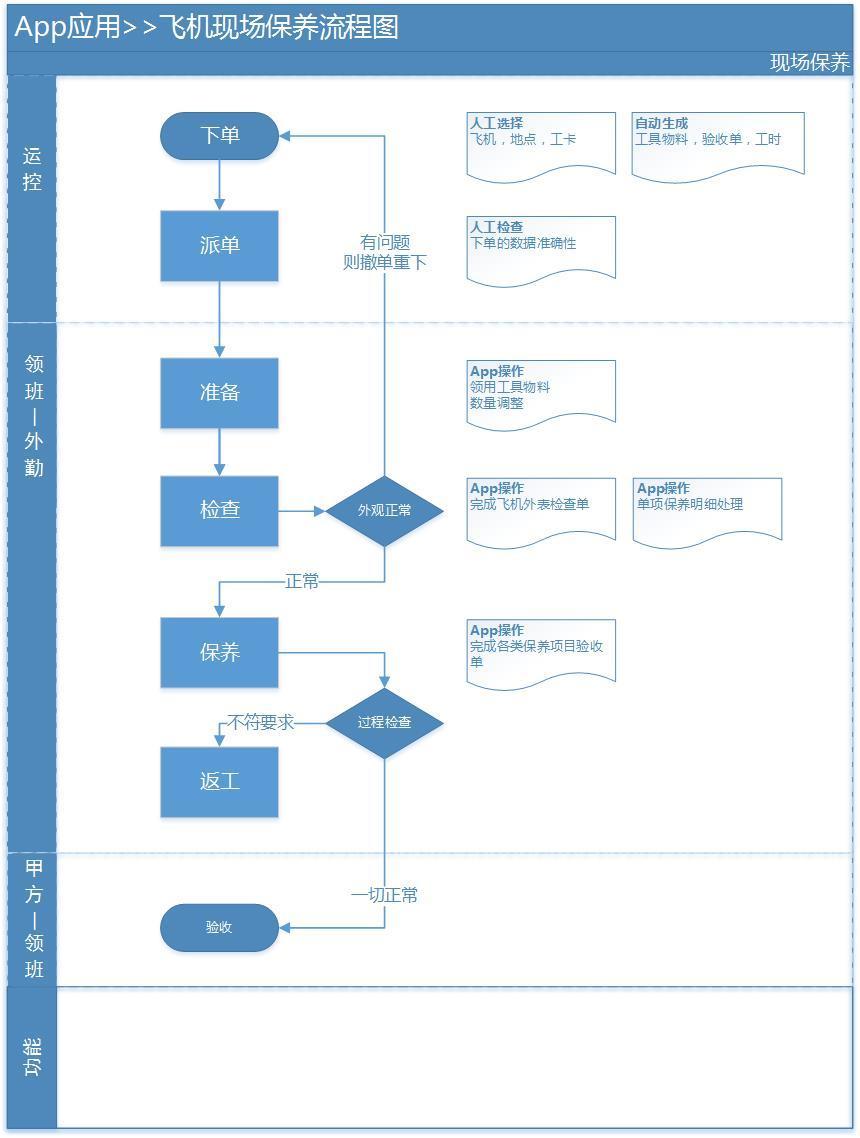
The administrator (i.e., operations control) places orders in the system backend. The main operations for field personnel are:
Preparation -- Inspection -- Maintenance -- (Rework) -- Acceptance
The specific execution process is as follows:
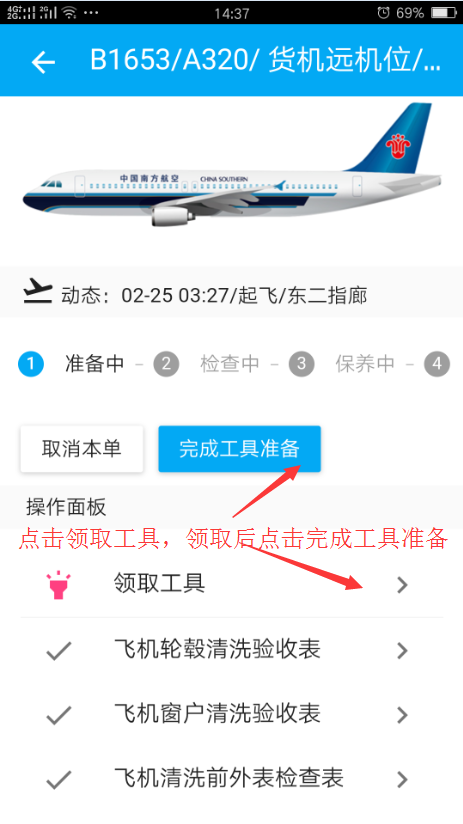
1. Collect tools and click [Complete Tool Preparation]
2. Open the [Aircraft Pre-Cleaning Exterior Inspection Checklist], save and pass
3. Open the work order details page, and in [Maintenance Details], select the items to execute/ignore in the work card
4. Open the relevant acceptance form, perform acceptance according to the executed content, save and pass
5. Open [Tool Inventory], and save after inventory
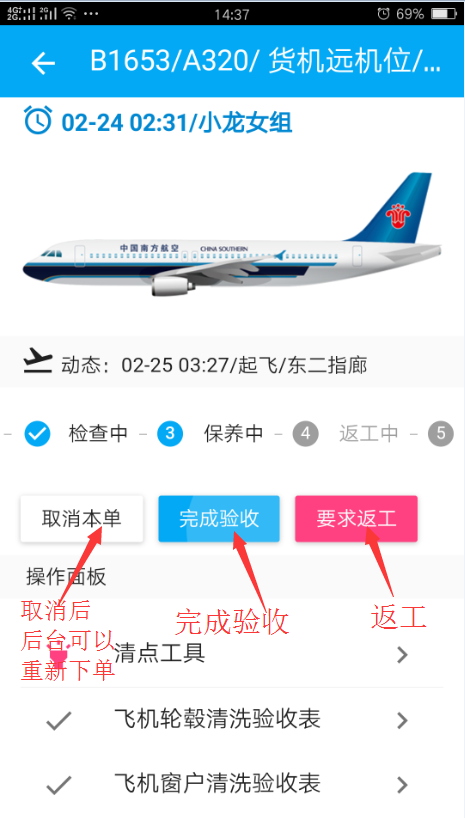
6. If rework is needed, click [Request Rework]; if not, click [Complete Acceptance]. The work order will change to acceptance status.
7. To cancel this order, you can click [Cancel Order] at any stage. After making changes in the backend, you can place a new order.
The following will focus on the operation flow diagram.
Preparation
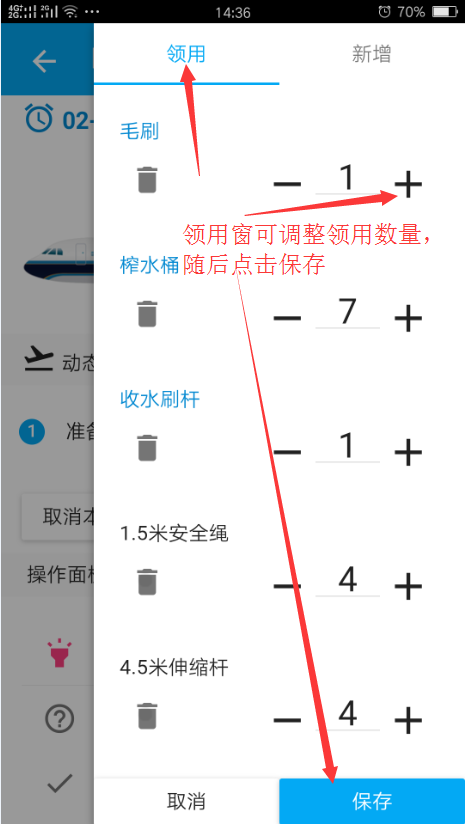
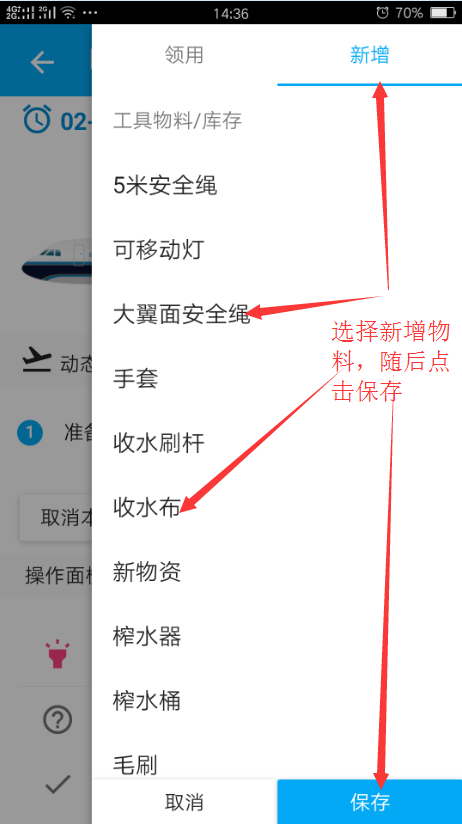
The main preparation task is to complete tool preparation. When placing an order in the backend, the system will automatically generate an estimated tool allocation. The cleaning team can manually adjust the quantity and types on the APP. After receiving the tools, the staff clicks [Complete Tool Preparation].
1. Receive tools
2. Adjust received quantity
3. Select tools to add and their quantities
4. Save
Inspection
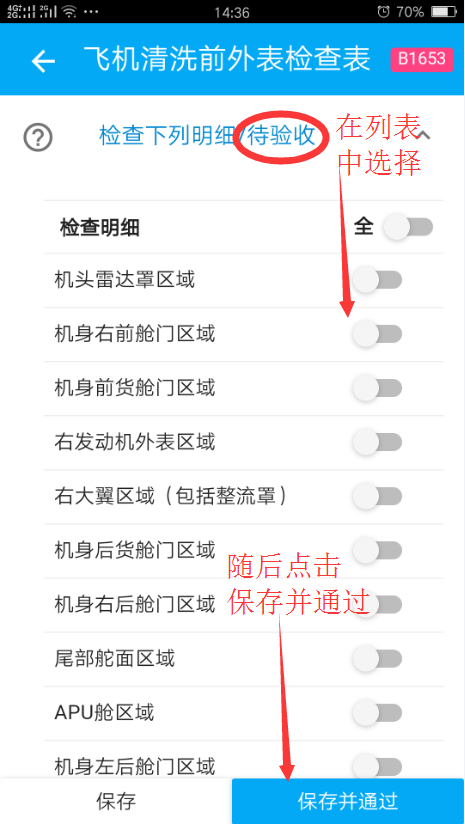
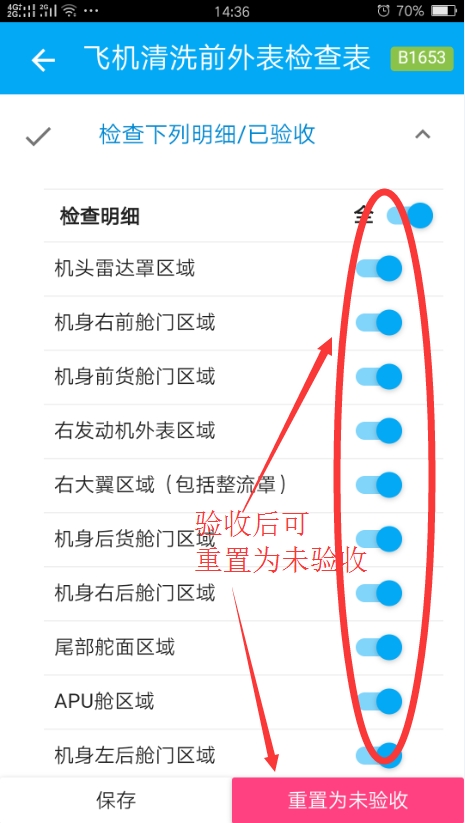
Open the [Aircraft Exterior Inspection Checklist Before Cleaning], inspect, then save and pass.
1. Click [Aircraft Exterior Inspection Checklist Before Cleaning] in the work order.
2. Select inspection items in the list shown below.
3. Save and pass.
Maintenance and Work Order Details
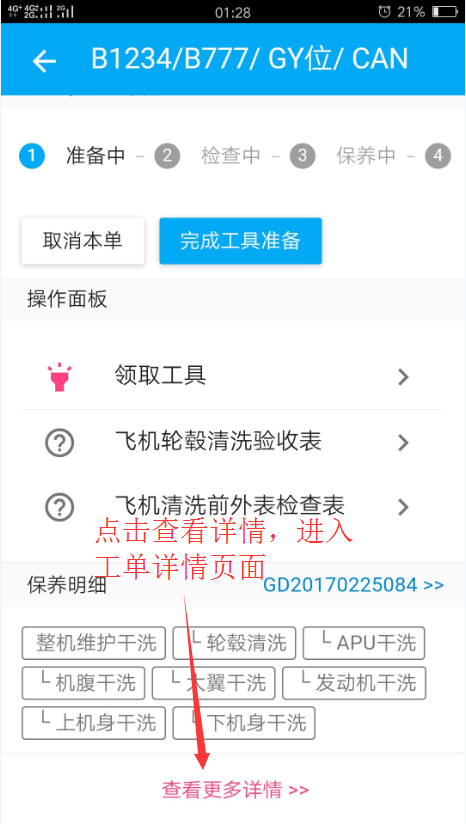
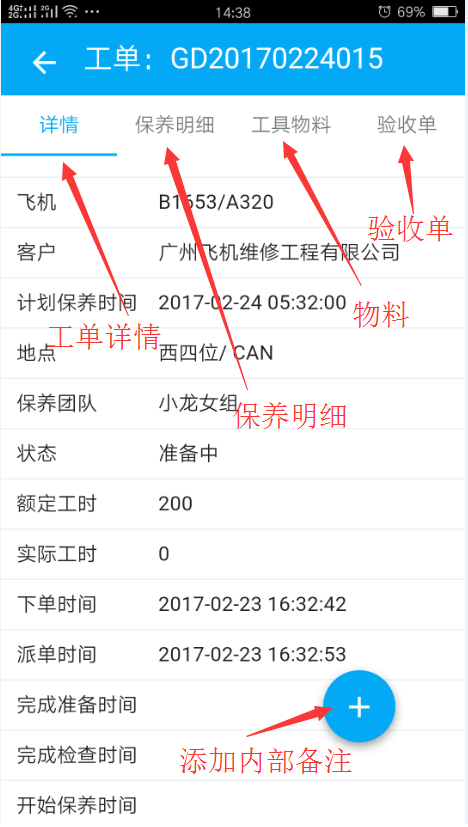
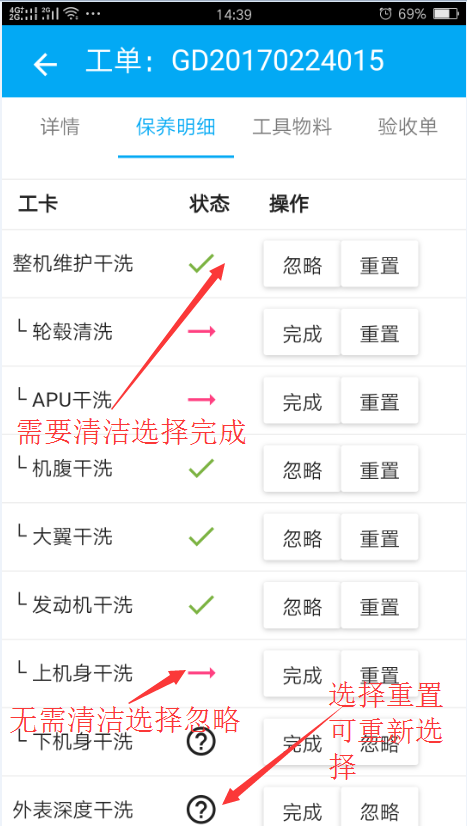
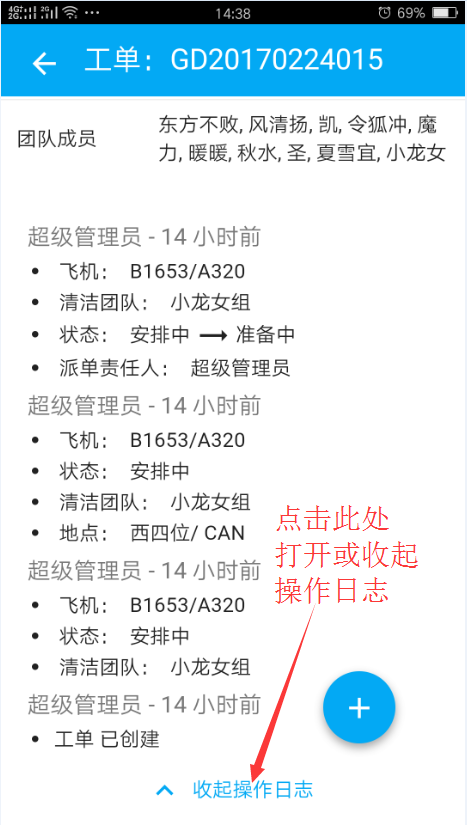
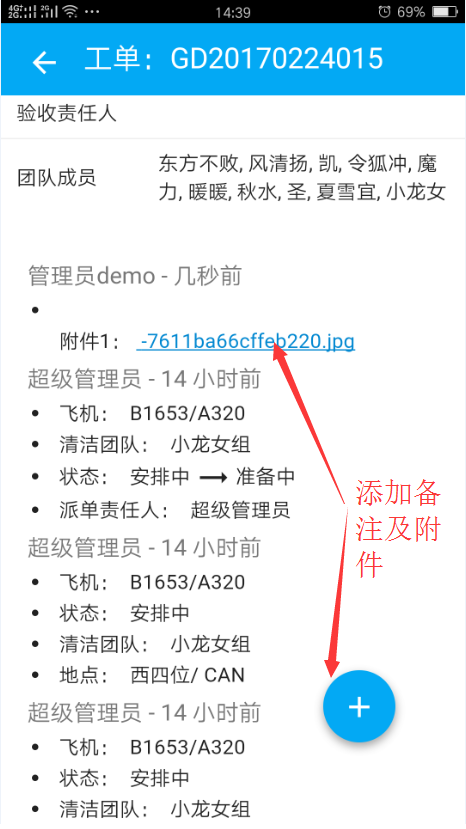
Click [View More Details] to open the work order details page. The work order details are divided into four columns: [Details], [Maintenance Details], [Tools and Materials], [Acceptance Form]. In [Maintenance Details], select the items in the work card that need to be executed or ignored.
Acceptance/Rework
Open the relevant acceptance form, perform acceptance according to the execution content, and save and pass.
During project acceptance, if any project requires rework, the manager can select [Request Rework] until all projects meet the standards, then select [Complete Acceptance]. If no rework is needed, you can directly select [Complete Acceptance]. At this point, the work order status will be updated to Accepted.
If you need to cancel this order, you can directly click [Cancel Order]. After the work order is canceled, the backend operator can reset the work order and re-publish it.

Work Order
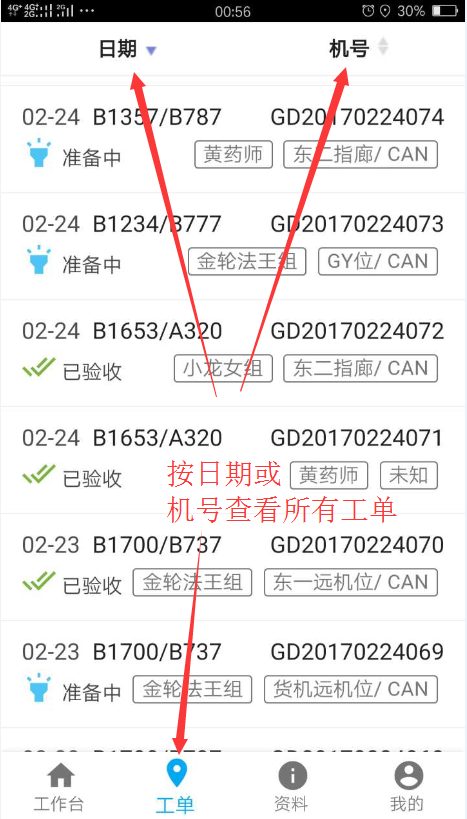
Similar to the workbench, in the [Work Order] column, you can view all work orders by date or aircraft number.
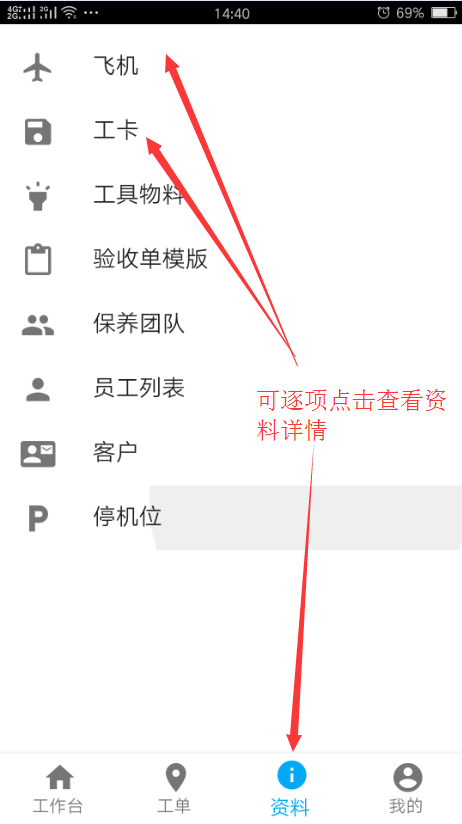
Resources
The Resources section collects the materials shown in the figure below. After clicking to enter, you can click each item to view it.
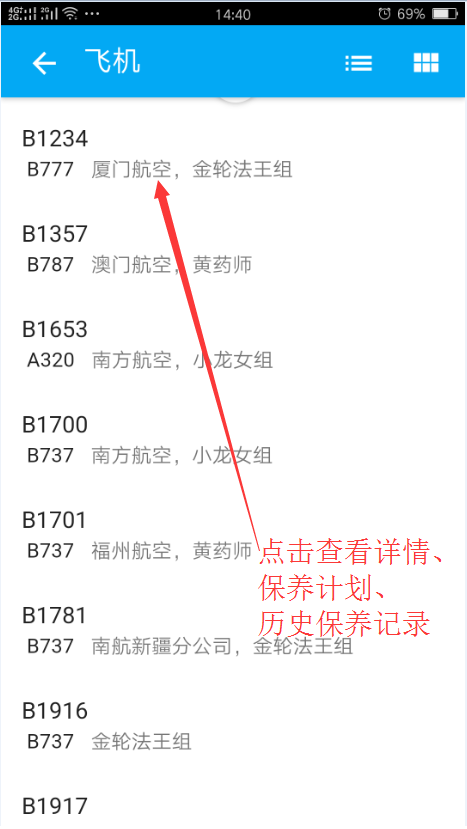
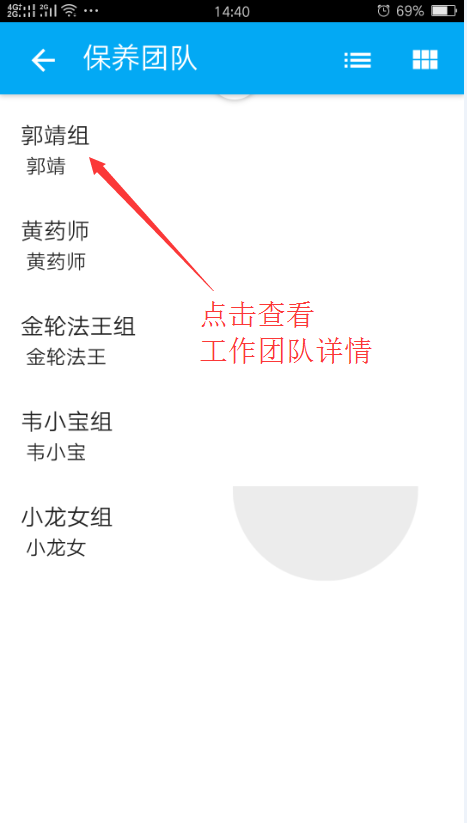
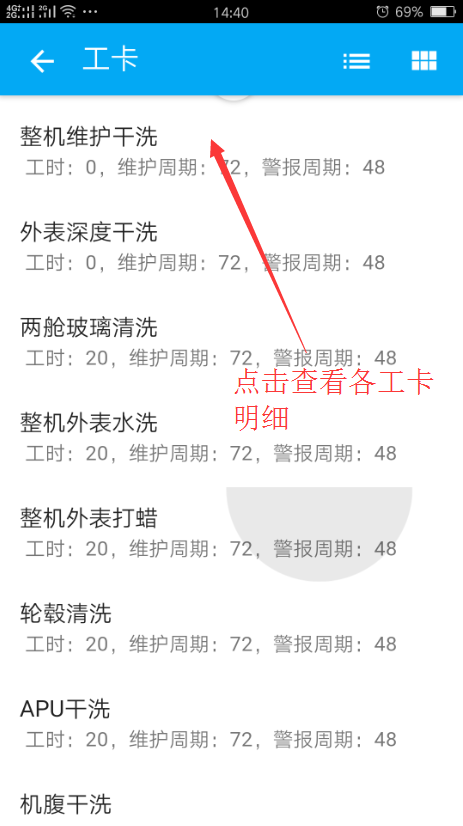
Work cards collects all work cards shown in the figure below, including combined work cards and standalone work cards. After clicking to enter, you can click each item to view it.
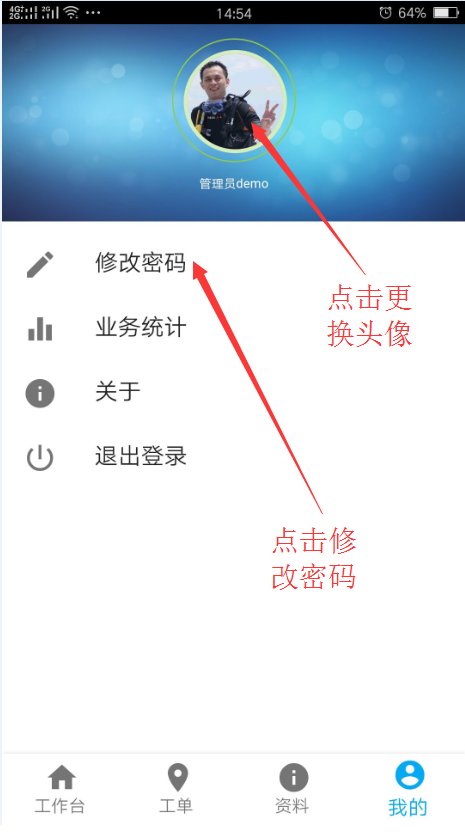
My
You can view [Change Password], [Business Statistics Reports], and [About the Developer]. Click the avatar above to make changes. Click [Log Out] to log out or update the user login.
Demo Address
Try it out directly, and please contact us