Article No. | 10101 |
Textbook Alignment | This article corresponds to Chapter 1 "Overview of International Trade" and Chapter 2 "Basics of International Trade Transactions" of Li Xiaoxian's "International Trade Practice", fully replicating the traditional foreign trade theoretical business process and transforming academic theory into actionable system operation specifications; |
Content Description | The entry tutorial for the entire series, providing a complete explanation of the overall architecture of Odoo Foreign Trade ERP and the AiErp foreign trade-specific initialization configuration, covering module installation, basic parameters, multi-currency, and foreign trade business flow configuration, suitable as a reference for ERP implementation in foreign trade manufacturing enterprises. |
System Platform | The entire practical operation is based on the native architecture of Odoo 18~20 and the foreign trade-specific AiErp intelligent platform—this is currently the only AI+Odoo solution on the market that maps the logic of international trade practice textbooks one-to-one with ERP system operations; |
Implementation Notes | Covers the entire business chain, equipped with AiErp's built-in Documents intelligent document library, achieving automatic archiving of all business documents and document consistency, laying the system configuration foundation for import and export practical operations in subsequent chapters. |
 |
I. Key Theoretical Points of the Textbook
1.1 Business Specificity of Foreign Trade Enterprises
Chapter 1 of Li Xiaoxian's "International Trade Practice" clearly points out that international trade differs from domestic trade in three core characteristics:
- Many foreign-related parties: buyers, sellers, freight forwarders, shipping companies, insurance companies, customs, banks—each link is an independent entity and generates independent documents;
- Multi-currency settlement: Unlike domestic single-currency RMB, foreign trade involves multiple currencies such as USD, EUR, HKD, JPY, and exchange rate fluctuations directly affect profits;
- High cross-border compliance requirements: Import and export commodities must comply with multiple international trade regulations such as rules of origin, customs supervision, inspection and quarantine, and letter of credit rules.
These three characteristics determine that the ERP system of foreign trade enterprises must meet the following core requirements:
| Business Requirement | Corresponding ERP System Capability |
|---|---|
| Multi-party Collaboration | Multi-company architecture, cross-entity business flows |
| Multi-currency settlement | Real-time exchange rate sync, foreign currency quotation, local currency conversion |
| Full-chain document management | Purchase order → receipt → accounts payable; sales order → delivery → accounts receivable; complete two-way traceability |
| Import/export compliance | INCOTERMS trade terms, customs codes, customs declaration linkage, commodity inspection qualifications |
| Accurate cost accounting | Landed cost allocation, freight cost aggregation |
1.2 Core Function Matrix of Foreign Trade ERP
According to the textbook's business flow structure, an ERP system for foreign trade enterprises must cover at least the following seven modules:
[Inquiry/CRM] → [Quotation/Sales Order] → [Export Delivery/Stock Preparation] → [Transportation/Freight Forwarding Management]
                                                        ↓
[Import Purchase Order] → [Landed Cost] → [Receipt Quality Inspection] → [Accounts Payable Settlement]
      ↓
[Financial Accounting] → [Export Tax Rebate] → [Period-End Closing] → [BI Dashboard]
As the world's second-largest open-source ERP, Odoo's core advantage lies in: all modules are natively integrated without the need for secondary integration, and data flows directly from inquiry to finance without manual transfer.
II. Pre-system Configuration
Before starting any foreign trade business operations, the following system initialization configurations must be completed. This is a common prerequisite for the entire series of 86 articles, and it is recommended to complete it all at once before going live.
2.1 List of Required Modules
Log in to the AiErp backend and install the following modules in sequence (path: Settings → Apps → Search and Install):
| Module Name | Function Description | Required/Optional |
|---|---|---|
| Sales Management (Sales) | Inquiries, Quotations, Export Orders | ✅ Required |
| Purchase Management (Purchase) | Import Purchase Orders, Supplier Management | ✅ Required |
| Inventory Management (Inventory) | Inbound/Outbound, Multi-step Picking, Batch/Serial Numbers | ✅ Required |
| Accounting (Accounting) | Foreign Currency Ledger, Multi-currency, Invoices | ✅ Required |
| Contacts (Contacts) | Customer, Supplier, Overseas Entity Management | ✅ Required |
| Foreign Trade Landed Cost | Landed Cost Allocation | ✅ Required |
| Electronic Signature (Sign) | Online Contract Signing | ✅ Required |
| Documents Library | Automatic Archiving of Foreign Trade Documents | ✅ Required |
| CRM Customer Management | Inquiry, Lead, Opportunity Tracking | Optional (for overseas marketing needs) |
| Website/E-commerce (Website) | Independent Cross-border Online Store | Optional (for B2C business) |
| Quality Management (Quality) | Incoming Inspection for Imports | Optional (mandatory for manufacturing) |
| Manufacturing (MRP) | Production Planning for Export Products | Optional (for manufacturing foreign trade enterprises) |

2.2 Global Parameter Configuration for Foreign Trade
After module installation, configure global parameters (path: Settings → Technical Parameters / Sales Settings / Purchase Settings):
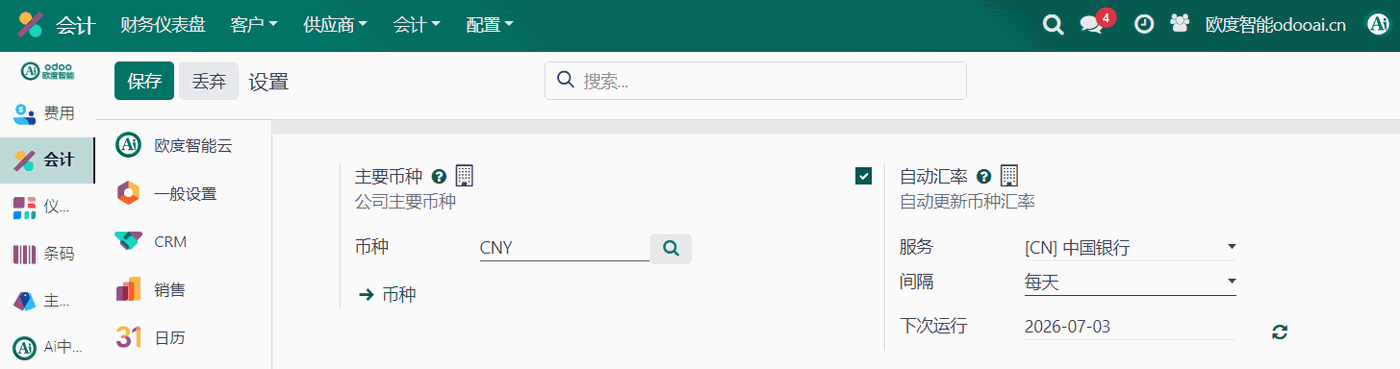
① Enable Multi-Currency
Path: Accounting → Configuration → Currencies
- Enable required foreign currencies (USD, EUR, HKD, JPY, etc.)
- Set exchange rate update method: recommended "Automatic Update (European Central Bank/People's Bank of China)"
- Set base currency (usually CNY)
⚠️ Important: Multi-currency must be enabled before any foreign currency transactions; otherwise, foreign currency quotations cannot be created.
② Sales/Purchase Foreign Currency Settings
Path: Sales → Configuration → Settings
- Check "Pricelists" → Allow multi-currency pricing
- Check "Lock Confirmed Sales Orders" (prevent modification after confirmation)
- Check "Delivery Lead Time" (delivery time control)
Path: Purchasing → Configuration → Settings
- Enable "Purchase Order Approval" (amounts exceeding threshold require supervisor approval)
- Enable "Purchase Lock"
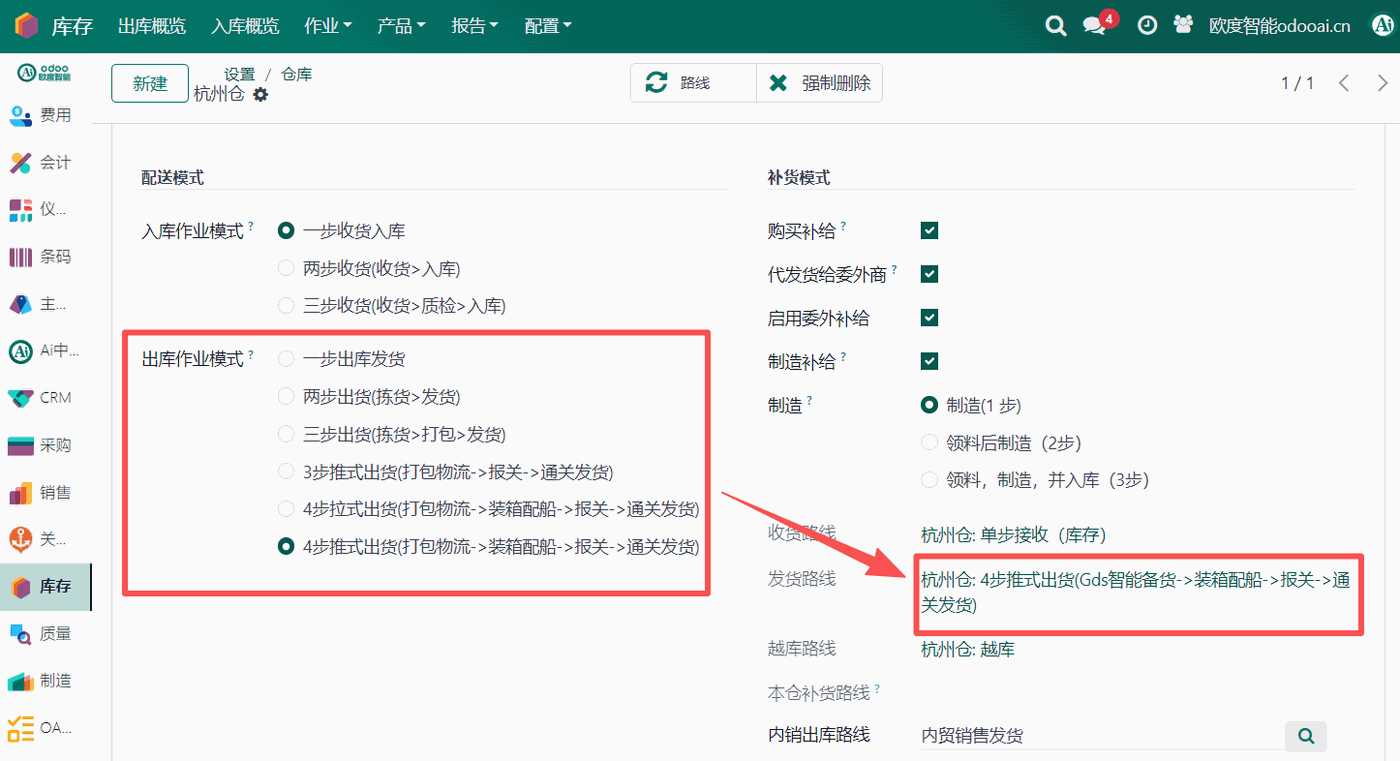
③ Inventory Multi-Step Operation Configuration
Path: Inventory → Configuration → Warehouses
- Outbound route: set to "2 steps (Pick + Ship)" or "3 steps (Pick + Pack + Ship)"
- Inbound route: set to "2 steps (Receive + Store)"
Foreign trade companies typically choose 3-step outbound to easily verify that packing list and customs declaration quantities match.
④ Enable Lot/Serial Number Tracking
Path: Inventory → Configuration → Settings
- Check "Track Lots"
- Check "Track Serial Numbers"
Foreign trade goods often need to be exported by lot, and compliance requires lot numbers to correspond one-to-one with customs declarations.
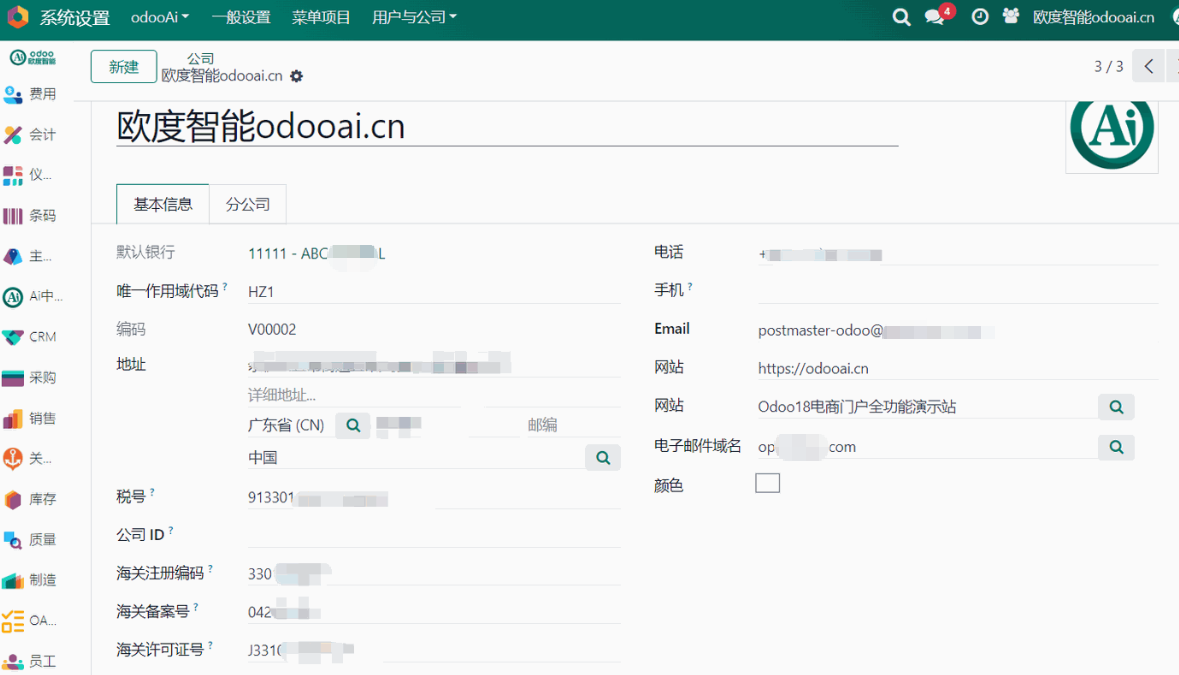
2.3 Company Basic Information Configuration
Path: Settings → Companies
Required fields:
| Field | Description |
|---|---|
| Company Full Name | Must match business license, used for invoice header |
| Unified Social Credit Code | Required for customs declaration and invoicing |
| VAT Number | If you have foreign trade qualification, fill in the customs import and export enterprise code |
| Company Logo | Used to automatically generate quotation, contract, and invoice PDFs |
| Default Currency | Chinese Yuan (CNY) |
| Fiscal Year Start Month | Usually January |
III. AiErp Step-by-Step Guide: Complete Initialization Process for Foreign Trade
3.1 Step 1: Install Foreign Trade Exclusive Module Package
AiErp, built on native Odoo, comes with pre-installed foreign trade exclusive feature packages, including:
- AiErp Foreign Trade Document Library: Automatically links customs declaration, bill of lading, packing list, and invoice
- AiErp Smart INCOTERMS Control: Automatically prompts trade terms and cost demarcation points
- AiErp Exchange Rate Risk Alert: Automatically triggers alerts when thresholds are exceeded
- AiErp Export Tax Rebate Assistant: Automatically captures sales order and invoice data to generate tax rebate ledger
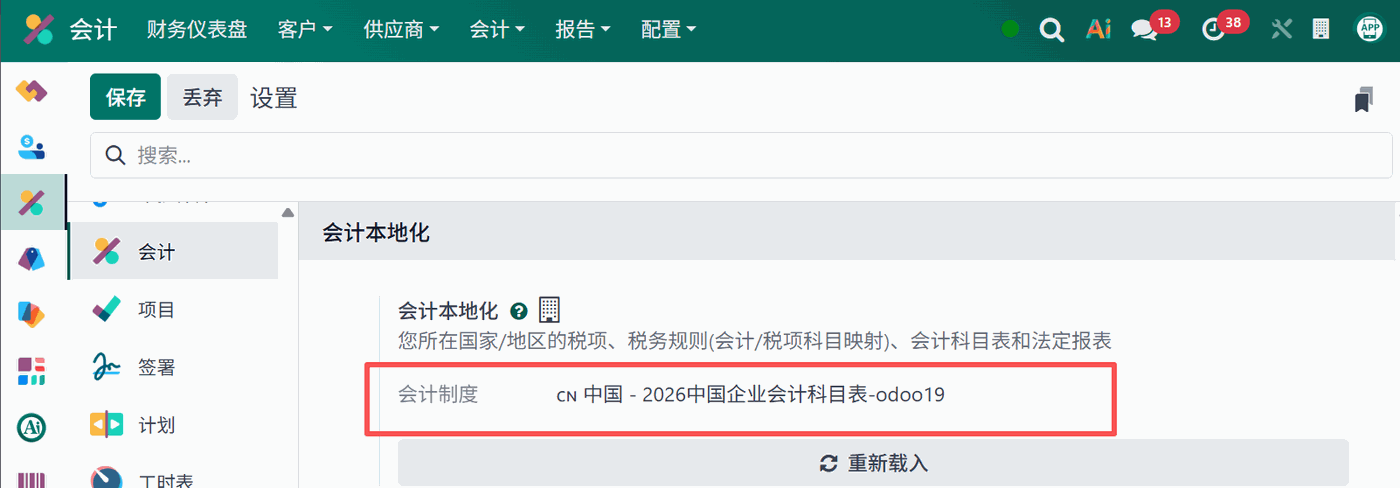
- AiErp Chinese Standard Chart of Accounts: odooAi's free and open-source exclusive Chinese chart of accounts, suitable for most import and export scenarios; for additional industry business and special requirements, see the subsequent finance section
Installation path:Settings → AiErp Foreign Trade Suite → One-Click Full Installation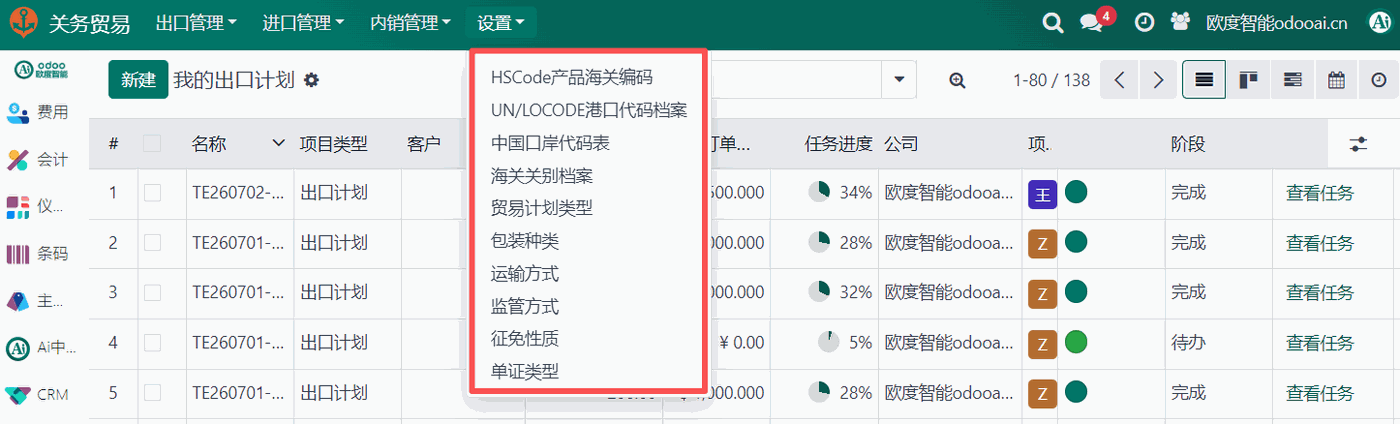
Note: After installation, set up the chart of accounts as follows
3.2 Step 2: Configure Foreign Trade User Permission Groups
Path: Settings → Users & Companies → Users
For foreign trade enterprises, it is recommended to configure the following role permission groups:
| Role | Permission Modules | Permission level |
|---|---|---|
| Foreign Trade Salesperson | Sales, CRM, Inventory (View) | Regular User |
| Purchasing Specialist | Purchasing, Inventory (View) | Regular User |
| Merchandiser/Freight Forwarder | Inventory (Full), Documents | Regular User |
| Finance Specialist | Accounting (Full), Sales (View) | Finance User |
| Business Manager | Sales, Purchasing (Approval Rights) | Administrator |
| System Administrator | All Modules | Super Administrator |
⚠️ It is recommended to assign a separate account to each foreign trade salesperson, making it easier to track performance and commissions by salesperson later.
3.3 Step 3: Configure Foreign Trade-Specific Sequence Rules
Path: Settings → Technical → Sequences
Foreign trade companies are advised to configure separate sequence rules for the following document types:
| Document Type | Suggested Prefix | Example |
|---|---|---|
| Export Quotation | QT/ | QT/2026/00001 |
| Export Order | SO/ | SO/2026/00001 |
| Purchase Order | PO/ | PO/2026/00001 |
| Export Invoice | INV/EX/ | INV/EX/2026/00001 |
| Import Bill | BILL/IM/ | BILL/IM/2026/00001 |
Standardized sequence numbers that correspond to customs declaration and bill of lading numbers are an important basis for post-audit inspections.
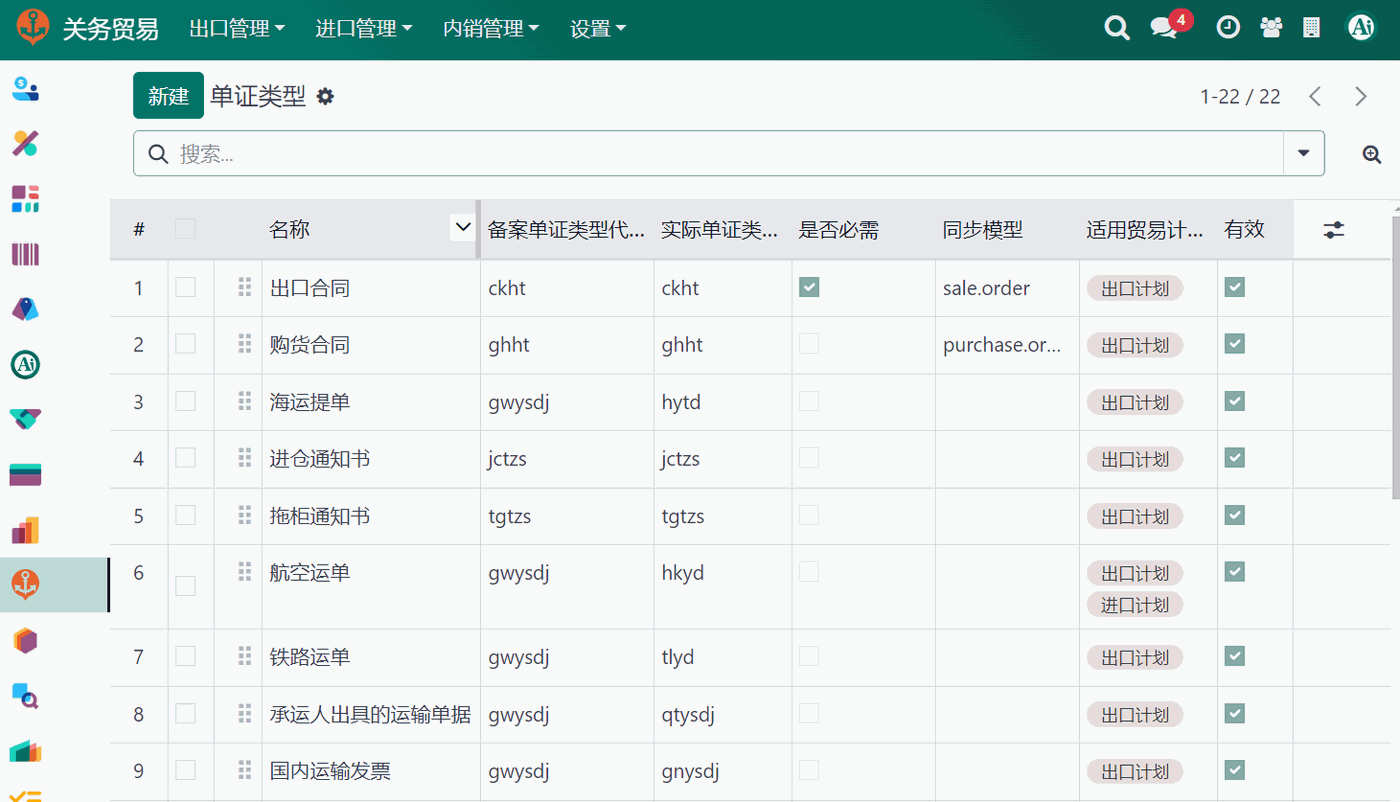
3.4 Step 4: Configure the Documents Foreign Trade Document Library
Path: Documents → New Workspace
It is recommended to create a corresponding document directory for each foreign trade transaction:
Foreign Trade Document Library/
├── Export Business/
│   ├── Contract/
│   ├── Packing List/
│   ├── Bill of Lading/
│   ├── Commercial Invoice/
│   └── Customs Declaration/
└── Import Business/
    ├── Purchase Contract/
    ├── Bill of Lading/
    ├── Customs Declaration/
    ├── VAT Special Invoice/
    └── Commodity Inspection Report/
AiErp supports directly linking documents on the sales order/purchase order detail page to achieve document-to-document consistency verification.
3.5 Step 5: Configure Automated Voucher Rules (Financial Automation Bridge)
Path: Accounting → Configuration → Automated Entry Rules
This is the core of AiErp's foreign trade efficiency:
| Trigger Event | Automatically Generate Voucher |
|---|---|
| Export Invoice Confirmation | Debit: Accounts Receivable (Foreign Currency); Credit: Main Business Revenue |
| Import Bill Confirmation | Debit: Prepaid Accounts (Foreign Currency); Credit: Accounts Payable |
| Foreign Currency Receipt Matching | Automatically calculate exchange differences and generate exchange gain/loss vouchers |
| Month-End Closing | Automatic foreign currency revaluation for foreign currency accounts |
This feature frees finance personnel from manual voucher entry, with the entire process automated by the system.
IV. Key Pitfalls to Avoid in the Foreign Trade Industry
❌ Pitfall 1: Incorrect module installation order leads to data association failure
Problem Description: Some implementation teams install the accounting module first and then the sales module, resulting in the separation of accounting subjects from sales operations, requiring manual re-mapping.
Correct Approach: Install in the following order—
1. Contacts → 2. Accounting → 3. Inventory → 4. Purchasing → 5. Sales → 6. Landed Cost → 7. CRM (Optional)
After installation, run the data consistency check (path: Settings → Technical → Automated Actions → Data Validation) to confirm there is no orphaned data.
❌ Pitfall 2: Entering foreign currency quotations before enabling multi-currency
Problem description: The system defaults to single-currency mode. If you create a USD quotation without enabling multi-currency, the system will forcibly convert the USD price to CNY at a 1:1 ratio, resulting in incorrect amounts.
Correct approach: Before entering the first foreign trade transaction, you must first enable all foreign currencies in Accounting → Currencies and set the exchange rate update source.
❌ Pitfall 3: Incorrect company VAT number affects customs declaration
Problem description: In Odoo, the company's VAT number is automatically included in export invoices. If entered incorrectly, the generated export invoice header will not meet customs system requirements and cannot be matched during tax refund.
Correct approach: Enter the import/export enterprise code registered with customs as the company VAT number, in the format of an 18-digit unified social credit code. After configuration, print a test quotation and verify the header information.
❌ Pitfall 4: Failure to configure multi-step inventory leads to mismatch between packing list and delivery order quantities
Problem description: Using the default 1-step delivery, the system delivers directly without a packing step, so packing lists and carton number information cannot be generated, causing discrepancies with the customs declaration.
Correct approach: Export business must be configured with 3-step delivery (pick → pack → ship). The packing list generated in the packing step corresponds one-to-one with the customs declaration.
❌ Pitfall 5: Ignoring Documents library configuration, causing documents to be scattered
Problem description: There are many types of foreign trade documents (contracts, bills of lading, customs declarations, VAT invoices, etc.). If not archived uniformly, it will be difficult to find them during tax refund audits, and document consistency verification cannot be achieved.
Correct approach: Plan the document library directory structure before going live, and require salespeople to upload documents and link them to the corresponding orders during each business operation. It is recommended to set a reminder rule: the bill of lading must be uploaded within 3 days after order shipment, otherwise a system reminder will be triggered.
V. FAQ – Frequently Asked Questions
Q: How many foreign trade business models does Odoo support?
A: It supports general trade (self-operated import and export), agency export, consignment trade, countertrade, etc. It should be used in conjunction with the special business process configuration section in Chapter 4.
Q: What is the difference between AiErp and standard Odoo?
A: Standard Odoo provides the underlying framework, while AiErp has deeply customized foreign trade-specific functions on top of it, such as a foreign trade document library, INCOTERMS control, exchange rate risk alerts, and tax exemption, credit, and refund assistance. It also includes an AI assistant based on DeepSeek / Kimi to enable document recognition, automatic archiving, and intelligent reconciliation.
Q: How many legal entities does a foreign trade enterprise need in the system?
A: A domestic trading company + a Hong Kong offshore company + an overseas procurement company is a common three-entity structure. Odoo's multi-company module natively supports this. For details, see the dedicated multi-company configuration article in Chapter 1, Article 6 (11106).
Related Chapters
- Previous:Odoo International Trade Practice - General Introduction - Overall ERP Architecture for Foreign Trade Enterprises and Exclusive Initial Configuration (10101)
- Next: Odoo International Trade Practice - General Introduction - Standardized Implementation and Business Control of INCOTERMS 2020 Trade Terms (10102)
- Related Business Chapter:Odoo International Trade Practice - Export Business - Full Process of Export Contracts and Document Management (10201) — Practical Implementation of Terms in Contracts
- Related Finance Chapter:Odoo Foreign Trade Accounting Practice - Export Receivables - Revenue Recognition and Settlement by Terms (10701) — Revenue Recognition Timing under Different Terms
| Direction | Number | Title |
|---|---|---|
| ➡️ Next | [11102](../11102/) | Odoo International Trade Practice - General Introduction - Standardized Implementation and Business Control of INCOTERMS 2020 Trade Terms |
| ➡️ Next | [11103](../11103/) | Odoo International Trade Practice - General Introduction - Establishment of Parameter System for Overseas Customers, Suppliers, Currencies, Customs and Ports |
| 🔗 Finance Related | [11601](../../11601/) | Odoo Foreign Trade Accounting Practice - Financial Infrastructure Initialization - Financial Module Installation, Foreign Trade Account Set Parameters and Accounting Account System Setup |
| 🔗 Multi-company Configuration | [11106](../11106/) | Odoo International Trade Practice - General Introduction - Multi-company Architecture Configuration, Cross-entity Business Collaboration and Data Isolation for Foreign Trade Groups |
Supporting Materials
Foreign Trade ERP Initial Configuration Checklist
| Configuration Item | Completed | Remarks |
|---|---|---|
| All required modules installed | ☐ | |
| Multi-currency enabled, exchange rates auto-updated | ☐ | |
| Company information filled in, VAT number correct | ☐ | |
| 3-step inventory outgoing configured | ☐ | |
| Lot/Serial number traceability enabled | ☐ | |
| User access groups configured by role | ☐ | |
| Document sequence rules configured | ☐ | |
| Documents library directory established | ☐ | |
| Financial automation bridge rules configured | ☐ | |
| AiErp foreign trade exclusive module package installed | ☐ |
After complete configuration, it is recommended to enter a test transaction (inquiry → quotation → order → delivery → invoicing → payment) to verify the entire process flows correctly before going live.
This article is Part 1, Chapter 1 of the "Odoo International Trade Practice" series. The full series of 86 articles covers the complete business chain of international trade practice and foreign trade accounting practice.
System demo and implementation consultation:odooai.cn | Foreign Trade Plugin Marketplace:odooapp.cn