Smart manufacturing refers to manufacturing enterprises using information and communication technologies to highly interconnect all information infrastructure in the factory (including smart manufacturing equipment, operators, materials, semi-finished products, and finished products), using computer software tools to achieve digital simulation design of products and rapid physical "virtual" realization, using production management software to achieve digital management of the entire product lifecycle and the entire manufacturing process, and using the Internet, cloud computing, and big data to achieve collaborative production among value chain enterprises, intelligent remote product maintenance services, and more, thereby forming a new production model of highly flexible, large-scale personalized products and services.

In the second half of 2024, the launch of Odoo 18 quickly made it a highly popular open-source solution. As the most comprehensive lightweight production management software, Odoo integrates all the applications needed for smart manufacturing, including MRP, MES, PLM, quality control and inspection, shop floor management, and maintenance. A single open-source platform meets all your needs. Odoo 18 helps manufacturing enterprises rapidly achieve digital transformation, reduce costs and increase efficiency, and move toward Industry 4.0.
Odoo 18 Smart Manufacturing Series Articles
- Manufacturing Basic Settings (2025.01.09)
- Manufacturing Advanced Configuration (2025.01.24)
- Manufacturing Workflow
- Smart Factory Shop Floor Management
- Outsourcing and Subcontracting
- Reports
- Barcode Setup and Application
- Quality Check Setup and Application
- PLM Product Lifecycle
- Production Equipment Maintenance
Common Glossary
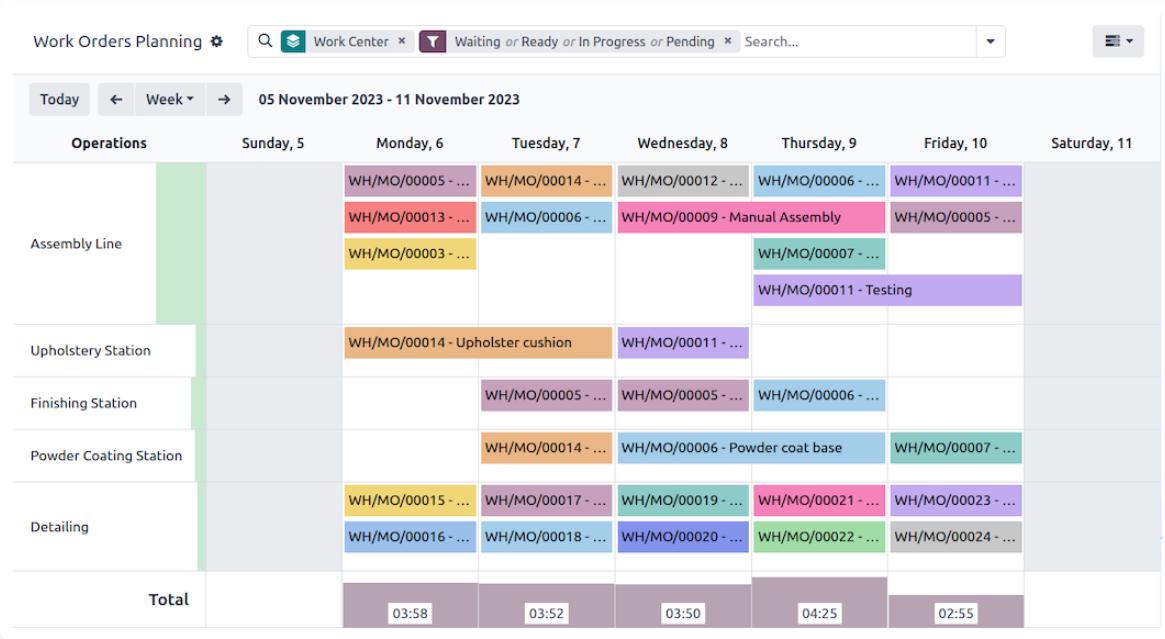
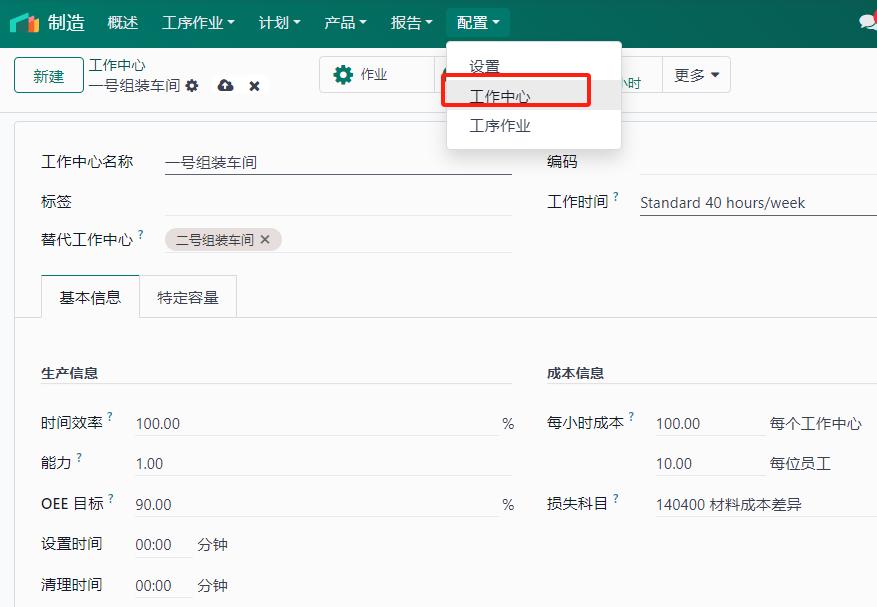
1. [Work Center Name]: Used to distinguish different work centers. The name must be entered and must be unique. |
2. [Alternative Work Center]: Used to replace the above work center (when the current work center is unavailable, the alternative work center can be used to replace the original work center for production). |
3. [Code]: Used to uniquely identify the work center. Duplicates are not allowed. |
4. [Working Hours]: Used to calculate hourly costs. |
5. [Company]: Select which company this work center applies to. |
6. [Time Efficiency]: This field is used to calculate the expected duration of work orders for this work center. For example, if the standard time for a work order is 100 minutes and the time efficiency is 100%, the expected duration will be 100 minutes; if the time efficiency is 80%, the expected duration will be 125 minutes. |
7. [Capacity]: The parallel processing capability of the work center. For example, if set to 2, it means that 2 work centers can process simultaneously. |
8. [Overall Equipment Effectiveness (OEE Target)]: The target value for overall equipment effectiveness. |
9. [Setup Time]: The preparation time required before processing an operation, such as time for starting the machine, equipment warm-up, etc. |
10. [Cleanup Time]: The time after the operation is completed, such as time for turning off the machine, cleaning the equipment table, etc. |
11. [Cost per Hour]: The cost per hour for this work center. |
12. [Expense Account]: Associates the incurred expense costs with specific accounts for future data analysis. |
13. [Allowed Employees]: You can select specific employees to log in to the work center. If left blank, all employees can log in to the work center. |
14. [Description]: Some descriptive information about the work center, which can be entered freely. |
1. Basic Manufacturing Settings
1.1. Manufacturing Product Configuration
To manufacture a product in Odoo Manufacturing, the product must be properly configured. This includes enabling the *Manufacture* route and configuring a Bill of Materials (BoM) for the product. Once these steps are completed, the product can be selected when creating a new manufacturing order.
1.1.1. Activate the Manufacturing Route
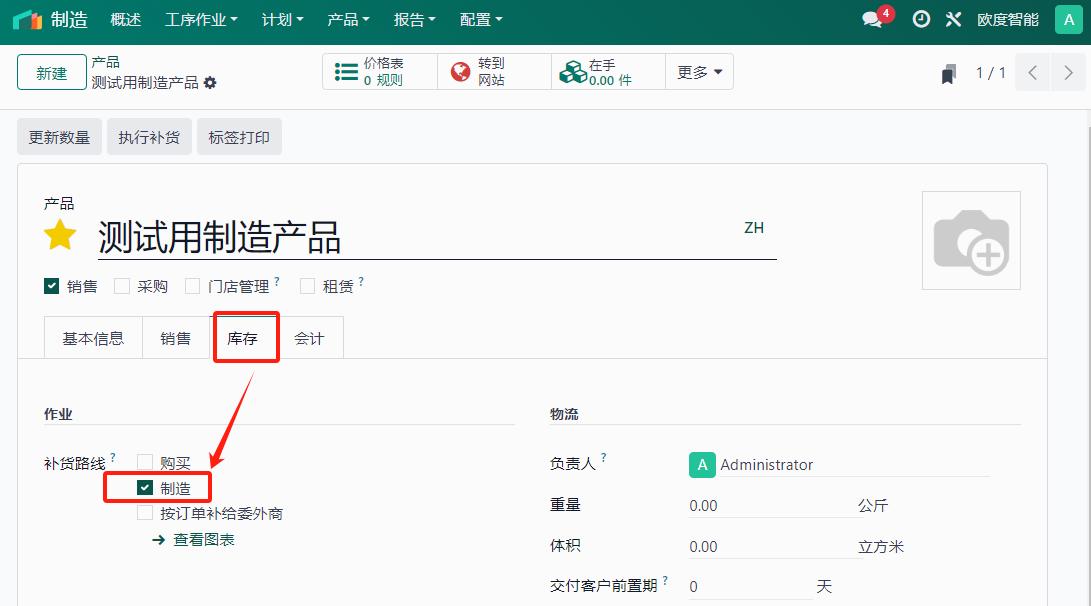
The "Manufacture" route can be activated on the product page of each product. To do this, first navigate to Manufacturing ‣ Products ‣ Products. Then, select an existing product or click New to create a new product.
On the product page, select the Inventory tab, then enable the Manufacture checkbox in the Routes section. This tells Odoo that the product can be manufactured.
1.1.2. Lot/Serial Number Tracking
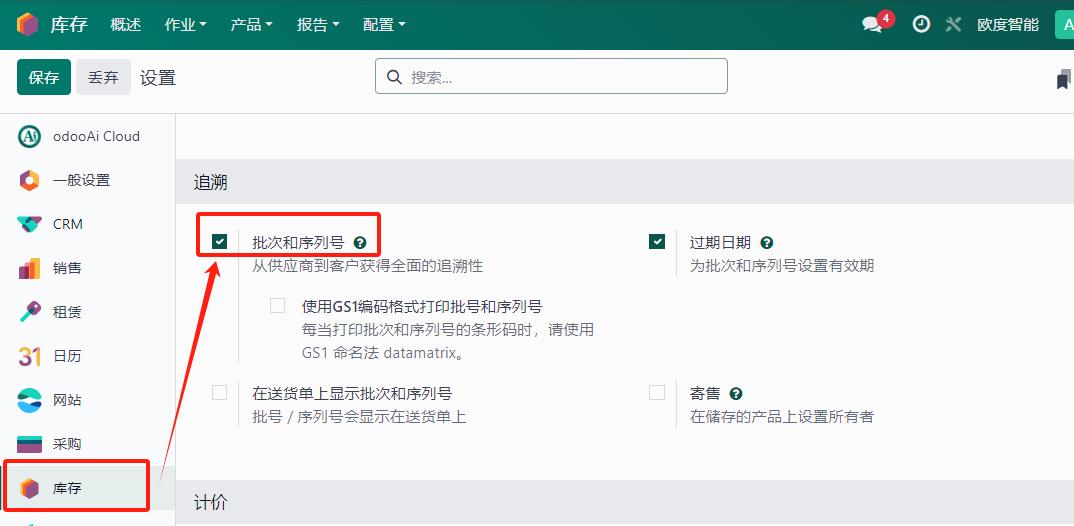
Assigning lot or serial numbers to newly manufactured products is optional. To assign lot or serial numbers to newly manufactured products, go to the "Traceability" section in the "Inventory" tab. In the "Tracking" field, select "By Unique Serial Number" or "By Lots". Doing so enables the lot/serial number field on manufacturing orders, or enables registering production instructions on work order cards in the Shop Floor app.
1.2. Configure Bill of Materials (BoM)
Next, a BoM must be configured for the product so that Odoo knows how the product is produced. A BOM is a list of components and operations required to produce a product.
To create a BoM for a specific product, navigate to :menuselection:Manufacturing --> Products --> Products, then select the product. On the product page, click the Bill of Materials smart button at the top of the page, then select New to configure a new BoM.

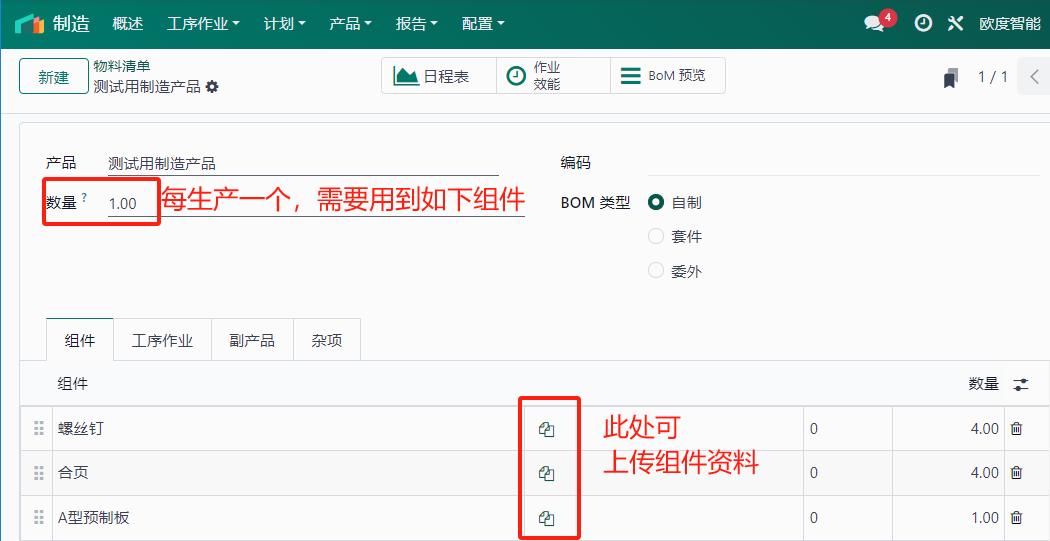
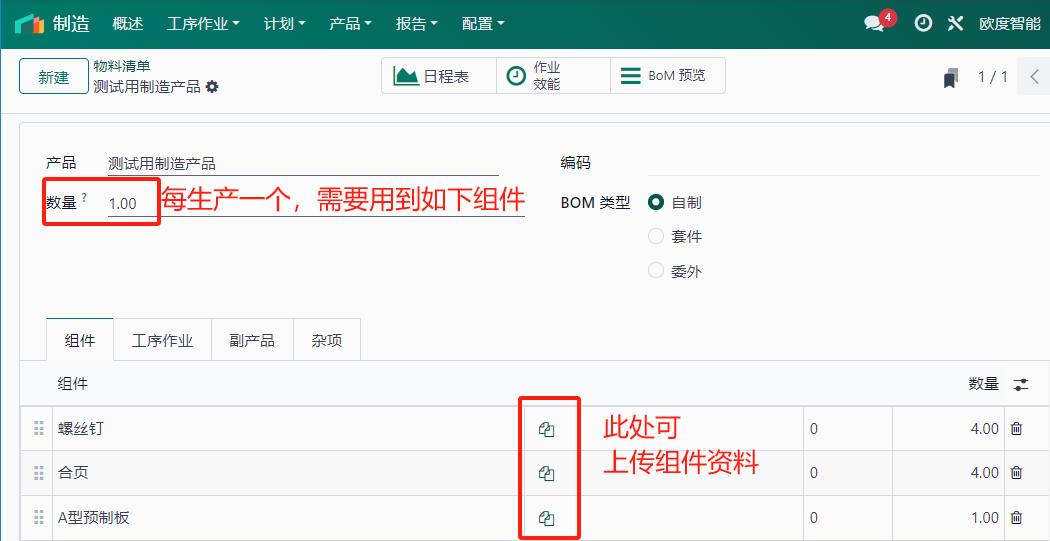
On the BoM, the Product field is automatically populated with the product. In the Quantity field, specify the number of units produced by the BoM.
Select the Components tab and click Add a line to add a component to the BoM. Select a component from the Component drop-down menu, then enter the quantity in the Quantity field. Continue adding components on new lines until all components have been added.
BOMs can be nested across multiple levels. Related replenishment orders will also calculate all components used in multi-level BOMs.
Next, click Configure to set up [Operations], such as cutting, polishing, assembly, and other process steps.
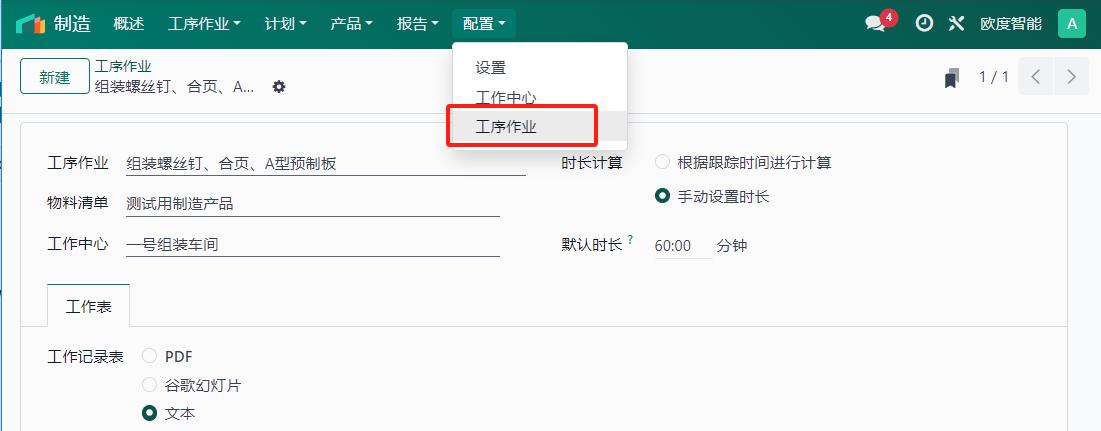
Set up [Work Centers], such as Workshop 1, Workshop 2, or the polishing workshop, grinding workshop, etc. Select the work center where the operation is performed from the Work Center drop-down menu. Finally, click Save & Close to finish adding the operation, or click Save & New to add more operations.
Important
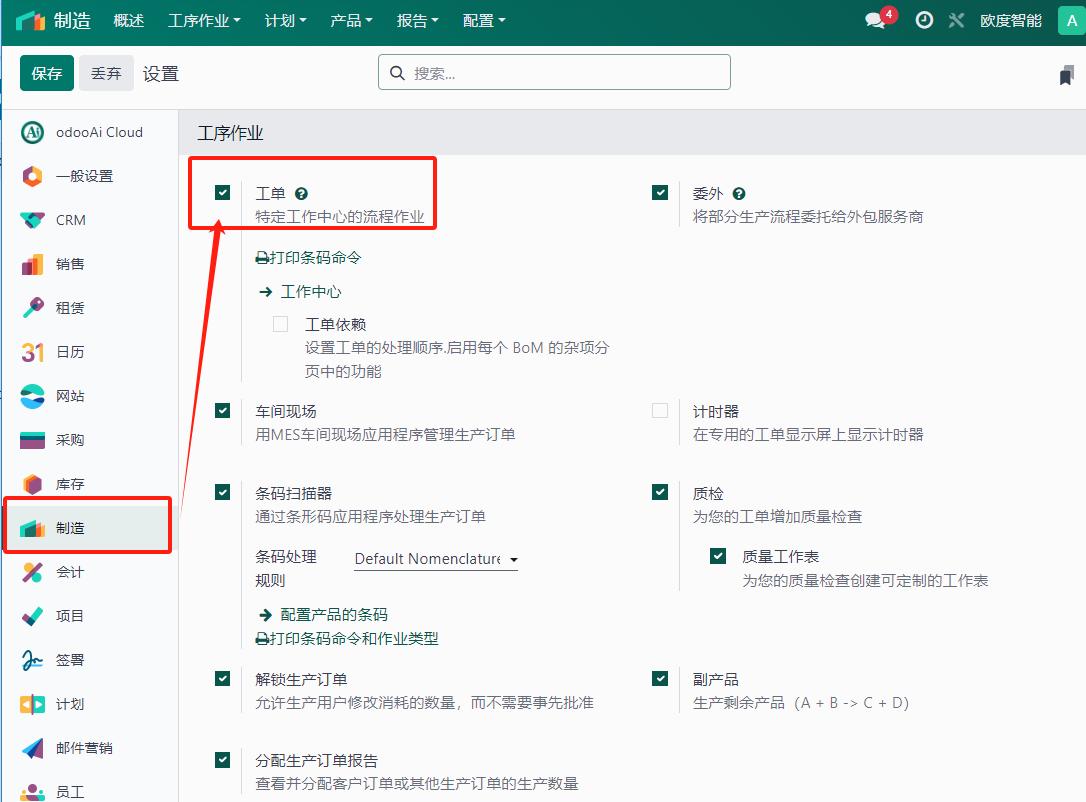
The Operations tab is only displayed after the Work Centers setting is enabled. To do this, navigate to Manufacturing ‣ Configuration ‣ Settings, then enable the Work Centers checkbox.
1.3. Bill of Materials (BOM)
A bill of materials* (BoM*) records the specific components and their corresponding quantities needed to manufacture or repair a product. In Odoo, a BoM is the blueprint for finished products and kits, and usually also includes manufacturing operations and step-by-step instructions.
1.3.1. BoM Settings
To create a BoM, go to Manufacturing ‣ Products ‣ Bills of Materials, and click New.
Then, set the BoM Type to Manufacture.
Then, specify the required components, and if necessary, define any manufacturing operations。
In the BoM's Components tab, click Add a line to specify the components used to manufacture the product. In the Component drop-down menu, select an existing product or create a new one by typing the name and selecting the Create” “ option to quickly add a line item, or select the Create and edit… option to add a component and continue to its configuration form.
1.3.2. Operations
Add *operations* to the BoM to specify production instructions and record the time spent on operations. To use this feature, first go to Manufacturing ‣ Configuration ‣ Settings and enable the Work Orders feature.
At this point, you can specify the operations and work centers (i.e., production workshops) for the product in the bill of materials.
Instructions: Add instructions to an existing operation. In addition to regular instructions, you can further customize this form to include specific types of quality control points with complex conditions. For more details on quality control points, see [Quality chapter].
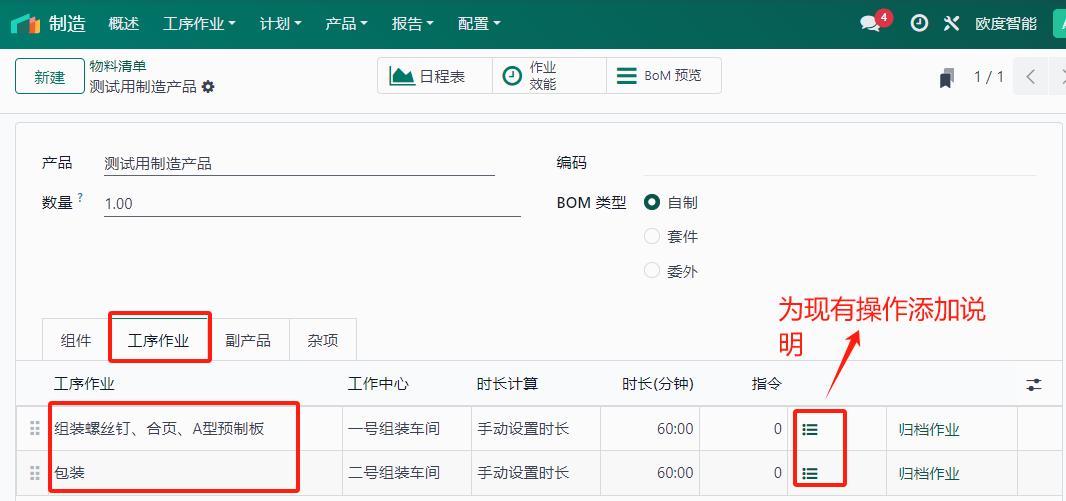
You can upload relevant materials for the operation in the work record sheet. 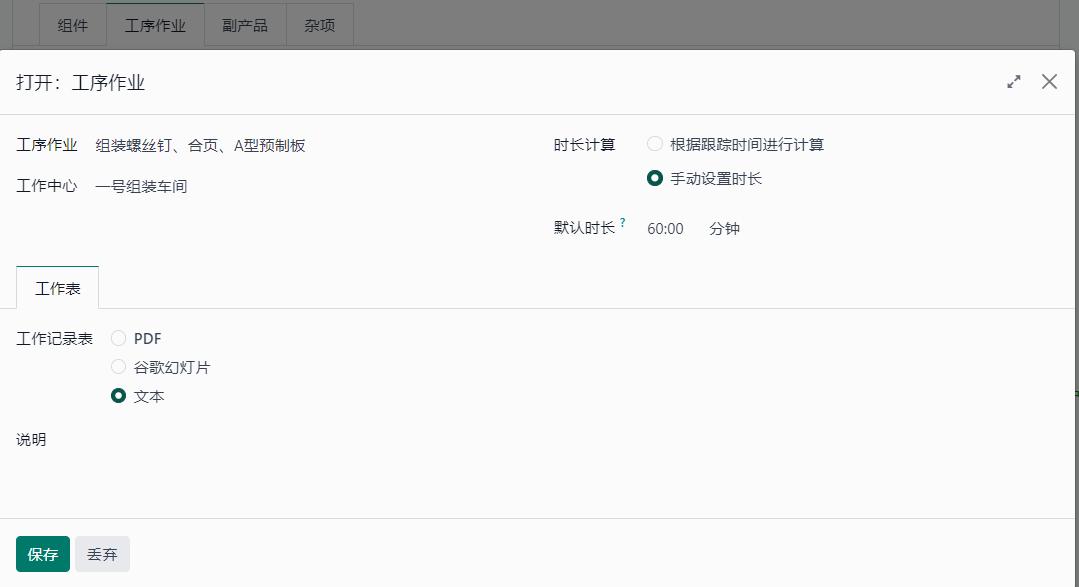
1.4. Multi-step Manufacturing
Odoo Manufacturing lets users manufacture products in one, two or three steps.
l One-step manufacturing: Odoo creates a manufacturing order (MO), but does not generate transfers to move components out of inventory or move finished products into inventory. Inventory counts are still updated based on the components used and the quantity of products manufactured, but the movement of transferring them into and out of inventory is not tracked.
l Two-step manufacturing: Odoo creates a manufacturing order (MO) and a pick components transfer, but does not generate a finished goods receipt transfer. Inventory counts are still updated based on the quantity of the manufactured product, but the movement of products into or out of inventory is not tracked.
l Three-step manufacturing: Odoo creates a pick components transfer, a manufacturing order (MO), and a store finished products transfer, and updates inventory counts based on the components picked and the quantity of finished products created.
1.5. Manufacturing Order Cost
When determining product profitability, the ability to accurately calculate product manufacturing costs is crucial. Odoo's Manufacturing app simplifies this calculation by automatically computing the cost of completing each manufacturing order (MO), as well as the average production cost of products based on all completed MOs.
Odoo's Manufacturing app distinguishes between MO cost and the actual cost of an MO.
MO cost represents the cost to complete an MO according to the configuration of the product's bill of materials (BoM). This takes into account the cost and quantity of components, as well as the cost of performing the necessary operations.
Actual cost represents the actual cost to complete an MO. Several factors may cause the actual cost to differ from the MO cost. For example, an operation may take longer to complete than estimated, more components may be required than specified on the BoM, or the price of components may change during manufacturing.
1.5.1. Cost Configuration
Odoo calculates MO cost based on the configuration of the BoM used to manufacture the product. This calculation includes the cost and quantity of components and operations listed on the BoM, as well as the operating cost of the work centers performing these operations and the amount paid to each employee involved in the operations.
1.5.2. Component Cost
Component cost is automatically calculated based on the average purchase cost of the component across all purchase orders (POs). To view a component's cost, navigate to the Inventory app -> Products -> Products, then select a component product. The cost is displayed in the Cost field on the General Information tab of the component product form.
You can manually set a component's cost by clicking the Cost field on the component product form and entering a value. However, any future POs for the component will override the manually entered value, resetting the Cost field to the automatically calculated value.
1.5.3. Work Center Cost
To set the operating cost of a specific work center, navigate to the Manufacturing app > Configuration > Work Centers, and select a work center.
To set the hourly cost per employee operating the work center, enter a value in the Cost per Employee field next to the Cost per Hour section on the General Information tab of the work center. For example, if you enter 25.00 in the Cost per Employee field, the cost per hour for each employee working at the work center is $25.00.
1.5.4. Employee Cost
To set the hourly cost of a specific employee, navigate to the Employees app and select an employee. On the employee form, select the Settings tab and enter the employee's rate in the Hourly Cost field in the Application Settings section.
1.5.5. BoM Configuration
Configuring a BoM so that Odoo can accurately calculate the cost of MOs using that BoM requires two steps. First, components must be added and the required quantities specified. Second, operations must be added, along with the work centers that perform these operations.
Navigate to the Manufacturing app > Products > Bills of Materials. Select a BoM, or click New to create a new BoM.
On the Components tab of the BoM form, click Add a line, select a component from the drop-down menu in the Component column, and enter the quantity in the Quantity column.
Add a default duration in the work center, which is the estimated time required to complete the operation.
The cost per hour of running a work center and the duration of the run are used to calculate the cost of the operation.
The BOM preview in the bill of materials allows you to view the estimated cost.
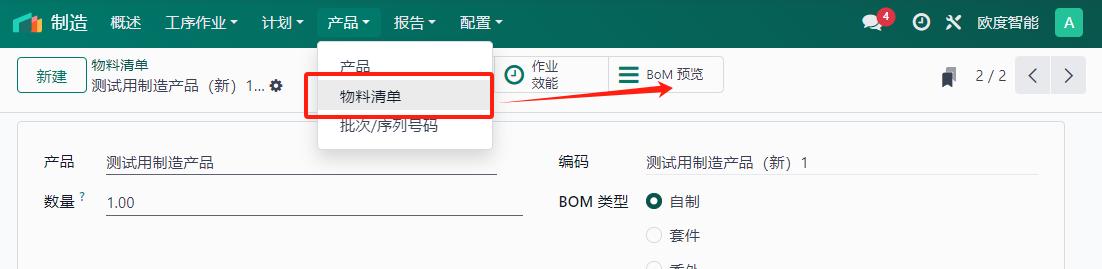
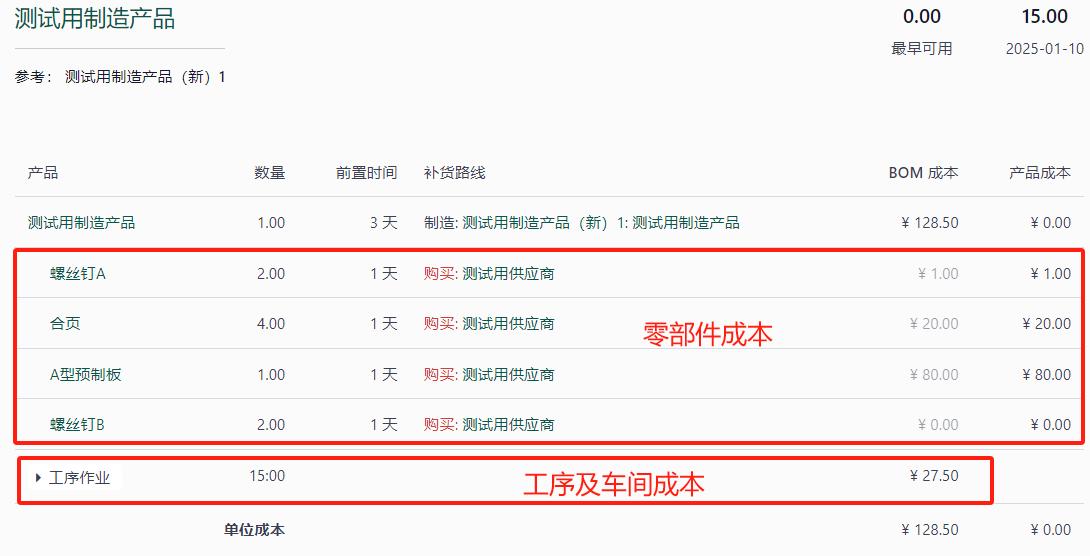
How to configure non-standard manufacturing in Odoo 18
Standard products can run once the BOM and routing are configured; non-standard orders also need to bring in the project number, product variants, BOM versions, and engineering changes. Odoo 18's variant BOMs, kits, work centers, and multi-step manufacturing can cover most scenarios. The key is to first define a set of coding and version rules: how to name a one-order-one-BOM, which approval process changes go through, and how leftover materials are returned.
The configuration itself is not complex; the difficulty is getting sales, design, planning, and the shop floor to enter data according to the same set of rules. When implementing a non-standard manufacturing ERP, define the rules first.