Article No. 10105
Description Using a real import business as an example, this article explains the complete Landed Cost chain—from creating expense service products, automatic tax calculation during customs clearance, and expense allocation to cost reporting—covering both CIF and FOB transfer modes as well as prepayment-to-invoice settlement reversal.
System Platform Odoo 18~20 native architecture + AiErp intelligent platform dedicated to foreign trade
Implementation Notes Covers expense service products, reimbursement templates, landed cost documents, cost vouchers, and landed cost allocation reports, together with 5 major hands-on scenarios and real tax formulas (IGI/DTA/PRV/IVA).
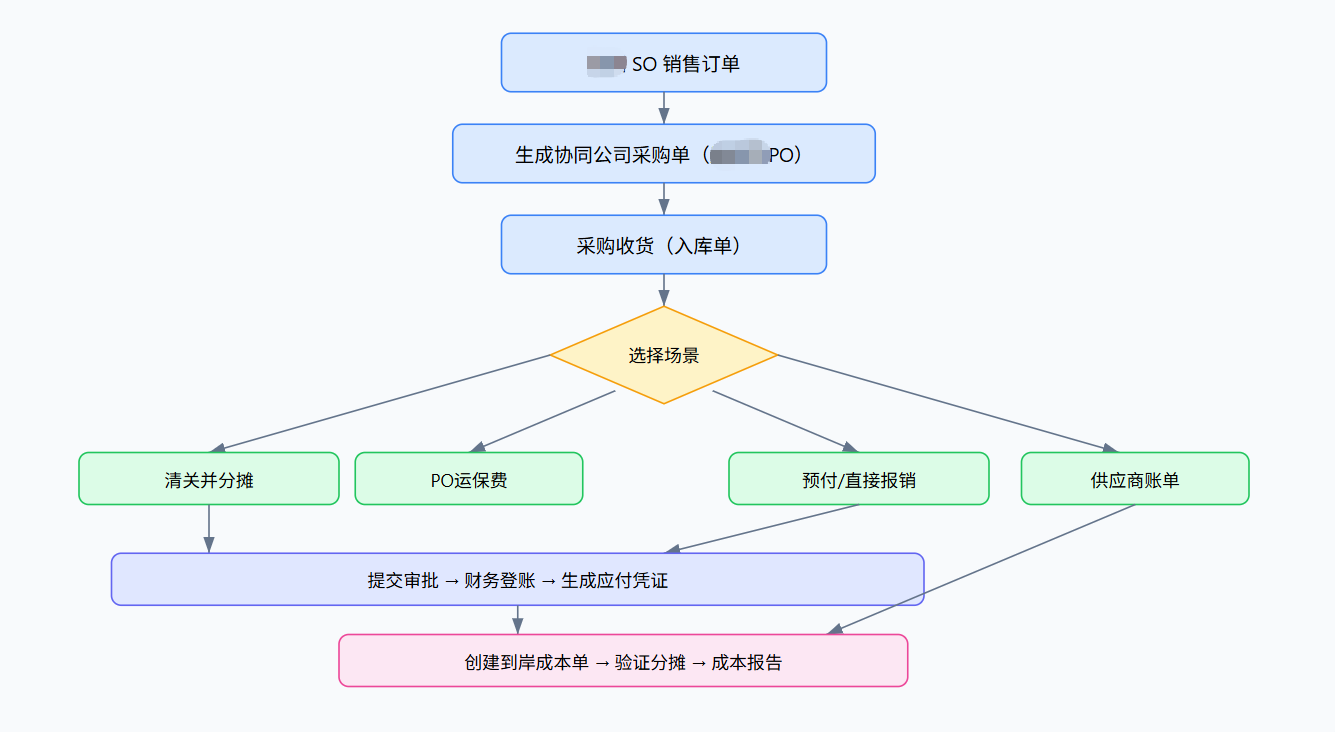
Main Text
When doing import cost accounting, the most easily overlooked part is the costs beyond the goods value. A company receives orders domestically and purchases from a factory in South America. For a shipment from departure to warehousing, tariffs, customs fees, pre-validation fees, and VAT are layered on top. The exact unit cost is impossible to calculate accurately with manual Excel. This article does not use abstract theory; it directly uses a real customer case to explain how landed cost is allocated from "expense occurrence" all the way to "inventory cost per SKU".
1.1 Key Theoretical Points from the Textbook
(1) Landed cost aggregation logic. The procurement cost of imported goods is not just the purchase price. According to "Foreign Trade Accounting Practice", landed cost includes the purchase price, foreign freight, insurance, import tariffs, and import-stage consumption tax, etc. Accounting adheres to "who benefits, who bears": one ocean freight shipment corresponds to one batch of goods and must be allocated to each SKU in that batch according to a reasonable standard.
(2) Two cost attributions: CIF and FOB. Trade terms determine which costs the buyer and seller each bear. For the importer, regardless of CIF or FOB, all costs before the goods arrive at the domestic port ultimately go into inventory cost. The only difference is "whether freight and insurance are allocated into the unit price in advance, or reimbursed separately after arrival".
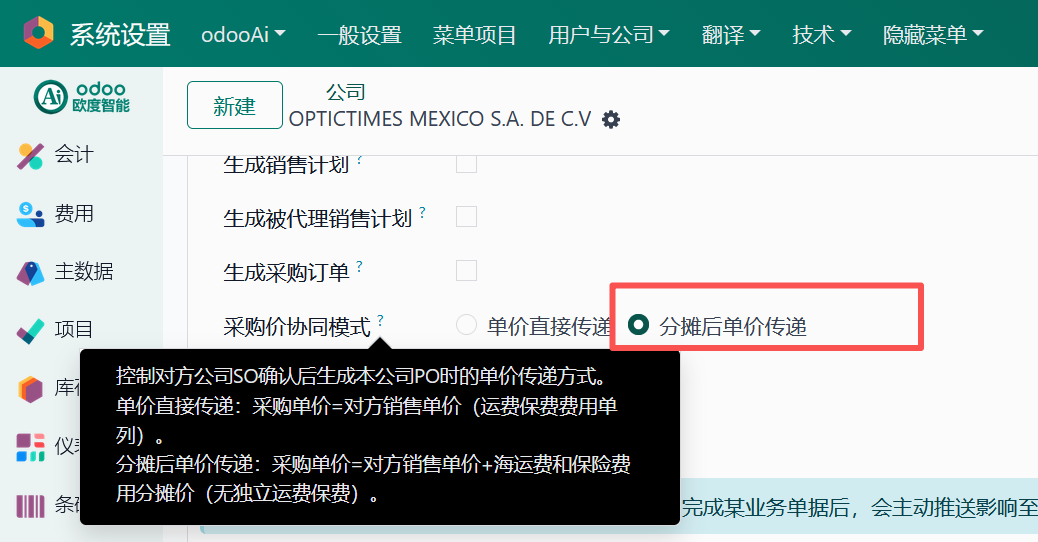
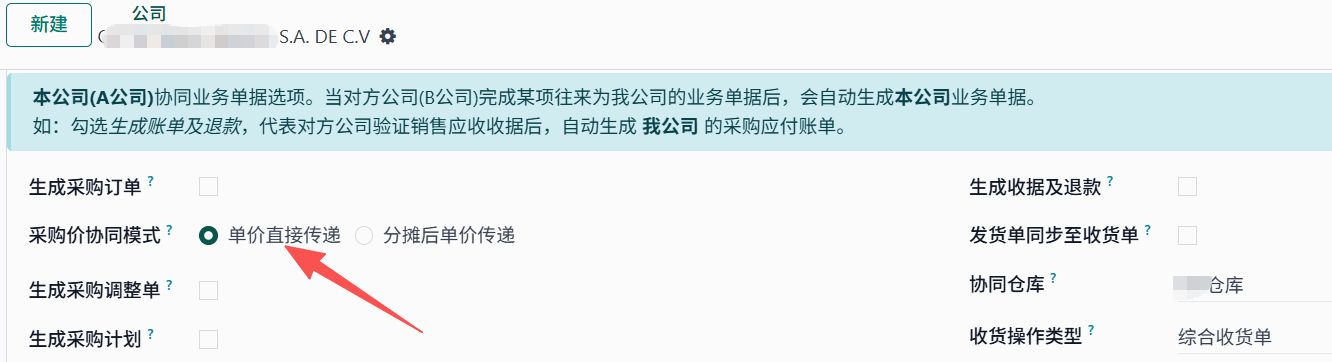
(3) Two unit price transfer modes. In the company's collaborative business, when a domestic SO generates a South America PO, there are two modes: first, "allocated unit price"—freight/insurance in the SO is first allocated into the purchase unit price and then passed to South America; for CIF, fob + allocated freight and insurance is passed; for FOB, the original unit price is passed; second, "direct unit price transfer"—freight and insurance are passed separately as-is to South America, with goods value and freight/insurance independent. The system defaults to "allocated unit price" for overseas countries.
(4) Estimated vs. actual differences. When goods arrive at the port, expense invoices often have not arrived, so they are initially recorded at estimated values, and differences are reversed when invoices arrive—this part is covered in the financial main line. This article focuses on the business-side productization of expenses and allocation implementation.
The completeness of parameter configuration determines the upper limit of cost accounting accuracy: the degree of standardization of expense service products, reimbursement templates, and default allocation methods directly determines whether Landed Cost can operate automatically, accurately, and traceably.
1.2 Pre-System Configuration
Before import, the following one-time configuration must be completed by the system administrator in the backend.
(1) Create expense service products and tag them
| Expense Type | Suggested Account | Suggested Product Code | Key Tag |
|---|---|---|---|
| Tariff IGI | 2221 · Taxes Payable - Tariff | SVC-DUTY | Check "Landed Cost" |
| Customs Fee DTA | 5403 · Port Fees | SVC-DTA | Check "Landed Cost" |
| Pre-validation Fee PRV | 5403 · Port Fees | SVC-PRV | Check "Landed Cost" |
| VAT IVA | 2221 · Taxes Payable - VAT | SVC-IVA | Price-exclusive tax, not included in the allocation pool |
| Ocean Freight | 5401 · Transportation Fee | SVC-FRT-SEA | Check "Landed Cost" |
| Customs Brokerage Fee | 5403 · Port Fees | SVC-CUS | Check "Landed Cost" |
Core Rule : Expense service products must have the "Landed Cost" flag checked; otherwise, expense lines in subsequent expense reports cannot be recognized and allocated by landed cost documents.
(2) Configure Expense Templates
Configure four types of expense templates according to the company's actual needs: customs clearance template, prepayment template, settlement template, and direct reimbursement template. When initiating the process, the expense submitter can directly enter from the template, avoiding manual field selection each time.
(3) Prepare Operational Basics
| Configuration Item | Description |
|---|---|
| Employee Records | Operating users must first create an employee profile in their company; the expense function relies on employee identity. |
| Default Allocation Method | Set to one of: by amount / by quantity / evenly by line |
| Intercompany Settings | Set the South America company's purchase unit price intercompany mode to "Transfer Allocated Unit Price" |
Important Discipline: Expenses from different vendors must be split into separate expense reports—one expense report can only correspond to one business partner. Putting expenses from two freight forwarders into the same report will mess up subsequent allocation and reconciliation.
1.3 AiErp step-by-step practice
The following operations are based on the real import environment of the South America company, Odoo 18 interface; the menu structure is consistent in Odoo 19/20.
Scenario 1: Customs Clearance and Allocation with Allocated Unit Price (CIF, automatic calculation of overseas taxes and fees)
This is the most commonly used scenario. The freight/insurance in the domestic head office SO has been allocated into unit prices and passed to the South America branch PO. During customs clearance, the system automatically calculates customs duties, handling fees, pre-validation fees, and VAT according to local tax laws.
Step 1: Intercompany Generation of South America Branch Purchase PO
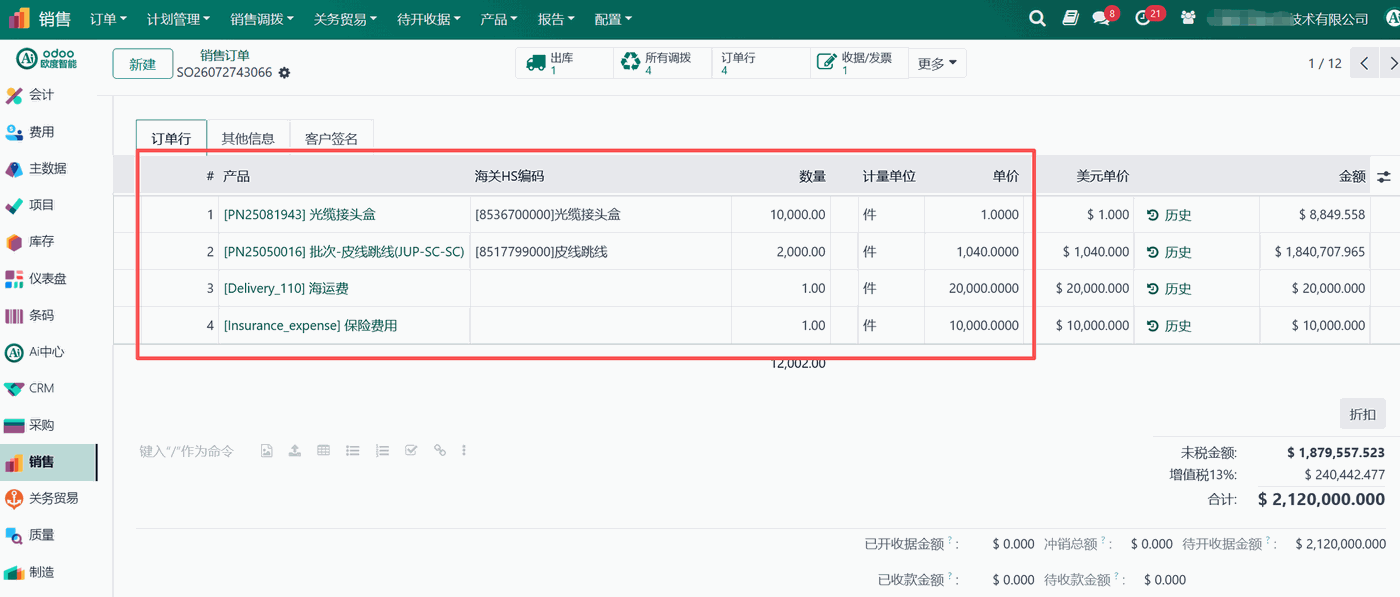
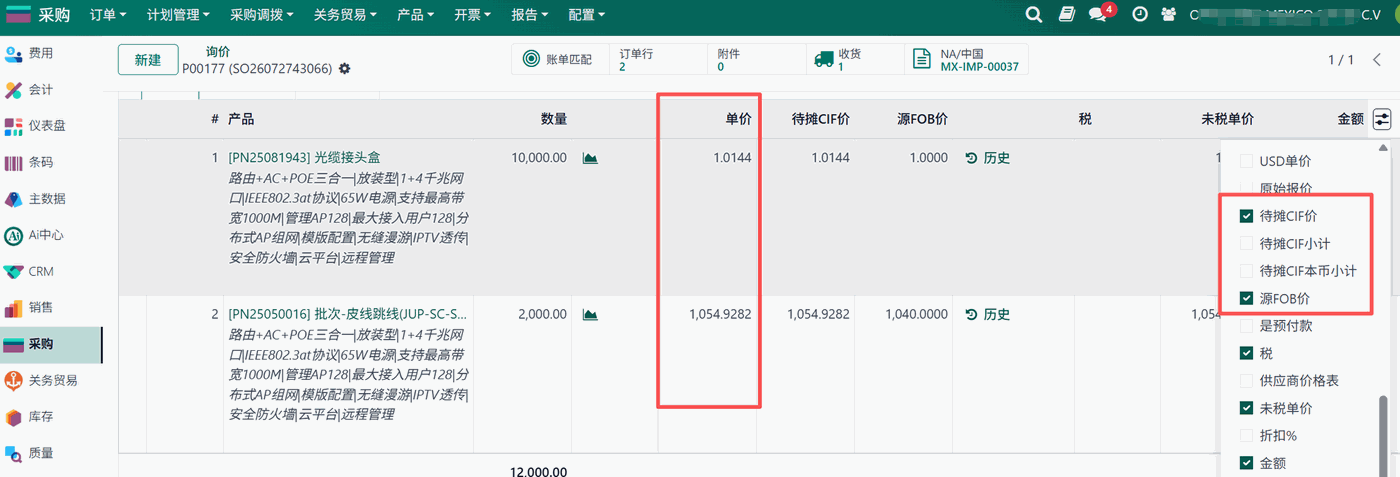
In the domestic head office SO details, confirm that lines such as freight/insurance for "Landed Cost Expenses" are included, click "Generate Intercompany Purchase Order", and the system will automatically generate the corresponding PO in the South America branch. Users with accounting permissions can see the source allocated CIF and source FOB prices. Note: assign a real purchaser to the intercompany PO; do not use the system default intercompany robot.
Step 2: Purchase Receipt
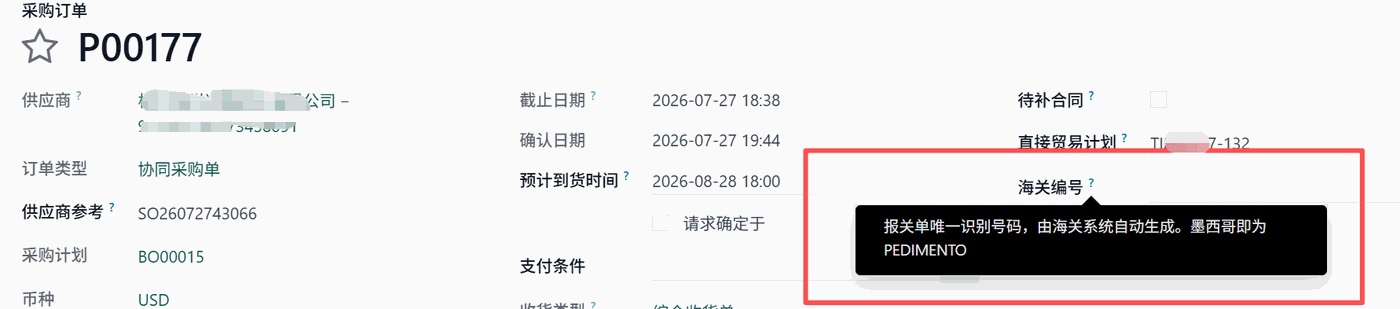
At the South America branch PO, click 'Receive Products' to complete the receipt and fill in the customs number (South America branch PEDIMENTO number). After receipt, a regular vendor bill must be issued to confirm the goods payable—this bill is the prerequisite for subsequent confirmation of purchase costs and allocation.
Step 3: Initiate Customs Clearance and Allocation
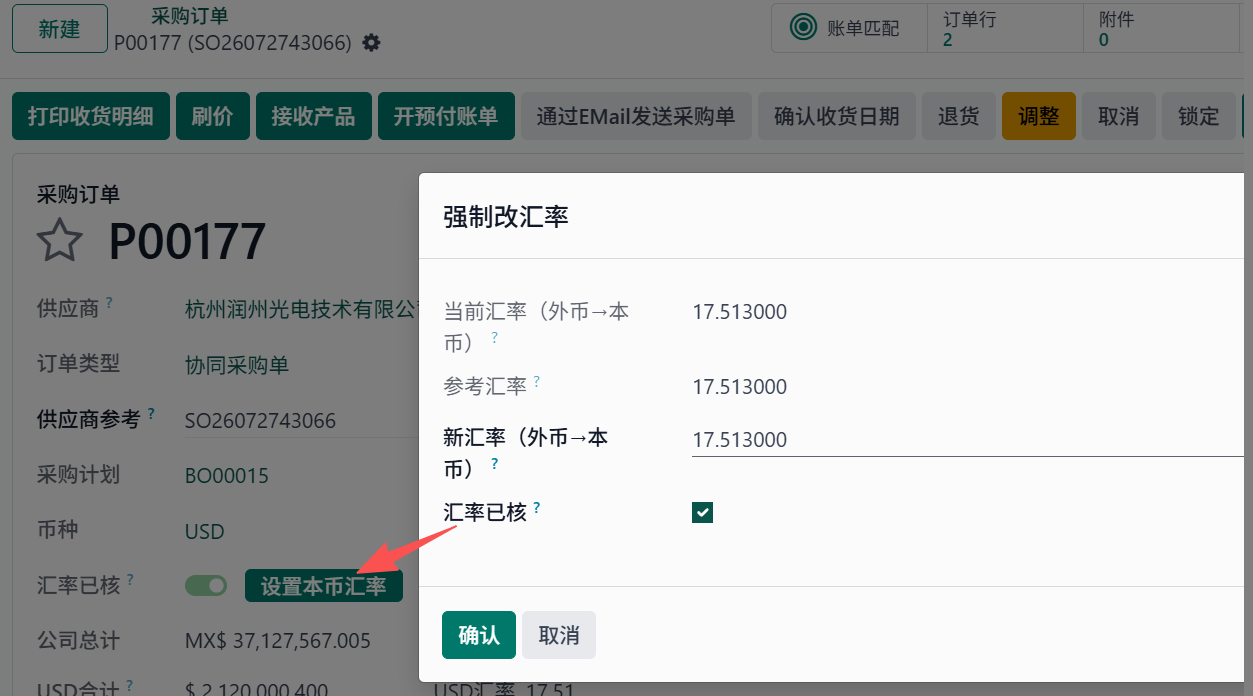
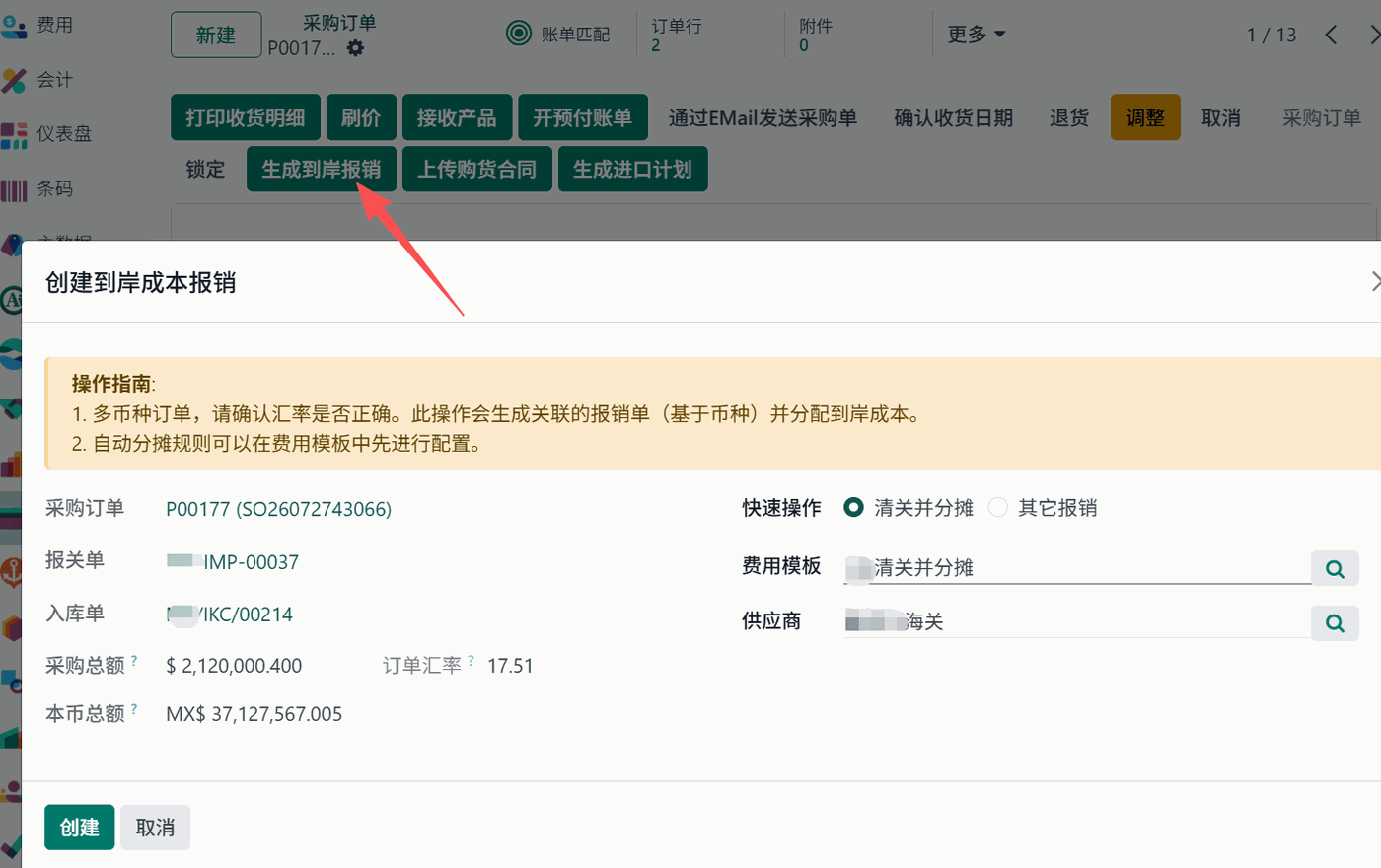
On the PO form, first click 'Set Exchange Rate for This Order' to confirm the exchange rate, then click the 'Generate Landed Cost Reimbursement' button. In the wizard, select the 'Customs Clearance and Allocation' template, select the vendor (customs broker or freight forwarder), and click Create.
Step 4: Confirm Taxes and Fees on the Reimbursement
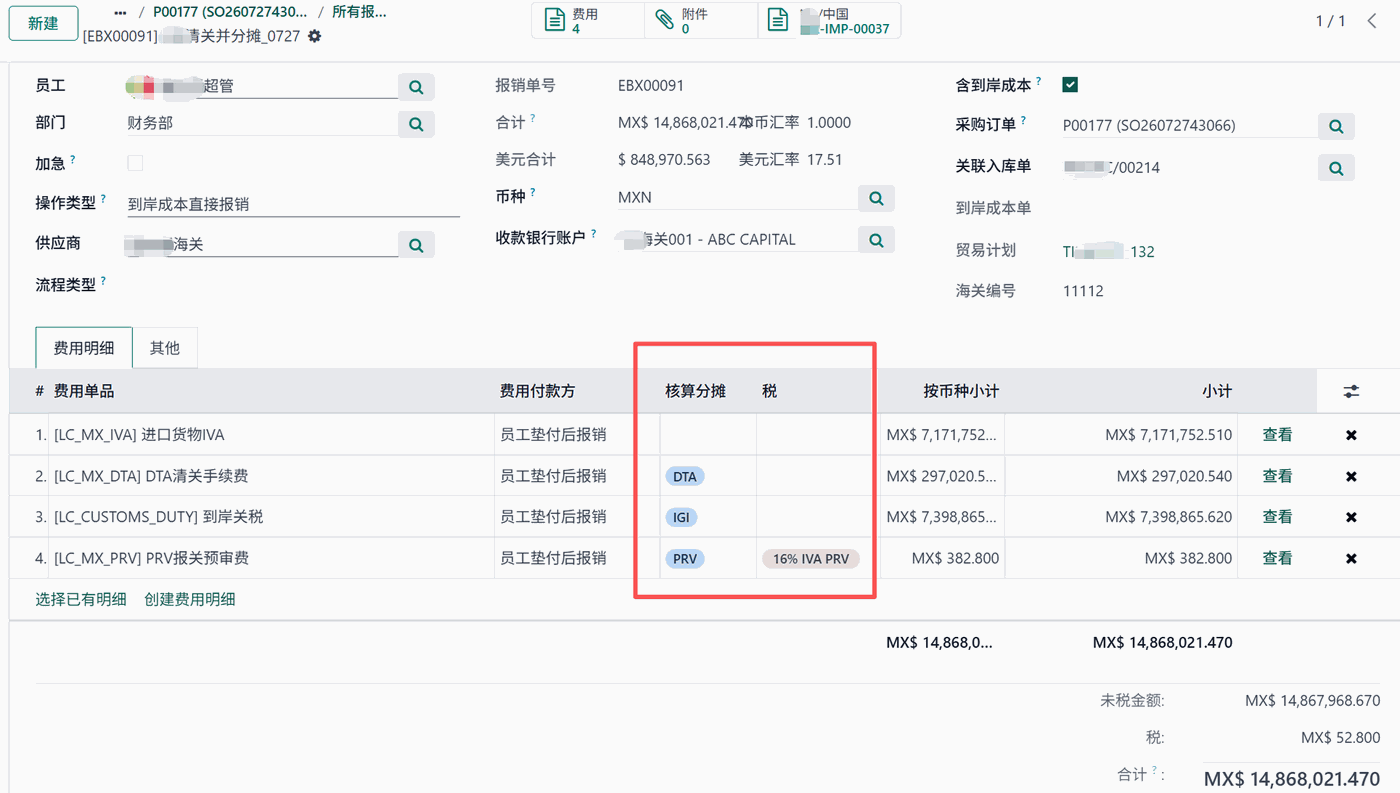
The system automatically creates a customs clearance reimbursement and sets up cost allocation according to the rules. The actual calculation formulas are as follows:
| Fee Line | Calculation Method |
|---|---|
| IGI Customs Duty | Value of each product × customs duty rate, summarized by product |
| DTA Handling Fee | Value × 0.8% |
| PRV Pre-validation Fee | Fixed total of 330 (plus IVA VAT) |
| IVA VAT | (Value + IGI + DTA) × 16%, PRV is already calculated in the PRV detail line |
The system will automatically check whether a reimbursement with the same purchase order and template already exists; if it exists, duplicate creation will be blocked. To add fees, manually add lines in the existing reimbursement.
Step 5: Submit for Approval to Journal Entry and Posting
First confirm the 'Linked Receipt'—the system automatically matches the receipt to the purchase order. After verification, submit for approval and follow the regular reimbursement process to journal entry. After approval, the finance staff clicks 'Journal Entry' to generate the payable voucher, and after checking the entries, click 'Post'.
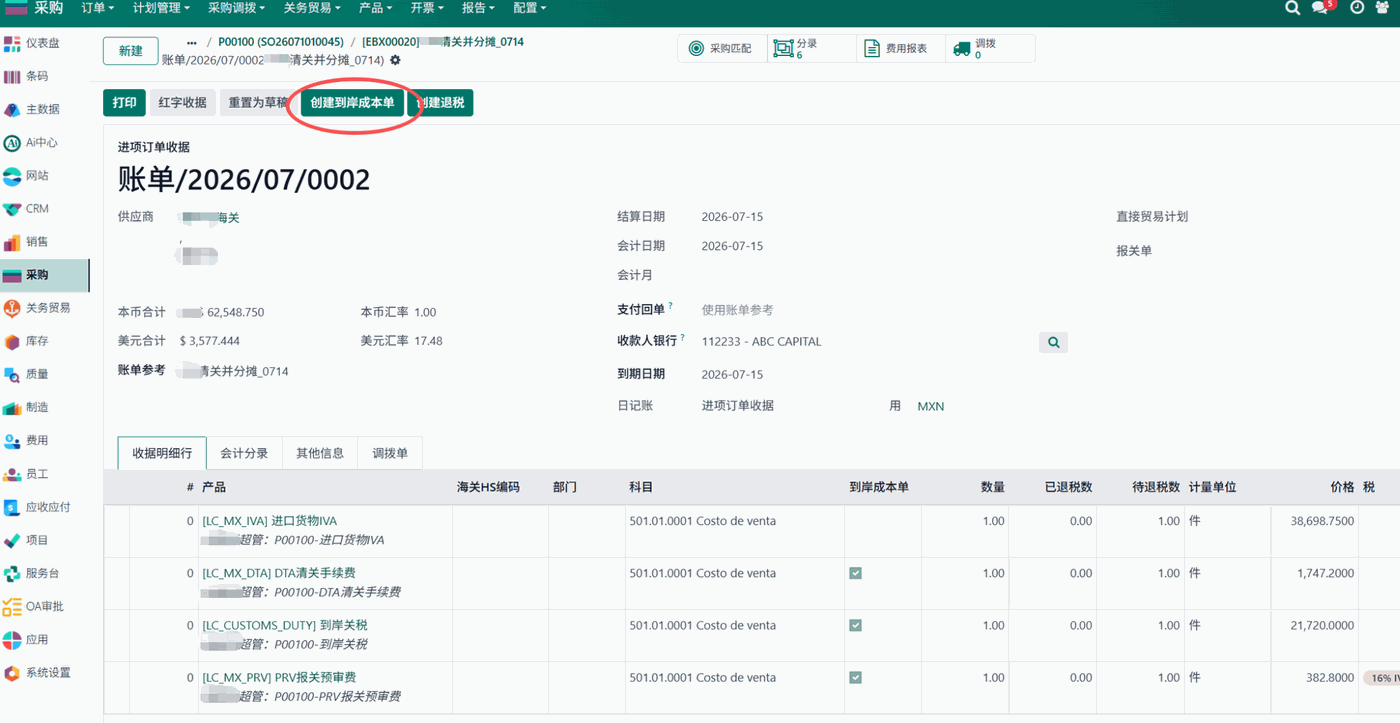
Step 6: Create Landed Cost Document and Verify
Click "Create Landed Cost" on the vendor bill; the system automatically creates a document and links it to the receipt and expense lines. Confirm the allocation method (landed duties are allocated by each product's duty proportion; others default to cost proportion). Note: You must validate the purchase vendor bill before validating the landed cost, otherwise the system will report an error. Click "Validate" to complete the allocation and generate the inventory cost adjustment journal entry.
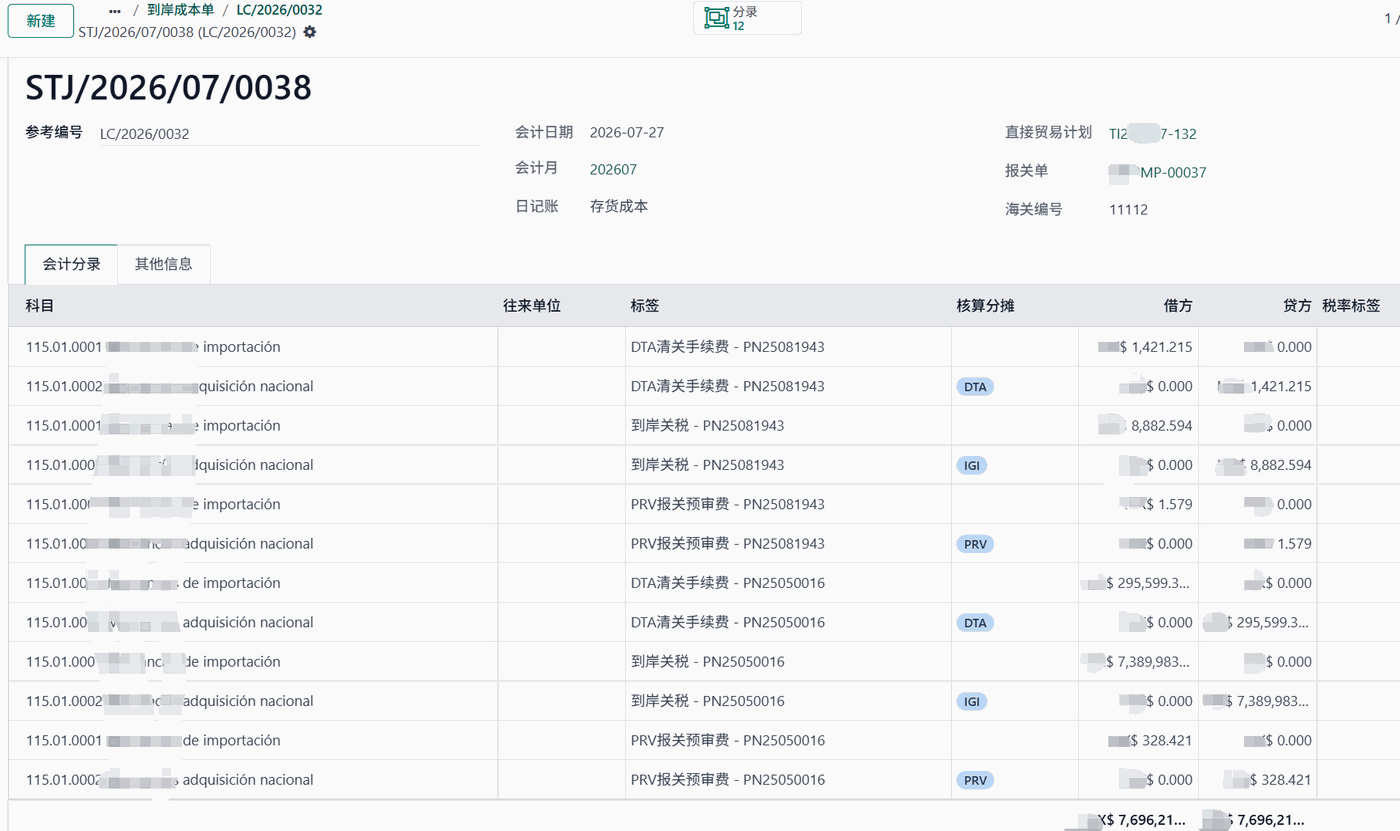
Step 7: View cost journal entries and inventory value changes
After validation, you can view the cost journal entry, which lists each product and the allocated amount. In the inventory valuation report, you can see the changes in the moving average cost of each product.
Scenario 2: Unit price passed directly without prior allocation
When the domestic head office SO is CIF, freight and insurance are listed separately. After the intercompany PO is generated, freight and insurance become separate PO lines. Complete the PO receipt and create a regular bill to confirm the freight and insurance payable, validate and post the bill, then click "Create Landed Cost" on the posted vendor bill. The system automatically includes freight and insurance in the landed cost and links it to the receipt. Subsequent validation is the same as Scenario 1.
Scenario 3: Prepaid landed costs and settlement upon invoice receipt
When prepaying fees to the customs broker, first record them as prepayments. Upon receipt of the formal invoice, offset them through "Settlement upon Invoice Receipt".
Steps 1-3: On the PO, click "Generate Landed Reimbursement" and select the [Other Reimbursement] + [Landed Cost Prepayment] template. For each line, set the "Target Cost Expense" (determines which cost product the amount is ultimately allocated to; required), set the prepayment amount, submit for approval, and have finance record the journal entry (debit Prepayments, credit Accounts Payable - Prepayment Clearing) to complete the payable posting.
Step 4: After posting, create a landed cost document and allocate automatically, same as Scenario 1.
Steps 5-6: Complete the actual payment to the vendor and reconcile the prepayment payable.
Step 7: Settlement upon invoice receipt. After receiving the formal invoice, click "Settlement upon Invoice Receipt" on the original prepayment reimbursement. In the wizard, enter the actual payable amount for each line. The system generates a new "Landed Cost Prepayment Settlement" reimbursement and automatically creates two types of detail lines:
| Detail line | Meaning |
|---|---|
| Reversal line (negative) | Reverses the original prepaid amount |
| Actual line (positive) | Recognizes the expense based on the actual invoice amount |
After adjusting the settlement details (select the expense product, adjust the amount, enter the invoice number), submit for approval and record the journal entry. Handling the difference between actual and prepaid amounts:
- Actual < Prepaid (overpaid): Generate a red-letter input VAT payable, pending vendor refund
- Actual > Prepaid (underpaid): Generate a supplementary payment voucher
- Actual = Prepayment (equal amount): automatically offset
Scenario 4: Direct invoice reimbursement
When the freight forwarder invoice arrives directly and no prepayment is required, the process is simplest. On the PO, click "Generate Landed Cost Reimbursement" and select the [Other Reimbursement] + [Landed Cost Direct Reimbursement] template, then select the vendor to create. On the reimbursement form, create expense detail lines, select expense products marked with "Landed Cost", fill in the actual invoice amount, and confirm the linked receipt is correct; the subsequent steps—submit → approve → post journal entry → create landed cost document → validate allocation—are the same as steps 5~7 in Scenario 1.
Scenario 5: View cost reports
Go to Expenses → Reporting → Landed Cost Allocation Report to view statistics. You can also perform the month-end operation "Landed Cost Accounting" in the import trade plan details, and after completion, view the landed cost auxiliary accounting for each import. Use Odoo's generic grouped view to query and see the complete landed cost allocation of "goods value + expenses" and the changes in goods value.
1.4 Key Pitfalls to Avoid in Foreign Trade
Pitfall 1: Forgetting to check the "Landed Cost" flag on expense products
Scenario: When creating an ocean freight product, the flag is missed. Consequence: The expense line on the reimbursement is generated, but the landed cost document cannot identify this expense at all, resulting in understated inventory cost and understated current profit. Solution: After creating all expense products, use the list view to filter by the "Landed Cost" flag for a batch review.
Pitfall 2: Putting expenses from different vendors into the same reimbursement
Scenario: To save effort, freight and customs clearance fees from two forwarders are put on one form. Consequence: A reimbursement can only correspond to one partner, so the reimbursement is rejected or allocation is attributed to the wrong vendor. Solution: Strictly split forms by vendor; it's better to create more forms than to mix them.
Pitfall 3: Not splitting lines or setting target cost expenses for prepayments
Scenario: When prepaying customs clearance agency fees, the entire amount is entered on one line without setting a "Target Cost Expense". Consequence: At invoice settlement, the system does not know which cost product this prepayment will ultimately be allocated to, and the settlement document cannot automatically consolidate. Solution: For prepayments, use one line per expense type and set the target cost expense line by line; split different landed costs into different lines.
Pitfall 4: Validating landed costs before receiving goods
Scenario: After posting the reimbursement, you rush to validate the landed cost document, but the receipt has not been completed. Consequence: The system reports an error and allocation cannot be generated. Solution: Regardless of whether reimbursement or receipt comes first, always complete the purchase receipt and create the vendor bill before validating landed costs.
Pitfall 5: Import VAT mistakenly included in the allocation pool
Scenario: IVA is allocated into inventory cost just like customs duty. Consequence: Costs are overstated, and since VAT is a deductible input tax, including it in cost makes the tax accounts inconsistent. Solution: Record IVA separately under "Taxes Payable - Input VAT" and never include it in the Landed Cost allocation pool; include customs duty in the allocation based on "Customs Dutiable Value × Tax Rate".
Pitfall 6: Not validating the accounts payable voucher before validating landed costs
Scenario: Directly clicking "Create Landed Cost" on the reconciliation and validating, skipping the validation of the accounts payable voucher. Consequence: The system reports an error and interrupts. Solution: Strictly follow the sequence—first validate the purchase accounts payable voucher, then create and validate the landed cost document.
II. End Section
Related Articles
| Location | Number | Article | Connection Point |
|---|---|---|---|
| ← Previous | 10104 | Foreign trade product naming standards, quality control, packaging management, and batch traceability | The product weight/volume profile is the basis for allocation calculations in this article |
| → Next | 10106 | Full process of import purchase orders, receipts, and returns | The receipt orders linked to landed cost allocation come from the import receiving process |
| ↔ Cross-Mainline | 10803 | Landed Cost Financial Allocation and Provision Reversal | Deepening of Financial Vouchers for Business-side Allocation in This Article |
| ↔ Cross-Mainline | 10304 | Landed Cost Configuration (Import Business Edition) | Panoramic Application of Landed Cost in the Main Import Line |
Supporting Materials
- Landed Cost Expense Product Template: 6 types of standard expense products (including account mapping and 'Landed Cost' flag), directly downloadable from AiErp backend 'Configuration-Import Templates'
- Tax and Fee Formula Quick Reference: IGI/DTA/PRV/IVA calculation basis and examples (goods value × 0.8%, fixed 330, 16%, etc.)
- Landed Cost Operation Checklist: 8-step checklist from receiving → reimbursement → posting → landed cost document verification, including key points 'link receipt' and 'verify payable voucher first'