Tax computation
Tax computation
The Tax Computation field determines the relation between the tax amount and the base the tax is based on. The following options are available:
Group of Taxes: a combination of several other taxes
Fixed: a fixed amount
Percentage of Price: a percentage of the tax-excluded sales price
Percentage of Price Tax Included: a percentage of the tax-included total
Custom Formula: a custom, user-defined formula
Group of taxes
The tax is a combination of multiple sub-taxes. You can add as many taxes as you want, in the order you want them to be applied.
Important
Make sure the tax sequence is correct, as the display order determines the application order and may affect tax computation, particularly if a tax affects the base of subsequent taxes.
Fixed
The tax has a fixed amount in the default currency. The amount remains the same per unit, regardless of the sales price.
The computation is \(\text{tax amount} = \text{fixed tax amount} \times \text{quantity}\).
Example
A product has a sales price of $1000, and we apply a $10 Fixed tax. We then have:
Product sales price |
Price without tax |
Tax |
Total |
|---|---|---|---|
1,000 |
1,000 |
10 |
1,010.00 |
Percentage of price
The tax rate is a percentage of the tax-excluded subtotal.
The exact tax computation depends on the Included in Price field, which determines whether the tax amount is included in the sales price.
If Included in Price is Tax Excluded, the computation is \(\text{tax amount} = \text{sales price} \times \text{tax rate}\).
Example
A product has a sales price of $1000, and we apply a 10% Percentage of Price tax that is Tax Excluded. We then have:
Product sales price |
Price without tax |
Tax |
Total |
|---|---|---|---|
1,000 |
1,000 |
100 |
1,100.00 |
If Included in Price is Tax Included, the computation is \(\text{tax amount} = \text{sales price} \times \frac{\text{tax rate}}{1 + \text{tax rate}}\).
Example
A product has a sales price of $1000, and we apply a 10% Percentage of Price tax that is Tax Included. We then have:
Product sales price |
Price without tax |
Tax |
Total |
|---|---|---|---|
1,000 |
909.09 |
90.91 |
1,000.00 |
Percentage of price tax included
Important
This tax computation is rarely used and only useful in countries (e.g., Brazil, Bolivia) that quote tax rates as a percentage of the tax-included total. For the more common need to compute tax amounts from a tax-included price, use the Percentage of Price tax computation with Included in Price set to Tax Included.
The tax rate is a percentage of the tax-included total.
The exact tax computation depends on the Included in Price field, which determines whether the tax amount is included in the sales price.
If Included in Price is set to Tax Excluded, the computation is \(\text{tax amount} = \text{sales price} \times \frac{\text{tax rate}}{1 - \text{tax rate}}\).
Example
A product has a sales price of $1000, and we apply a 10% Percentage of Price Tax Included tax that is Tax Excluded. We then have:
Product sales price |
Price without tax |
Tax |
Total |
|---|---|---|---|
1,000 |
1,000 |
111.11 |
1,111.11 |
Note that the real tax rate in terms of the tax-excluded price is \(\frac{111.11}{1000} = 11.111\%\).
If Included in Price is set to Tax Included, the computation is \(\text{tax amount} = \text{sales price} \times \text{tax rate}\).
Example
A product has a sales price of $1000, and we apply a 10% Percentage of Price Tax Included tax that is Tax Included. We then have:
Product sales price |
Price without tax |
Tax |
Total |
|---|---|---|---|
1,000 |
900 |
100 |
1,000.00 |
Note that the real tax rate in terms of the tax-excluded price is \(\frac{100}{900} = 11.111\%\).
Custom formula
Important
If a tax can be expressed as a multiple of the quantity of the product to which it applies, it can be defined as a Fixed tax. Doing so is strongly recommended over defining a Custom Formula tax.
Note
To use Custom Formula taxes, install the Define
Taxes as Python Code (account_python_tax) module.
For a Custom Formula tax, the tax amount is computed according to a Python expression defined in the Formula field. The Python expression may contain the following tokens:
any of the following variables:
price_unit: the unit price of the productbase: the taxable basis on which the tax is applied - may differ from theprice_unitif other taxes are applied firstquantity: the quantity of the productproduct: the product record - product fields can also be accessed
integers and floating-point numbers
the following permitted tokens:
(,),+,-,*,/,,,<,>,<=,>=,and,or,None,min, andmax
Example
A product has a sales price of $1000, and we apply a Custom Formula tax with a
Formula of min(base, 500) * 0.10 + max(base - 500, 0) * 0.20
We then have:
Product sales price |
Price without tax |
Tax |
Total |
|---|---|---|---|
1,000 |
1,000 |
150 |
1,150.00 |
Included in price
Tip
To set a company-wide default for this setting, go to , find the Taxes section, and set the Prices setting to Tax Excluded or Tax Included. This setting cannot be changed once invoices have been created.
Default indicates that the tax follows the company-wide default.
Tax Excluded indicates that the tax amount is not included in the sales price. The tax computation will therefore compute a tax amount on top of the sales price.
Tax Included indicates that the tax amount is included in the sales price. The tax computation will therefore split the sales price into a tax-excluded base and the tax amount. This makes it suitable for B2C sales in most countries, where prices are quoted tax-inclusive.
Example
A product has a sales price of $1000, and we apply a 10% Percentage of Price tax with Included in Price set to Tax Included. We then have:
Product sales price |
Price without tax |
Tax |
Total |
|---|---|---|---|
1,000 |
909.09 |
90.91 |
1,000.00 |
Note
For a guide on configuring tax-excluded and tax-included prices for B2B and B2C customers, see B2B (tax excluded) and B2C (tax included) pricing.
Affect base of subsequent taxes
This setting controls how multiple taxes on a product line affect each other.
If this setting is enabled, this tax’s tax amount is included in the base of any subsequent tax applied on the same product line that has its Base affected by preceding taxes setting enabled. As such, the subsequent tax’s base is the sum of the tax-excluded base and this tax’s tax amount.
If Affect base of subsequent taxes is enabled and Included in Price is set to Tax Excluded, subsequent taxes with the Base affected by preceding taxes setting enabled will be based on a modified sales price equal to the original sales price plus the tax amount.
Example
A product has a sales price of $1000, and we apply a 10% Percentage of Price tax where the Included in Price setting is set to Tax Excluded and the Affect base of subsequent taxes setting is enabled. Any subsequent tax with its Base affected by preceding taxes will be based on a modified sales price of $1100.
If Affect base of subsequent taxes is enabled and Included in Price is set to Tax Included, subsequent taxes with the Base affected by preceding taxes setting enabled will be based on the original sales price.
Example
A product has a sales price of $1000, and we apply a 10% Percentage of Price tax where the Included in Price setting is set to Tax Included and the Affect base of subsequent taxes setting is enabled. Any subsequent tax with its Base affected by preceding taxes will be based on the original sales price of $1000.
If this setting is disabled, the tax amount will not be included in the base of any subsequent tax applied on the same product line.
If Affect base of subsequent taxes is disabled and Included in Price is set to Tax Excluded, subsequent taxes with the Base affected by preceding taxes setting enabled will be based on the original sales price.
Example
A product has a sales price of $1000, and we apply a 10% Percentage of Price tax where the Included in Price setting is set to Tax Excluded and the Affect base of subsequent taxes setting is enabled. Any subsequent tax with its Base affected by preceding taxes will be based on the original sales price of $1000.
If Affect base of subsequent taxes is disabled and Included in Price is set to Tax Included, subsequent taxes with the Base affected by preceding taxes setting enabled will be based on a modified sales price equal to the original sales price minus the tax amount.
Example
A product has a sales price of $1000, and we apply a 10% Percentage of Price tax where the Included in Price setting is set to Tax Included and the Affect base of subsequent taxes setting is enabled. Any subsequent tax with its Base affected by preceding taxes will be based on a modified sales price of $909.09.
This setting is considered any time multiple taxes are applied to the same product line, whether via a group of taxes or multiple taxes added directly to a product line.
Note
The order in which taxes are applied depends only on the order in which they appear in the Taxes list, not on the order in which they are added to a product line.
To modify the order, go to , and drag and drop taxes using the handles to the left of the tax names.

Regardless of the order in the Taxes list, Tax Excluded taxes do not affect the base of subsequent Tax Included taxes (see the note in Base affected by preceding taxes).
Example
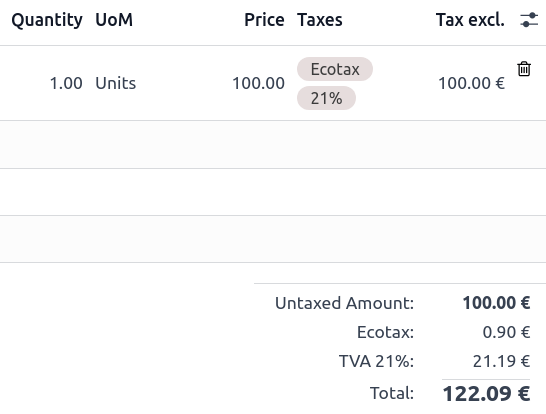
In the following example:
the Ecotax is a Fixed tax of €0.90 per unit, with the Affect base of subsequent taxes setting enabled.
The 21% VAT tax is a 21% Percentage of Price tax with the Base affected by preceding taxes setting enabled.
In the Taxes list, the 21% VAT tax comes after the Ecotax, as shown in the configuration above.
When applying both taxes to a product line, the Ecotax amount is added to the basis of the 21% VAT tax.
Base affected by preceding taxes
This setting, which is only visible in developer mode, determines whether any previous tax that affects the base of subsequent taxes will modify the sales price that this tax is based on.
Note
Taxes with Included in Price set to Tax Included do not have this setting. Such taxes are never affected by previous Tax Excluded taxes, except if they have the Fixed tax computation type.
