税费计算
税费计算
税项计算 字段确定税费和基础之间的关系。可用的选项有:
税组 : 是一组其他税项的组合。
固定 : 固定金额。
基于价格百分比 : 基于价格百分比的金额
基于价格百分比(含税) : 基于价格百分比的金额(含税)
自定义公式 : 自定义用户定义的公式
税组
税种是多个子税种的组合。您可以添加任意数量的税种,并按您偏好的顺序应用。
Important
确保税的顺序正确,因为显示顺序决定应用的顺序,并可能影响税的计算,尤其是如果一个税 影响后续税的基数 。
固定
税项有一个固定的金额,默认货币。每单位金额保持不变,不管销售金额是多少。
计算方式:text{税项金额} = text{固定税项金额} times text{数量}
Example
产品销售价格为 $1000,我们应用一个 $10 的 固定 税,然后有:
产品销售价 |
价格不含税 |
税率 |
合计 |
|---|---|---|---|
1,000 |
1,000 |
10 |
1,010.00 |
价格的百分比
税率是 税前 小计的百分比。
税的计算方式取决于 价格中包含的税 字段,该字段决定税金额是否包含在销售价格中。
如果 含增值税 是 不含增值税 ,则计算为:\(\text{增值税金额} = \text{销售价格} \times \text{增值税率}\) 。
Example
一个产品的销售价格为 000,我们应用 10% 的 百分比价格 税,该税是 不含增值税 。然后有:
产品销售价 |
价格不含税 |
税率 |
合计 |
|---|---|---|---|
1,000 |
1,000 |
100 |
1,100.00 |
如果 含税 是 含税, 计算公式为: text{tax amount} = text{sales price} times frac{text{tax rate}}{1 + text{tax rate}}
Example
一个产品的销售价格为 $1000, 我们应用一个 10% 的 百分比价格 税, 该税是 含税 的。 然后有:
产品销售价 |
价格不含税 |
税率 |
合计 |
|---|---|---|---|
1,000 |
909.09 |
90.91 |
1,000.00 |
价税百分比
Important
此处描述了如何计算基于百分比(百分比)的税。这些税用于某些国家(如巴西、玻利维亚等)的税率是百分比(百分比)的。对于更常见的需要从价格中计算税,请使用 基于价格百分比 税计算,并设置 价格中包含的税 为 含税 。
税率是 含税 总价的百分比。
税的计算方式取决于 价格中包含的税 字段,该字段决定税金额是否包含在销售价格中。
如果 含税 设置为 不含税 ,则计算为: \(\text{税金额} = \text{销售价格} \times \frac{\text{税率}}{1 - \text{税率}}\) 。
Example
产品销售价格为$1000,我们应用10%的 百分比价格含税 税,设置为 税除外 。 那么我们得到:
产品销售价 |
价格不含税 |
税率 |
合计 |
|---|---|---|---|
1,000 |
1,000 |
111.11 |
1,111.11 |
注意,真实税率是按不含税价格计算的:\(\frac{111.11}{1000} = 11.111\%\)。
如果 包含在价格中 设置为 含税 ,则计算是:\(\text{税率} = \text{销售价格} \times \text{税率}\) 。
Example
产品销售价格为 $1000,我们应用10%的 百分比价格含税 ,勾选 含税 ,则会得到:
产品销售价 |
价格不含税 |
税率 |
合计 |
|---|---|---|---|
1,000 |
900 |
100 |
1,000.00 |
注意,实际税率是按不含税价格计算的,即:\(\frac{100}{900} = 11.111\%\)。
自定义公式
Important
如果一个税项可以表示为乘以产品数量,则它可以定义为: Fixed 税项。建议使用此方法,而不是定义一个 Custom Formula 税项。
Note
要使用 自定义单元格内容 税项,请安装 使用Python代码来计算税 的 模块( account_python_tax )。
对于 自定义公式 税,税金额根据定义在 公式 字段中的 Python 表达式计算。 Python 表达式可以包含以下标记:
任意以下变量:
price_unit: 产品单价base: 税前金额 - 可能会与price_unit不同,如果先应用其他税quantity: 产品数量product: 产品记录 - 产品字段也可以被访问
整数和浮点数
以下允许的标记:
(,),+,-,*,/,,,<,>,<=,>=,and,or,None,min, 和max
Example
产品销售价格为 $1000,我们使用自定义公式的税:公式为 min(base, 500) * 0.10 + max(base - 500, 0) * 0.20
我们有:
产品销售价 |
价格不含税 |
税率 |
合计 |
|---|---|---|---|
1,000 |
1,000 |
150 |
1,150.00 |
包含在价格中
Tip
To set a company-wide default for this setting, go to , find the Taxes section, and set the Prices setting to Tax Excluded or Tax Included. This setting cannot be changed once invoices have been created.
Default indicates that the tax follows the company-wide default.
Tax Excluded indicates that the tax amount is not included in the sales price. The tax computation will therefore compute a tax amount on top of the sales price.
Tax Included indicates that the tax amount is included in the sales price. The tax computation will therefore split the sales price into a tax-excluded base and the tax amount. This makes it suitable for B2C sales in most countries, where prices are quoted tax-inclusive.
Example
A product has a sales price of $1000, and we apply a 10% Percentage of Price tax with Included in Price set to Tax Included. We then have:
产品销售价 |
价格不含税 |
税率 |
合计 |
|---|---|---|---|
1,000 |
909.09 |
90.91 |
1,000.00 |
Note
For a guide on configuring tax-excluded and tax-included prices for B2B and B2C customers, see B2B(不含税)与B2C(含税)价.
影响后续税的基数
This setting controls how multiple taxes on a product line affect each other.
If this setting is enabled, this tax’s tax amount is included in the base of any subsequent tax applied on the same product line that has its Base affected by preceding taxes setting enabled. As such, the subsequent tax’s base is the sum of the tax-excluded base and this tax’s tax amount.
If Affect base of subsequent taxes is enabled and Included in Price is set to Tax Excluded, subsequent taxes with the Base affected by preceding taxes setting enabled will be based on a modified sales price equal to the original sales price plus the tax amount.
Example
A product has a sales price of $1000, and we apply a 10% Percentage of Price tax where the Included in Price setting is set to Tax Excluded and the Affect base of subsequent taxes setting is enabled. Any subsequent tax with its Base affected by preceding taxes will be based on a modified sales price of $1100.
If Affect base of subsequent taxes is enabled and Included in Price is set to Tax Included, subsequent taxes with the Base affected by preceding taxes setting enabled will be based on the original sales price.
Example
A product has a sales price of $1000, and we apply a 10% Percentage of Price tax where the Included in Price setting is set to Tax Included and the Affect base of subsequent taxes setting is enabled. Any subsequent tax with its Base affected by preceding taxes will be based on the original sales price of $1000.
If this setting is disabled, the tax amount will not be included in the base of any subsequent tax applied on the same product line.
If Affect base of subsequent taxes is disabled and Included in Price is set to Tax Excluded, subsequent taxes with the Base affected by preceding taxes setting enabled will be based on the original sales price.
Example
A product has a sales price of $1000, and we apply a 10% Percentage of Price tax where the Included in Price setting is set to Tax Excluded and the Affect base of subsequent taxes setting is enabled. Any subsequent tax with its Base affected by preceding taxes will be based on the original sales price of $1000.
If Affect base of subsequent taxes is disabled and Included in Price is set to Tax Included, subsequent taxes with the Base affected by preceding taxes setting enabled will be based on a modified sales price equal to the original sales price minus the tax amount.
Example
A product has a sales price of $1000, and we apply a 10% Percentage of Price tax where the Included in Price setting is set to Tax Included and the Affect base of subsequent taxes setting is enabled. Any subsequent tax with its Base affected by preceding taxes will be based on a modified sales price of $909.09.
This setting is considered any time multiple taxes are applied to the same product line, whether via a group of taxes or multiple taxes added directly to a product line.
Note
The order in which taxes are applied depends only on the order in which they appear in the Taxes list, not on the order in which they are added to a product line.
To modify the order, go to , and drag and drop taxes using the handles to the left of the tax names.

Regardless of the order in the Taxes list, Tax Excluded taxes do not affect the base of subsequent Tax Included taxes (see the note in Base affected by preceding taxes).
Example
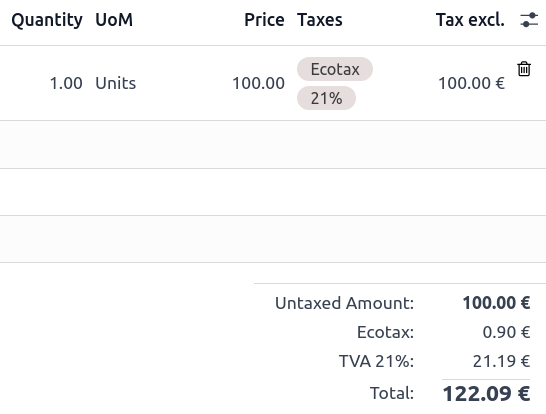
In the following example:
the Ecotax is a Fixed tax of €0.90 per unit, with the Affect base of subsequent taxes setting enabled.
The 21% VAT tax is a 21% Percentage of Price tax with the Base affected by preceding taxes setting enabled.
In the Taxes list, the 21% VAT tax comes after the Ecotax, as shown in the configuration above.
When applying both taxes to a product line, the Ecotax amount is added to the basis of the 21% VAT tax.
Base affected by preceding taxes
This setting, which is only visible in developer mode, determines whether any previous tax that affects the base of subsequent taxes will modify the sales price that this tax is based on.
Note
Taxes with Included in Price set to Tax Included do not have this setting. Such taxes are never affected by previous Tax Excluded taxes, except if they have the Fixed tax computation type.
