管理
请假和分配请求在被批准之前需要经过一个审批流程。根据具体的请假类型配置,请求可能需要一级或两级审批。所有这些配置都可以在 休假 应用的 管理 部分找到。
Only users who can approve allocation and time off requests see the Management section in the Time Off application.
管理休假
要查看需要批准的休假申请,请导航至 。这样就会显示 所有休假 页面。
The only time off requests that are visible on this page belong to employees the user either has Time Off Officer or Administrator access rights for in the Time Off application.
The default filter on the All Time Off page is Waiting For Me. This filter only presents time off requests that need to be approved for current employees on the user’s team, with a status of either To Approve or Second Approval.
在 所有休假 页面的左侧,有各种分组选项可以用来缩小显示的休假请求范围,这些选项位于 状态 和 部门 标题下方。
由于只显示需要审批的休假请求,因此 状态 选项只有 全部 、 待审批 和 二次审批 。
用户所属并管理员工的各个部门也会显示在页面左侧的 部门 下。
Note
If no requests fall under one of the status options or departments, that status or department is not visible on the left-side menu.
要仅显示特定部门的休假请求,请点击页面左侧的 部门 。然后只会显示所选部门内的请求。
状态列显示每个请求的状态,并以特定颜色突出显示。
待审批 和 二次审批 请求以黄色高亮显示,并且默认情况下只有这些请求会出现在列表中。
If the Waiting For Me filter is removed, all statuses appear.
已批准 请求以绿色高亮显示, 待提交 (草稿)请求以蓝色高亮显示, 已拒绝 请求以灰色高亮显示。
要批准一个休假请求,请点击行末的 批准 按钮。
要验证一个已经批准且正在等待第二次批准的休假请求,请点击行末的 验证 按钮。
要拒绝一个请求,请点击行末的 拒绝 按钮。
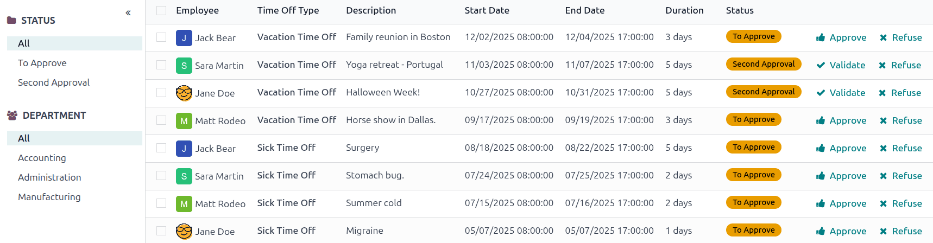
要查看更多详细信息,请点击休假请求行的任意位置(除了 批准 、 验证 图标和 拒绝 按钮)。这样做会加载该特定休假请求表单。根据用户的权限,可以进行修改。
要修改请求,请在表单中进行任何所需的更改。所有更改都会自动保存。
也可以从这个表单中批准、验证或拒绝请求。点击 批准 按钮来批准, 验证 按钮来验证,或 拒绝 按钮来拒绝请求。
管理分配
要查看需要批准的分配,请导航到 。这样做会显示 分配 页面。
The user is only presented with allocations for employees they have either Time Off Officer or Administrator access rights for in the Time Off application.
The default filters configured on the Allocations page are First Approval and My Team. These default filters only present employees that the user manages and are awaiting their first approval. Approved and refused allocation requests are not shown.
分配 页面的左侧有各种分组选项,可以缩小显示的分配请求范围。
状态 选项包括: 全部 、 待审批 、 已拒绝 和 已批准 。点击特定的 状态 可以仅查看具有该特定状态的请求。
要查看所有分配请求,无论其状态如何,请点击 全部 在 状态 标题下。
也可以按部门显示分配请求。点击 分配 页面左侧的所需 部门 ,以仅显示该特定部门的分配。
Note
左侧的分组**仅**显示符合 我的团队 和 在职员工 默认过滤条件的分配请求,如果这些默认过滤条件未从 搜索… 栏中移除。左侧仅显示符合这些过滤条件的分配请求的状态。
例如,如果没有状态为 待提交 的请求,该状态选项将不会出现在 分配 页面的左侧。
用户员工的所有部门都会出现在列表中。如果没有任何符合预配置过滤条件的该部门的分配请求,列表将为空。
始终可以通过点击特定过滤条件旁边的 (移除) 图标来移除任何预配置的过滤条件。
The status column displays the status of each request, with the status highlighted in a specific color. The To Approve requests are highlighted in yellow, and if the default First Approval filter is removed, the Approved requests are highlighted in green, and the Refused requests are highlighted in gray.
To approve an allocation request, click the Approve button at the end of the line. To refuse a request, click the Refuse button.
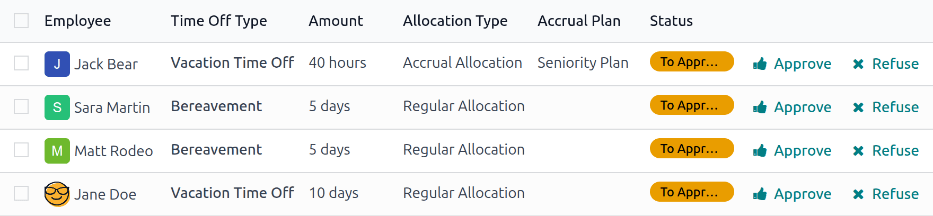
If more details are needed, click anywhere on the allocation request line (except for the Approve or Refuse buttons) to view the specific request in detail, via the allocation request form.
根据用户的权限,可以对出现的分配请求表单进行更改。要修改请求,请在表单中进行所需的任何更改。所有更改都会自动保存。
It is also possible to approve or refuse the request from this form. Click the Approve button to approve, or the Refuse button to refuse the request.
