信息面板
实时沟通 信息面板为代理提供了处理实时聊天会话所必需的上下文。该面板收集有关访客和会话历史信息,从而允许代理更快地响应和避免重复信息。
访问信息面板
To view the info panel, open a live chat conversation either in the Discuss app or the Live Chat app. Live chat discussions in the Discuss app are listed on the left side panel, under the title of the live chat channel where the conversation began. In the Live Chat app, conversations can be accessed by navigating to .
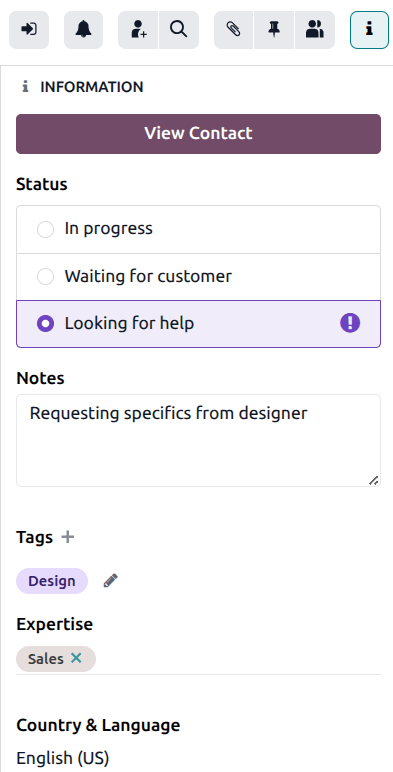
The information panel appears on the right side of the conversation. Click the (information) icon to toggle the info panel open or closed.
Contact information
If the live chat conversation involves a known contact, a View Contact button appears at the top of the panel. Clicking this button opens the contact record for the customer, without closing the conversation. The contact record links to the customers’ sales, invoices, meetings, and previous live chat sessions.
状态
In an active livechat conversation, the Status can be set to allow agents to identify conversations that require immediate action, and inform other agents which conversations require their expertise at any given time.
进行中
The In progress status is the default status for a conversation. This status indicates that the customer is waiting for a response from an agent.
Tip
If a conversation is set to Waiting for customer, it will revert to In progress as soon as the customer sends a new message.
等待客户响应
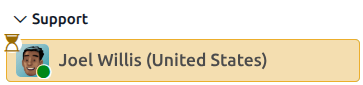
The Waiting for customer status indicates that an agent has sent a message to the customer and is waiting for a response. When this status is applied, the conversation is highlighted in yellow with a (hourglass) icon.
Important
The Waiting for customer status must be manually applied.
正在寻求帮助
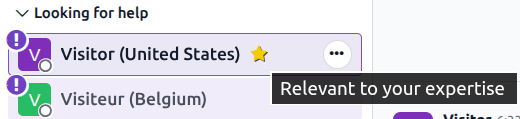
If a conversation is marked with the status Looking for help, it moves from its original channel name heading to the Looking for help heading, and the (exclamation circle) icon is added. Any user with Live Chat permissions can view or join these conversations, even if they are not currently active in a live chat channel.
If a conversation with the Looking for help status has an expertise listed that matches the user’s, the conversation is marked with a (star) icon.
To join a conversation in progress, click the (sign in) icon at the top of the information panel. Doing so moves the conversation back to the channel heading and reverts the status to In progress. The customer is also informed that a new user has joined the chat.
If the icon does not appear, manually set the status to In progress to inform other agents the conversation is being handled.
Tip
All conversations that have been tagged with the status Looking for help can be found by navigating to . Use the filters to find the appropriate session date.
备注
The Notes field allows agents to leave comments about the conversation, recap the situation when transferring it to another agent, or to add context to the conversation that can be viewed later in reporting.
Chatbot answers
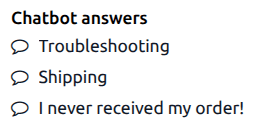
If the conversation was forwarded from a chatbot, the answers selected from the chatbot are included on the information panel under Chatbot answers.
专业知识
The Expertise field allows agents to designate the topic of conversation to a specific skillset or knowledge scope. This helps to categorize the conversation for assignment purposes, as well as issue tacking and enchanced reporting. Click into the field and select one or more options from the drop-down list.
Country & language
The Country & Language section identifies where the customer is located, and their language. A visitor’s language is determined via their browser’s language settings.
Note
会话根据一系列标准分配给接线员,包括可用性和正在进行的会话数量。虽然接线员的主要语言和附加语言会被考虑在内,但它们 不会 取代所有其他标准。
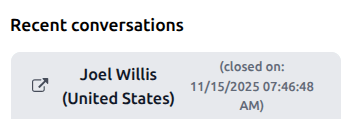
最近对话
Any recent live chat conversations with this customer also appear in the information panel. Click on the (external link) icon on the ticket title to open the conversation in a new tab.
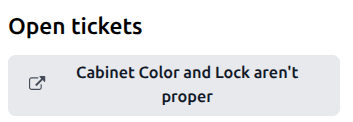
正在做的工单
Any open Helpdesk tickets created by the customer also appear in the information panel. Click on the (external link) icon on the ticket title to open the ticket record in a new tab.
成果
For closed conversations, the Outcome field defines how the conversation concluded:
No Answer: assigned when the customer does not respond to the agent. This usually occurs when the session is initiated, but the customer does not engage or send additional messages.
No One Available: assigned when no agents are available to respond to the customer. This occurs when the session is initiated, but no operator is online or available to be assigned to the chat.
Success: assigned when the live chat session is completed successfully. This outcome does not depend the customer providing a positive rating, it is dependent on the session being resolved without escalation or failure.
Escalated: assigned when the session is forwarded to another operator. This indicates the initial operator could not resolve the issue, and required assistance.
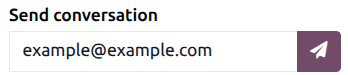
Send conversation
当会话完成时,请滚动至信息面板的底部。该字段中的电子邮件地址可以编辑以发送到不同的地址。点击 (纸飞机) 图标以发送会话转录的副本。