头部设计
要修改头部的样式,请单击 编辑 ,然后单击头部。网站编辑器的 `自定义`选项卡中,以下选项可用:
从下拉菜单中选择一个 模板 。
选择 背景 设置来改变不同的 主题样式 、 自定义 颜色选项和 渐变 颜色。
当添加 边框 到头部时,其大小、样式和颜色可以定义。
适应设计 圆角 来适配。
添加 阴影 并定义其 颜色, 偏移, 模糊, 和 扩展 。
添加 滚动效果. 悬停以预览效果。
Choose the Header Position between Regular, Hidden, and Over The Content. When Over The Content is selected, you can customize the Background and Text Color.
Show or hide Elements such as text, the search bar, Sign in button, social media links, Contact us button, and logo.
To finalize changes, click on Save.
Tip
To hide the header, click on Edit, click on the header, and go to the Theme tab of the website editor. Scroll down to the Advanced section and toggle the Show Header switch to hide/show the header.
Header content
Menus organize the header’s content and help users navigate through web pages effectively. User-friendly and well-structured menus also play a crucial role in improving search engine rankings.
菜单编辑器
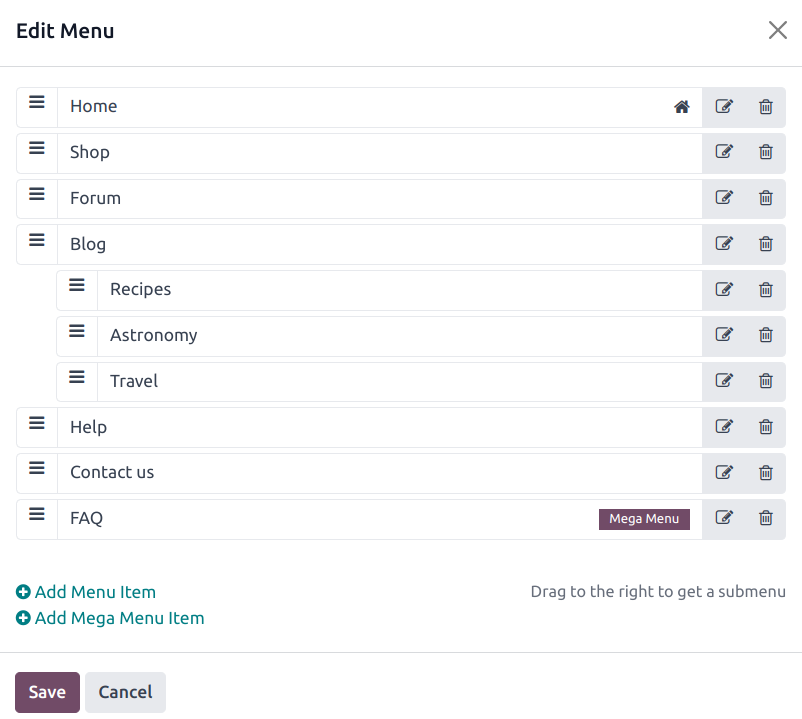
The menu editor allows to edit the website’s header and add menu items and mega menus.
To edit the header’s content, go to . From there, you can:
rename a menu item or change its URL using the Edit Menu Item icon;
delete a menu item using the Delete Menu Item icon;
move a menu item by dragging and dropping it to the desired place in the menu;
create a regular drop-down menu by dragging and dropping the sub-menu items to the right, underneath their parent menu.
Note
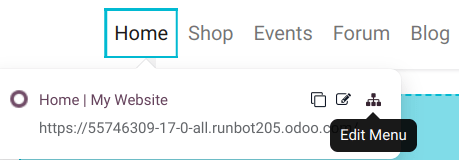
You can also access the menu editor by clicking Edit, selecting any menu item, and clicking the Edit Menu icon.
大型菜单
Mega menus are similar to drop-down menus, but instead of a simple list of sub-menus, they display a panel divided into groups of navigation options. This makes them suitable for websites with large amounts of content or e-commerce websites, as they can help include all of your web pages or e-commerce categories in the menu while still making all menu items visible at once.

要创建超级菜单,请进入 并点击 添加超级菜单项目 。在弹出窗口中输入超级菜单的 名称 ,点击 确定 ,然后点击 保存 。
To adapt the options and content of the mega menu, click on a mega menu item in the header, then click Edit. Mega menus are composed of building blocks, which means you can customize each component individually. For example:
Edit the text directly in the building block.
Edit a menu item’s URL by selecting the menu item and clicking the Edit link button in the small preview pop-up. Type
/to search for a page on your website, or#to search for an existing custom anchor.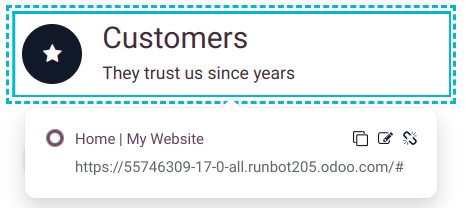
Move a menu item by dragging and dropping the related block to the desired position in the mega menu.
Delete a menu item by deleting the related block.
To adapt the general layout of the mega menu, go to the Customize tab of the website editor, then, in the Mega Menu section:
Choose a Template.
Pick the Size: either Full-Width or Narrow.
To finalize changes, click on Save.
