第 4 章 - 自定义,第二部分
创建自定义背景形状
形状是可以应用到背景或图像上的装饰性元素。它们是 SVG 文件,可以添加动画并使用不同颜色进行自定义。
为了更好地契合网站期望的氛围,请创建一个自定义背景形状,以便客户可以在不同版块上重复使用。
使用以下设置创建你的自定义形状:
声明您的形状。您可以在 此处 找到原始 SVG 形状。
将形状的基础颜色设置为主题的绿色,并将其添加到可用形状列表中。
更多内容
请参阅参考文档,了解如何添加 自定义背景形状。

Tip
#CEF8A1)相匹配。因此,在 SVG 文件中,您必须使用 Odoo 默认调色板中的颜色 3(#3AADAA)。在我们的 Airproof 示例中查找以下内容的解决方案:
在 shapes.xml 上的形状声明。
借助 primary_variable.scss 和 option.xml 将形状添加到列表中。
基于 Airproof 设计,将你刚刚添加的形状应用到首页的
Text-Image构建块上:确保形状位于正确的位置。
将其颜色设置为主题的浅蓝色。
更多内容
请参阅参考文档,了解如何使用 背景形状。
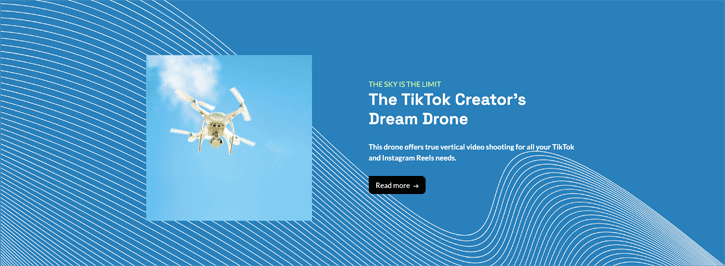
Tip
与标准的 Odoo 形状不同,当将自定义形状应用到区块时,请在形状类中将 web_editor 替换为 illustration。
/website_airproof/data/pages/home.xml¶<!-- Text-image block & Background shape -->
<section class="s_text_image o_cc o_cc3 o_colored_level pt120 pb96"
data-snippet="s_image_text" data-name="Image - Text" style="background-color: rgb(41, 128, 187);"
data-oe-shape-data="{'shape': 'illustration/airproof/waves', 'colors': {'c1': '#BBE1FA'}, 'flip': ['x']}">
<div class="o_we_shape o_illustration_airproof_waves o_we_flip_x" style="background-image:
url('/web_editor/shape/illustration%2Fairproof%2Fwaves.svg?c2=%23BBE1FA');
background-position: 100% 100%;"/>
[...]
</section>
创建自定义渐变
接下来,让我们为背景添加渐变。为了增强页面的动感,请为你的”最新产品”版块应用从蓝色 rgb(11, 142, 230) 到深蓝色 rgb(41, 128, 187) 的渐变。但在此之前,请先将该渐变添加到网站构建器中,以便客户可以轻松重复使用。
创建并声明
gradients.xml文件,并添加自定义渐变。/website_airproof/__manifest__.py¶'data': [ # Gradients 'data/gradients.xml', ]
/website_airproof/data/gradients.xml¶<record id="colorpicker" model="ir.ui.view"> <field name="key">website_airproof.colorpicker</field> <field name="name">Custom Gradients</field> <field name="type">qweb</field> <field name="inherit_id" ref="web_editor.colorpicker"/> <field name="arch" type="xml"> <xpath expr="//div[@data-name='predefined_gradients']/t[@t-set='gradients']" position="after"> <t t-set="gradients" t-value="gradients + ['linear-gradient(0deg, rgb(41, 128, 187) 0%, rgb(11, 142, 230) 100%)']"/> </xpath> </field> </record>
将其应用到“最新产品”区块。
/website_airproof/data/pages/home.xml¶<!-- Latest products section --> <section data-snippet="s_dynamic_snippet_products" class="s_dynamic_snippet_products s_dynamic s_dynamic_empty pt32 pb32 o_colored_level s_product_product_airproof o_dynamic_snippet_empty o_cc o_cc5" data-custom-template-data="{}" data-name="Produits" data-product-category-id="all" data-show-variants="" data-number-of-records="16" data-filter-id="3" data-carousel-interval="5000" data-template-key="website_airproof.dynamic_filter_template_product_product_airproof" style="background-image: linear-gradient(0deg, rgb(41, 128, 187) 0%, rgb(11, 142, 230) 100%) !important;"> [...] </section>
动画
客户很喜欢整体设计,但觉得页面有些静态。使用 fade-in、rotate、bounce 等动画来增强页面的交互性。这些动画可以应用到列、图像、文本、按钮……
基于 Airproof 设计,为以下元素添加动画:
轮播第一张幻灯片的文本。
第一张幻灯片中的贴纸和无人机照片。
4 个带图标的列。
调整动画延迟,以获得更平滑的过渡。
更多内容
请参阅参考文档,了解如何应用 动画。
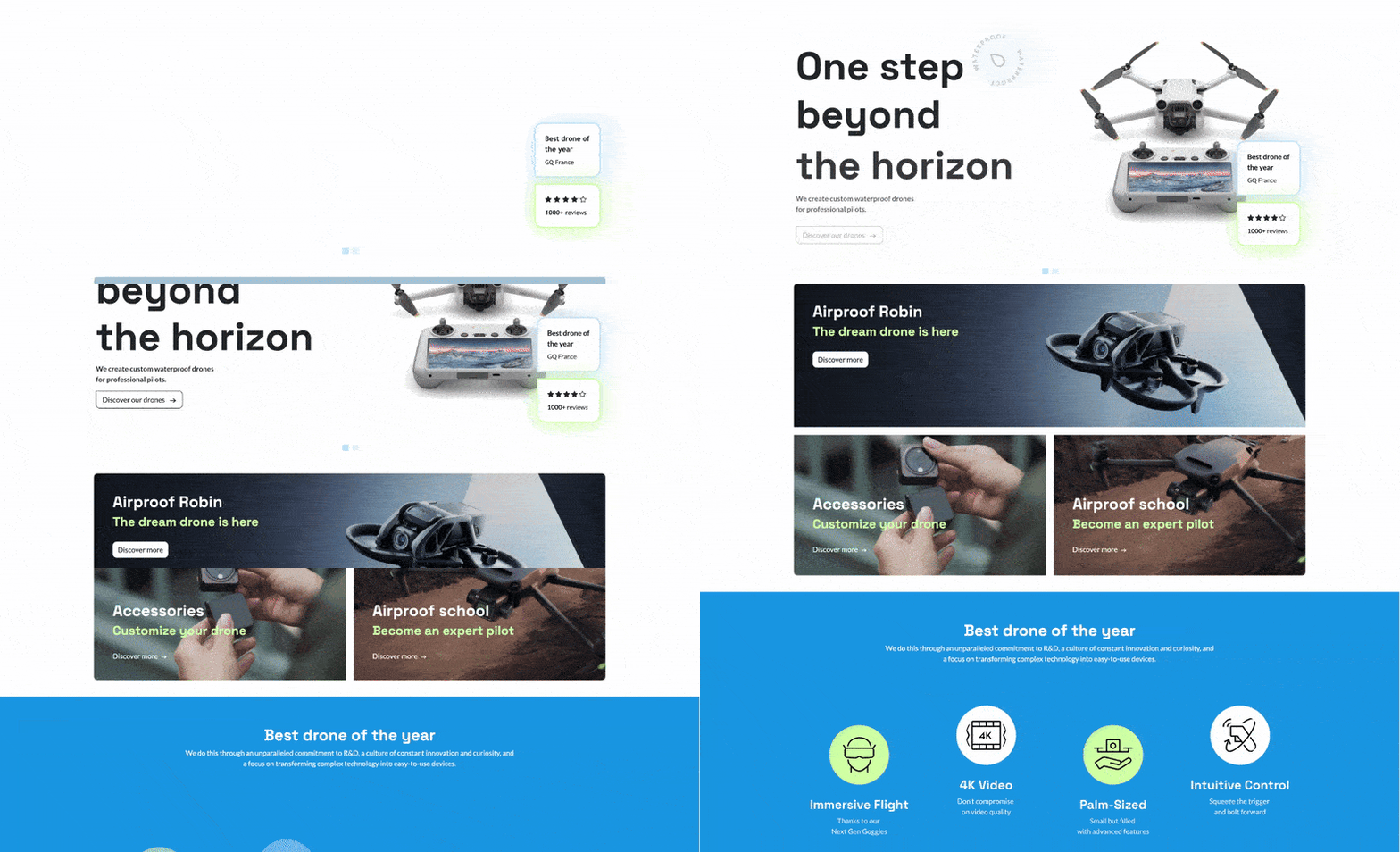
在 Airproof 示例的 home.xml 中查找解决方案。
<img src="/web/image/website_airproof.img_sticker" class="img img-fluid position-absolute
x_sticker o_animate o_anim_rotate_in o_visible" style="animation-delay: 0.8s;
--wanim-intensity: 30;"/>

<img src="/web/image/website_airproof.img_drone" class="img img-fluid o_animate
o_anim_zoom_out o_visible" alt="Drone"/>
<span class="o_animated_text o_animate o_anim_fade_in o_anim_from_bottom o_visible">One
step</span>
<div class="o_grid_item o_colored_level g-height-7 g-col-lg-3 col-lg-3 text-center
o_anim_fade_in o_animate o_anim_from_bottom o_visible" style="z-index: 2;
grid-area: 6 / 1 / 12 / 4; --wanim-intensity: 15;">
</div>
表单
Odoo 中的表单非常强大。它们可以直接向个人邮箱发送电子邮件,或直接与其他 Odoo 应用集成。这非常好,因为客户的主要优先事项之一就是售后服务。因此,联系表单必须正确配置。
基于 Airproof 设计,创建一个联系页面。记得禁用默认的联系页面,并将新页面的链接添加到菜单中。客户对其联系表单有以下要求:
姓名 和 电子邮件地址 字段。
公司名称 字段。
条件增值税 字段仅在填写了 公司名称 时才显示。
除 公司名称 外,所有字段都应为必填项。
表单提交必须触发一封电子邮件。
表单提交后,
thank-you message应继续显示在联系页面上。
Tip
要确定表单的正确代码:
- 通过网站构建器创建一个测试页面。拖放你感兴趣的构建块,并应用正确的设计。使用通过 HTML/SCSS 编辑器 生成的代码。
您还可以在 Odoo 中找到原始构建块代码:odoo/addons/website/views/snippets/s_website_form.xml。
解决方案见我们 Airproof 示例中的 contact.xml。
创建页面模板
你没有时间为客户创建所有服务页面。别担心!创建一个模板页面,客户可以用它来构建自己的服务页面。
此页面应由以下内容组成:
一个 视差 构建块,
一个 主要优势 构建块,其标题替换为“ 了解我们的服务”,
一个 行动号召 构建块,
你自定义的轮播片段。
更多内容
请参阅参考文档,了解如何创建 页面模板。
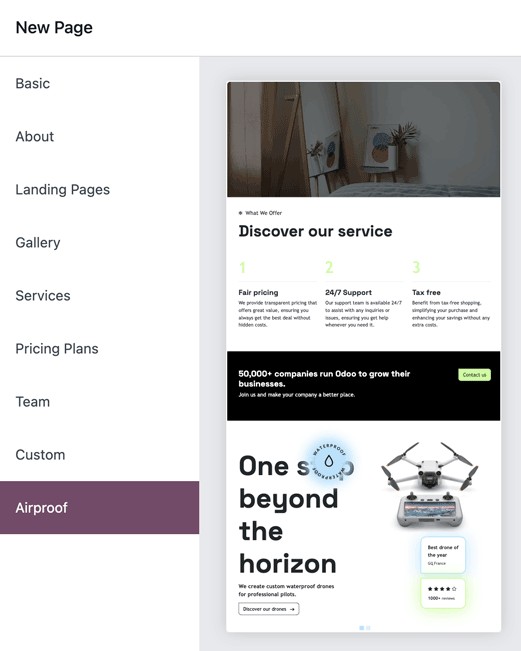
创建
new_page_template_templates.xml文件,并在我们的 Airproof 示例 中了解其内容。不要忘记在
__manifest__.py文件中声明你的文件,并定义模板页面包含的内容。/website_airproof/__manifest__.py¶'data': [ # ... 'views/new_page_template_templates.xml', ], 'assets': { # ... }, 'new_page_templates': { 'airproof': { 'services': ['s_parallax', 's_airproof_key_benefits_h2', 's_call_to_action', 's_airproof_carousel'] } },