休假报告
HR 模块提供了一种处理休假的方法,当员工在某一个时间段内没有上班时,HR 模块会自动生成相应的休假记录。
Example
公司 HR 部门处理薪资的周期是每两周,星期三处理,员工在星期五发放薪资。
One employee is sick on the last Thursday and Friday of the two-week pay period. Since they have automatically generated work entries based on their working schedule, and payroll is processed on Wednesdays, the paycheck they receive incorrectly states that they were paid for a regular work day for all ten days of the two-week pay period.
Instead of cancelling the paycheck and reissuing it, causing delays for the employee and more work for the payroll department, Odoo allows for the deferral of the time off taken, to the following pay period.
This ensures all time off balances are correct, and the employee is properly compensated for their time.
Time off dashboard
When time off requests are submitted for a time period that was already processed on a payslip, the time off requests appear in the Time Off page of the Payroll app. To access this, navigate to .
The Time Off page default filter is To Defer, and displays all requests with a Payslip State of To defer to next payslip. This is because the employee was already paid for that time as worked time, and it was logged as regular time spent at work.
推迟多次休假
为了保持员工的请假余额正确无误,休假申请 必须 应用于下一个薪资期。这不仅能确保休假申请的余额是最新的,还能避免重做工作分录、取消工资单和重新发放工资单。
To select the work entries to defer, tick the box to the left of the work entry line on the Time Off page. To select all work entries in the list, tick the box to the left of the Employee column title, at the top of the list.
Once any work entry is selected, two buttons appear at the top of the report: a (#) selected button, and an Actions button. The (#) selected button indicates how many entries are currently selected.
When all the desired work entries are selected, click the Actions button, and a menu appears with several choices. Click Defer to Next Month in the list, and all selected entries are deferred to the following month.
Defer individual time off entries
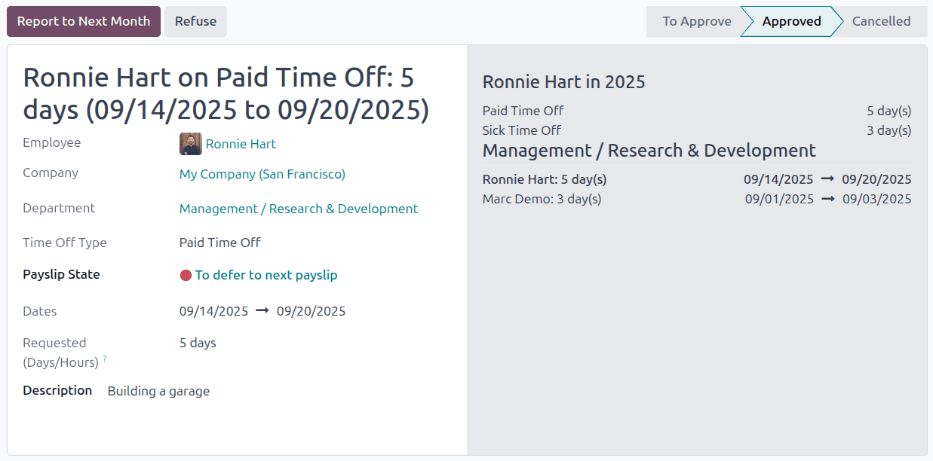
Time off requests appearing on the Time Off page can be deferred individually. Click on an individual time off request, and the details for that request load.
The specific details for the time off request appear on the left-hand side, and all of the employee’s submitted time off requests appear on the right-hand side (including the request in the details on the left-hand side).
To defer the time off request to the next payslip, click the Report to Next Month button in the upper-left corner. Once processed, the Report to Next Month button disappears, and the Payslip State changes from To defer to next payslip to Computed in Current Payslip.