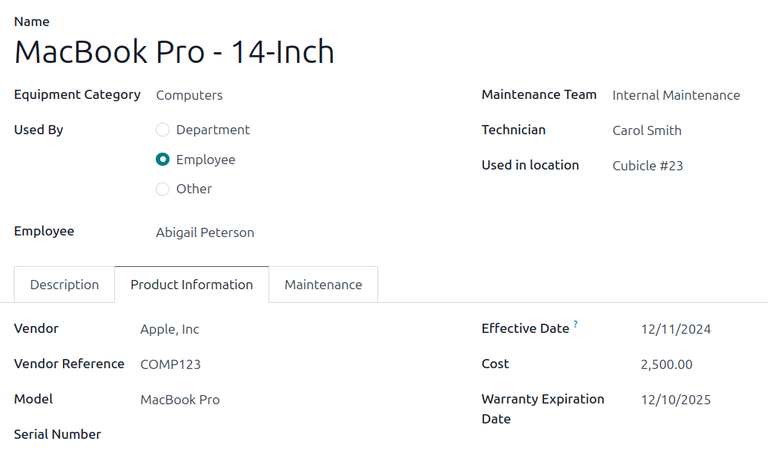
设备
许多员工在工作时会使用各种物品,例如笔记本电脑、手机和打印机。大多数公司会追溯他们的设备,如查看谁在使用什么设备,并记录有关设备的重要信息,如序列号、保修信息和维护历史。
Note
要对员工设备进行追溯, 必须 安装 维修 应用。
员工个人设备
员工设备在员工记录中进行跟踪。要查看当前分配给某员工的所有设备,请导航到 应用,并点击所需的员工记录。
在记录的顶部,会出现一个 设备数量 智能按钮,显示当前分配给该员工的项目数量。
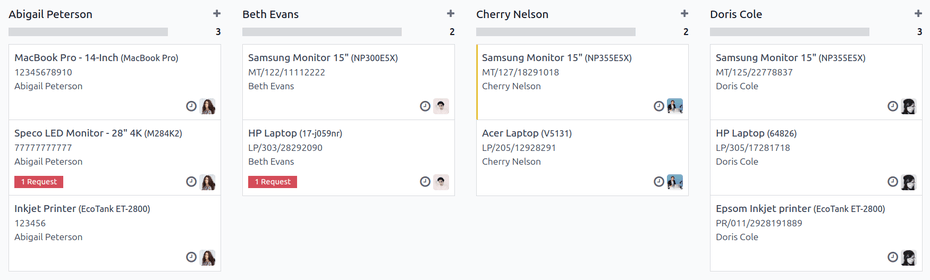
点击 设备数量 智能按钮,当前分配给该员工的所有设备将以单独的看板卡片形式显示。
每张看板卡第一行显示设备名称和型号,其次是序列号(如有),最后是员工姓名。任何当前的维护请求都会显示在卡片底部的红框中。

Note
记录设备时**不需要**序列号。
所有员工设备
要查看所有员工的所有设备,请从单个员工的 设备记录 开始。
Note
选择哪位员工,或者他们是否被分配了任何设备,都无关紧要。此步骤仅用于进入 设备 列表。
In the Kanban view of the employee’s equipment, clear the default Assigned Employee filter in the search bar. This presents all equipment in the database, including those assigned to individual employees and whole departments.
点击搜索栏,在 分组方式 列中选择 员工 。现在,设备已按员工在看板视图中组织起来。
在显示所有员工设备记录的看板视图中,可通过点击并拖动设备卡将设备重新分配给所需的员工。这将改变设备的所有权。
Add equipment to an employee record
To add equipment to an employee’s record, open the app, click on the desired employee record, then click the Equipment Count smart button at the top.
All equipment currently assigned to the employee appears in individual Kanban cards. To add a new equipment record, click the New button in the upper-left corner, and a blank Equipment form loads.
Fill out the equipment form for the employee’s equipment.
Tip
Instead of filling out a new Equipment form for the same item, a form can be duplicated, then updated.
On the Equipment form, click the (Actions) icon in the upper-left corner, then select Duplicate.
An identical form appears, with all the information filled out, except for the Serial Number.
Enter the Serial Number on the form, and make any other necessary changes, such as the assigned Employee.