发放工资
发放工资 是一种生成多个发放工资单的方法,而不是创建和处理单个发放工资单。
一般来说, 公司的工资部门会为每个工资结构、每个支付周期(通常为每周、每两周,或每月)创建新的发放工资单。如果需要,发放工资单也可以根据部门、职位等进行组织。
发放工资单添加到发放工资单中,然后处理发放工资单,员工被支付。
查看发放工资单
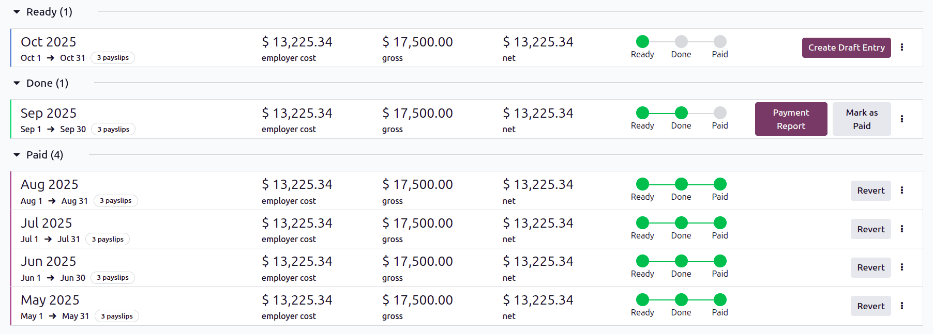
查看所有数据库中的发放工资单,导航到 以显示所有发放工资单,这些发放工资单已创建。这些发放工资单显示在列表视图中,默认分组为 状态 ( 准备就绪 、 完成 或 已支付 )。
每个发放工资单都显示名称、包含的日期、发放工资单的数量、所有发放工资单的 雇主成本 、 毛利 和 净收入 金额。
Create a new pay run
New pay runs can be created from the Work Entry, Employee Payslips, or Pay Runs dashboards.
Work entry dashboard
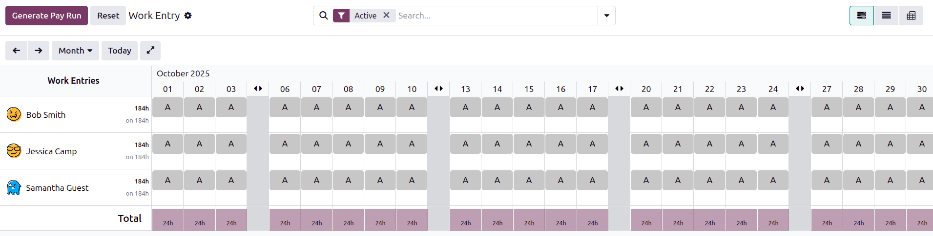
To create a pay run from the work entry dashboard, navigate to . The current time period is displayed, with the current day highlighted in yellow.
All employees appear in a default Gantt view, with all work entries displayed. If necessary, navigate to the desired time period.
Once all missing work entries are added and all conflicts are resolved, click the Generate Pay Run button. The pay run is created for all employees, with a status of Ready.
Employee payslips dashboard
To create a pay run from the payslips dashboard, navigate to . All payslips for all employees are displayed in a default list view, in chronological order.
Click the Pay Run button and a New Pay Run pop-up window loads. Select the Salary Structure using the drop-down menu. If no Salary Structure is selected, the pay run applies to all salary structures. Next, select the Pay Schedule, which is how often employees are paid. The default options are year, half-year, quarter, 2 months, month, half-month, 2 weeks, week, or day.
Last, using the calendar selector, set the first day the pay run covers in the first blank Period field. The second field is automatically populated based on the selection in the Pay Schedule field.
Example
A company pays its employees every month. To configure the pay run for November, the
Pay Schedule is set to month, and the first Period field is
set to Nov 1. Once entered, the second field is automatically populated with Nov 30.
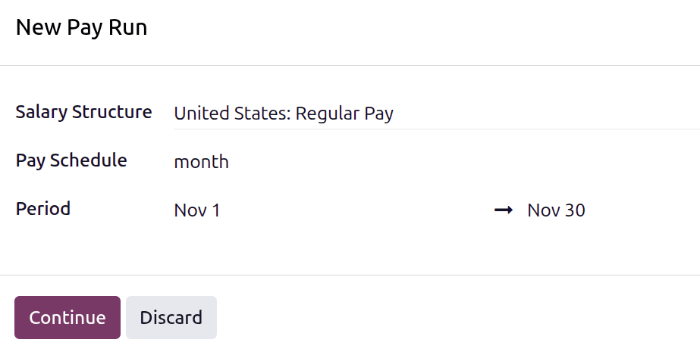
When the New Pay Run pop-up window is configured, click Continue, and the pop-up window changes to a Select Employees window. All employees who match the parameters set in the New Pay Run pop-up window appear in the list. Select the desired employees to add to the pay run, or click the box next to Employees to select all employees in the list.
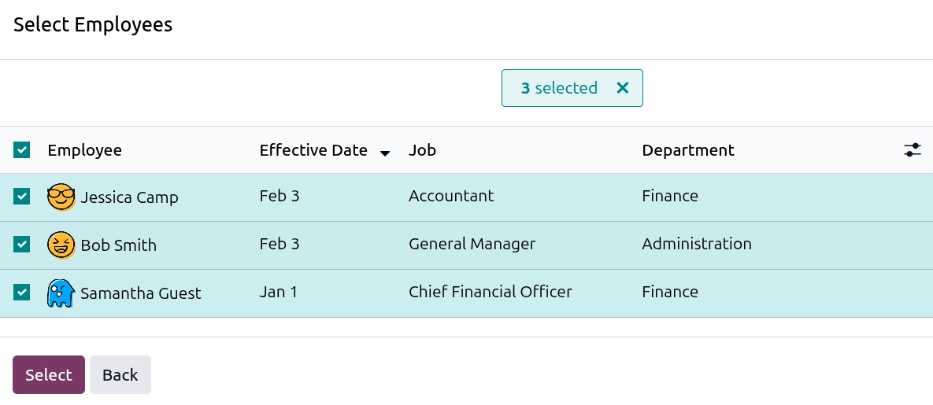
Once all desired employees are selected, click Select. The pop-up window closes, and the pay run appears on the screen.
Pay runs dashboard
To create a pay run from the pay runs dashboard, navigate to . Click the New button and a New Pay Run pop-up window loads.
Follow the same directions as if creating a pay run form the payslips dashboard.
Add a payslips to a pay run
Once a pay run has been created, payslips are added as part of the pay run creation. If needed, additional payslips can be created individually, and added to a pay run after it has been created.
To add a new payslip, navigate to . Click the New Off-Cycle button and a blank Employee Payslips form loads. Configure the payslip form, and ensure the Pay Run field is populated.
Once the form is configured, click Compute Sheet to calculate the payslip and add it to the selected pay run.
Process a pay run
After a pay run has been created, and all required payslips have been added, the pay run must then be processed, and employees paid.
Open the desired pay run by navigating to , and clicking on the desired pay run.
For a pay run to be processed, it must have a status of Ready. That means the pay run has been created and payslips have been added, but the payslips have not been processed.
Click the Create Draft Entry button, then click OK in the Confirmation pop-up window to confirm and create a draft of all the individual payslips in the pay run. After this occurs, the pay run status changes to Done, and moves to the corresponding grouping on the Pay Runs dashboard.
Tip
At any time, the pay run needs to be reverted back to a status of Ready, click the Revert button. This action does not remove any payslips that have already been added to the pay run, instead, the status changes back to Ready.
After any desired changes have been made, click Create Draft Entry and the pay run status changes to Done.
It is important to note, that if any payslips in the pay run have a status of Paid, the pay run cannot revert to a status of Ready.
Once the status has changed to Done, the payments must be logged in the database. Click the Payment Report button, and a pop-up window loads, where the payment report details are entered.
Using the drop-down menu, select the Export Format for the payment report. The universal option is CSV, while all other available options depend on the installed payroll localization.
Next, select the Payment Date using the calendar selector. This is the date the paychecks are issued.
Some payroll localizations cause a Bank Journal field to also appear. If visible, select the journal the payslips are logged on, using the drop-down menu.
Once the pop-up window is configured, click the Generate button. The Payment Report button changes to a Download (filetype) button. To save a copy of the payment report, click the Download (filetype) button, select the location for the file, then click Save.
Note
If the screen is enlarged beyond a certain amount, the Download (filetype) button is hidden from view. In this scenario, click the (vertical ellipsis) icon to view and select the Download (filetype) option.
After the report is created, click the Mark as paid button to mark the payslips as paid in the database.
Tip
Odoo automatically creates the name of the pay run according to the various selections made when creating the pay run (salary structure, pay schedule, etc). In some situations, a company may want to rename the pay runs, for better organization and a clearer understanding of what pay slips are part of each pay run.
For example, a company pays its employees monthly, for both hourly and salaried employees.
The names for their four August 2025 pay runs are:
Aug 1-14 2025 - HourlyAug 1-14 2025 - SalaryAug 15-31 2025 - HourlyAug 15-31 2025 - Salary
