新西兰
模块
以下模块与新西兰本地化相关:
名称 |
技术名称 |
说明 |
|---|---|---|
新西兰 - 会计 |
|
当会计 本地化会计制度 包设置为新西兰时,该模块默认安装。该模块还安装汇款通知报告模块。 |
Employment Hero的新西兰薪酬 |
|
该模块将所有来自Employment Hero的支付轮次与Odoo的日记账条目同步。 |
EFT批量付款 |
|
该模块允许企业批量付款,如薪酬和供应商付款。每家银行都有特定的格式用于这些交易。 |
Note
本地化核心模块将自动安装。其余模块可以手动 安装 。
本地化摘要
会计科目表:针对新西兰会计标准的预定义结构
税务规则(税项科目映射): automated tax adjustments based on customer or supplier registration status
税收和消费税
默认的税对 GST 报表 有效,可以通过 访问
标准的 产品与服务税率 GST税率为15%,但特定商品和服务的特定类别存在不同的税率和deductions。
更多内容
税项映射
Within the New Zealand localization package, tax names encompass the tax rate as an integral part of their naming convention.
These are the taxes in Odoo.
GST 名称 |
说明 |
发票上的标签 |
GST 类型 |
|---|---|---|---|
15% |
Sale (15%) |
GST Sales (15%) |
销售管理 |
15% |
Purch (15%) |
GST Purchases (15%) |
采购管理 |
0% EX |
Zero/Export (0%) Sale |
零税率(出口)销售 |
销售管理 |
0% F |
Zero/Import (0%) Purch |
GST Free Purchases |
采购管理 |
0% TPS |
Purch (Imports Taxable) |
采购(应税进口)- 单独缴税 |
采购管理 |
100% ONLY |
GST Only - Imports |
只对进口项目征收商品及服务税 |
采购管理 |
财务报表
GST report
The Goods and Services Tax (GST) report is a critical tax reporting requirement for businesses registered for GST. The GST return is used to report and remit GST to the Inland Revenue Department (IRD).
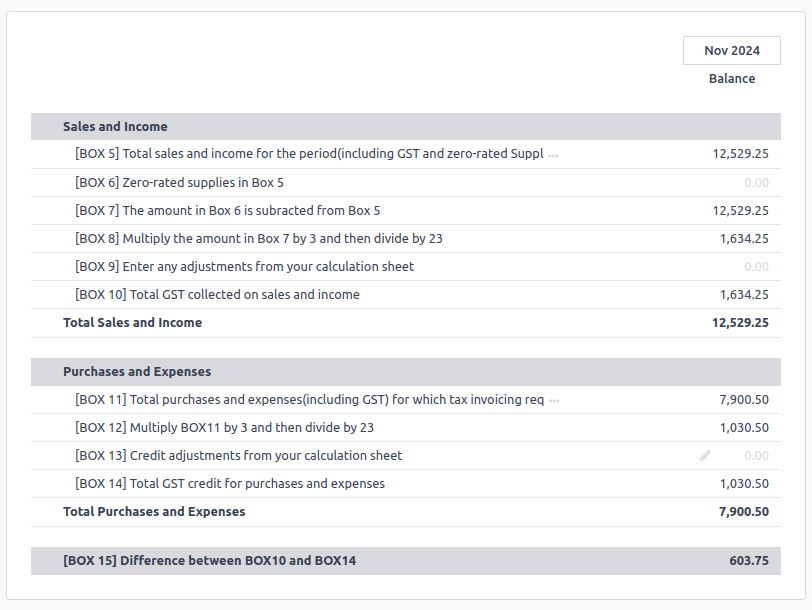
The base and tax amounts are collected from the GST, which is pre-configured in Odoo to align with GST Return requirements (Boxes 1-15). The GST can also be manually configured for special use cases, such as specific GST treatments (e.g., zero-rating for exported agricultural goods). Once the GST setup for each account is complete, Odoo automatically categorizes journal items into the appropriate boxes. This ensures the GST return is accurate and fully reflects the business’s financial activities.
Closing the GST report
The tax return periodicity must be set up before submitting the tax return (GST report) to the IRD.
Before closing the entry for the first time, enable the developer mode and go to to set the default GST payable account and GST receivable account.
Once the GST payable and GST receivable accounts are set up, the Tax Return report generates an accurate journal closing entry automatically, balancing the GST balance with the GST clearing account.
The balance between GST receivable and payable is set against the tax clearing account defined on the tax group. The amount to be paid to or received from IRD can then be reconciled with a bank transaction.
Important
The GST report is not submitted directly to the IRD. Instead, Odoo automatically calculates the required values for each section, providing options to audit and review the data for a clearer understanding of its history. Businesses can then submit these values to the IRD portal.
汇款通知单
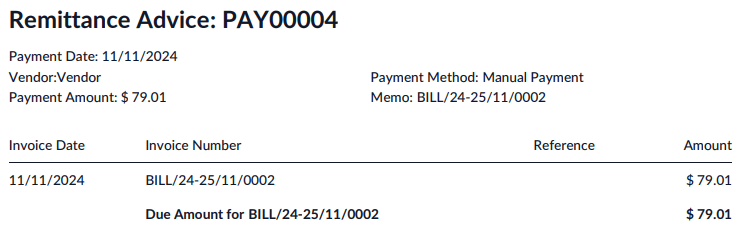
A remittance advice is a document used as proof of payment to a business. To access it, go to and select the payment(s). Then click Print and select Payment Receipt.
会计
电子发票
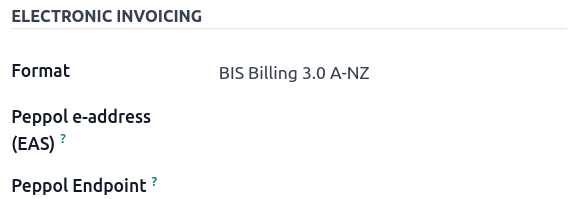
Odoo allows electronic invoicing settings to be configured per contact.
Important
Validating an invoice or credit note for a contact on the PEPPOL network will download a compliant XML file that can be manually uploaded to the PEPPOL network. Odoo is currently in the process of becoming an access point for the ANZ region.
EFT batch payments
An EFT batch file is a digital format used to facilitate bulk payment processing for businesses. It allows companies to consolidate multiple inbound and outbound payments into a single electronic file. This process is commonly used by businesses handling multiple payments at once, such as payroll or payments to multiple suppliers.
配置
Install the EFT Batch Payment module (
l10n_nz_eft).Go to . In the Customer Payments section, enable Batch Payments.
更多内容
银行日记账
Go to to configure the bank journal. In the Journal Entries tab, enter the Account Number and click Create and edit…. In the Create Account Number window, fill in the Bank and enable Send Money to set the bank account as trusted. The Currency field is optional.
Contacts’ bank accounts
To add banking information for a contact, navigate to , , or access the contact directly through the Contacts app. Select the relevant contact, then open the Accounting tab. Under the Bank Accounts section, click Add a line to enter the required details.
Account Number
银行
Account Holder (it will automatically be selected for that contact)
Send Money must be enabled.
Generate an EFT file
Go to or . Select the invoices/bills to be paid from the list and click Pay. In the Payment Method field, select New Zealand EFT and click Create Payment.
Note
The Group Payment checkbox is optional. This option appears only if there are multiple invoices or bills from the same contact.
In the payments window, the required EFT information for each payment, such as Particulars and Analysis Code, can be entered as needed.
Note
The same payment information can be found under or .
Then, return to the payments list view, select the payments needing to be batched, and click Create Batch.
In the batch payment window, fill in the following fields:
EFT file format
Payment Reference
Payment Particulars
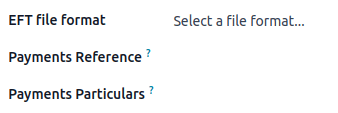
Then, click Validate. Odoo will generate the EFT file in the chatter. Click on the file to preview or download it.
Important
Each bank has its specific format requirements for EFT batch payments. Make sure to choose the correct EFT file format. Some banks may also require the completion of additional fields, such as Direct Debit Information and Dishonour Account.
Industry-specific features
Starshipit 货运
Starshipit is a shipping service operator that facilitates the integration of Australasian shipping couriers with Odoo.
立即购买,稍后付款解决方案
Buy Now, Pay Later solutions are popular payment methods for e-shops. Some of these solutions are available via the Stripe and AsiaPay payment providers.
Point of Sale terminals
To have a direct connection between Odoo and a PoS terminal, a Stripe terminal is needed. Odoo supports the EFTPOS payment solution.
Note
A Stripe payment terminal is not needed to use Odoo as the main POS system. The only drawback of not using Stripe is that cashiers must manually enter the final payment amount on the terminal.
工资管理
就业英雄整合
If your business is already up and running with Employment Hero, the connector can be used as an alternative payroll solution.
The Employment Hero module automatically synchronises payslip accounting entries (e.g., expenses, social charges, liabilities, taxes) from Employment Hero to Odoo. Payroll administration is still done in Employment Hero; only the journal entries are recorded in Odoo.
Important
要 :ref:` 配置 新西兰 的就业英雄 API <employment_hero/configuration>` ,请使用以下值作为 工资单 URL: https://api.nzpayroll.co.nz/ 。
