产品
Odoo电商 允许您从网站应用中 添加产品 和 管理产品页面 。它还允许您添加 数字文件 , 翻译 产品页面内容,并 管理库存 。
添加产品
创建产品
要在前台创建产品,点击右上角的 + 新建 ,然后点击 产品 。输入 产品名称 、 销售价格 、本地交易的默认 客户税 和 保存 。然后,您可以更新产品的详细信息、添加图片和 个性化 产品页面。当您 保存 时,产品页面将自动发布。
Tip
您也可以从后台创建产品,方法是进入 并点击 新建 。
从前台创建的产品会自动 发布 ,而从后台创建的产品则不会。要发布产品,请点击 访问网站 智能按钮访问产品页面,然后将 未发布 切换为 已发布 。
导入产品
To import product data using XLSX or CSV files, go to , click the (gear) icon, then Import records.
Tip
要发布**大批次**产品,请按照以下步骤操作:
转到 。
移除 已发布 筛选器,并切换到 列表 视图。
点击 ( 下拉切换 )图标并启用 已发布 。
点击 已发布 列,按**已发布**或**未发布**产品重新排序。
Select the products to publish by ticking their box.
In the Is Published column, tick the box for any of the selected products, then Confirm to publish them.
产品页面自定义
产品信息
To add general information about a product, navigate to and select the product. You can configure the product page from the form by adding variants, digital documents, or translating content.
You can also add an e-commerce-specific product description to be displayed below the product name on the product’s page. To do so, go to the Sales tab, scroll down to the Ecommerce description section, and add a description. Use Odoo’s rich-text editor features to personalize the content.
Tip
Click the Go to Website smart button to return to the frontend product’s page.
产品展示
要自定义产品在网站上的展示效果,请进入 商店 页面并点击对应产品。点击 编辑 即可: 定制 、修改产品图片 或添加 页面构建块 。
Tip
在产品页面上拖放构件时,将其置于顶部或底部蓝线的上方或下方,可使其在所有产品页面上都可见。
在 编辑 模式下,您可以点击网站上的任何文本进行编辑。
使用 自定义 标签修改页面布局或添加功能:
条款和条件: 切换开关以在产品页面上显示指向 条款和条件 的链接。
客户:
评级: 允许登录的门户用户通过点击产品名称下方的星星提交产品评论,并在底部的 客户评价 部分分享他们的体验。评论可通过产品页面的 客户评论 标题旁的 ( plus )图标或产品表单的聊天记录看到。要限制内部员工的可见性,请切换评论注释旁边的 公开 开关。
分享: 添加社交媒体和电子邮件图标按钮,允许客户通过这些渠道分享产品。
Quantity: Toggle the switch to allow customers to select the product quantity they want to purchase.
税务指示 :切换开关以指示价格是 含增值税还是不含增值税 。
Variants: Show all possible product variants vertically as a Products List or horizontally as selectable Options to compose the variant yourself.
Product Tags: Toggle the switch to display the Product Template Tags on the product page and allow customers to filter products using those tags.
Cart:
Buy Now: Add a Buy Now option to take the customer to the checkout page.
Wishlist: Add an Add to wishlist option allowing logged-in customers to save products in a wishlist.
Compare: Add a Compare option, allowing customers to compare products based on their attributes.
Specification: Select Bottom of Page to display a detailed list of the attributes and their values available for the product. This option only works for products with variants if the Product comparison tool is enabled in the Website Settings.
Note
Product Variants must be enabled by going to , in the eCommerce section.
Enabled functions apply to all product pages.
Products with single values for their attributes do not generate variants but are still displayed in the Product Specifications.
产品图片和视频
要添加更多媒体项目,如图片和视频,请前往 产品表单 ,然后转至 销售 选项卡,并点击 电子商务媒体 部分下的 添加媒体 。在弹出的 选择媒体 窗口中,转到 图片 选项卡,选择图片,点击 上传图片 或 添加 URL 。或前往 视频 选项卡,粘贴视频 URL 或嵌入代码。完成后,点击 添加 。
To customize the images or videos, go to the e-commerce product page, click Edit and select the relevant media. In the Customize tab, use the following features:
Images Width: Changes the width of the product images displayed on the page.
Layout: The Carousel layout allows customers to navigate from one image to the next using the (left arrow) or (right arrow); whereas the Grid displays four images in a square layout.
Image Zoom: Select the zoom effect for product images: Magnifier on hover Pop-up on Click, Both, or None.
Thumbnails :将缩略图对齐到 ( 左 )或 ( 底部 )。
Main Image: Click Replace to change the product’s main image.
额外图片: 添加 更多额外图片或视频(包括通过 URL)或 全部删除 。
数字文件
您可以将证书、电子书或用户手册等数字文件链接到产品。这些文件可在产品页面 付款前 或客户门户网站 付款后 获取。
要将数字文件链接到产品,请转到 产品表单 并点击 文件 智能按钮。然后,点击 上传 直接上传文件,或点击 新建 获得其他选项,然后点击 上传文件 。
Tip
You can link a URL instead of a digital file. To do so, click New, go to the Type field, and select URL.
To edit an existing file, click the (dropdown menu) in the top-right corner of the document card and click Edit.
Digital files available before payment
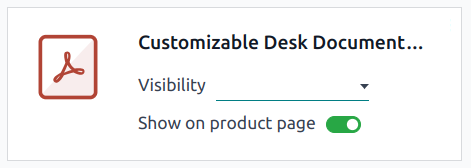
To make the file available on the product page (before payment), leave the Visibility field blank and toggle the Show on product page switch.
Digital files available after payment
To make the file available (after payment), set the Visibility field to Confirmed order and turn off the Show on product page switch.
Translation
If multiple languages are available on your website, you can translate a product’s information directly on the product form. Fields that support multiple languages are identifiable by their abbreviation language (e.g., EN) next to their field.
The e-commerce-related fields to translate are:
Product name.
Out-of-Stock Message (under the Sales tab).
Sales Description (under the Sales tab).
Note
网页上有未经翻译的内容可能会损害用户体验和 SEO 。您可以使用 翻译 功能翻译网页内容。
To check the language(s) of your website, go to and go to the Website Info section.
网站可用情况
To set the product’s website availability, navigate to the product form, go to the Sales tab, and in the eCommerce shop section, select the Website you wish the product to be available on. Leave the field blank to make the product available on all websites.
Note
You can make a product available on either one website or all websites, but selecting only some websites is not possible. To sell the product on multiple specific websites without making it available on all, duplicate the product for each website and assign the corresponding website to each duplicate.
Enable the Is Published toggle to make sure the product is available for website visitors.
库存管理
To enable and configure inventory management options, go to , scroll down to the Shop - Products section and the Inventory Defaults sub-section.
Important
The Inventory app must be installed to see the inventory management options.
To display the stock level on the product page, the Product Type field must be set to Storable in the product form.
Tip
If a unique reference is needed for inventory management, install the Manufacturing app, and create Kit bills of materials. Each kit links its published “virtual” products to the main reference tracked in Inventory. This ensures that any item sold on the website is converted into the corresponding stocked item in the delivery order.
仓储物流
In the Inventory Defaults sub-section, fill in those fields:
Out-of-Stock: Enable Continue Selling to allow customers to place orders even when the product is out of stock. Leave the box unchecked to prevent orders.
Show Available Qty: Displays the available quantity left under a specified threshold on the product page. The available quantity is calculated based on the On hand quantity minus the quantity already reserved for outgoing transfers.
