物理租借产品

Odoo 租赁 应用允许用户自定义租借产品的调度、价格和库存。用户可以设置多个取货和投放地点,通过序列号跟踪租借产品。

设置

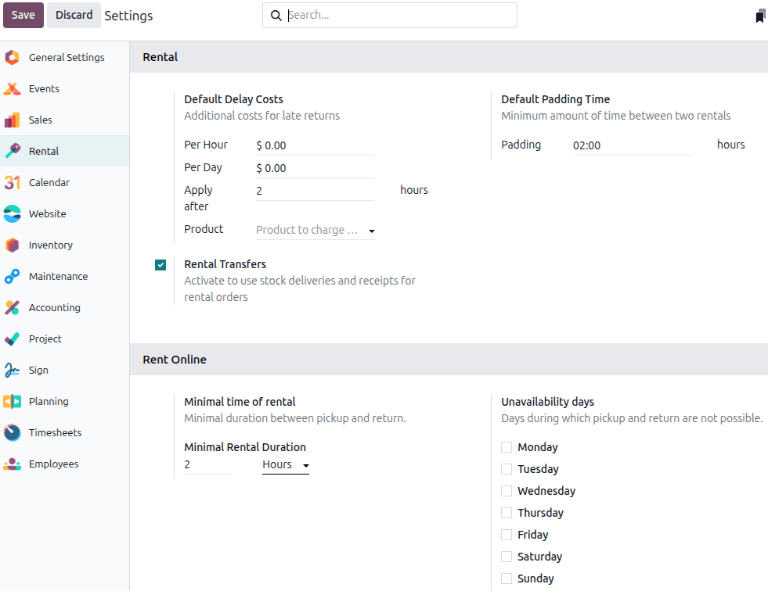
要配置默认租赁产品,可进入 租赁 ‣ 配置 ‣ 设定

租赁设定视图

租赁 部分,在 默认延迟成本 小节中,填写 应用于 字段。

注解

对于更精细的控制,在产品级别上配置延迟返回的 每小时每天 的成本。如果默认适用于所有产品,请将 产品 字段留空。

默认填充时间 部分,填写 填充 字段。下一步,启用 租借转移

租借在线 部分,填写 最小租借时长 字段并指定 不可用 天数。

点击 保存 来应用更改。

租赁产品

要查看数据库中所有可租借的产品,请转到 租借 ‣ 产品 。默认情况下,

Each product Kanban card displays the name of the product, rental rate, amount of units on hand, and product image (if applicable).

Create a new physical product

To set up a new physical rental product, go to the Rental app ‣ Products, then click New. In the new product window, the Rental checkbox is already ticked by default.

The new product view in the Rental app.

Select the Product Type as Goods and tick the Track Inventory checkbox. Next to the Track Inventory checkbox, select the By Unique Serial Number from the drop-down menu. For the Category field, select Goods from the drop-down menu or create a new category by typing in the name and clicking Create.

Click the Rental prices tab and in the Pricing section, click Add a price to enter a new rental rate. Choose a pricing period (the unit of duration of the rental) in the Period column, or create a new pricing period by typing in the name and clicking Create and edit.

注解

Creating a new pricing period opens a pop-up Create period window. Fill in the Name, Duration, and Unit, and click Save. The new pricing period automatically applies.

Sample of a New Period view in the Rental app.

Next, enter the Price for that specific Period. To apply the configured rental rate to an existing pricelist, click in the Pricelist column and select the desired list from the drop-down menu.

In the Reservations section, fill in the Hourly Fine, Daily Fine, and the Reserve product time. These values are automatically populated from the Default Delay Costs section, provided they have been configured in the Rental app ‣ Configuration ‣ Settings.

Click the (Save manually) icon near the top to save.

Example

A bike rental business only rents out tandem bikes for the local park for two hours. The hourly rental rate for their tandem bikes is $20, but since tandem bikes are popular they want to set a fixed price of $35. To ensure the business gets their bikes returned on time they set the late return fee as $20 per hour and $160 per day ($20 x 8 hrs).

Create a new pricing period by navigating to Rental app ‣ Configuration ‣ Rental periods. Click New and configure a the period for 2 hours.

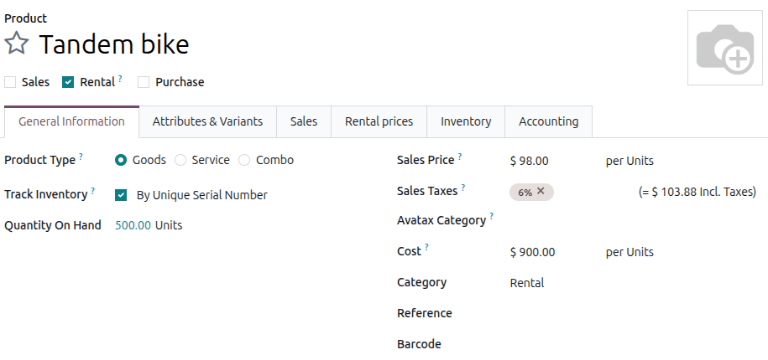
Navigate to the tandem bike product and in the Rental prices tab and add the 2 hour period set at $35. Manually save to apply changes.

Sample of a rental product with the custom rental period applied.

Create a rental order

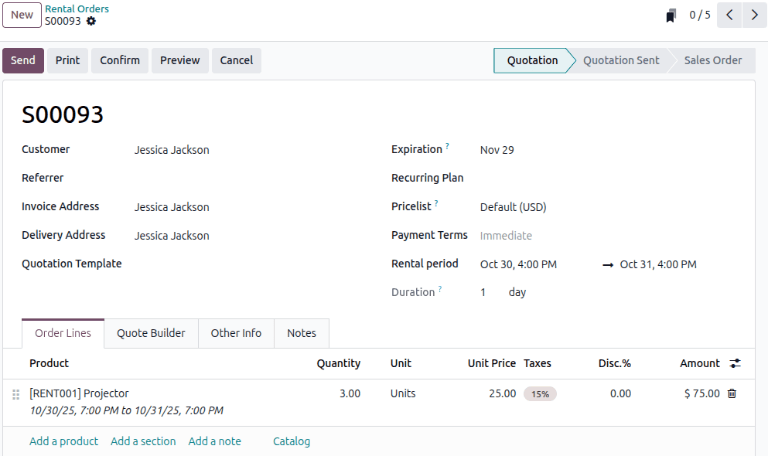
To create a rental order in the Rental app, navigate to Rental app ‣ Orders ‣ Orders, and click New. Doing so reveals a blank rental order form.

Odoo 租赁应用程序中提供的已填写租赁订单示例。

首先添加一个 客户 字段,然后在 租赁期 字段中配置所需的租赁期限。

To adjust the rental duration, click the first date in the Rental period field, and select the range of dates and time to represent the rental duration from the pop-up calendar form that appears.

Odoo 租赁应用程序中的租赁期日历弹出窗口示例。

完成后,在弹出的日历表单中点击 应用 。随后,弹出窗口消失,租赁的指定时间段将显示在 时长 字段中。

然后,在 订单行 标签中点击 添加产品 ,选择要添加到表单中的租赁产品。

注解

如果在正确配置 租赁期限 字段*之前*添加了租赁产品,用户*仍可*调整 租赁期限 字段。

Select the desired range of dates to represent the duration of the rental, then click Update Rental Prices in the Duration field.

在 Odoo 租赁应用程序中出现的更新租赁价格选项。

这样会弹出一个 确认 窗口。如果一切无误,请单击 确认 ,Odoo 会相应地重新计算租赁价格。

Once all the information has been entered correctly on the rental order form, click Send to send the quotation to the customer and when the customer confirms the quotation, click Confirm to confirm the order. A Pickup banner displays on the rental order.

Create an invoice

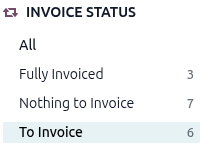
Navigate to the desired invoice by navigating to Rental app and on the Rental Orders dashboard, in the INVOICE STATUS section, click To Invoice to view all the rental orders that require to be sent.

Sample of the INVOICE STATUS section in the Rental app.

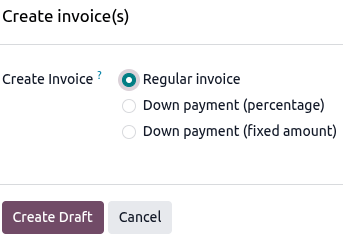
Click on the desired rental order and click Create Invoice. Select Regular invoice from the Create invoice(s) window and click Create Draft.

Sample of Create invoices window in the Rental app.

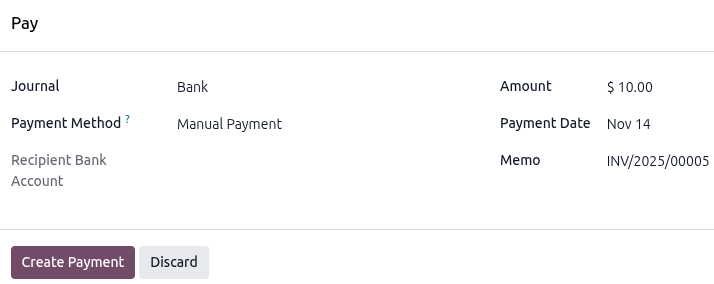
If all the details are correct, click Confirm and click Send to email the invoice to the customer or Print and then click Pay if the customer is in person. In the Pay pop-up window, select a Journal and click Create Payment.

Sample of the Pay page in the Rental app.

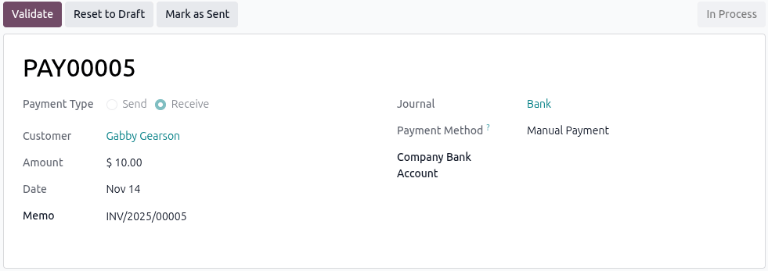
Click on the Payments smart button that appears on the top of the rental order. Click Validate on the Payment page.

Sample of the Payment page in the Rental app.

客户签名

Odoo has the ability to request the customer sign a rental agreement, outlining the arrangement between the company and customer, before they pick up the rental products. Such documents can ensure everything is returned on-time and in its original condition.

注解

Requesting a signature can be done during any stage of the order. This feature also requires the Sign app.

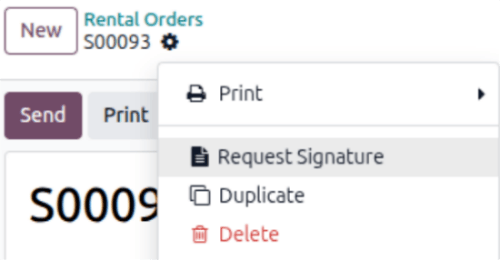
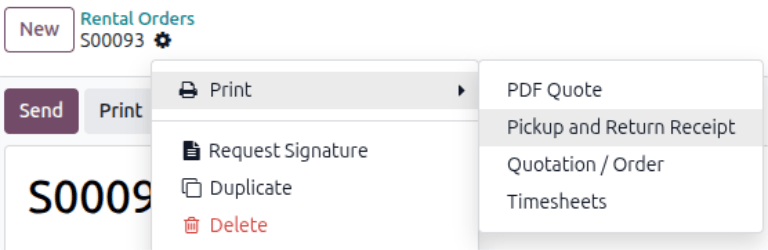
If signatures are required, go to the Rental app and from the default Rental Orders dashboard, select the desired rental order. To go the (Actions) icon, and click Request Signature.

The Request Signature option in the Odoo Rental application.

A Sign Documents pop-up window displays. Select the desired document from the Template drop-down menu.

在 Odoo 租赁应用程序中弹出的签署文件弹窗。

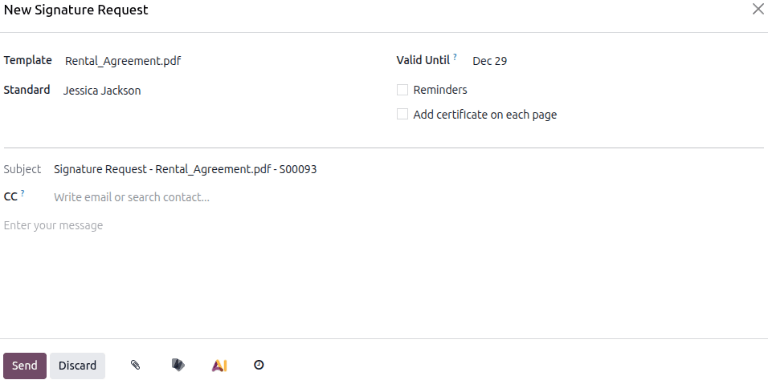
Doing so reveals a New Signature Request pop-up window. Upon confirming the information in the New Signature Request pop-up form, click Send to initiate the signing process.

The New Signature Request pop-up window that appears in the Odoo Rental application.

A link to the signature request will appear in the record’s chatter. The document is accessible to the customer via the customer portal or email.

When the customer clicks Sign document, a separate page is then revealed, showcasing the document to be signed. The customer begins the process by clicking Click to start. The app guides the signee to the required signature locations and allows them to create electronic signatures to complete the form.

The adopt your signature pop-up window that appears in the Odoo Rental application.

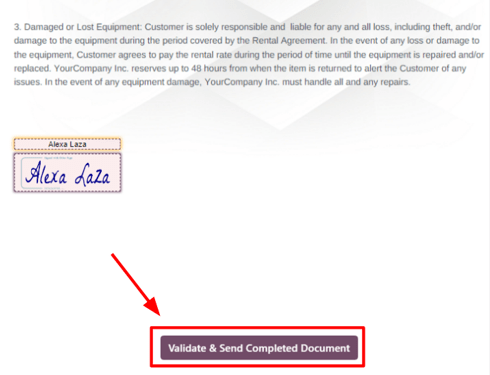
Once the document has been signed and completed, click Validate & Send Completed Document at the bottom of the document. Odoo presents the option to download the signed document for record-keeping purposes, if necessary.

The validate and send completed document button in the Odoo Rental application.

更多内容

Odoo 教程: 签署

Multi-location management and transfers

Tracking the location of high-value physical products between locations is essential. The Rental app helps with the Rental Transfers feature. Activating rental transfers means the system treats rental movements similarly to sales, requiring a receipt and a delivery order every time a physical product is rented or returned.

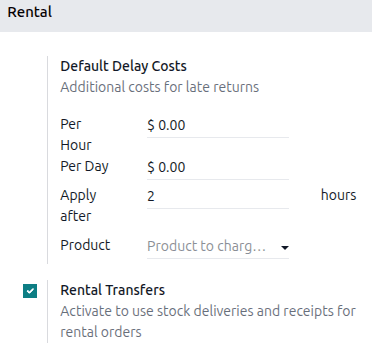
For multi-location management and rental item transfer tracking, navigate to the Rental app > Configuration > Settings and in the Rental section, tick the Rental Transfers checkbox.

Sample of the Rental settings with the Rental Transfers enabled.

注解

The Inventory app automatically creates an internal default location once the Rental Transfers feature is enabled. Odoo uses the new default location, Customer/Rental, to track products during the rental period (moving them from Stock to Customer/Rental upon rental, and back upon return). Do not modify to avoid corrupting inventory tracking.

Next, go to the Inventory app ‣ Configuration ‣ Settings and in the Warehouse section, tick the Storage Locations checkbox. Click Save to apply the changes.

To configure new locations, navigate to Inventory app ‣ Configuration ‣ Locations. Click New to configure a new internal location.

On the new location page, enter the Location Name and ensure the Parent Location field is set to WH. Click the Save manually icon near the top to save.

Example

A bike rental business has two store locations within the same city. Both locations allow for pick-up and drop-off of their bikes. The company wants to track its bikes accurately at each location.

Ensure the Rental and Inventory apps are configured by enabling Rental Transfers in the Rental app and Storage Locations in the Inventory app.

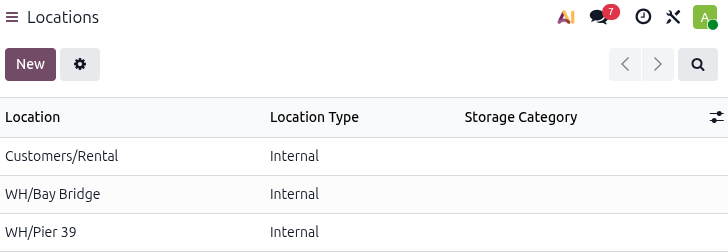
Next, go to the Inventory app > Configuration > Locations. Create a new location for each storefront.

Sample of internal inventory locations that represent different rental store locations.

提货

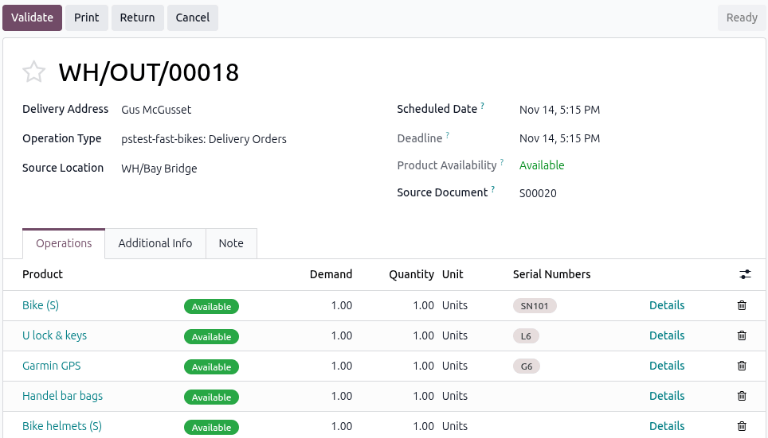
When a customer picks up products, navigate to the appropriate rental order, click Pickup. The Rental app displays a warehouse delivery form listing the reserved rental products. Click Validate to move the order to the Done stage.

Sample of a Pickup page in the Rental app.

Doing so places a Pickedup status banner on the rental order.

Return products

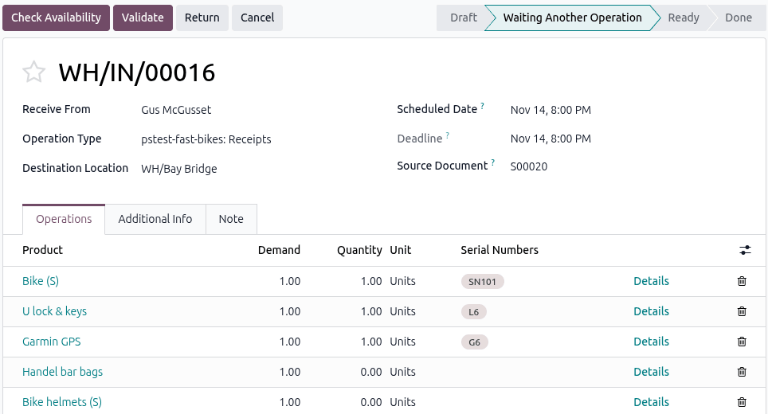
When a customer returns products, navigate to the desired rental order, click Return. The Rental app displays a warehouse receipt form listing the checked out rental products.

Enter the same amount of products the customer returned in the Quantity column. If any of the products have serial numbers, enter them into the Serial Numbers column.

Sample of the Return page in the Rental app.

Click Validate to move the order to the Done stage. A Returned status banner appears on the rental order.