项目里程碑
里程碑 使您能够通过指定一系列在项目完成前必须达到的关键步骤来跟踪正在进行的项目工作。里程碑在昂贵、长期或大规模的项目中特别有用。它们可以纯粹用于指示目的,以确保项目按时完成。
里程碑也可以作为客户应收的基础。这将有利于项目双方,因为它确保项目资金一致的现金流,并允许客户按实际交付内容来支付项目。
配置
Enable milestones for the desired project by opening the Project app, clicking the (vertical ellipsis) on the project’s card, and clicking Settings. Under Tasks Management, enable Milestones.
Note
Milestones are automatically enabled for projects created from a sales order for a service invoiced by milestone.
Configure project milestones by clicking the (vertical ellipsis) on the project’s card and selecting Milestones. Create a milestone by clicking New, entering the milestone’s Name, selecting a Deadline if desired, and clicking Save.
Add or remove options by clicking the sliders. The following options are relevant when using invoicing based on milestones:
Sales Order Item: this field is filled in automatically with the Sales Order number.
Quantity (%): percentage of the ordered quantity that will automatically be delivered on the sales order once the milestone is marked as reached.
Once milestones are configured, you can link project tasks to milestones. To do so, navigate to the project you created the milestones in, then click one of the tasks to open it. Then, click the Milestone field to open a drop-down menu. Select the desired milestone from the list.
Once all the tasks linked to the milestone are completed (marked as Done or Cancelled), the milestone will be automatically marked as Reached in the . You can also check the Reached box manually whenever the milestone is reached. Manual checking of the box will not impact the tasks linked to the milestone.
Using milestones
Odoo offers several ways to oversee the project’s milestones and their relationship to ongoing tasks.
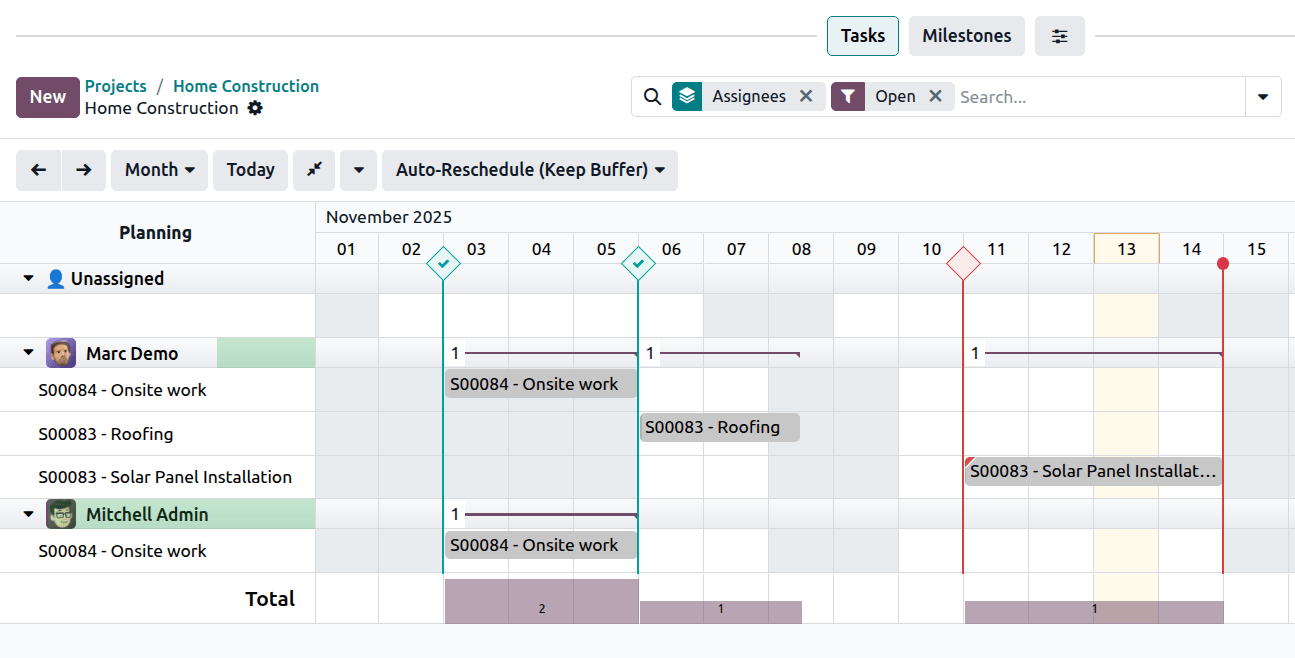
In the Gantt view, a milestone is shown as a vertical line marked with a diamond shape, displayed on the day of the milestone’s deadline. The line is color-coded in blue to indicate that the milestone has not yet reached its deadline, or it has been marked as reached (in which case, a check mark is displayed on the milestone). A milestone is color-coded in red if it has not been reached by its deadline.
If a milestone’s deadline falls on the same day as the project’s deadline, it is displayed with a vertical line marked with a circle, and the same color coding principles as above apply.
Aside from the Gantt view, you can also create, edit, and mark milestones as reached from the project dashboard.