模板设计
添加模板内容块
要向 网站页面 添加模板内容块,请访问页面,点击 编辑 ,然后拖放所需的模板内容块到适当的位置。可用的模板内容块有 电商类目 和 内部内容 。 内部内容 模板内容块只能添加到 电商类目 模板内容块中。
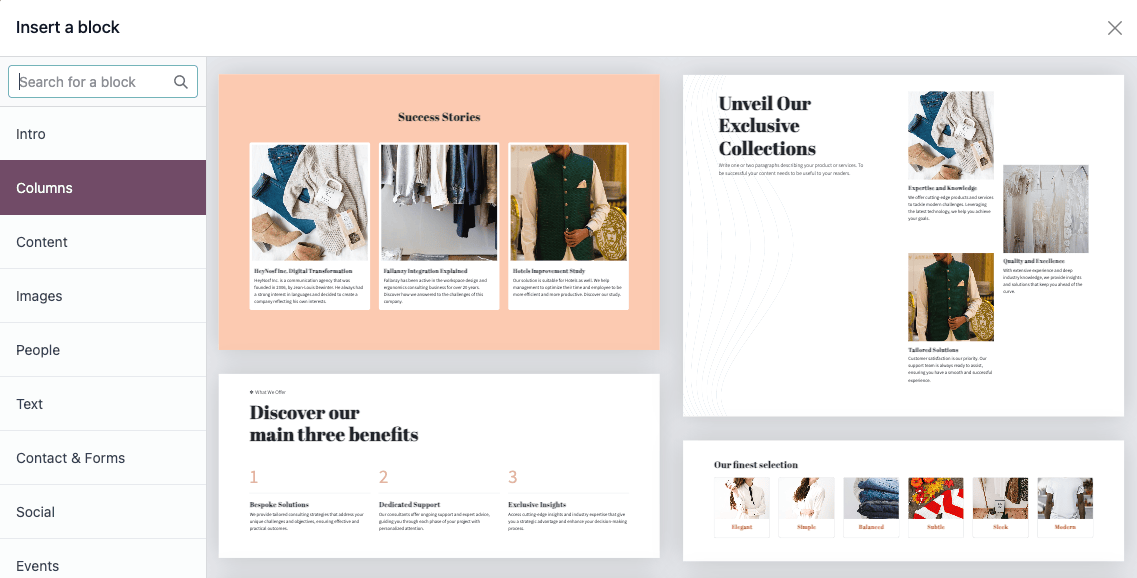
点击类别块时,会出现一个弹出窗口,允许您为每个类别选择多个模板。
小技巧
您也可以使用搜索栏在弹出窗口中搜索特定的模板内容块。
一旦类别块被放置,您可以将 内部内容 块拖放到其中。 内部内容 块允许您将元素,如视频、图片、社交媒体按钮等添加到已存在的类别块中。
注解
某些块需要安装其相应的应用程序或模块(例如,电子商务模块用于 产品 块)。
Example
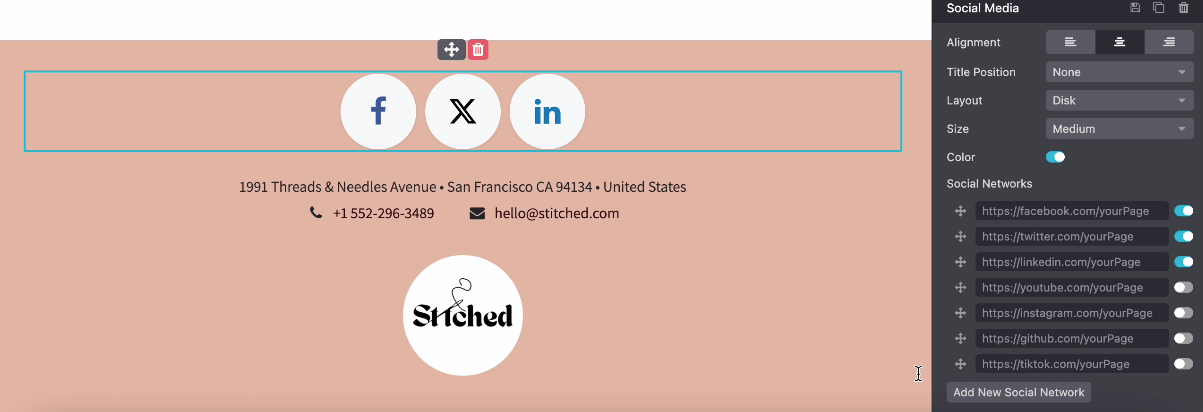
使用内部内容块 社交媒体 块将所有社交帐户放在一个地方。在所需的平台旁切换开关打开或关闭,并复制/粘贴帐户网址。
窗体
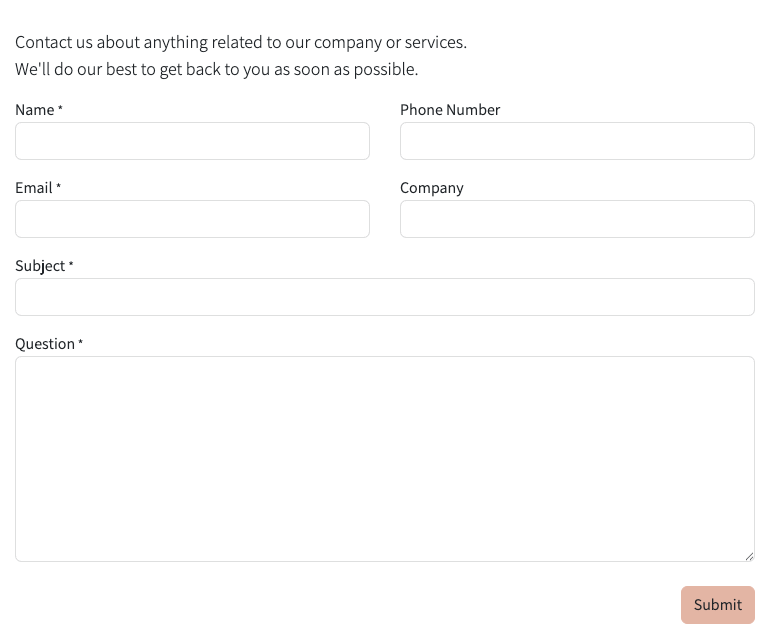
使用 Form 块收集网站访客的信息并创建数据库记录(如果适用)。要向网站页面添加 窗体,请拖放 Contact & Forms 类别,然后选择 Form block。
动作
默认情况下,当提交表单时,将自动发送包含访客输入的信息的电子邮件。根据您数据库安装的模块,可以自动创建记录的附加操作可能become available。要选择不同的操作,请单击 编辑 ,单击表单,导航至 自定义 选项卡,并选择所需的 操作 :
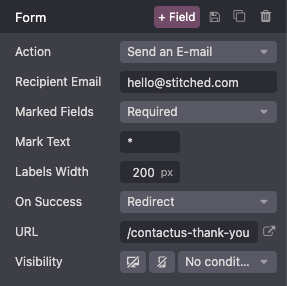
默认情况下,提交表单将访客重定向到 感谢 页。使用 URL 字段将他们定向到不同的页面。或者,您可以选择不重定向,并保持他们留在表单的页面中,选择 无 或 显示消息 在 On Success 字段中。
字段
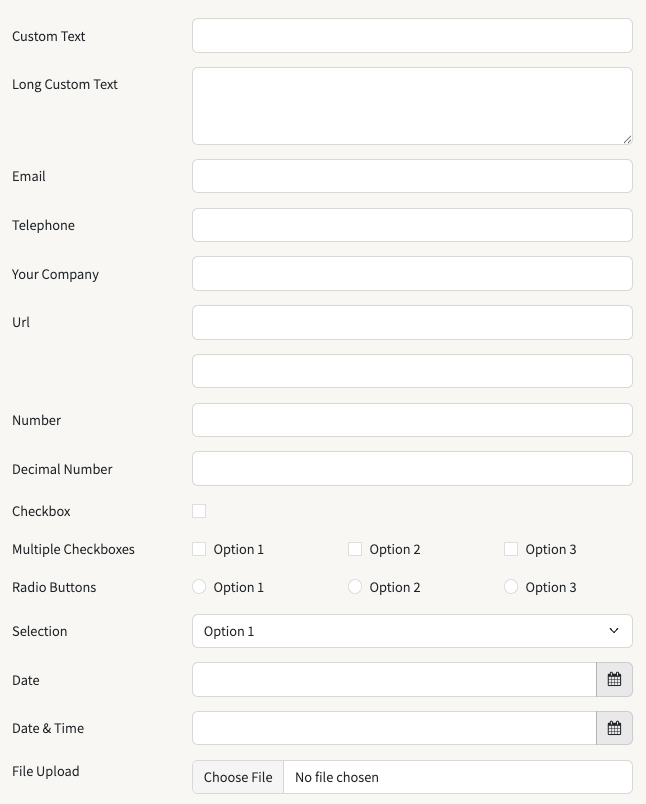
要向表单添加新字段,请导航至 自定义选项卡 并在表单或字段部分的 + Field 按钮的右侧。要修改表单中的任何新(或其他)字段,请选择字段,然后使用 Field 部分的 Customize 选项。例如,您可以:
修改字段 类型 。
小技巧
It is also possible to select an Existing Field from the database and use the data it contains. The fields available depend on the selected action. Property fields added to the database can also be used.
Some fields are visually similar, but the data entered must follow a specific format.
Edit the field’s Label and adapt its Position.
Enable a field Description. Click the default description on the form to modify it.
Add a Placeholder or Default value.
Specify if the field is Required.
Edit the field’s visibility settings.
Add an animation.
Once you have made the desired changes, click Save.
Add an Odoo contact form on a non-Odoo website
You can display an Odoo contact form on another website using an iframe. To do so, follow these steps:
Prepare the Odoo form: Create a contact form on a page in Odoo Website and remove the header design and the footer design. Make sure only the contact form remains on the page.
Generate an embeddable code: Copy the URL of the Odoo form page and paste it into an iframe generator, such as La Digitale.dev or iFrame Generator . Adjust the width and height for proper display.
Add the embedded code to the non-Odoo website: Open the relevant page’s HTML (in the code editor or CMS) and insert the embedded code where the form should be displayed.
Example
Example of an embedded code:
<iframe src="https://example.com/odoo-form"
style="border:0;"
name="odooForm"
scrolling="no"
frameborder="0"
marginheight="0"
marginwidth="0"
height="400px"
width="600px"
allowfullscreen>
</iframe>
嵌入代码
Embedding code allows you to integrate content from third-party services into a page, such as videos from YouTube, maps from Google Maps, social media posts from Instagram, etc.
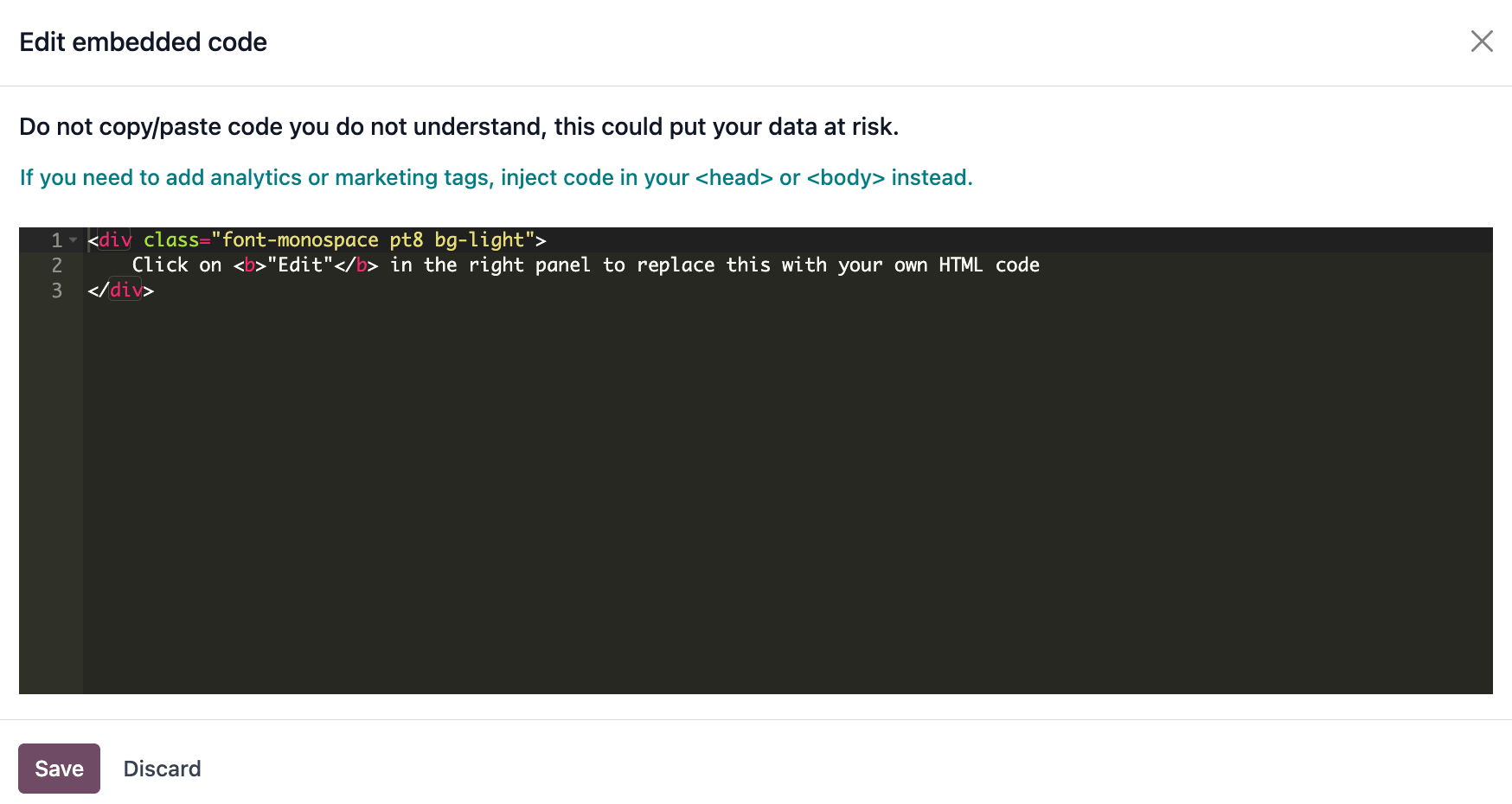
After adding the block to a page, click the block, then go to the Customize tab and click Edit. Replace the placeholder code with your custom embed code.
警告
Do not copy/paste code you do not understand, as it could put your data at risk.
Move, switch, or delete a building block
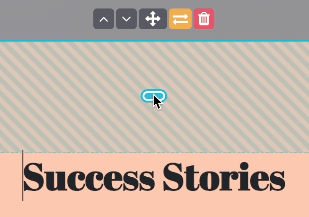
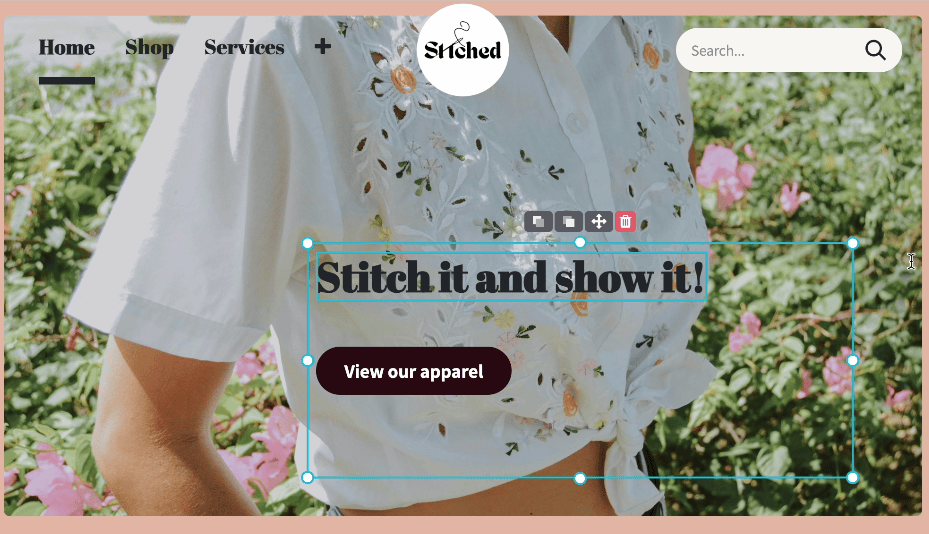
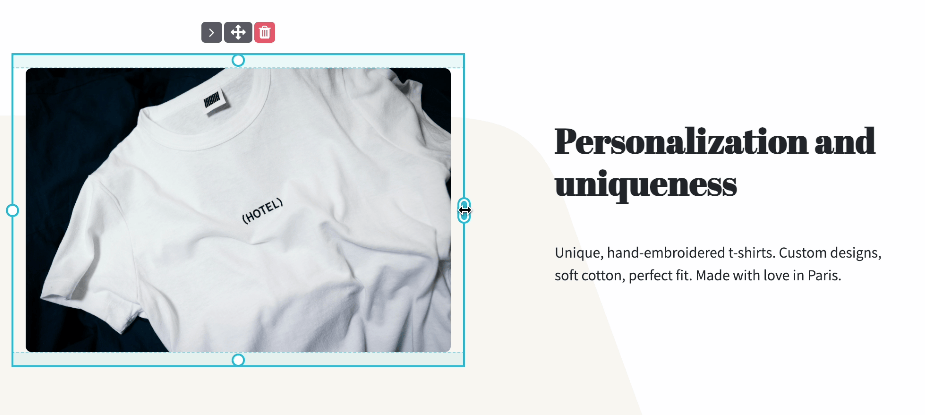
Pull the turquoise borders on the block to reduce or increase the space at the top or bottom of it.
Change the block order by clicking (chevron up) or (chevron down) and move the block on the page by clicking (arrows). When you have multiple columns, move a column to the left or right by clicking (chevron left) or (chevron right).
To delete a block, click (trash).
小技巧
Quickly change the block category by clicking (exchange).
Edit a building block
To edit the content of a building block, click on it and go to the Customize tab. Available customization options vary depending on the type of block selected.
背景
To modify the background of a building block, select the block, go to the Customize tab, and click the color dot or another Background option. You can change the color and/or add an image, video, and/or shape. Once you’ve selected a shape, new fields appear to allow you to customize the shape.
小技巧
Position an element (image, text, etc.) behind or in front of another one by using the Send to back or Bring to front icons.
To resize a block, click and drag the dots around its edges to adjust it as needed.
更多内容
Layout: grid and columns
For most building blocks, you can choose between two layout styles: grid or columns (cols). To change the default layout style, click the block, go to the Customize tab, and set the Layout field to Grid or Cols.
网格
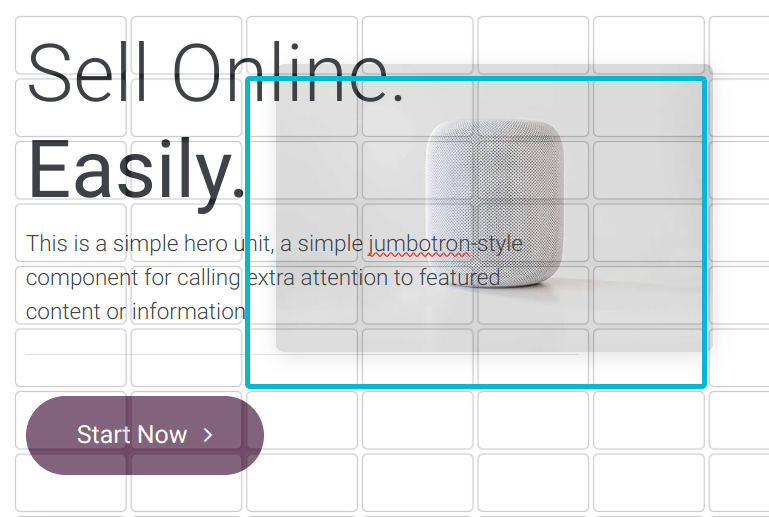
The Grid layout allows you to reposition and resize elements, such as images or text, by dragging and dropping them. When Grid is selected, additional options are available to Add Elements by clicking Image, Text, or Button.
列
Choosing the Cols layout allows you to determine the number of elements per line within the block. To do so, select the block to modify, click the dropdown next to the Cols field, and adjust the number. You can then modify a specific column’s settings using the options in the Column section of the Customize tab.
注解
By default, on mobile devices, only one element (column) is visible per line to ensure that content remains easily readable and accessible on smaller screens. To adjust the value, click the (mobile icon) at the top of the website editor and adapt the number of columns. Shapes are hidden by default on mobiles.
Duplicate a building block
To duplicate a building block, click the (duplicate) icon at the top of the Customize tab. Once duplicated, the new block appears on the page beneath the original one.
Save a custom building block
You can save a customized building block to reuse it elsewhere. To do so, select it, navigate to the Customize tab, and click the (floppy disk) icon. Click the Save and reload button in the popup to confirm saving your custom block.
To add a saved building block to the page, navigate to the Blocks tab and drag and drop the Custom block from the Categories section. In the popup that opens, click the desired block in the Custom category.
小技巧
In the Insert a block popup, click (edit) to rename the custom block or (delete) to delete it.
Create an anchor link
Anchor links are hyperlinks that direct users to a specific section of a page. To create an anchor link for a block, follow these steps:
Click Edit and select the block you want to link to.
Click (link) at the top of the Customize tab.
To edit the default anchor name, click Edit in the green popup message that opens.
Replace the anchor name and click Save & copy.
Once the anchor is saved, you can link to it from anywhere on your website.