巴西
更多内容
有关巴西本地化资源的有用资源,包括入门材料和视频:
有关巴西本地化的 YouTube 播放列表 <https://youtube.com/playlist?list=PL1-aSABtP6ADqexw4YNCbKPmpFggajxlX&si=RgmZR3Jco3223Np4>。
有关葡萄牙语 Odoo 教程的 YouTube 播放列表 <https://youtube.com/playlist?list=PL1-aSABtP6ACGOW2UREePGjHQ2Bgdy-UZ&si=j6tiI36eB7BoKVQB>。
有关巴西本地化的文档 有关电子发票的合规性和合规性
模块
以下模块是巴西本地化的一部分:
名称 |
技术名称 |
说明 |
|---|---|---|
巴西 - 会计 |
|
巴西本地化包,包括巴西会计科目、税、 Fiscal 位置、文档和标识类型。 |
巴西 - 会计报告 |
|
巴西的会计报告。 |
巴西AvaTax、Avatax巴西销售 和 测试SOs-基于巴西Avatax |
|
通过 Avalara 计算商品和服务税。 |
巴西会计 EDI |
|
通过 Avalara 为销售提供电子发票。 |
巴西会计 EDI-销售 |
|
为销售订单添加一些字段,这些字段将复制到发票。 |
巴西会计 EDI-POS |
|
通过 Avalara 为 POS 提供电子发票。 |
巴西会计 EDI-eCommerce |
|
为 eCommerce 用户提供税计算和 EDI。 |
巴西会计 EDI-库存 |
|
为 NF-e 添加与配送相关的信息。 |
巴西 - 网站销售 |
|
为 eCommerce 用户提供税计算和 EDI。 |
巴西 - 销售 |
|
巴西销售修改 |
巴西 - 销售订阅 |
|
巴西销售订阅修改 |
Note
本 localization 的核心模块将自动安装。其他模块可以手动 安装。
本地化摘要
巴西本地化软件包确保遵守巴西的 Fiscal 和会计法规。它包括用于管理税、 Fiscal 位置、报表和针对巴西标准的预定义会计科目的工具。
巴西本地化软件包提供了以下关键功能,以确保遵守本地 Fiscal 和会计法规:
会计科目表
In the chart of accounts, the accounts are mapped automatically to their corresponding taxes, and the default account payable and account receivable fields.
Note
The Brazil chart of accounts is based on the SPED CoA, which provides a baseline of the necessary accounts.
税率
Taxes are automatically created and configured when installing the Brazilian localization. Avalara uses some to compute taxes on sales orders or invoices.
Taxes used for services must be manually added and configured, as the rate may differ depending on the city where the service is offered.
Important
NFS-e can’t be issued for service taxes created manually. To electronically send an NFS-e, compute taxes using Avalara.
Warning
Do not delete taxes, as they are used for the AvaTax tax computation. If deleted, Odoo creates them again when used in an SO or invoice, computing taxes with AvaTax. However, the account used to register the tax must be reconfigured in the tax’s Definition tab, under the Distribution for invoices and Distribution for refunds sections.
Company and contacts
To use all the features of this fiscal localization, the following fields are required on the company record:
名称
地址: 添加 城市 、 州/省 、 邮政编码 、 国家/地区
在 街道 字段中,输入街道名称、编号和其他地址信息。
在 街道 2 字段中,输入街区信息。
识别号码: CNPJ 或 CPF
税号: 与识别类型相关联
IE: 州/省注册
IM: 市级登记
SUFRAMA 编码: 马瑙斯自由贸易区监管 - 如适用可加入
电话
电子邮件
配置 销售及采购 选项卡中的 财务信息:
Add the Fiscal Position for AvaTax Brazil.
财务制度: 联邦税务制度
ICMS 纳税人类型: 表示 ICMS 制度 、 豁免状态 或 非纳税人 。
主要活动部门
Configure the following extra Fiscal Information to issue NFS-e:
Add the Fiscal Position for AvaTax Brazil.
COFINS Details: Taxable, Not Taxable, Taxable with rate 0%, Exempt, Suspended
PIS Details Taxable, Not Taxable, Taxable with rate 0%, Exempt, Suspended
CSLL Taxable if the company is subject to CSLL or not
Tip
If it is a simplified regime, the ICMS rate must be configured. To do so, go to , scroll down to the Taxes section, and set the Sales Tax and Purchase Tax fields in the Default Taxes section.
The same configuration applies to the relevant contact form when using the AvaTax integration.
Note
如果联系人有税号(CNPJ),请选择 公司 选项;如果联系人有 CPF,请选择 个人 。
AvaTax 整合功能
Note
Make sure to install the AvaTax Brazil (
l10n_br_avatax) module.Odoo 是 Avalara Brazil 公司的认证合作伙伴。
The Avalara AvaTax integration uses In-App-Purchases (IAPs) to compute taxes and handle electronic documents (e.g., NF-e, NFS-e). Each action consumes credits from the IAP credit balance. On creation, new databases receive 500 free credits.
To compute the goods and services tax and process electronic invoices, the following configurations are needed:
配置
授权认证
Activate AvaTax in Odoo and, in the AvaTax Brazil section, add the administrator’s email address for the AvaTax portal in the AvaTax Portal Email field, then click Create account.
Warning
When testing or creating a production AvaTax Portal Email integration in a sandbox or production database, use a real email address, as it is needed to connect to Avalara and set up the certificates, whether to test or use it on production.
There are two different Brazilian Avalara Portals:
One for testing: https://portal.sandbox.avalarabrasil.com.br/
One for production: https://portal.avalarabrasil.com.br/
When the account is created from Odoo, select the right environment. Moreover, the email used to open the account cannot be used to open another account. Save the API ID and API Key when the account is created from Odoo.
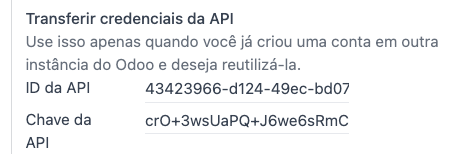
After the account is created from Odoo, go to the Avalara Portal to set up the password:
访问 Avalara 门户网站 。
Click Meu primeiro acesso.
Add the email address used in Odoo to create the Avalara/AvaTax account, and click Solicitar Senha.
An email will then be received with a token and a link to create a password. Click on this link and copy-paste the token to allocate the desired password.
Tip
If you use AvaTax in Odoo for tax computation only, setting a password or accessing the Avalara portal is unnecessary. However, to use the electronic invoice service, access to AvaTax is needed, and the certificate must be uploaded.
Note
API credentials can be transferred. This option should be used only when an account has already been created in another Odoo instance and must be reused.
A1 证书上传
To issue electronic invoices, a certificate must be uploaded to the AvaTax portal.
The certificate will be synchronized with Odoo as long as the external identifier number in the AvaTax portal matches, without special characters, with the CNPJ number, and the identification number (CNPJ) in Odoo matches the CNPJ in AvaTax.
Important
Some cities require the certificate to be linked within the City Portal system before issuing NFS-e from Odoo.
If an error message from the city that says Your certificate is not linked to the user is received, this process needs to be done in the city portal.
税务规则
To set up the Automatic Tax Mapping (Avalara Brazil) fiscal position, enable the Detect Automatically and Use AvaTax Brazil API options.
更多内容
产品
To use the AvaTax integration on sales orders and invoices, enter the following information in the Sales tab of the product form under the Brazil Accounting section, based on how the product will be used.
E-invoices for goods (NF-e)
Important
The Avalara integration works on a credit-based system, where each interaction with Avalara consumes one credit. Below are the main credit-consuming operations:
Sales application
Tax calculation on quotations and sales orders.
Accounting application
Tax calculation on invoices.
Electronic invoice submission (NF-e or NFS-e).
Occasional operations: (each step is billed separately)
Note
If taxes are calculated in the Sales app, and the invoice is later issued in the Accounting app, the calculation happens twice, consuming two credits.
Example
CEST Code: tax classification code identifying goods and products subject to tax substitution under ICMS regulations, and helps determine the applicable tax treatment and procedures for specific items. The product’s applicability to this requirement can be verified at https://www.codigocest.com.br/.
Mercosul NCM 代码: 南方共同市场产品共同命名代码
Source of Origin: origin of the product, which can be foreign or domestic, among other possible options, depending on the specific use case
SPED Fiscal Product Type: fiscal product type according to the SPED list table
Purpose of Use: intended purpose of use for this product
Note
Odoo automatically creates three products to be used for transportation costs associated with sales. These are named Freight, Insurance, and Other Costs and are already configured. If more need to be created, duplicate and use the same configuration:
Product Type Service
Transportation Cost Type: Insurance, Freight, or Other Costs
服务电子发票 (NFS-e)
Important
The Avalara integration works on a credit-based system, where each interaction with Avalara consumes one credit. Below are the main credit-consuming operations:
Sales application
Tax calculation on quotations and sales orders.
Accounting application
Tax calculation on invoices.
Electronic invoice submission (NF-e or NFS-e).
Invoice status check (1 credit is consumed each time the invoice status is checked).
Occasional operations: (each step is billed separately)
Note
If taxes are calculated in the Sales app and the invoice is later issued in the Accounting app, the calculation happens twice, consuming two credits.
Example
Mercosul NCM 代码: 南方共同市场产品共同命名代码
Purpose of Use: intended purpose of use for this product
服务代码来源: 提供商注册的城市服务代码
Labor Assignment: checkbox to select if the service involves labor
Transport Cost Type: type of transport costs to select
Service Codes: City Service Code where the service will be provided; if no code is added, the Service Code Origin will be used.
税费计算
更多内容
报价单和销售订单的税款计算
通过以下任一方式触发 API 调用,使用 AvaTax 自动计算报价单或销售订单上的税款:
- 报价确认
将报价单确认为销售订单。
- 手动触发
Click Compute Taxes Using AvaTax.
- 预览
Click Preview.
- Email a quotation/sales order
通过电子邮件向客户发送报价单或销售订单。
- 在线报价
当客户在线访问报价单时(通过门户视图),就会触发 API 调用。
Mirto Bonan
通过以下任一方式触发 API 呼叫,使用 AvaTax 自动计算客户发票上的税款:
- 手动触发
Click Compute Taxes Using AvaTax.
- 预览
Click Preview.
- 在线发票访问
当客户在线(通过门户视图)访问发票时,就会触发 API 调用。
Note
必须将 税务规则 设为`自动税收映射(Avalara Brazil)` ,这些操作才能自动计算税款。
更多内容
会计
电子文档
配置
A series number is linked to a sequence number range for electronic invoices. To configure the series number on a sales journal, go to and set it in the Series field. If more than one series is needed, a new sales journal must be created, and a new series number must be assigned for each series.
Enable the Use Documents? option as the Series field will only be displayed if the Use Documents? option is selected on the journal.
When issuing electronic and non-electronic invoices, the Type field selects the document type used when creating the invoice.
Note
When creating the journal, ensure the Dedicated Credit Note Sequence field in the Accounting Information section is unchecked, as in Brazil, sequences between invoices, credit notes, and debit notes are shared per series number, which means per journal.
客户往来账
To process an electronic invoice for goods (NF-e) or services (NFS-e), the invoice must be confirmed and taxes must be computed by Avalara. The following fields must be filled out:
Customer, with all customer information
Payment Method: Brazil: Specify the expected payment method.
Document Type: Select (55) Electronic Invoice (NF-e) or (SE) Electronic Service Invoice (NFS-e).
Other Info tab:
Fiscal Position set as Automatic Tax Mapping (Avalara Brazil).
Some optional fields depend on the nature of the transaction. These fields in the Other Info tab are not required, so in most cases, leaving them blank will not result in errors from the government when the invoice is submitted:
Freight Model determines how the goods are planned to be transported - domestic.
Transporter Brazil determines who is doing the transportation.
Then, click Send. In the Print & Send window, click Process e-invoice and any other options, such as Download or Email. Finally, click Send to process the invoice with the government.
Note
All fields available on the invoice used to issue an electronic invoice are also available on the sales order, if needed. When creating the first invoice, the Document Number field is displayed and allocated as the first number to be used sequentially for subsequent invoices.
红冲发票
If a sales return needs to be registered, a credit note can be created in Odoo and sent to the government for validation.
Note
红冲发票仅适用于货物电子发票 (NF-e)。
借记单
If additional information needs to be included or values that were not accurately provided in the original invoice need to be corrected, a debit note can be issued.
Note
Debit notes are only available for electronic invoices for goods (NF-e).
Only the products included in the original invoice can be included in the debit note. While changes can be made to the product’s unit price or quantity, products cannot be added to the debit note. The purpose of this document is only to declare the amount to be added to the original invoice for the same or fewer products.
开票取消
It is possible to cancel an electronic invoice that the government validated.
Note
Check whether the electronic invoice is still within the cancellation deadline, which may vary according to each state’s legislation.
E-invoices for goods (NF-e)
To cancel an e-invoice for goods (NF-e) in Odoo, click Request Cancel and add a cancellation Reason on the pop-up that appears. To send this cancellation reason to the customer via email, enable the E-mail checkbox.
Note
This is an electronic cancellation, which means that Odoo will send a request to the government to cancel the NF-e. It will then consume one IAP credit, as an API call occurs.
服务电子发票 (NFS-e)
To cancel an e-invoice for services (NFS-e) in Odoo, click Request Cancel. There is no electronic cancellation process in this case, as not every city has this service available. The user needs to cancel this NFS-e on the city portal manually. Once that step is completed, they can request the cancellation in Odoo, which will cancel the invoice.
更正信
A correction letter can be created and linked to an electronic invoice for goods (NF-e) that the government validated.
To do so in Odoo, click Correction Letter and add a correction Reason to the pop-up. To send the correction reason to a customer via email, enable the E-mail checkbox.
Note
更正信仅适用于电子货物发票 (NF-e)。
Invoice number range invalidation
A range of sequences that are assigned to sales journals can be invalidated by the government if they are not currently used and will not be used in the future. To do so, go to , open the journal, click the (gear) icon, and select Invalidate Number Range (BR). On the Invalidate Number Range (BR) wizard, add the Initial Number and End Number of the range that should be cancelled, and enter an invalidation Reason.
Note
Invoice number range invalidation is only available for electronic invoices for goods (NF-e).
The journal’s chatter records the log of the cancelled numbers, along with the XML file.
供应商往来账
When receiving an invoice from a supplier, encode the bill in Odoo by adding all the commercial information and the same Brazilian-specific information recorded on the customer invoices.
These Brazilian-specific fields are:
Payment Method: Brazil: Specify the expected payment method.
Document Type: used by the vendor
Document Number: the invoice number from the supplier
货运模式: 特定于 NF-e 计划如何运输货物 - 国内
巴西运输服务商 ( 特定于 NF-e ):负责运输的服务商。
Point of sale NFC-e
The NFC-e is a legal document that supports selling goods or merchandise to the final customer. Like the NF-e, the electronic customer invoice is also issued in XML file format and has an auxiliary document (DANFC-e) known as the NFC-e Summary. This electronic document can be issued through Odoo Point of Sale.
Its legal validity is guaranteed by the digital signature and by each Brazilian state’s SEFAZ (Secretaria da Fazenda).
Important
The Avalara integration operates on a credit-based system. Each operation that involves communication with Avalara consumes one credit. The following operations within the Point of Sale (POS) application are subject to credit consumption:
Tax calculation at the time of sale
Electronic invoice issuance (NFC-e)
Note
Each step is billed separately. For example, calculating taxes and issuing an invoice for the same POS transaction consumes two credits.
更多内容
配置
Install the Brazilian Accounting EDI for POS (l10nbr_edi_pos)
module and make sure to activate AvaTax.
CSC details
Go to and scroll to the Taxes section. In the NFC-e configuration section, complete the following CSC (Taxpayer Security Code) fields:
CSC ID: The CSC ID or CSC Token is an identification of the taxpayer security code, which can have 1 to 6 digits and is available on the official website of your state’s Department of Finance (SEFAZ).
CSC Number: The CSC Number is a code of up to 36 characters that only you and the Department of Finance know. It is used to generate the QR Code of the NFC-e and ensure the authenticity of the DANFE.
Note
The information required for these fields can be generated through the SEFAZ website of each Brazilian State by the company’s accountant.
产品配置
Access the relevant product form in POS, then configure the product’s Brazil Accounting fields.
门店收银POS
Go to and make sure that the relevant Point of Sale is selected at the top of the screen. Then, scroll to the Accounting section and configure the Brazilian EDI fields:
Series
Next number: the next NFC-e number in the sequence to be issued, for instance, if the last number issued in SEFAZ is
100, the Next number will be101.
工作流
Generating an NFC-e
To generate an NFC-e, follow these steps:
Validate the payment to calculate taxes and issue an NFC-e. The valid NFC-e appears on the right side of the screen.

Note
It is also possible to issue an NFC-e that identifies the customer by their CPF/CNPJ. To do so, click Customer, search for the customer, or create a new one.
The following are mandatory fields to issue a CPF/CNPJ identified NFC-e:
名称
City and State where the invoice is being issued
CPF/CNPJ
Click Validate. The NFC-e appears, highlighting the customer’s CPF on the print.
Click Print or Send via e-mail to deliver the invoice to the customer.
NFC-e ticket print
After generating and validating the NFC-e, click Print to deliver the invoice.
Note
The Odoo NFC-e feature is compatible with any thermal printer and does not require an Odoo IoT Box.
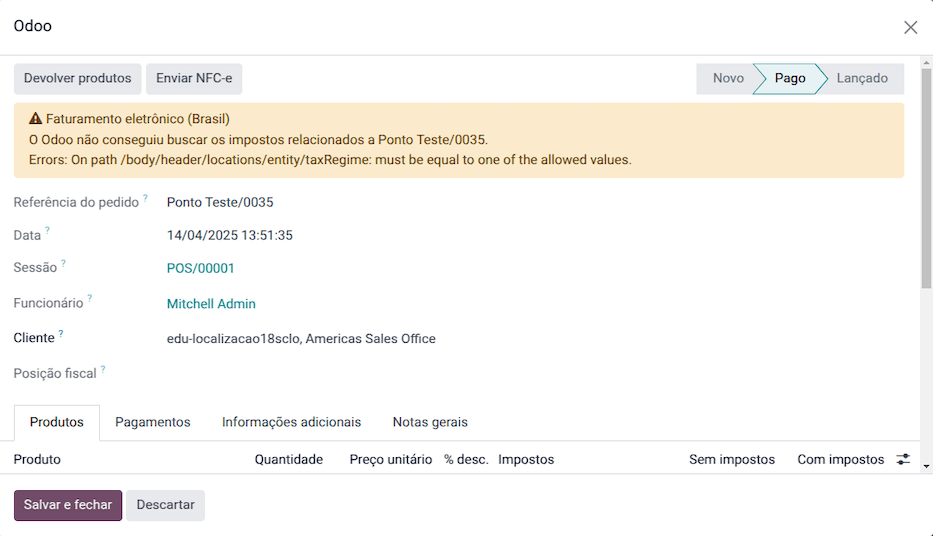
Re-issuing a PoS order with an NFC-e error
If the NFC-e returns an error, follow these steps:
Correct the error.
Re-issue the NFC-e by clicking the (menu) icon and selecting Orders.
Filter the list to show only Paid orders and click Details. The error is displayed.
Click Send NFC-e.
Note
If the error has been corrected and the PoS session is closed, Odoo logs the tax adjustment in the chatter of the related journal entry. The journal entry for the order indicates that the taxes were incorrectly calculated. In this case, reprocessing the NFC-e is required.
NFC-e refunds & cancellations
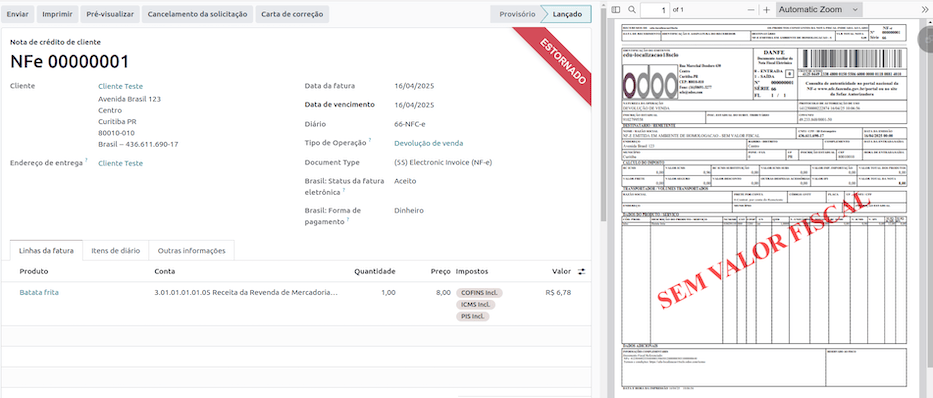
Refunds can be processed directly in Odoo, but cancellations must be performed through the official government portal.
When the process is finalized, the approved return NF-e is created, meaning the previous NFC-e is canceled.
Important
SEFAZ only allows cancellation of an NFC-e within 30 minutes of its issuance on the SEFAZ website. After this period, a manual refund must be processed, along with the issuance of a Return of Goods NF-e.
