订阅和自动付款
默认情况下,订阅 应用会自动生成客户报价单和发票,但它可以支持自动付款。设置自动付款需要额外的配置,包括选择一个自动付款提供商,并设置客户门户或在 **电商门户**网站中处理。以下是开始设置自动付款的概述。
设置付款处理器以支持自动付款
设置自动续费付款需要使用支持 tokenization 的付款提供商。tokenization 允许客户保存其付款信息,如信用卡或银行帐户信息,用于自动帐单。以下付款提供商支持 tokenization:
这里是设置自动付款的步骤。
选择支持 tokenization 的付款提供商。
付款提供商的指南,创建账户并开始配置 API 凭据。
启用 付款提供商。
如何让客户设置自动付款
Once these steps are complete, payment providers will be able to create tokens with customers’ saved payment details during the checkout process. Saved payment details can then be used for future online or recurring subscription charges. Customers can also log into their customer portal and enter their payment information there.
Some payment providers will automatically save customers’ payment information as part of the checkout process. Others will give them the option to save their information for future payments. If customers choose not to save their payment information, they will not be able to make automatic payments.
Important
Building an eCommerce website requires the Website app.
What happens if an automatic payment fails?
When an automatic payment fails, the sales order is updated with:
a Payment Failure tag
the Contract in exception checkbox ticked (in the Subscription section of the Other Info tab).
Being marked Contract in exception prevents scheduled actions from running, which keeps the system from accidentally double-charging the customer if the automatic payment actually went through. Because the status of the payment failed to register with the system, users must manually check if the payment has been made before automatic payments and other scheduled actions can resume.
To do this, navigate to . Click into the desired subscription, then check the Chatter to see if the payment was made.
If the payment was not made, first enter developer mode. Then, click the Other Info tab, and untick the checkbox next to Contract in exception. Reload the sales order and confirm that the Payment Failure tag is gone.
If the payment was made, a new invoice must be made and posted manually. This automatically updates the next invoice date of the subscription. Once the invoice is created, enter developer mode and navigate to the new sales order. Click the Other Info tab, and untick the checkbox next to Contract in exception. Reload the sales order and confirm that the Payment Failure tag is gone.
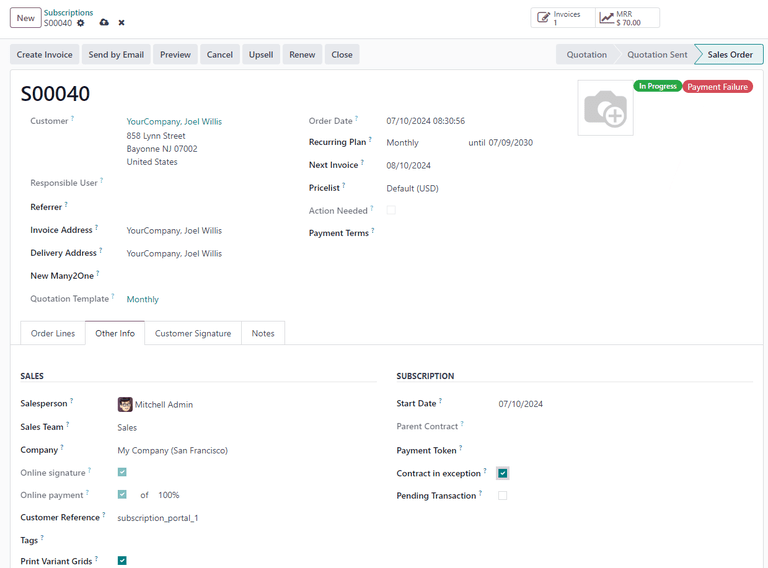
The Contract in exception option selected with the Payment Failure tag shown.
In both cases, once the Contract in exception checkbox is no longer ticked, Odoo handles renewals automatically again. If the subscription remains in Payment Failure, it is ignored by Odoo until the sales order is closed.
