加班与工时管理
Odoo 的 签到 应用需要 oversight 来确保所有记录的签到信息都是正确的,尤其是加班工时和未完成班次。
管理面板
管理面板显示所有需要批准的考勤记录,通常由于重叠的班次或未批准的请假,这些记录通常都是未完成。要访问此面板,请导航至 。
管理面板 只显示当前员工需要批准的考勤记录,默认列表视图。这是由于搜索栏的两个默认过滤器: 待审批 和 当前员工 。
每个考勤记录都显示以下信息:
Employee: the name of the employee
Check In: the date and time the employee checked in
Check Out: the date and time the employee checked out
Worked Time: the number of worked hours the employee logged
Worked Extra Hours: the amount of overtime worked
Extra Hours: the total extra hours logged
Overtime Status: the status of the attendance record. All attendance records that appear on this dashboard have a status of To Approve.

Approvals and refusals
Attendance records can be approved and refused directly from the Management dashboard. At the far-right of each record, Approve and Refuse buttons appear. Click the corresponding button to either approve or refuse the logged attendance record.
Note
When approving or refusing attendance records from the Management dashboard, it is not possible to view the details of the attendance record.
Partial approvals
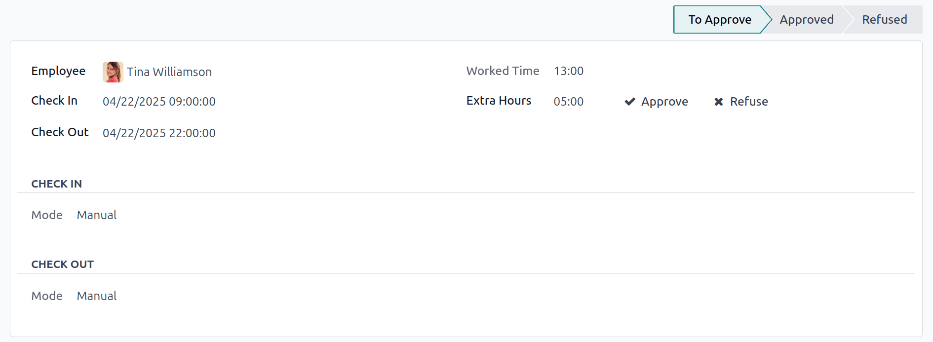
It is possible to approve a portion of the logged Extra Hours and not the full amount. To approve only a portion of overtime, click into an attendance record to view the details.
Click into the Extra Hours field and enter the amount of hours being approved. After editing the Extra Hours field, the Worked Extra Hours field becomes visible to display the difference between the Worked Time and Extra Hours fields.
Note
The Worked Time field is the total hours the employee logged (the Worked Time and Extra Hours combined). For example, if an employee is scheduled to work eight hours, and worked five extra hours, the Worked Time is thirteen hours, and the Extra Hours is five hours. The worked Time field cannot be modified.
Click Approve to approve the updated Extra Hours. Once partially approved, the Worked Extra Hours field disappears, along with the Approve button. The difference in hours appears in the Extra Hours field.
Once overtime hours are partially approved, the status changes to Approved.
Important
Once partial overtime is approved, it is still possible to deny overtime by clicking Refuse. The record can be modified as many times as needed.
Note
Occasionally, verifying an employee’s location when checking-in may be needed. The method the employee checked-in to work is found on the individual record, in the Mode field.
The Mode field is not modifiable, as it only log the method the attendance record was created.
The possible options are:
Kiosk: the employee physically checked in or out using a kiosk device. The employee was present at the kiosk to check-in.
Systray: the employee checked in or out directly from the database. Depending on the IP Address displayed on the detailed attendance record, the employee’s location at the time of check-in can be determined.
Manual: the record was created manually in the Attendances app. This is typically done by management, to add a missing record.
Create attendance records
When necessary, users with the required access rights are able to create attendance records manually in the Attendances app. Some situations requiring this is when employees forget to check in and out for shifts, as employees cannot retroactively create attendance records.
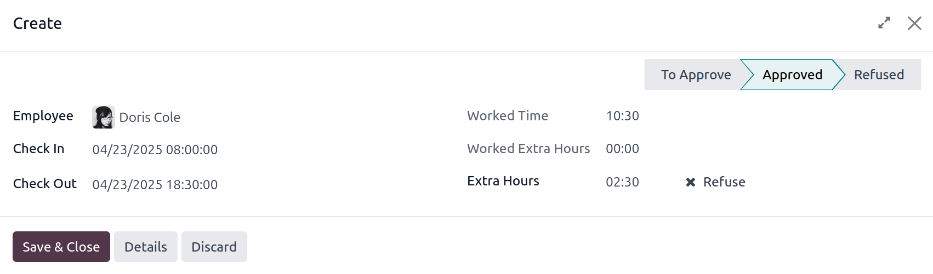
To add a missing attendance record, navigate to . Click the New button in the upper-left corner. In the Create pop-up window, enter the following information on the form:
Employee: select the employee the record is being created for. The signed-in user populates this field, by default.
Check In: using the calendar modal, select the check in date and time, then click Apply. By default, the current date is selected, and the time is set to
00:00:00.Check Out: using the calendar modal, select the check out date and time, then click Apply. By default, the following date is selected, and the time is set to
00:00:00.Worked Time: this field is automatically populated with the difference from the selected Check In and Check Out times. This field cannot be modified.
Extra Hours: enter the number of overtime hours, if any, to be approved.
Important
Once Extra Hours are added, they are automatically approved by the system. However, it is possible to manually refuse them, as explained in the Approvals and Refusals section.