专业知识
在Odoo的 实时沟通 中,代理可以指定一个或多个领域。这允许基于其知识范围将会话分配给他们。
当访客请求特定主题的帮助时,Odoo可以自动将会话分配给可用的具有该专业知识的代理。专业知识可以提高路由效率,减少等待时间,并确保客户与最合适的人进行对话。
创建新的专业知识
要创建新的专业知识,请导航至 并点击 新建 。为关注领域输入 名称 。
在 操作员 下拉菜单中选择一个或多个用户,将此专业知识分配给这些用户。
Note
Administrator level access is required in the Live Chat application to create or edit expertise. Those with User level access can view the expertise menu and see which users are assigned to each expertise, but they cannot make changes.
设置在线客服专长
To set a user’s live chat expertise, click on the user avatar in the top-right corner of any page in the database. Select My Preferences from the drop-down menu to open the profile page. On the right side of the Preferences tab, select one or more options from the Live Chat Expertise drop-down list.
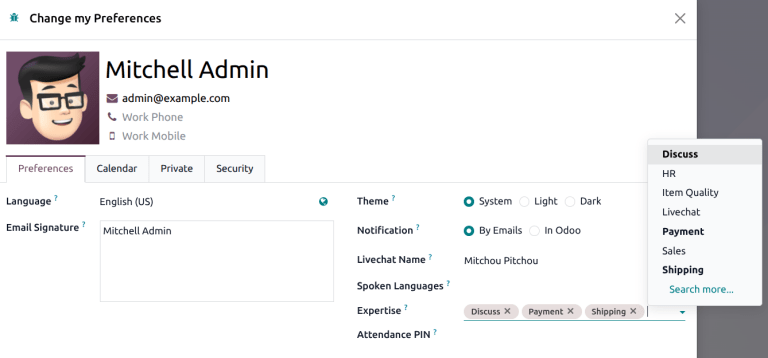
Forward conversations based on expertise
Once an expertise has been assigned to one or more operators, they can be used to forward conversations. This allows a chatbot to identify the operator who is best suited to handle a customer request.
Forward via chatbot
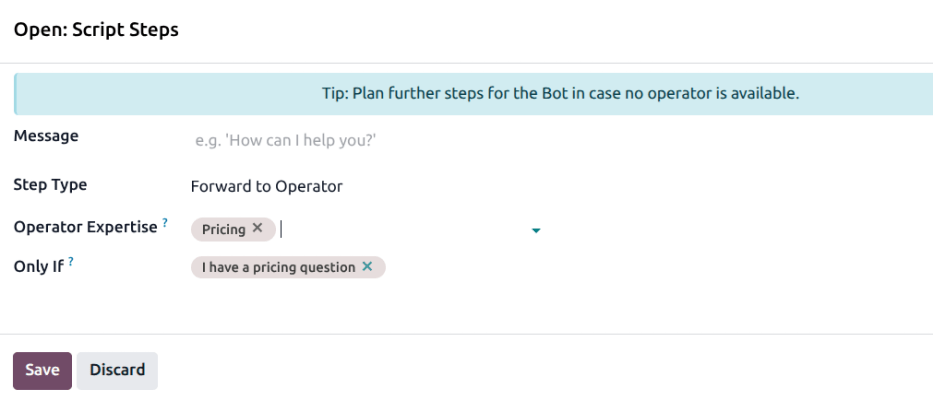
Chatbots are designed to mimic a conversation with a live human, and operate based on a pre-written script of steps to follow. The Forward to Operator step type is used to send a conversation from a chatbot to an active live chat agent who can then continue the conversation based on where the chatbot left off. By adding expertise to this step, the chatbot will first look for an agent with matching expertise, to ensure the agent is the best person for the situation.
To add expertise to a chatbot conversation, navigate to . Click on an existing chatbot to open it, or click New to create a new one.
On the Script tab, if there is an existing Forward to Operator step, click on it. If not, click Add a line, then select Forward to Operator in the Step Type field.
In the Operator Expertise field, select one or more expertise for the chatbot to consider when prioritizing users for conversations on the related channel. Click Save when finished.
Tip
When making selections in this field, consider the use case for the chatbot. A Support chatbot will cover different topics than a Recruitment chatbot.
Add users to a conversation
Users can add other live chat agents to an ongoing conversation directly from the chat window. Open an active live chat conversation through the . At the top-right of the chat, click the (user plus) icon to open the Invite People menu. The user’s expertise is listed next to the (graduation cap) icon.
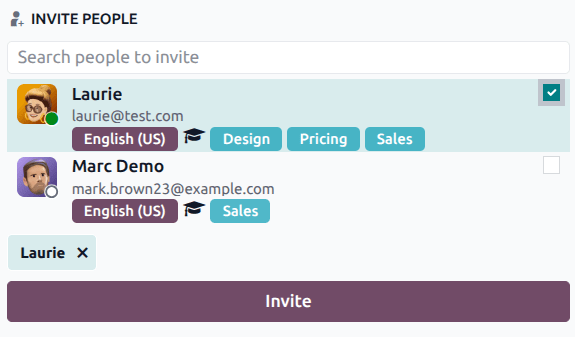
To add a user to the conversation, tick the checkbox to the right of the user’s name, then click Invite.
Note
Expertise only appear on the Invite People pop-up for live chat conversations, not direct messages.
Looking for help conversations
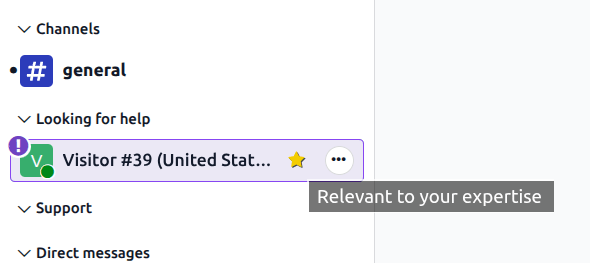
In an active livechat conversation, the Status can be set to allow agents to identify conversations that require immediate action, and inform other agents which conversations require their expertise at any given time. If a conversation is marked with the status Looking for help, other agents have the opportunity to join.
To view Looking for help conversations, navigate to the . Conversations with the status appear under the Looking for help heading.
If an agent has a matching expertise, the conversation is marked with a (star) icon.
Tip
Looking for help conversations can also be viewed by navigating to .
To join a conversation in progress, click the (sign in) icon at the top of the information panel. Doing so moves the conversation back to the channel heading and reverts the status to In progress. The customer is also informed that a new user has joined the chat.
