硬件
Odoo 门店收银支持多种硬件集成,包括:包括 支付终端 和钱箱,客户端显示器 ,秤 ,条码扫描器 ,EPSO 打印机 ,和 电子架牌 。
客户显示器
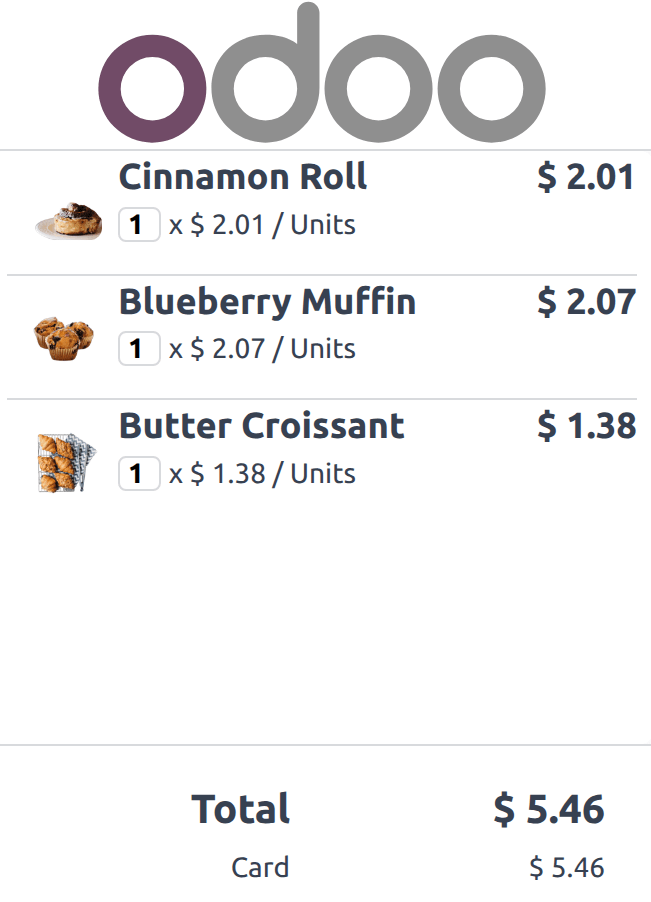
客户端显示器 在结账过程中为顾客提供实时更新,显示购物车中的项目,项目添加的子总额, throughout the payment process。它还显示总金额,所选的:doc:付款方式 <payment_methods> ,和任何要返回的更改。
Note
客户和 POS 显示的屏幕必须具有最小的 diagonal 大小为 6 英寸。为了获得最佳可读性,建议使用较大的屏幕。
配置
基于 POS 设置,此功能可以以直接显示在 USB-C 或 HDMI 连接的屏幕上,或通过物联网系统连接的屏幕。
此功能已默认启用,但背景图片仍然可以配置。要执行此操作,请导航到:ref:POS 设置 <configuration/settings> ,并滚动到 Connected Devices 部分。然后,点击 Upload your file 以设置背景图片。
为使用物联网系统的屏幕 物联网系统:
导航到 POS 设置 。
启用 IoT Box 选项以在 POS 中激活物联网系统。
点击 保存 ,以在 Odoo 中激活物联网系统。
连接并配置物联网系统 用于 客户端显示器 。
返回 POS 设置 ,并使用 Customer Display 字段选择已连接物联网系统的屏幕。
打开客户显示器
要打开客户显示器,请执行以下步骤:
Click the (hamburger menu) icon.
Click the (Customer Display) icon, which opens the customer display either in a new window to drag onto the second screen or directly onto the IoT-connected screen.
Note
For IoT-connected screens, both devices need to be connected to the same local network.
For POS terminals running the Odoo Android app with dual-screen support, follow these steps:
Activate the Point of Sale Mobile module to enable the customer display.
Click the (hamburger menu) icon.
Click the (Customer Display) icon, which opens the customer display on the terminal’s secondary screen.
比例
Important
在欧盟成员国, <https://eur-lex.europa.eu/legal-content/EN/TXT/?uri=uriserv%3AOJ.L_.2014.096.01.0107.01.ENG>`_ 将衡器作为集成设备使用必须依法获得认证。
Prerequisite
Connecting a scale requires the use of an IoT System.
配置
Scale connection
向下滚动到 已连接设备 部分并启用 IoT 盒子 。
在 电子秤 字段中选择电子秤。
点击 保存 。
Tip
Alternatively, click the (Dropdown menu) icon on a POS card and click Edit to access this setting.
产品配置
In order to weigh products using an integrated scale, go to , create a product or open an existing product form, and configure it as follows:
Ensure the Point of Sale checkbox is activated for the product to be available in POS.
On the General Information tab, define a Sales Price per kg.
Note
This step requires to enable the Units of Measure feature. To activate it:
Go to .
Scroll down to the Products section and activate Units of Measure.
Go to the Point of Sale tab and activate To Weigh With Scale. This enables the product to be weighed directly on the connected scale at the POS.
Important
The selected unit of measure for weighable products must be kg to ensure compliance with European regulations.
更多内容
European regulations
When using scales in commercial transactions, the database integrated with a scale must be
configured to meet specific European requirements. This includes supporting at least three decimal
places for accuracy and using proper rounding for units of measure, such as kg instead of generic
units.
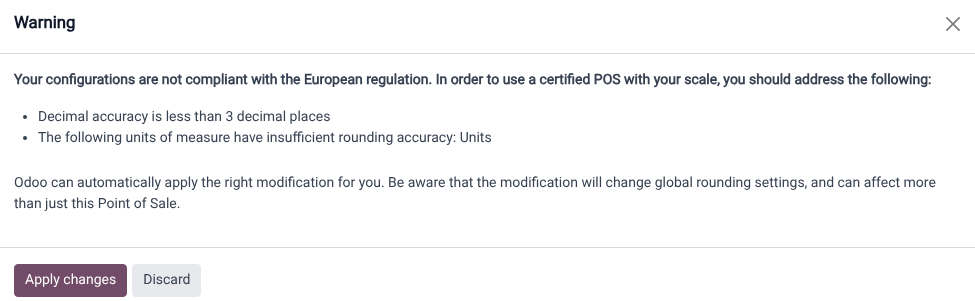
If the database is not compliant, a red (scale) icon displays as a warning. Click this icon to view the reasons for non-compliance and then select Apply changes to automatically apply the necessary changes to the settings. Once the database meets all regulatory requirements, the (scale) icon turns green.
Additional guidelines
Both the customer and POS displays must have a minimum diagonal size of 6 inches. For optimal readability, larger screens are recommended.
Using a scale in PoS
Select the product to weigh on the order screen or scan its barcode.
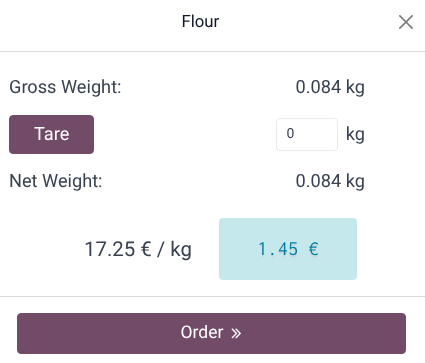
Place the product on the scale and wait for the weight to be displayed in the popup window.
Once the weight is determined, the price is automatically computed.
Click Order to add the product to the cart.
Remove the previous product from the scale.
Important
Make sure the scale returns to zero before weighing a new product. If it does not, the
Order button remains unclickable until it is reset.
