文档
通过 Odoo 说明文档 ,您可以在 Odoo 中存储、查看和管理文件。
文件夹和文档被组织成可从树中访问的部分。在左边。以下部分是可用的:
全部 : 显示用户有权访问的所有文件夹和文件。
公司 : 包含公司在内部共享的文件夹和文件。访问权限由为该文件夹和文件定义的 :ref:`访问权限 ` 决定。
我的驱动器 : 用户的个人工作空间,用于组织和访问他们拥有或上传的文件和文件夹。
与我共享 : 包括已与用户共享但不属于他们有权访问的任何父文件夹的文件。
最近 : 显示用户有权限查看或编辑的最近修改的文件。
回收站 : 存储 :ref:`已删除的文件和文件夹 ` 。
点击树中的某个部分以查看其内容。选择一个文件夹以打开它, 管理它 ,并访问其文件。
点击文件以打开它并 执行可用操作 ` 。要关闭文件,请按 **Esc** 键或点击 :icon:`fa-remove (关闭) 图标。您还可以通过拖放文件或文件夹将其移动到另一个文件夹或部分。
更多内容
:doc:`签署文档 `
配置
删除延迟
默认情况下,移至回收站的项目会在30天后被永久删除。要调整此延迟,请转到 并编辑 删除延迟(天) 字段。
文件集中管理
文件集中化管理功能可将与特定应用关联的所有文件自动整理到专用文件夹中。每个应用在安装时,此功能默认启用。若要禁用文件集中化管理、修改默认文件夹或配置要添加到特定应用文件的标签,请前往 ,并在 文件集中化管理 部分编辑相关设置。
Tip
对于 会计 文档,无法禁用文件集中化管理。系统会为每种日记账类型(例如:销售、采购、银行等)自动创建一个子文件夹,并将日记账名称作为标签添加到每个文档上。点击 日记账 可编辑要同步的日记账列表,并定义其对应的文件夹和标签。
对于 人力资源 文件,系统会为每位员工自动创建一个子文件夹,并根据文件类型(例如: 合同 、 工资单 等)将特定标签添加到文件中。您还可以通过输入所需的文件夹名称(以逗号分隔)来自动创建额外的 员工子文件夹 。
Note
更改文件夹或标签仅影响新文件;现有文件保持不变。
当为某个应用程序启用文件集中管理时,在该应用程序中删除记录会将其附件移动到文件管理应用程序的废纸篓中。
文件夹
您可以在 公司 或 我的驱动器 部分的文件夹中组织文件。
要创建文件夹,请在树状结构中选择所需的分区,点击 新建 ,然后选择 文件夹 。在弹出窗口中,输入文件夹的 名称 ,然后点击 保存 。要创建子文件夹,请先选择父文件夹,然后按照相同的步骤操作。
Note
某些文件夹和子文件夹会根据 :ref:`文件集中管理设置 ` 自动创建。
要管理文件夹或子文件夹,请选择它并点击树状结构上方的 ( 操作 ) 图标。菜单中提供以下选项:
下载 : 将文件夹及其文件和子文件夹下载为.zip 文件。
重命名 : 修改文件夹的名称
共享 :共享文件夹并管理其访问权限.
添加星标 :将文件夹标记为收藏以便更快访问。此设置是用户特定的,不会影响其他用户的工作区。然后您可以使用 :ref:`星标过滤器 ` 快速导航到您收藏的文件夹
信息和标签 :查看文件夹的 :ref:`详细信息 ` 和讨论。
移至回收站 :将文件夹及其内容移动到 :ref:`回收站 ` 。
选择后的操作 :定义文件夹中文件可用的服务器操作(作为按钮)。单击操作以添加或删除它。单击 添加自定义操作 以 :ref:`创建一个新的 `
自动化 :创建 :doc:`自动化规则 ` 。
AI 自动排序:使用 Odoo AI 自动整理文件夹中的文件,并根据提供的 AI 提示词触发操作。在弹出窗口的下半部分为您的提示词添加相应的操作。此选项需要安装**Odoo AI**应用。
Tip
切换到列表视图可以:
同时管理多个文件夹。
导出 或 插入到电子表格 中(一个或多个文件夹)。
快速执行操作,例如 共享 、 下载 、 重命名 等。将鼠标悬停在文件夹行上,并点击行末的相应图标以执行所需操作。
文件
要上传文件,请在树状图中选择所需文件夹,点击 新建 ,然后选择 上传 。
Tip
在 Odoo 在线数据库中,每个上传的文件不得超过 64MB。
您还可以将文件从计算机拖放到文档应用中的目标文件夹。
URL 链接
要添加一个 URL 链接(例如,一个视频)并使其可以从文件夹访问,请点击 新建 并选择 链接 。输入 URL ,添加一个 名称 ,并选择适当的 文件夹 。
电子表格
To create a spreadsheet, click New and select Spreadsheet.
Managing files
Several buttons are available in the top bar when opening a file:
操作 菜单,包含下述选项
共享 :用于 共享文件并管理其访问权限
Download
操作 菜单中提供以下选项:
Duplicate in 复制 :创建文件的副本。在弹出窗口中,选择或创建目标文件夹,然后点击 :guilabel:`复制到`*目标文件夹名称*。
Move to Trash: Move the file to the trash.
Rename
Info & tags: View the file’s details and chatter.
移动 :将文件移动到另一个文件夹。在弹出窗口中,选择或创建目标文件夹,然后点击 移动到 目标文件夹名称。
Create shortcut: A shortcut is a pointer to a file, allowing access from multiple folders without duplicating the file. In the popup, select or create the destination folder, then click Create a shortcut in destination folder’s name.
Manage versions: View all versions of the file in upload order, download a specific version, or upload a new one as needed.
Lock: Protect the file from any modifications.
Copy Links: Copy the file’s URL for sharing. Access is controlled based on the file’s access rights.
Split PDF: Split a PDF file.
Tip
You can use folder-specific email aliases to automatically save files sent to the alias into the corresponding folder.
切换到列表视图可以:
同时管理多个文件。
导出 或 插入到电子表格 中(一个或多个文件)。
快速执行操作,例如 共享 、 下载 、 重命名 等。将鼠标悬停在文件行上,并点击行末的相应图标以执行所需操作。
Splitting and merging PDFs
要将一个 PDF 分割成单个或多个页面组,请打开该 PDF,点击 操作 按钮,并选择 拆分 PDF 。如果需要,可以点击页面之间的 (剪刀) 图标来移除拆分点,然后点击 拆分 以确认。
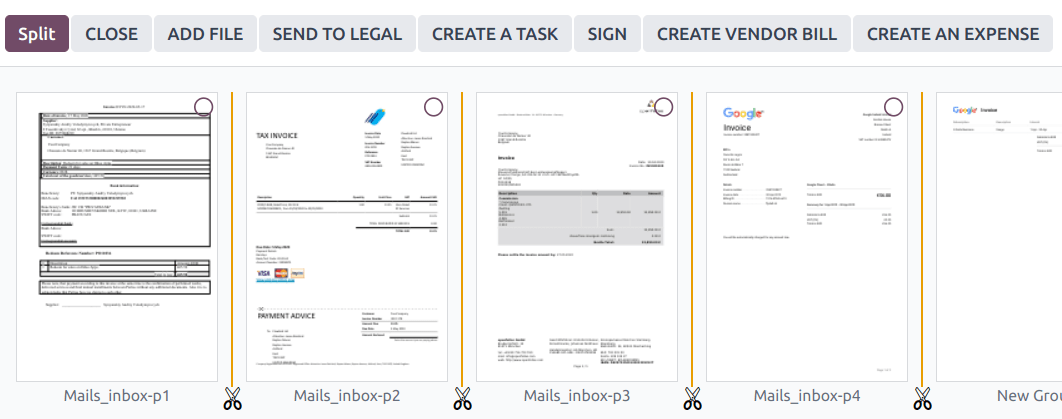
To merge PDF files, follow these steps:
导航到包含您要合并文件的文件夹。
按住 Ctrl 键并点击相关文件。
点击 操作 按钮并选择 合并 PDF 。
If needed, click Add file to browse and select a PDF file from your computer.
Click the (scissors) icon between the files.
Click Split to merge them.
Note
The original PDFs are replaced by the merged version.
Tip
Press Shift + S to add or remove all splits between pages.
To delete a specific page, select the page, then click Delete.
Requesting files
Request files from users as a reminder for them to upload specific files. To do so, follow these steps:
Click New and select Request.
Enter a Document Name and select the person you’re requesting it from in the Request To field.
如果需要,设置 截止日期 ,编辑文件应添加到的 文件夹 ,添加 标签 ,并编写 消息 。
Click Request.
A placeholder for the missing file is created in the selected folder. Once the file is available, click the placeholder to upload it.
Tip
You can also request a document from the list of scheduled activities.
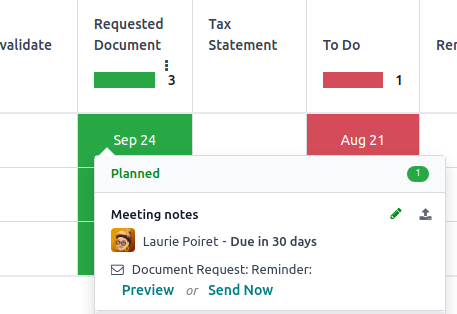
To see the list of all requested files, switch to the Activity view of the Documents app and go to the Requested Document column. Click a requested file’s date to view its details. You can then:
Upload a file using the (upload) button;
Edit the activity using the (edit) button;
Cancel the activity using the (cancel) button;
Send a reminder email. Click Preview to preview the content of the reminder email if needed, then Send Now.
To send a reminder email for all requested files, click the (ellipsis) icon in the Requested Document column and select Document Request: Reminder.
Details panel
要查看文件夹或文件的信息和标签,请选中该文件夹或文件,然后点击 图标(针对文件夹)或 操作 按钮(针对文件)并选择 :信息与标签 。
Tip
或者,对于文件夹,您也可以点击视图图标旁边右上角的 (信息与标签) 按钮。
The details panel allows the following:
Change the file’s folder or the folder’s name.
View the file’s or folder’s size and the folder’s item count.
更改文件或文件夹的所有者和联系人。默认情况下,创建文件或文件夹的用户被设为其所有者,并拥有其完全访问权限。要更改此设置,请从下拉列表中选择所需的用户。联系人是指仅对文件或文件夹拥有 查看者 访问权限 的人员,例如,数据库中的现有供应商。
访问 沟通栏 。
要关闭详细信息面板,请点击右上角的 移除 按钮。
Note
用户若要从其用户配置文件查看文件,必须被设置为联系人并且至少拥有 查看者 访问权限 。
电子邮件别名
You can use an email alias to automatically save files sent to the email alias into a specific folder. To set up an email alias for a folder, follow these steps:
确保在 通用设置 中配置了 自定义别名域名 。
Select the folder where files should be saved.
Click the (Info & Tags) in the upper-right corner next to the view icons.
在详细信息面板中,输入所需的电子邮件别名。
Optionally, specify an Activity type and assignee to create an activity when a file is received via the alias.
Optionally, select the Tags to automatically apply to the files created through the alias.
Note
Emails sent to the alias without attachments are converted into files, using the email subject as the file name.
更多内容
Linked records
To link the file to a specific record, select the appropriate model from the Linked to dropdown menu (identifiable by its placeholder No linked model), then select the desired record.
Note
If file centralization is enabled for a specific app, adding a file to the Documents app by uploading an attachment automatically adds the corresponding record in the Linked to field of the file.
分享及访问权限
Note
You can only share folders and files and edit their access rights if you have editing rights.
Access rights can be set on:
folders: Select the folder, click the (gear) icon, and select Share.
files: Open the file and click Share in the top bar.
Tip
Switch to the list view to share or manage the access rights of multiple filers or folders at once.
To grant access to specific users or contacts, follow these steps:
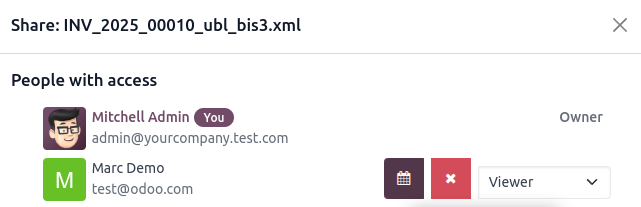
In the (Invite people) field, select the users or contacts you want to grant access to from the dropdown menu or enter their email address.
Note
Access through link must be enabled first before granting access to external contacts.
Set the Role field to Viewer or Editor.
If desired, toggle the Notify switch off to avoid sending a notification email.
Click Share to grant access (with or without a notification) or Copy Links to copy the sharing link to the clipboard.
Tip
To remove a permission or set an expiration date for it, hover the mouse over the relevant contact and click the (remove) or (calendar) button, respectively.
To configure General access for Internal users or Access through link, select Viewer, Editor, or None (to completely restrict access). For Access through link, you can also specify whether the folder or file should be Discoverable (i.e., accessible through browsing). Click Save to apply the changes, then Copy Links to copy the sharing link to the clipboard.
Note
Each folder and file URL includes the access rights assigned to it. When you share a link to a folder, recipients are directed to a dedicated portal where they can view the files in that folder, excluding any with restricted access.
Portal users can access folders and files they have permission to view or edit through the customer portal by clicking the Documents card.
Managing files across apps
You can save files to or attach existing files in the Documents app from any record.
To save an attachment to the Documents app, hover over an attachment in the record’s chatter and click the (Add to Documents) icon.
To attach a file to a record from the record’s chatter, click the Add from Documents icon, select the desired file, and click Add from Documents to add the raw file, or Paste Link(s) to insert a link to the file (and preserve the document’s access rights).
To insert a file from Documents into the Odoo rich-text editor, type
/file, then select the desired file, and click Add from Documents to add the raw file, or Paste Link(s) to insert a link to the file (and preserve the document’s access rights).
File digitization with AI
Files available in the Finance folder can be digitized. Select the file, click Create Vendor Bill, Create Customer Invoice, or Create Customer Credit Note, then click Send for Digitization.
更多内容
