产品
午餐 应用程序 不 带任何产品预先配置。要放置订单,必须首先配置产品。
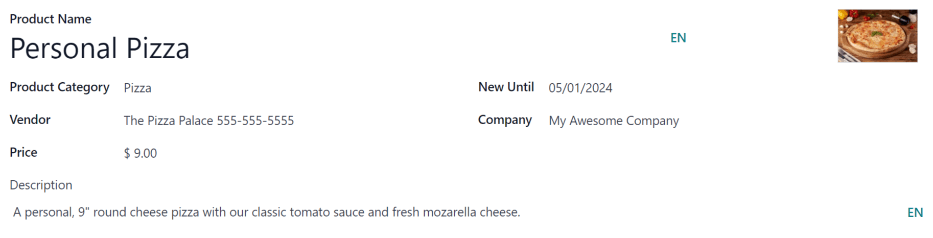
要添加和配置 午餐 应用程序中的产品,请导航至 。然后,在左上角单击 新建 按钮,将空白产品表单加载。
在表格中输入以下信息:
产品名称: 输入产品的名称。此字段为 必填。
Product Category: Using the drop-down menu, select the category this product falls under. This field is required.
Vendor: Using the drop-down menu, select the vendor that supplies this product. This field is required.
Price: Enter the price for the product. The currency is determined by the company’s localization.
Description: Enter a description of the product in this field. This description appears beneath the product photo when users are viewing the day’s options.
New Until: Using the calendar popover, select the date on which the product is no longer labeled as new. Until this date, a green
Newtag appears on the product.Company: Using the drop-down menu, select the companies this product is available for. If this field is left blank, this product does not appear for any company.
Image: Hover over the image box in the top-right corner of the form, and click the (pencil) icon that appears. A file explorer pop-up window appears. Navigate to the image, then click Open.
产品品类
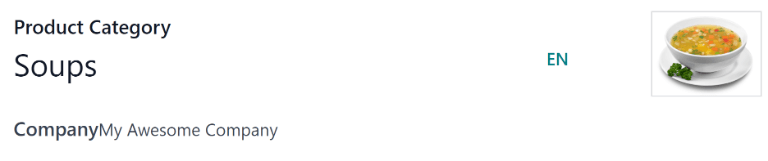
Product categories organize the offerings in the Lunch app, and allows users to filter offerings when reviewing the menu for the day.
要添加或修改类别,请导航至 。可用类别将显示在列表视图中。
In the Lunch app, there are four default categories: Sandwich, Pizza, Burger, and Drinks.
要添加新类别,请点击左上角的 新建 按钮,一个空白的类别表单就会载入。
在 品类 字段中输入名称。如果类别是公司特定的,只能出现在某个公司,请从下拉菜单中选择 公司 。
如果需要,可为类别添加照片。将鼠标悬停在右上角的图片框上,然后点击出现的 (铅笔)`图标。这将弹出一个文件资源管理器窗口。导航到图像,然后点击 :guilabel:`打开 。