预设回复
Canned responses are customizable inputs where a typed shortcut populates a longer response. A user enters a keyword shortcut, which is then automatically replaced by the expanded substitution response. Canned responses save time by allowing users to use shorthand phrases to populate longer messages. This also limits the possibility of errors when typing out longer messages because these are pre-set messages. This maintains consistency throughout customer interactions.
Canned responses consist of two main components: the shortcut and the substitution. The shortcut is the keyword or key phrase that is to be replaced. The substitution is the longer message that replaces the shortcut.
预设回复可于**在线客服**对话、**讨论**应用程序和*沟通栏* 使用 。预制回复也可在直接消息会话、频道会话和 WhatsApp 消息中使用。
Creating canned responses
预设回复通过**内部讨论**应用程序进行管理。要创建新的预制回复或管理现有回复列表,请导航至 。
Then, to create a new canned response, click New at the top-left of the list. Doing so reveals a new blank line in the list.
Canned responses consist of two main components, a shortcut the user enters, and the substitution that replaces the shortcut.

Type a shortcut command in the Shortcut field. Next, click on the Substitution field, and type the message that will replace the shortcut.
Tip
Try to connect the shortcut to the topic of the substitution. Not only does this make it easier to use the responses, it prevents the list of responses from becoming disorganized and overwhelming.
The Created by field automatically populates with the name of the user that creates a new response. This field cannot be edited.
To share this response with other users, select one or more groups in the Authorized Group field that should have access.
Warning
If the Authorized Group field is left blank, the response can only be used by the user that created it.
由数据库创建的预设回复,其创建者将自动归属为 OdooBot。它们必须被分配给一个授权组后,才能供任何用户使用。要查看 OdooBot 创建的回复,请前往 。
Lastly, the Last Used field keeps track of the date and time each response was most recently used. This field cannot be edited.
Use a canned response
要在对话中使用预设回复,请点击消息窗口中的 (加号) 图标。然后,点击 插入预设回复 。系统将打开一个可用预设回复的列表。您可以从列表中选择一个回复,或键入相应的快捷短语,然后点击 (发送) 图标或按 :kbd:`Enter`键。
Tip
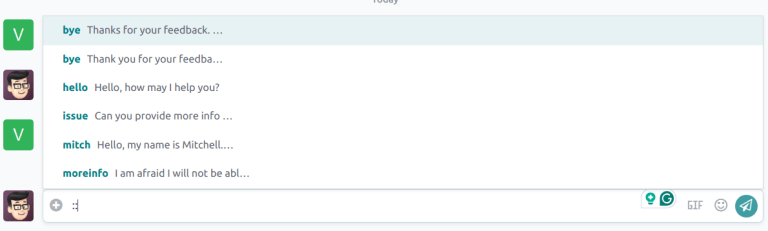
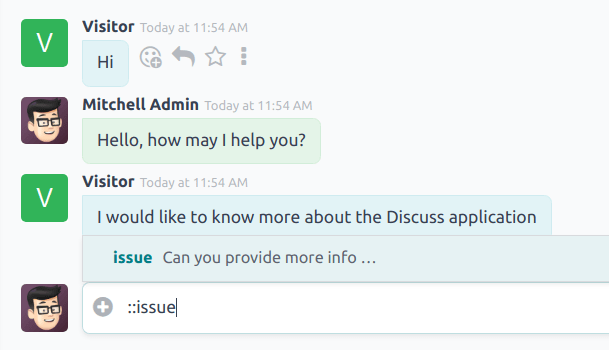
在 沟通栏 编辑器或聊天窗口中,单独键入`::`会生成一个可用预设回复的下拉列表。除了使用预设短语外,也可以从该列表中选择回复。
要在可用回复列表中进行搜索,请键入`::` ,然后键入快捷短语的前几个字母。