体假申请
员工想请假时,首先通过 体假 应用提交请假申请。一旦申请被提交,则由员工或员工 请假审批人 审批。
注解
如果请假类型是不需要审批的,则 无需审批假期 会自动通过,不需要审批。
请假申请
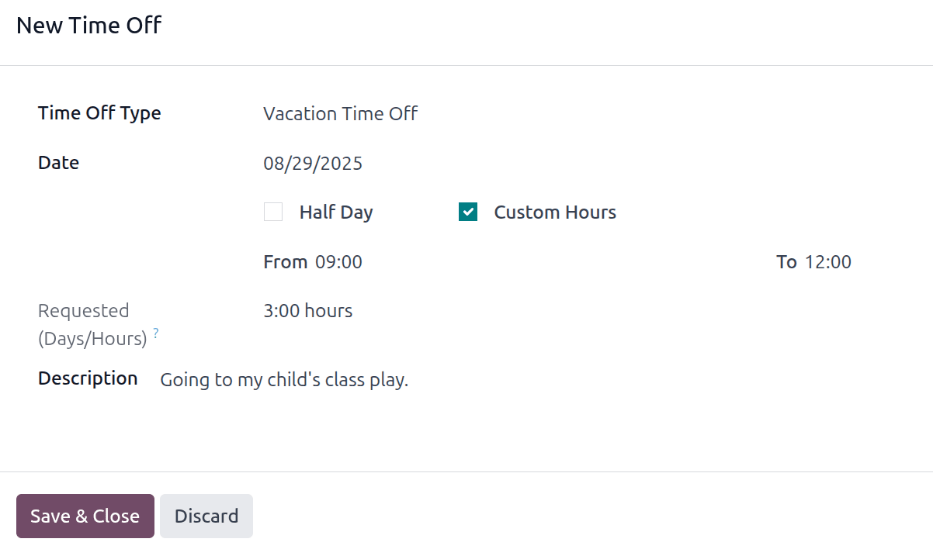
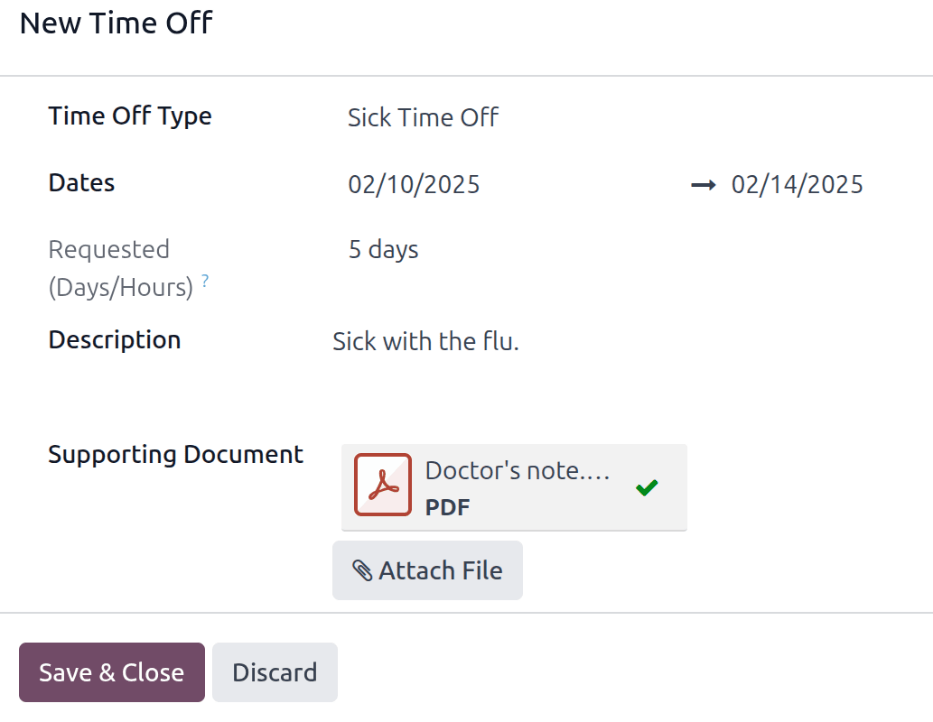
To request time off, click the New button in the top-left corner of the Time Off app dashboard, and a New Time Off pop-up form loads.
Fill out the fields on the form, and then click Save & Close to submit the request.
小技巧
Requesting time off can be done either form the main Time Off app dashboard, or by navigating to , and clicking New.
Time off fields
在 新的休假请求 表单中输入以下信息:
Time Off Type: Using the drop-down menu, select the type of time off being requested.
Dates: Enter the dates that the time off falls under. There are two fields to populate: the start and end dates. Click on either date field and a popover calendar appears.
单击开始日期,然后单击结束日期。所选的开始和结束日期会被圈出,之间的日期(如果适用)会被高亮显示。
如果只需请求一天的休假,请单击开始日期,然后再次单击相同的日期作为结束日期。
当选择正确的日期后,单击 应用 按钮。
所选日期现在填充了 日期 字段的两个部分。
如果所选的 休假类型 被配置为按小时休假,则会出现以下两个字段:
Half Day: If the time off request is for a half day, tick this checkbox. When this is selected, the second date field disappears, and is replaced with a drop-down menu. From that drop-down menu, select either Morning or Afternoon to indicate which half of the day is being requested off.
Custom Hours: If the time off requested is not a whole or half day, tick this checkbox. If selected, a From and To field appears beneath this option. Using the drop-down menu, select the start and end time for the time off request.
Requested (Days/Hours): This field updates automatically once the Date section is completed. If the Date section is modified, this section automatically updates to reflect the total time off requested. This field is in either hours or days, depending on how the selected Time Off Type is configured.
Description: Enter a description for the time off request. This should include any details that managers and approvers may need to approve the request.
Supporting Document: This field only appears if the Time Off Type selected allows for the attachment of documents. Click the Attach File button, and a file explorer window appears.
导航到应附加的目标文件,选择它们,然后点击 打开 按钮。文件将出现在休假请求表单中。如有需要,可以附加多个文档。