准备显示器
准备显示器允许您处理需要准备POS订单。具体地,
零售 :在POS完成付款后,准备团队被通知收集购买的物品供客户取货。
餐厅 :POS订单通知厨房需要准备食物。
配置
启用准备显示功能
转到 :ref:`POS 设置 ` 。
滚动到 准备 部分。
检查 准备显示 选项。
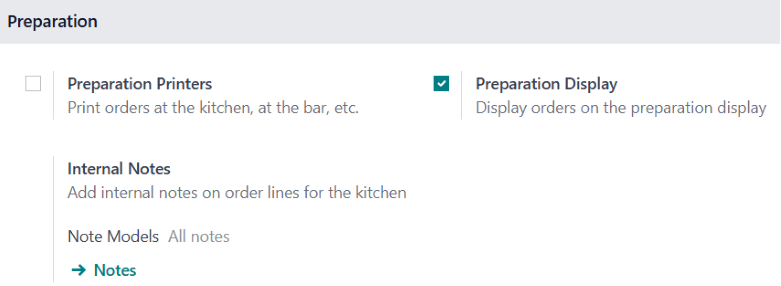
创建并设置准备显示功能
访问
点击 新建 。
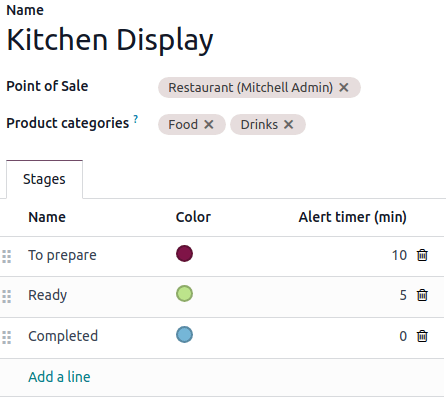
为显示指定描述性名称(例如:
主厨房,酒吧)设置:
点餐: 选择POS将订单发送到此显示。
产品类别: 指定POS的 产品类别 发送到此显示。
阶段: 定义订单准备所需的步骤。
点击 添加行 以添加阶段。
为每个阶段指定特定的颜色以清晰表示(可选)。
为每个阶段定义 提醒计时器(分) 以指示预计处理时间。
Note
要编辑现有的准备显示功能,请单击显示卡的垂直省略号按钮 () 并选择 配置 。
实际应用
访问 以获取所有显示的概述。
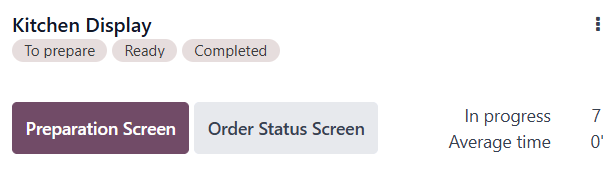
准备显示功能卡显示:
配置的阶段。
当前正在处理的订单数量。
准备显示功能 平均时间 显示员工完成订单的平均时间。
Tip
点击 Odoo 工作台上的 厨房显示 应用图标以快速访问。
使用准备显示功能
要访问准备显示功能,请单击 准备显示 。此界面,为员工设计,显示:
阶段和订单数量:显示订单的进度,例如
准备中,就绪,完成,以及每个阶段中的订单数量。按类别列出的订单 :按 POS 类别(例如:
饮料,食物)列出所有正在处理的项目。订单卡:总结单个订单,包括:
关联的台位和订单编号。
状态,例如
就绪,用定义的颜色高亮显示。Waiting time, with visual indicators.
Note
The duration indicator turns red if the elapsed time exceeds the predefined alert time.
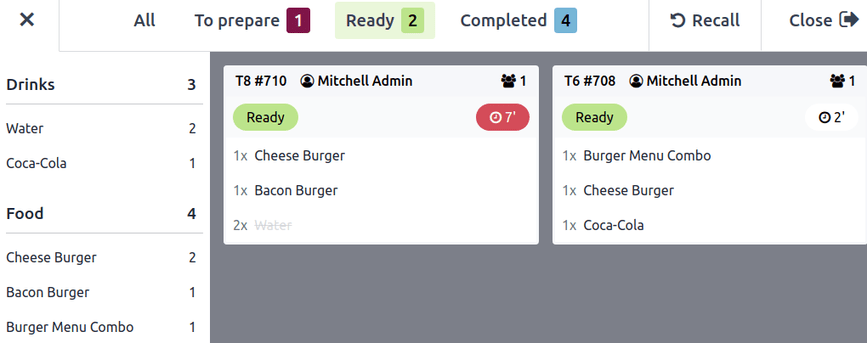
To update order progress:
Click items on the order card to cross them off individually.
Click the order card itself to mark all items at once.
The card automatically moves to the next stage once every item is crossed off.
Click Recall to move an order back to the previous stage if you mistakenly sent it to the next stage.
客户显示器
In parallel, click Order Status Screen to open the customer interface. This interface, designed for customers, provides an overview of orders that are:
Ready for pickup.
Almost there, indicating they are taken care of.
Note
The order number can be found at the top of the customer’s receipt.
