客户账户
客户账户 功能允许客户使用账户进行购买。他们可以存入资金用于未来的购买,或者选择他们的账户作为 支付方式 来进行信用购买,并在稍后通过 销售交易 或通过已发布的发票进行结算。
配置
要允许客户使用客户账户进行支付,请 创建一个支付方式 并配置如下:
启用 Identify Customer 以强制选择客户,以允许使用此支付方式。
保留 日记账 字段为空,以使用客户可收的账户。
在 Point of Sale 字段中选择销售点,以使此支付方式可用。
Note
设置销售信用额度,以防止客户超出定义的信用额度。当销售信用额度达到时,所选客户按钮变为橙色,并出现一个 (警告符号) 图标,以显示警告。但是,此警告 不 会阻止销售继续。
Payment process
存入款项
To deposit money to the customer account from the POS interface:
Click Customer and locate the desired customer in the list.
Click the (hamburger menu) icon, then select Deposit money.
Choose the payment method.
When redirected to the payment screen, enter the amount to deposit using the keypad.
Validate the transaction.
Click Yes on the popup window to confirm.
Customer account as payment method
To use the customer account as a payment method for a purchase from the POS payment screen:
Select the payment method created for the customer account.
Click Customer to open the customer list and select the customer.
Click the Invoice button.
Validate the purchase.
Important
To effectively monitor and manage the customer’s unpaid debt, either create an invoice for the order or install the Accounting application.
Debt tracking
When a customer pays using their customer account, the purchase amount is recorded as debt until it is paid off. To keep track of a customer’s debt, consult their customer statement in the backend or their profile in an open session.
To access the Customer Statement report, go to , select a customer to open their form, and click the Customer Statements smart button.
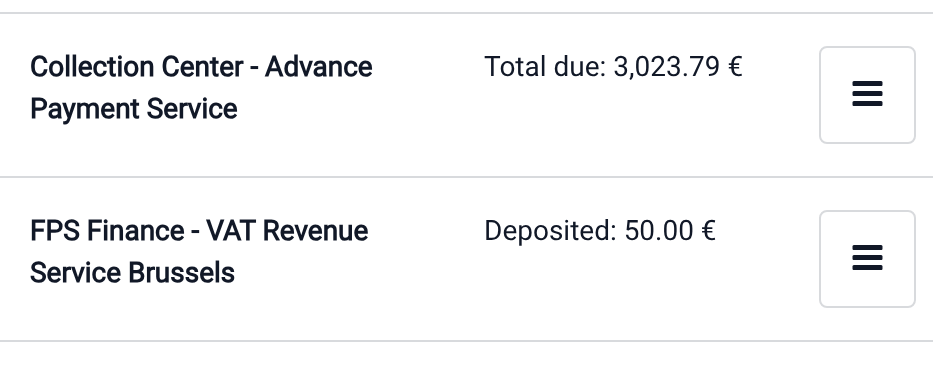
To view the total amount due or deposited by a customer from an open session, access the customer list by clicking Customer and search for the desired customer; the amount due or deposited is displayed next to their name.
更多内容
Note
When a customer is related to a company, the customer statement report might be related to the company itself, and not the customer.
Due amount settlement
To settle a customer’s due amount, register the payment from the invoice or, from the POS interface, follow these steps:
Click Customer and search for the desired customer in the list.
Click the (hamburger menu) icon next to the customer’s name.
Select Settle orders or Settle invoices.
Select the orders or invoices to settle.
Click Payment and select the relevant payment method.
Click Validate.
Click Yes on the popup window to confirm the deposit of the payment received from the customer.
