价格
税
若要对产品添加税费,您可以在产品表单的 销售税 字段中设置税费,或使用 财税位置 。
更多内容
选择显示的价格是否含税通常取决于国家/地区的规定或客户类型(B2B 与 B2C )。要选择显示的价格类型,请前往 ,选择网站,向下滚动至 电子商务 部分,然后在 显示产品价格 下选择:
不含税 :网站上显示的价格不含税,税费将在 订单摘要 步骤计算;
含税 :网站上显示的价格已包含税费。
Note
此设置是针对特定网站的,因此可以为数据库中的每个网站独立配置。
单位价格
要在产品页面的销售价格旁显示 单位价格 ,请按以下步骤操作:
前往 ,滚动到 电子商务 部分,并启用 产品参考价格 。
导航到产品表单 。
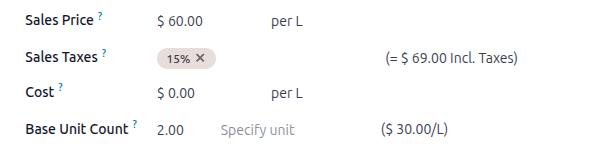
设置产品的 销售价格 并选择单位(例如 单位 )。
在 基础单位数量 字段中,输入产品中包含的单位数量,然后从下拉列表中选择相应的单位。
Example
假设您想以 $60 的价格销售一桶 2 升的油漆,即每升 $30。
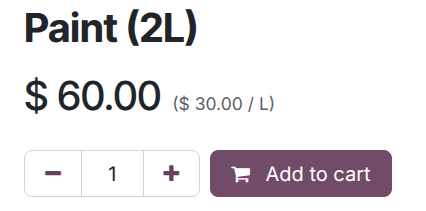
每单位(在此例中为每升)的价格将显示在产品页面的销售价格旁。
Note
在某些国家/地区,标明单位价格可能是强制性要求。
更多内容
价格表
Odoo 中的定价表允许管理灵活的定价规则,并可根据货币、时间段、购买数量、 客户所在地 和/或客户类型提供不同的价格和折扣。要为电子商务启用定价表,请前往 ,向下滚动至 电子商务 部分,启用 定价表 ,然后点击 保存 。接着,点击 定价表 或前往 ,并 配置 相关的定价表。
在 电子商务 标签页中,配置在线销售特有的选项,例如将 网站 分配给定价表、允许客户 选择该定价表 、以及/或添加 电子商务促销代码 。
Tip
Note
当定价表在销售应用中启用时,它们会自动在电子商务应用中启用,反之亦然。
在定价表列表中,按优先级排序定价表:第一个优先于第二个,第二个优先于第三个,依此类推。
也可以为 产品变体 创建特定的定价表。
更多内容
Selectable pricelists
Selectable pricelists are useful, for example, when selling products in multiple currencies and allow customers to choose a pricelist using the catalog’s pricelist selector located next to the search bar.
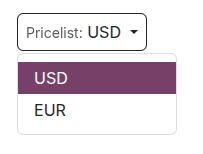
要使定价表成为可选,请启用 可选 。
Note
If a pricelist is designated as Selectable, and is not assigned to a specific website, then the pricelist is selectable on all websites.
如果某个定价表*未*出现在选择器中,可能是由于以下情况:
仅有一个定价表被定义为 可选 ,并且 已为该联系人分配了定价表 。
Multiple selectable pricelists exist, but only those matching the customer’s country group are shown. It is strongly recommended to disable the Selectable option when using pricelists with country groups on the e-commerce.
更多内容
GeoIP 与国家/地区组
通过为定价表分配 国家/地区组 ,可以根据访问者的位置和 IP 地址显示特定的定价表。
要执行此操作,请 导航至相关定价表表单 并选择相应的 国家/地区组 。根据需要为特定区域创建或编辑任意数量的定价表。例如,选择 欧洲联盟 可将该定价表应用于所有欧盟成员国。
要创建新的国家/地区组,请在下拉列表中点击 搜索更多 ,然后选择 新建 。添加 组名称 并选择相关的 国家/地区 。如果需要,可以使用 自定义筛选器 。
Note
每个国家组必须至少包含一个国家/地区。
Example
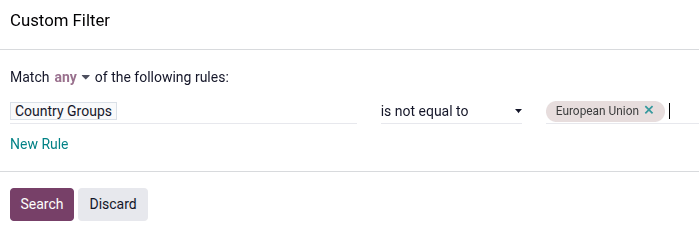
如果您想将所有非欧盟国家/地区添加到国家组中,请使用以下筛选条件:
国家/地区组 + 不等于 + 欧洲联盟
Important
When using GeoIP to determine the appropriate pricelist, all pricelists used on the e-commerce must have a country group assigned.
It is strongly recommended to disable the Selectable option when using pricelists with country groups. Indeed, all pricelists with the relevant country group are automatically applied to the catalog but if one of them is marked as Selectable, the others will disappear as soon as customers select the selectable pricelist.
Example
Imagine you create three pricelists:
EU regular priceswith theEUcountry group assignedEU prices with discountswith theEUcountry group assignedUS priceswith theUScountry group assigned
If the Selectable option is enabled for
EU regular pricesandUS prices, and the customer is from the European Union, only the pricelistsEU regular pricesandEU prices with discountswill be available. However, since theEU prices with discountlist is not selectable, it will disappear once the customer selects theEU regular priceslist and prices will be displayed based on theEU regular pricespricelist on the catalog.
Pricelist application
On the e-commerce, the default pricelist is automatically selected for public, non-logged in users when no country group is assigned. If GeoIP and country groups are used, public users see the pricelist of their country group by default. Logged-in users with assigned pricelists see the assigned pricelist by default if it is assigned to the website they are visiting. If not, the website’s default pricelist is applied (i.e., the first available pricelist assigned to the website and without a country group, following the sequence order).
Assigned pricelists take precedence over country-based pricelists, when applicable, unless the assigned pricelist is linked to a different country group.
Example
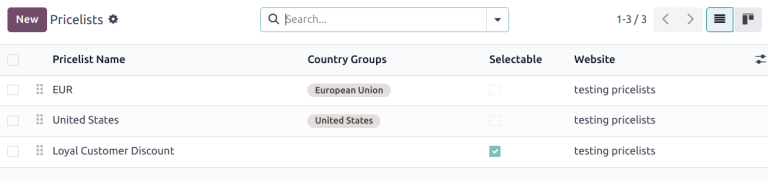
A customer from the United States visits the website. They do not have a portal account. The United States pricelist is applied.
A different visitor, also from the United States, has the Loyal Customer Discount pricelist assigned in their contact form. This assignment takes precedence over the country group assignation, so the Loyal Customer Discount is applied.
折扣
Discounts programs
To enable discount programs for your e-commerce, go to , scroll down to the eCommerce section, and enable the Discounts, Loyalty & Gift Card feature.
Configure the discount program, make sure the Website option is enabled, and add the relevant Pricelist and Website on the program form, if needed.
Permanent product discount
If the price of a specific product has been permanently reduced, the strikethrough strategy is commonly used. This involves showing the new discounted price, with the original price crossed out alongside it.

To display a permanently discounted price, navigate to , scroll down to the eCommerce, enable the Comparison Price option, and Save. Then, go to the product form, enter the new (discounted) price in the Sales Price field and the original one (strikethrough) in the Compare to Price field.
Note
The Compare to Price field must contain a price that is higher than the Sales Price for the original price to appear with a strikethrough.
Important
The Compare to Price is not displayed if discounted pricelists apply. If you want to use the Compare to price with another discount, configure a pricelist with a promotional code.
Discounted pricelists
It is also possible to create pricelists with discounts. To do so, create a pricelist and configure the discount.
If a pricelist contains a Discount price type, the price is striked through for applicable customers, even if the Comparison Price feature has not been enabled.
Note
If using pricelists with country groups, the discounted pricelist must be assigned the same country group as the one used for the non-discounted pricelist.
E-commerce promotional code
To offer a discounted pricelist for customers with a specific discount code, access the relevant
pricelist form, go to the Ecommerce tab, and add
an E-commerce Promotional Code, e.g., SUMMERSALE10%. Then, go to the Sales
Price tab, click Add a line, and configure the discount. When a customer inserts the code during the checkout process, this discount is granted according to the Sales
Price configuration.
Note
Make sure that the Promo Code option in the website editor is enabled and, if using country groups, that the discounted pricelist has the same country group assigned as the non-discounted pricelist.
Hide prices
Some businesses, such as B2B shops or companies that sell luxury or custom items, often prefer to showcase their products online without displaying their prices.
To hide product prices on the e-commerce, go to , enable Prevent Sale of Zero Priced Product in the eCommerce section, and enter a redirect URL in the Button URL field. The Add to Cart button on the product page is then replaced by a Contact us button, which can be customized if needed.
After enabling this feature, either set the price to 0 for all desired products or create a
pricelist with all product prices set to 0. Ensure the
pricelist is assigned to the correct website and is listed first among the website’s pricelists.
Tip
Ensure no pricelist used on the e-commerce has been marked as Selectable to prevent accidentally displaying the zero-priced pricelist.
To hide prices from public visitors while keeping them visible to logged-in customers, create a zero-priced pricelist to be used for non-logged-in customers and assign a regular pricelist (with actual prices) to customers with portal access.
更多内容
