常规主题
Odoo 提供了多种选项来塑造您的网站主题,包括 颜色 , 字体 和 布局 。
当您首次设置网站时,会提示您选择主题。 悬停在主题上以查看每个主题的扩展预览。
Note
当您离开时,将使用默认主题创建您的网站。
如果需要,您可以稍后 切换主题 。
在网站构建器中, 主题 选项卡提供了多种选项来定制网站的一般主题。要访问它,请单击 编辑 并转到 主题 选项卡。
一旦您完成了所需的更改,请单击 保存 来确认并应用它们到您的网站。
主题
在 网站 部分,点击 切换主题 来打开主题选择器。将鼠标悬停在主题上,查看每个主题的扩展预览。点击一个主题,将此主题应用到您的网站。
颜色
主题颜色
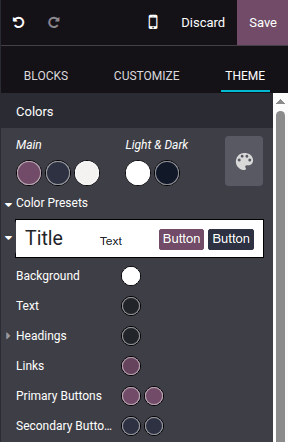
主题颜色是指网站中所有页面的配色方案。这些颜色由三个主要颜色和两个浅色和深色组成。
要编辑您的网站颜色,请转到网站编辑器的 Colors 部分,然后:
要更改您网站的颜色,请单击您要更改的色块,然后选择 Solid 颜色或单击 Custom 以手动选择特定颜色(或添加其 #HEX 或 RGBA 代码)。
点击调色板图标并选择一个颜色方案。结果是所有颜色定制都重置;点击颜色点以更改特定颜色。
Odoo 会自动为您选择的调色板创建 颜色预设 。这些是预定义的颜色组合,应用于您网站的不同元素,以提供结构化且视觉上吸引人的设计。当您选择一个调色板时,其预设定义了这些颜色如何分布在不同的构建块元素上,例如按钮、背景和文本。如果您想修改它们,请点击 颜色预设 ,然后点击一个预设以进一步自定义。每个颜色预设包含构建块的背景、文本、标题、链接、主要按钮和次要按钮的颜色。
为网站中的建筑块应用配色方案,请选择建筑块,转到 自定义 标签,点击位于 背景 后的圆点,并选择 配色方案 。
Note
改变配色方案会自动更新默认配色方案和所有使用此配色方案的组件。
状态颜色
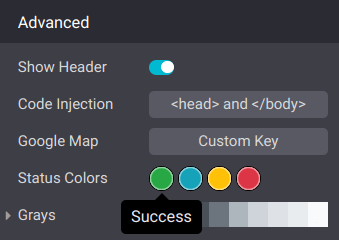
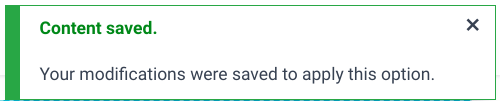
状态颜色用于指示某些操作的状态(例如 成功 、 警告 等)。它们用于弹出消息中,以向用户和网站访问者提供反馈。要自定义您网站的 状态颜色 ,请向下滚动到 高级 部分,并点击圆点以更改其颜色。
Example
页面布局
网站 部分中的 页面布局 选项允许您更改页面上构建块和网站元素的整体显示和间距。点击下拉菜单并选择所需的布局。在 页面布局 下,通过选择 图片 、使用选定图片的 图案 或留空来自定义您的 背景 。
字体
Odoo 允许您针对网站特定元素(段落、标题、按钮和输入字段)自定义字体系列和字体大小。
Font Family : 在 段落 、 标题 、 和 按钮 部分中,从下拉菜单中选择一个字体。
字体大小 : 在 段落 、 标题 、 按钮 、 输入字段 部分中,使用 字体大小 字段设置默认大小。点击 (箭头) 图标,扩展该部分并定义 自定义大小(例如,基于标题级别、按钮大小等)。
此外,每个元素特定部分都提供了额外的样式选项,例如 行高 和 边距 ,以进行更进一步的自定义。
自定义字体
在 Odoo 中使用网站中的字体可能不是默认提供的。要添加自定义字体,请单击 字体系列 字段相关的下拉菜单并选择下拉菜单底部的 添加自定义字体 。在弹出窗口中:
要添加 Google 字体,请单击 选择 Google 字体 并在列表中单击所需的字体。
从计算机上传自定义字体,请单击 选择文件 。
完成后,单击 保存并重新加载 。
按钮样式
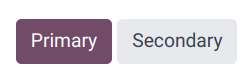
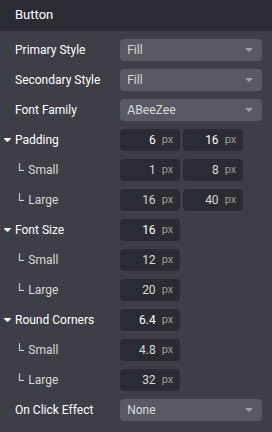
要自定义网站主要和次要按钮的样式,请在网站编辑器中转到 按钮 部分并编辑 相关的选项:
单击 主要样式 或 次要样式 字段的箭头并选择每个按钮的 可用样式之一: 填充 、 轮廓 或 平面 。
修改字体 .
调整按钮标签周围的间距(以像素为单位)的大小。
使用 圆角 选项自定义按钮的边框半径。
当按钮被点击时,在 点击效果 下拉菜单中添加动画。
Tip
您可以为按钮的 填充 、 字体大小 和 圆角 定义自定义 小 和 大 大小。
链接样式
在 链接 部分中,单击 链接样式 以选择网站链接的外观。从下拉菜单中选择 无下划线 、 悬停下划线 或 始终有下划线 。
