价格表
一个 价格列表 是一种动态定价的方法,它覆盖了产品的价格表(或价格规则),并按建议覆盖标准销售价格。该调整可以针对所有产品销售或针对特定客户、客户组、销售订单、时间段等进行设置,并特别适用于创建定价策略和优化销售利润。
Odoo 销售 应用程序有一个 useful 的价格列表功能,它可以针对任何唯一的定价策略进行设置。价格列表建议某些价格,但始终可以在销售订单上覆盖。
配置
要在 Odoo 销售 应用程序中启用价格列表,首先导航到 。在 定价 部分, tick 勾选 价格列表 功能,并点击 保存 来保存所有更改。
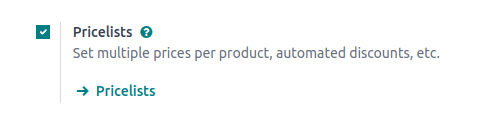
在激活并保存 价格列表 功能之后, 设置 页重新加载。从这里,选择 价格列表 链接(位于 价格列表 功能的下方,在 设置 页),或者导航到 。
或者任选一个选项,都会显示 价格列表 页,在这里,价格列表可以随时创建和/或修改。

Important
If there is no specific pricelist configured on a sales quotation, the Default pricelist is applied. The Default pricelist is the first pricelist found in without an assigned Country Group. Odoo will read the Pricelist Name column from top to bottom to determine the Default pricelist.
Note
The Selectable column is only applicable to Odoo eCommerce. This option allows website visitors to choose a pricelist when shopping in your eCommerce website.
Note
In Odoo 17 (and above), you are not required to enter a pricelist in the Pricelist field on a sales quotation form in order to confirm it (i.e. turn it into a sales order).
The chatter section is available on pricelist forms, which allows you to add notes and communications on each pricelist page.
Creating and editing pricelists
From the Pricelists page, either select the pricelist to edit, or click New to create a new pricelist, which reveals a blank pricelist form that can be configured in a number of different ways.
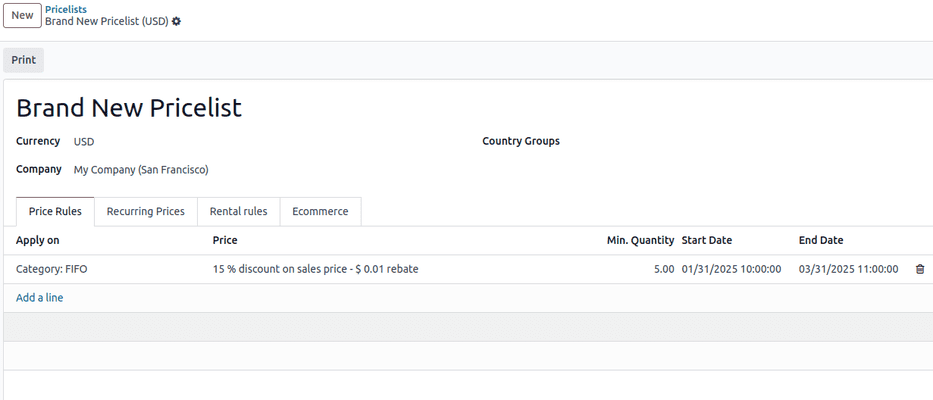
When creating a new pricelist, start by adding a name for the pricelist at the blank field at top of the form. Next, select which Currency should be used.
If working in a multi-company environment, select which company this pricelist should apply to in the Company field. If this field is left blank, the pricelist is automatically applied to all companies in the database.
If working in a multinational company, select the countries where this pricelist will apply under the Country Groups column.
Price Rules tab
In the Price Rules tab, each line creates a new record that will implement customized pricing to the sales order where the pricelist is applied. This can be used to create complex pricing structures, such as progressive discounts when greater quantities of a product are purchased.
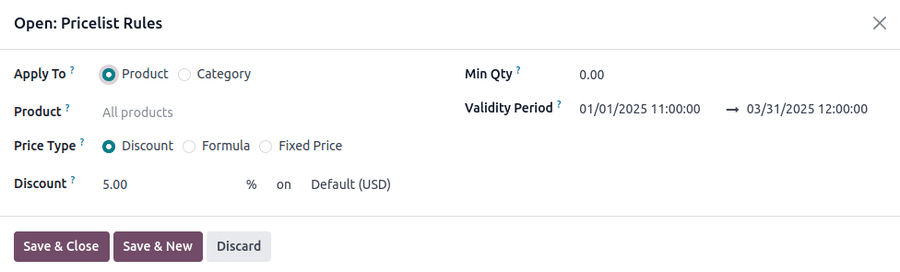
To create a new price rule, click on Add a line, which opens a new pricelist rules form. Then, select whether to apply this set of rules to a Product or Category.
From here, there are several configuration options:
Product: If selected in the Apply To field, use this field to choose one or more products to which this pricelist will apply.
Category: Select one or more product categories to which this pricelist will apply.
Price Type: Select whether the specialized pricing will fall under Discount, Formula, or Fixed Price. Depending on the price type, there will be additional configurations on how to apply the pricelist.
Discount: Enter the percentage to be discounted. A mark-up can be configured by using a negative value in this field.
Important
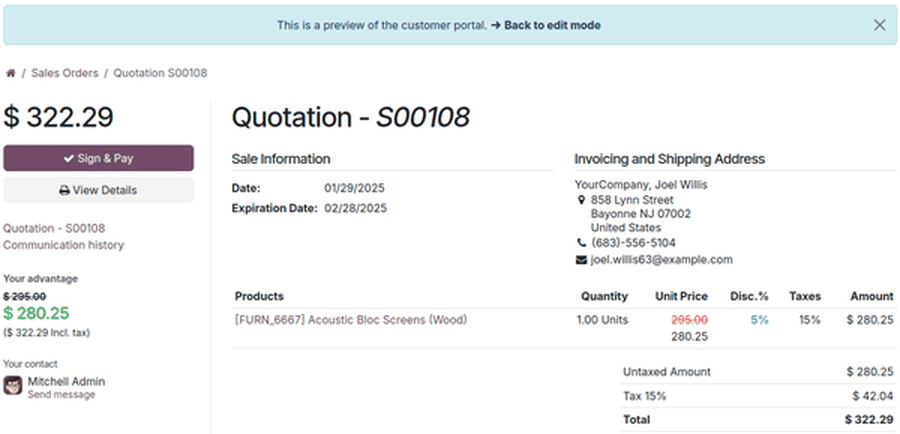
If a pricelist is applied to a sales quotation with the discount Price Type set as Discount, the discount will visible to the customer.
Formula: Calculate the pricelist rules based the following configuration:
Discount: Percentage discount to be applied. Negative values can be entered to increase prices.
Important
If a pricelist is applied to a sales quotation with the discount Price Type set as Formula, the discount will not be visible to the customer.
Round off to: Numerical value to act as round-off multiple, to be applied after discount. The rounding method sets the price so that it is a multiple of the value in this field.
Note
Rounding is applied after the discount and before the extra fee.
Extra Fee: Fixed amount to be added or subtracted once Discount and Round off to have been applied.
Fixed Price: Enter fixed price for this pricelist. When applied, all product lines in the quotation form will be updated to this price.
Min Qty: Specify the minimum quantity of selected products for this pricelist to apply.
Validity Period: Specify the start and end date during which this pricelist can be applied to quotations.
Example
To formulate a 100% markup (or two times the price of the product), with a $5 minimum margin, set
the Based price field to Sales Price and the Discount to
-100. This is often seen in retail situations.
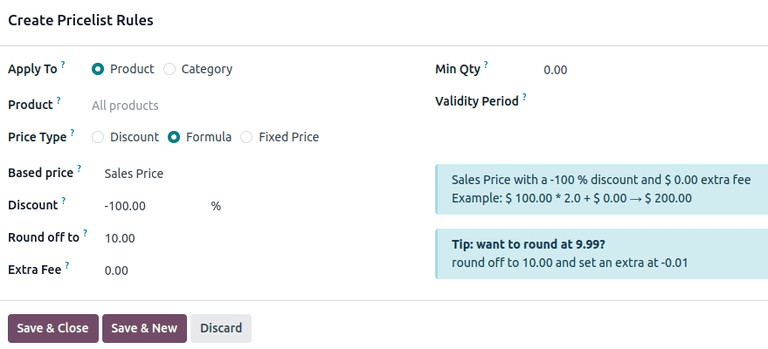
Example
要应用 20% 折扣,并将价格四舍五入到 9.99,请将 基于 字段设置为 销售价格 ,将 折扣 字段设置为 20 ,将 额外费用 字段设置为 -0.01 ,将 四舍五入法 字段设置为 10 。
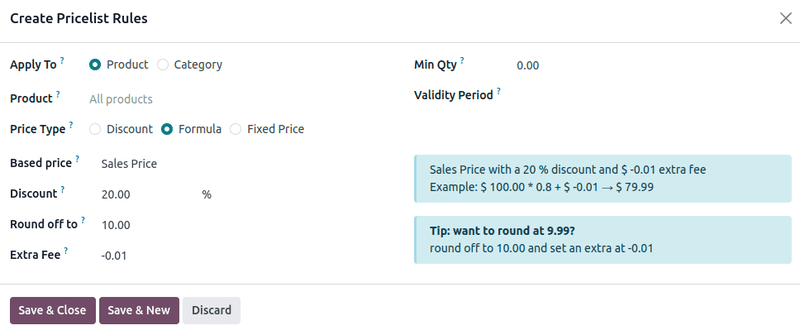
Tip
要使价格以 9.99 结尾,请将 四舍五入法 设为 10 ,将 额外费用 设为 -0.01 。
Recurring Prices tab
Time-based rules are used specifically with subscription products. Be sure to check out the Odoo Subscriptions documentation for more information.
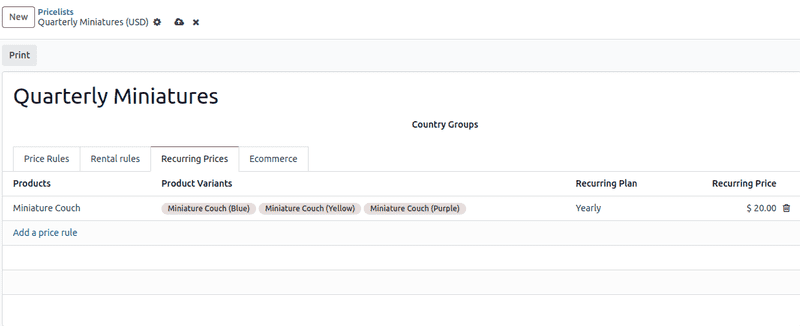
In the Recurring Prices tab, pricelists are configured with the same options as in the Price Rules tab, with additional columns for Product Variants and Recurring Plan.
Product Variants are configured under products that have one or more values, such as color, size, etc. Once a product has been selected under the Products Tab, if applicable, select the desired product variants to be included in the price rule.
Then, select the blank field in the Recurring Plan column to reveal a drop-down menu of
pre-designated recurrence periods (e.g. Monthly, Quarterly, Weekly, etc.).
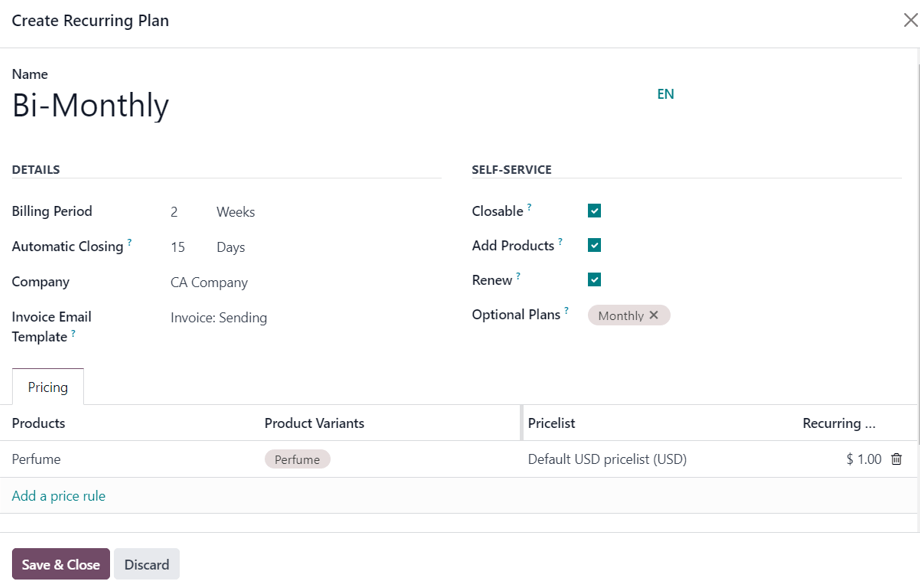
New recurrence periods can also be created from this column. To do so, type in the name for the new Recurring Plan, then select Create from the resulting drop-down menu to create the time period, which can be edited later. Alternatively, select Create and edit… to reveal a Create Recurring Plan pop-up form. From this pop-up form, the new recurrence period can be configured, with specific Details, Self-Service, and Pricing options. When the configurations are complete, click the Save & Close button.
Lastly, add the desired price for this recurring price rule in the Recurring Price column.
更多内容
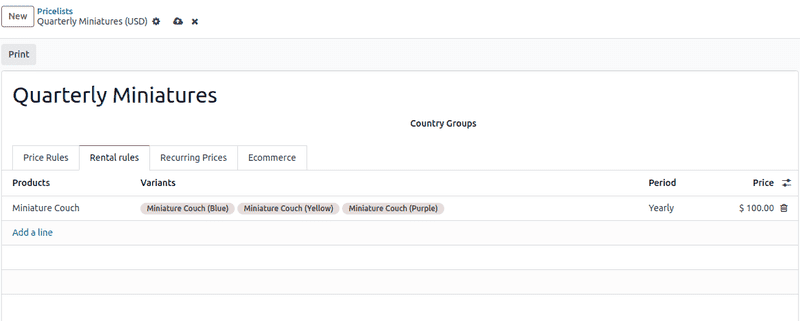
Rental rules tab
Price rules can be configured for rental products under the Rental rules tab, using the same methodology as the Price Rules and Recurring Prices tabs.
To add a rental rule, click Add a line, and select a desired product in the Products column. Then, select any specific Variants, if necessary.
Next, designate a Period of time for the rental rule (e.g. Daily, Hourly, etc.).
Lastly, configure a Price for the rental rule in the respective column.
Customer pricelist application
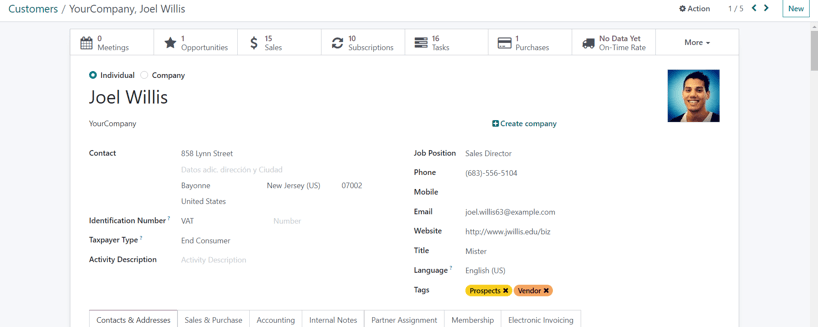
While the default pricelist applied to any customer is the Public Pricelist, Odoo provides the opportunity to directly apply a different pricelist to customers on their contact form.
To do that, open the desired customer’s contact form, either by navigating to and selecting the customer from the main Customers page, or by clicking on the customer’s name on a sales order.
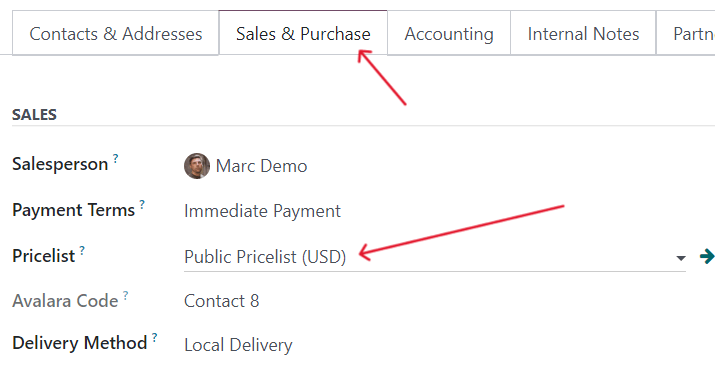
On the desired customer’s contact form, under the Sales & Purchase tab, in the Sales section, designate what pricelist should be applied to this specific customer from the drop-down menu in the Pricelist field.
Note
When a customer is added to the database, the default pricelist is automatically applied to them. There is no way to have a blank Pricelist field on a contact form. Even if that field is left blank, the default pricelist appears when that contact form is opened again.
However, when that contact is added to a quotation, and the Pricelist field is auto-populated (based on the information from their contact form), that predetermined pricelist can be removed from the Pricelist field, and the quotation can still be confirmed, and subsequently, turned into a sales order.
条件
在 创建价格表规则 弹出窗体的底部是 条件 部分。
首先,在 应用于 字段中选择一个选项:
所有产品: 高级价格表规则将应用于所有产品。
品类: 高级价格表规则将应用于特定的产品品类。
Product: the advanced pricelist rule will be applied to a specific product.
产品变体: 高级价格表规则将应用于特定的产品变体。
如果选择了除 所有产品 以外的任何选项,则会出现一个新的特定选项字段,必须在其中选择特定的 品类 、 产品 或 产品变体 。
然后,选择 最小数量 字段。最后,在 有效性 字段中选择价格表项目验证的日期范围。
完成所有配置后,点击 保存并关闭 保存高级价目表规则,或点击 保存并关闭 立即在新表单上创建另一个高级价目表规则。
Note
如果为某一特定产品设置了价格规则,同时又为其产品品类设置了另一价格规则,Odoo 将采用产品本身的规则。
