会员订阅
Odoo 会员订阅 应用程序用于通过订阅产品或服务来管理经常性收入。它支持自动发票、 定期会费收款、客户生命周期跟踪。
会员订阅可以手动创建或通过在线销售自动创建,并具有不同的选项进行定期收费。该应用程序与其他Odoo模块(如发票、CRM、销售和帮助中心)集成,以支持完整的订阅工作流。
更多内容
设置定期计划
要开始使用Odoo的订阅产品,必须首先配置定期计划(以前称为 recurrencce periods)。
定期计划是订阅激活前的时间窗口。当订阅处于活动状态时,客户将获得产品或服务,并且可能也有访问其他benefits,如支持 desk triage。在维护订阅的权益时,这些定期计划指定了客户在保持benefits时如何进行付款。
要配置定期计划,请转到: 。
默认情况下, 订阅 应用程序包括一些常见的定期计划,如 每月 和 每年 。
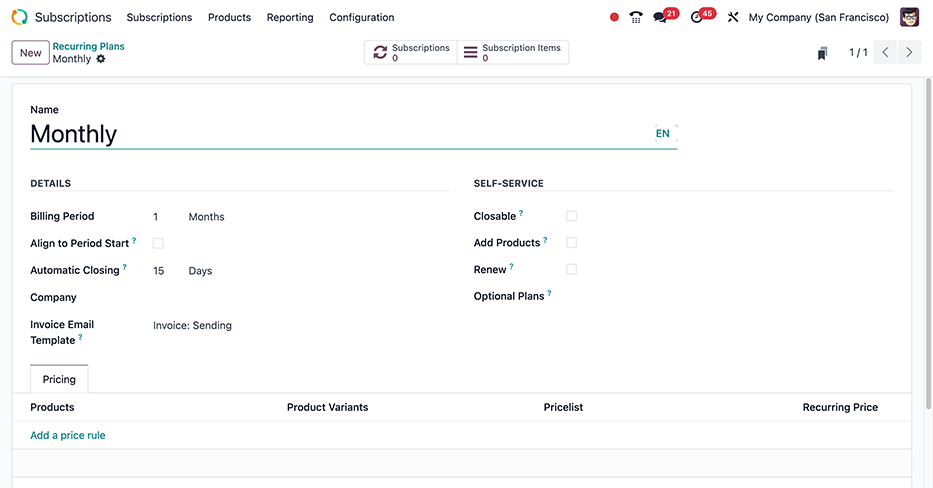
通过单击 新 按钮,在 定期计划 仪表板中,显示一个空白表单,其中计划名称、详细信息、自助服务、定价字段的值已指定。
Important
The Days unit of measure cannot be used as a Billing Period for subscription
products. The daily recurrence period in Odoo is designated for rentals, and cannot be added
to subscription-based sales orders.
此限制是为了避免销售订单每日生成发票。
详细信息
After giving the recurring plan a suitable Name (e.g. Monthly, Bi-weekly,
Quarterly, etc.), proceed to the form’s DETAILS section to fill out the following
configuration fields:
Billing Period: determines the frequency with which the subscription is billed. Set the unit of time (Weeks, Months, or Years) in the drop-down menu and the numerical value in the corresponding text field.
Automatic Closing: a numerical value, in days, where the subscription is set to close automatically if payment is not made.
Example
If a subscription is set to renew on the 1st of every month, and the Automatic Closing value is set to
15Days, then the subscription will close on the 16th of that month if payment is not received.Align to Period Start: sets new and recurring subscription plans to bill on the first day of the next Billing Period. When a subscription plan is purchased in the middle of a billing period, the invoice shows a reduced cost. Setting a custom period start dates (such as the 5th of each month) requires custom development and is not available by default.
Example
On the 15th of July, a customer purchases a monthly subscription for a streaming service. Selecting Align to Period Start for this recurring plan configures this subscription to bill on the 1st of each month. The subscription begins as soon as payment is confirmed. The quotation shows the full cost of the subscription for July 1 - 31, but the invoice shows an adjusted cost for July 15 - 31. On the 1st of August, the customer is charged the full price for the month’s subscription.
Company: optional assignment, if the database has Multi-company functionality enabled. Assigning this value will make the recurring plan available for that company’s location, specifically.
Invoice Email Template: assigns a specific email template to be used in subscriptions invoicing communications. The default assignment here is
Invoice: Sendingwhich contains various dynamic fields that autopopulate specific variables across the Subject field and Content tab, such as the customer’s name, invoice number, total amount invoiced, etc.Tip
Although this field is optional, it is recommended to use it since this type of communication fulfills good business practices around price transparency, regular customer communication (especially as it relates to charged amounts), and helps build contextual financial documentation around recurring revenues.
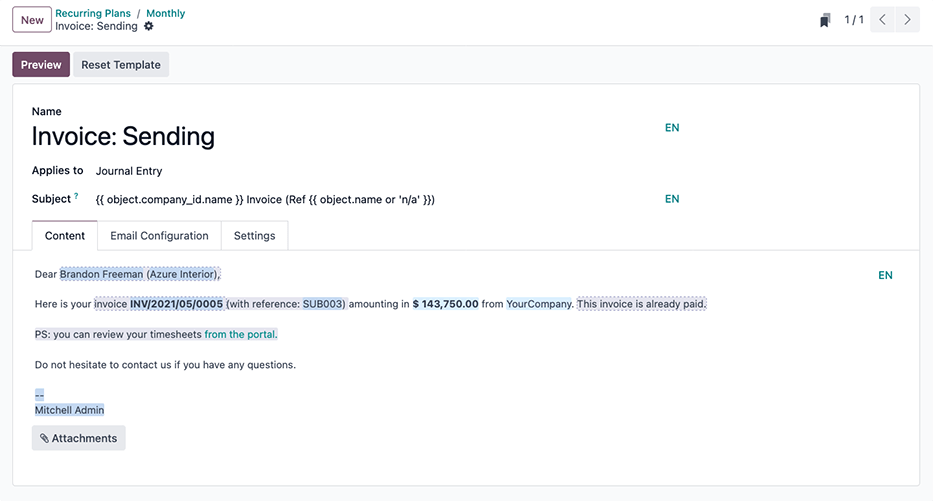
The
Invoice: Sendingemail template is accessible by clicking the (Internal link) that appears after hovering over the Invoice Email Template drop-down field in the Recurring Plans form.
SELF-SERVICE section
The following optional fields enable customers to take administrative actions on their own subscriptions. Enabling any of these options may decrease customer service request volume or increase customer lifetime value (LTV).
Closable: checking this box will give customers the power to close their own subscriptions. Consider enabling this option to reduce customer service requests and improve the overall customer experience; customers that can manage their own subscriptions in this way helps offload tedious tasks for sales and support teams, and reduces the likelihood of negative reviews.
Tip
Although this option is generally advisable to enable, sales teams with strong customer offboarding processes may consider leaving this option unchecked in order to force an interaction that might save the subscription or a different form of recurring revenue (such as in the case of a lesser subscription or a new trial period with an alternative plan).
Add Products: allows customers to add new products or edit existing product quantities to their recurring sales orders, thereby enabling customer-driven upselling. When enabled, Upsell quotations are generated in Odoo whenever a customer performs a quantitative adjustment on their sales order product lines.
Renew: enabling this allows customers to manually create a Renewal quotation for their subscription.
Optional Plans: adding values here from the drop-down field menu enables customers to switch their subscription plans, in which case a new subscription quotation or renewal quote is created to accommodate the change request.
Pricing tab
Make product-specific pricing adjustments, as part of the recurring plan, by adding them to the Pricing tab order lines. Sequentially add the Products, along with any respective Product Variants, and then assign a Pricelist (if available) and a Recurring Price.
Note
Price rules that are added here take precedent over the default pricing information on the subscription product’s form. This is meant to accommodate deals, discounts, and similar pricing adjustment strategies that would incentivize customers to purchase the recurring plan.
产品表格配置
With recurring plans set up, create a subscription product by navigating to , and click either an existing product to edit, or make a new one by clicking New to open up the subscription product’s form.
Note
By default, the Subscriptions option is already enabled, prompting Odoo to recognize it as a subscription product. Be sure to leave the Subscriptions and Sales options enabled.
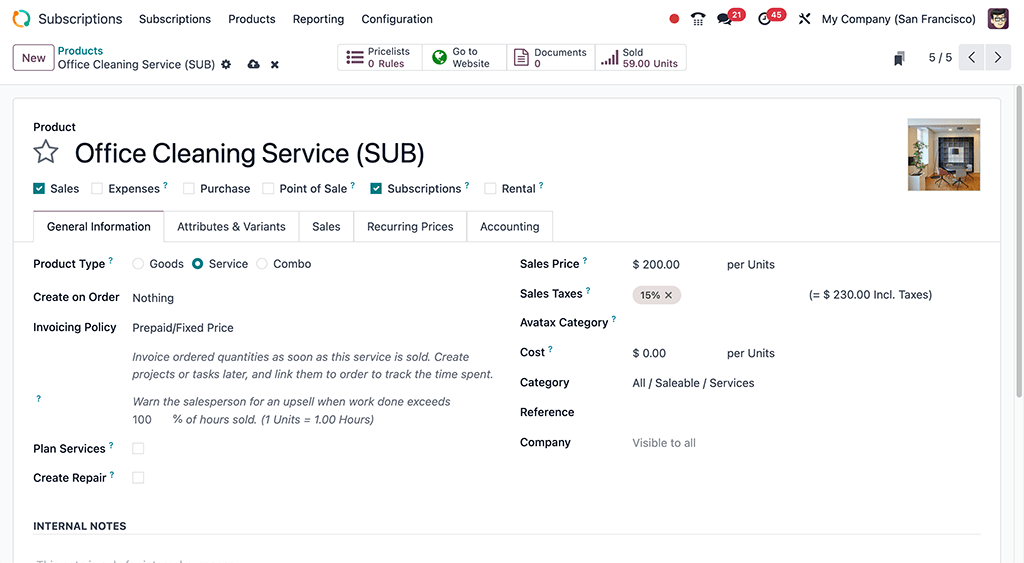
On the product form, configure the following items in the General Information tab so the subscription product will function correctly:
Product type: this value is typically set to a Service, however other product types may be used depending on the purpose of the subscription (e.g., physical product box subscriptions, eLearning course with supplemental physical goods, etc.).
Invoicing policy: set this value to when the customer should be charged for their subscription.
Unit of Measure: how the product should be counted in Odoo, for stock purposes. For most subscriptions, the UoM will be Units.
Sales Price: enter the recurring cost of the subscription that the customer will pay per recurrence period.
Important
When creating a subscription for a physical good, selecting the wrong Invoicing Policy will lead to errors when creating invoices. Physical products must be set to Ordered quantities.
Optionally set up information on the Attributes & Variants tab if the subscription contains multiple choices for customers (i.e. food delivery, tailored fashion boxes, etc.).
In the Recurring Prices tab, clarify the pricing options for the subscription. For each option available, click Add a price rule to add a new row.
Tip
Longer time Recurring Plan time periods are typically incentivized with cost savings. Consider dropping the total Recurring Price values to offer customers a discount while supporting the business’s financial runway.
Last, if the subscription is meant to be sold on the eCommerce website, click the smart button and in the product page header, click the gray slider from Unpublished to the green Published status.
Create a subscriptions quotation
Manually create a new customer subscription by navigating to either the or app dashboards, and then clicking New.
Note
Products that have been marked as Subscriptions on their product forms, and are also sold on the eCommerce website will automatically create and confirm subscription quotations in the backend of Odoo.
Important
Sales orders with a defined recurring plan automatically become subscriptions.
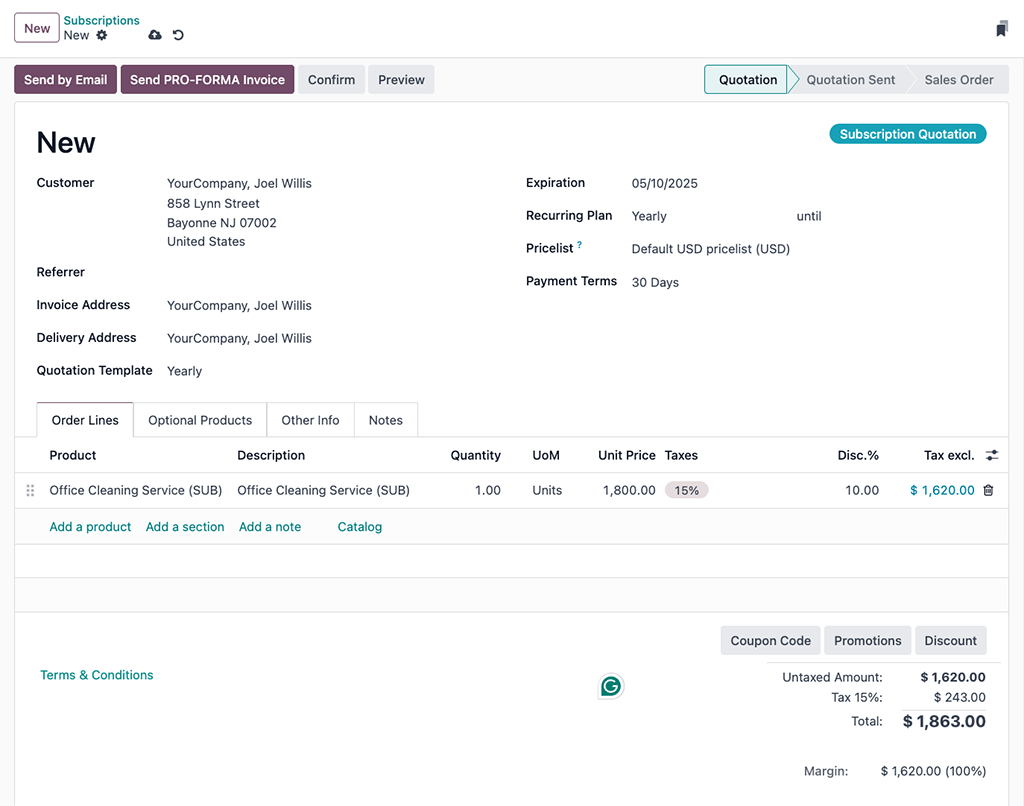
On the quotation form, fill in the necessary fields such as Customer and Recurring Plan, as well as the Order Lines tab.
Optionally, specify a:
Quotation Template, if one is readily available to help populate the form fields.
Expiration date, to indicate when the subscription offer is no longer valid.
Tip
Expiration dates pair well with discounts to incentivize faster purchases, since the discount will expire with the quotation if it’s not turned into a sales order within the specified date range.
Pricelist, if one is available and appropriate to use (i.e., summer sale discount, VIP customer, etc.).
Payment Terms, to set a specified time window for when the subscription must be paid. This is not to be confused for when the quotation is confirmed and becomes a sales order, to where, payment may then be obtained immediately or within a certain amount of days, weeks, months, etc.
Tip
Define different invoice and delivery addresses by enabling the Customer Addresses feature.
确认
Send the quotation to the customer for confirmation by clicking on Send By Email, or confirm it immediately by clicking on Confirm.
Tip
Click on Preview to preview the customer portal where the customer can view their quotation, sign and pay it, and communicate with you.
If an Online signature or Online payment is required to confirm the quotation, set the checkboxes next to either (or both) of these labels in the Other Info tab, under the SALES section.
