多语种翻译
您的网站可以翻译成多个语言,允许访客在首选语言下查看其内容。
配置
在将网站翻译成多个语言之前,请先 在数据库上安装它们 。要执行此操作:
转到 。
在 常规 部分中,单击 安装新语言 。
在弹出窗口中,从下拉菜单中选择一个或多个 语言 ,单击 添加 ,然后单击 关闭 。
接下来,将安装的语言添加到网站中,方法是在 语言 字段中选择它们,然后单击 保存 。
Tip
从网站中删除一种语言,请单击它旁边的 (删除) 图标。
多语种选择器
一旦添加了另一种语言,网站标题和页脚的语种选择器就会显示,允许访客在多种语言之间切换。
Tip
如果语言选择器或一种语言选项未显示,请刷新浏览器。
If the visitor’s browser language is not available, the website will use the website’s default language. To edit it, go to . Under the General section, select the language using the Default field.
To hide or customize the appearance of one of the language selectors, open the website in the default language, click Edit, then select the language selector.
To edit the header’s language selector:
In the sidebar, scroll down to the Language Selector section.
Set the Style to Dropdown or Inline.
Set the Label to Text, Flag, Flag and Text, Code, or Flag and Code.
点击 保存 。
Tip
To hide the language selector in the header, go to the Show/Hide Elements section and click the (Language selector) button next to the Actions field.
To edit the footer’s language selector:
Set the Language selector field to Dropdown, Inline, or None.
Set the Label to Text, Flag, Flag and Text, Code, or Flag and Code.
点击 保存 。
Tip
You can display or hide website elements based on the website’s language.
Translate a page
To translate a website page, switch to the language to translate and click in the top-right corner to activate the translation mode.
Note
In this mode, only translatable text can be edited. Any other type of modification with the website builder must be carried out while using the default language.
Depending on the language added, some default content may already be translated. However, the content you added manually should be translated using the Translate feature.
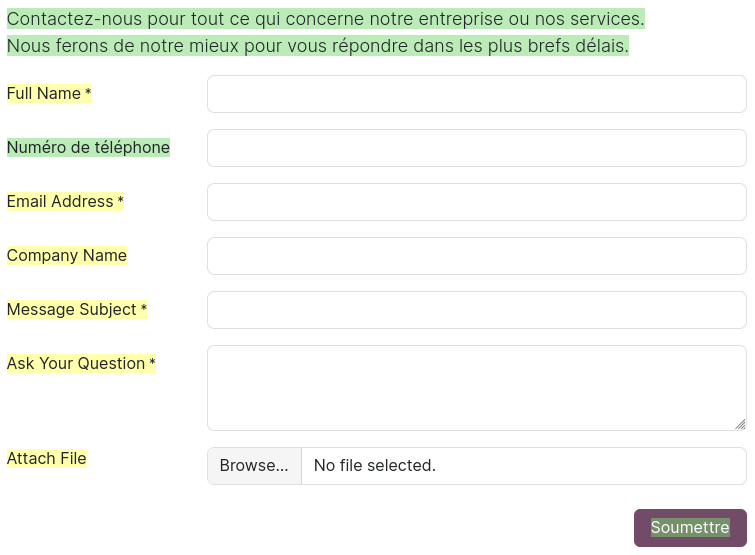
When text is highlighted in green, it indicates that it has already been translated (manually or automatically). When text is highlighted in yellow, it indicates that it has not been translated.
Click the green button next to the Translated to field to automatically translate all text highlighted in yellow. You can also manually translate or adapt text, whether it is highlighted in green or yellow, by selecting it and editing it. Click Save when you are done translating.
Tip
The core URL structure remains consistent across languages, while specific elements like product names or categories are translated. For example,
https://www.mywebsite.com/shop/product/my-product-1is the default version of a product page, whilehttps://www.mywebsite.com/fr/shop/product/mon-produit-1is the translated version of the same product page. The structure (/shop/product/) remains unchanged, but the product name (my-product) is translated (mon-produit).Some elements can also be translated from the backend (e.g., product names).
