向员工发还款项
当一个费用报告已 过账至指定日记账 ,下一步是向员工发还款项。员工可以通过现金、支票、或直接存款三种方式来向员工发还款项。
报销设置
报销可以以现金、支票、银行转账(通常被简称为直接存款)的方式支付。要设置支付方式,请导航至:菜单 。
要在工资单 <expenses/reimburse-payslip>` 中报销员工的费用,请在 费用 部分的 在工资单上报销 选项旁打勾。
接着,在 Accounting 部分设置付款方式。点击下拉菜单, 付款方式 ,并选择所需的付款方式。默认选项包括 手动付款(现金) , 手动付款(银行) , 批量存款(银行) ,和 支票(银行) 。
允许使用 所有 可用的付款选项,如果你在此不做选择。
完成所有所需配置后,点击 保存 激活设置。
报销并打印至工资单
If the Reimburse in Payslip option is activated on the settings page, payments can be added to the employee’s next payslip, instead of issuing separate payments.
Important
Reimbursing expenses on payslips can only be done individually for an approved expense report. Once an expense report has a status of Posted, the option to reimburse in the following payslip is not available.
Navigate to , and click on the individual expense report to reimburse on the following paycheck. Click the Report in Next Payslip button, and the expenses are added to the next payslip issued for that employee.
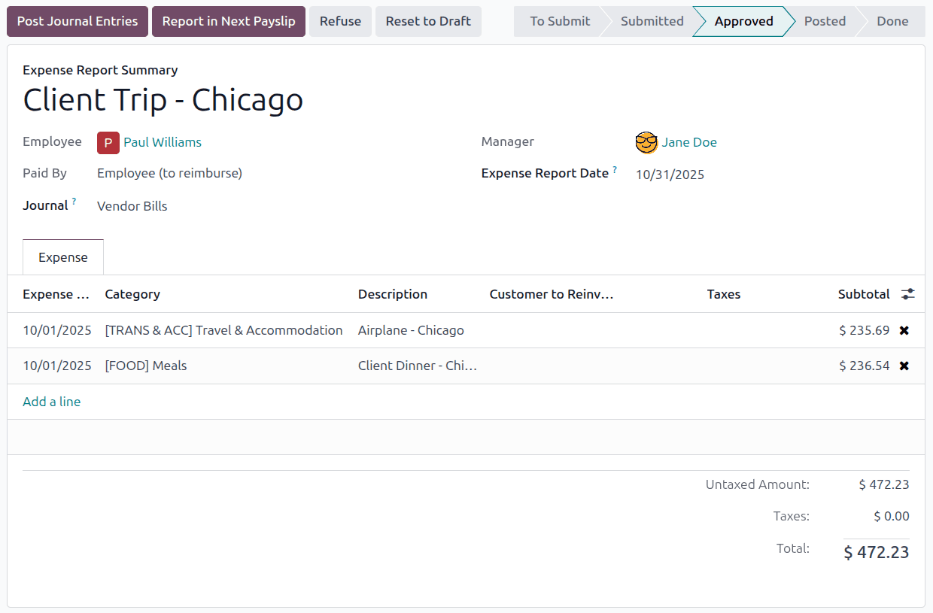
Once the expense report is added to the following payslip, a message is logged in the chatter
stating Expense report (expense report name) will be added to the next payslip. The status for the
expense report remains Approved. The status only changes to Posted (and then
Done), when the related payslip is processed.
更多内容
有关处理工资单的更多信息,请参阅 工资单 文档。
单独报销
要报销单个费用报告,首先导航到 。所有费用报告都以默认列表视图显示。点击要报销的费用报告,查看报告详情。
Important
Only expense reports with a status of Posted can be reimbursed directly to the employee (not via a payslip).
Click the Pay button in the top-left corner of the expense report, and a Pay pop-up window loads. Enter the following information in the pop-up window:
Journal: Select the accounting journal to post the payment using the drop-down menu. The default options are Bank or Cash.
Payment Method: Select how the payment is made using the drop-down menu. If Cash is selected for the Journal, the only option available is Manual Payment. If Bank is selected for the Journal, the default options are Manual Payment or Checks.
Recipient Bank Account: This field only appears if the Journal is set to Bank. The employee’s bank account populates this field, by default. If the employee has more than one trusted bank account on their employee profile, use the drop-down menu to select the desired bank account.
Amount: The total amount being reimbursed populates this field, by default.
Payment Date: Enter the date the payment is issued in this field. The current date populates this field, by default.
备注: 默认情况下,该字段自动填充费用报表中 费用报告摘要 <../expenses/expense_reports> 字段输入的内容
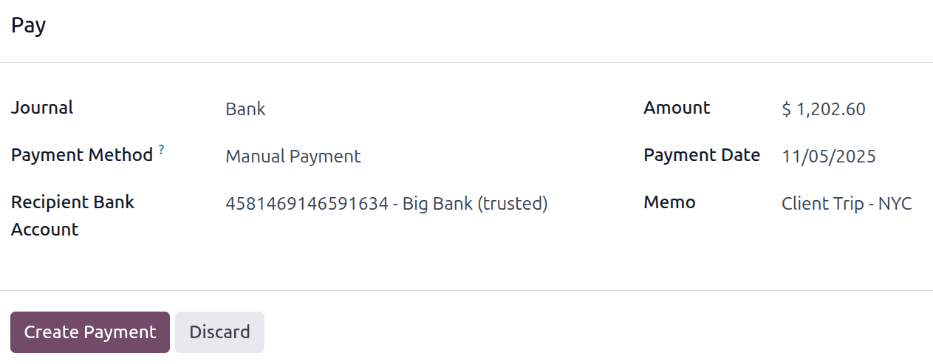
When the fields of the pop-up window are completed, click the Create Payment button to register the payment, and reimburse the employee. A green In Payment banner now appears on the expense report.
批量报销
To reimburse multiple expense reports at once, navigate to to view all expense reports in a list view. Next, select the expense reports to be reimbursed.
Important
Only expense reports with a status of Posted can be reimbursed directly to the employee (not via a payslip).
Tip
Adjust the STATUS filter on the left side to only show Posted expense reports. This displays only expense reports that are able to be reimbursed.
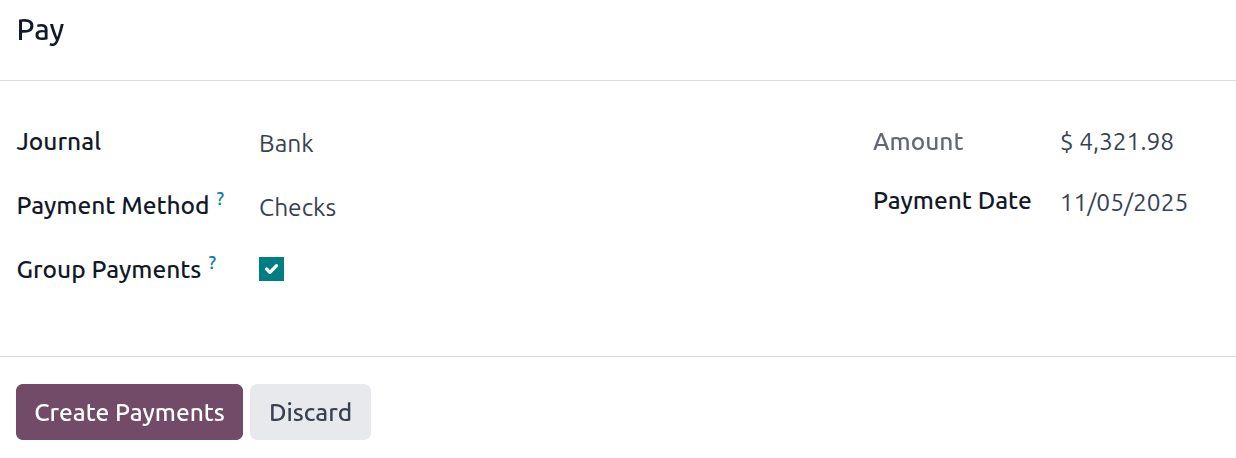
Tick the checkbox next to the expense reports being reimbursed, then click the Pay button, and a Pay pop-up window loads. Enter the following information in the pop-up window:
Journal: Select the accounting journal to post the payment using the drop-down menu. The default options are Bank or Cash.
Payment Method: Select how the payment is made using the drop-down menu. If Cash is selected for the Journal, the only option available is Manual Payment. If Bank is selected for the Journal, the default options are Manual Payment or Checks.
Group Payments: When multiple expense reports are selected for the same employee, this option appears. Tick the checkbox to have only one payment made per employee, rather than issuing multiple payments to the same employee.
Amount: The total amount being reimbursed for all the expense reports populates this field, by default.
付款日期: 输入付款日期。默认情况下,当前日期将填充此字段。
When the fields on the Pay pop-up window are completed, click the Create Payments button to register the payments, and reimburse the employees.