供应商
在 午餐 应用程序中添加产品之前,必须先配置提供食物的餐厅。
要添加新的供应商,首先导航至 。
Note
没有在 午餐 应用程序中预配置供应商,因此必须将所有供应商添加到数据库中。
在 午餐 应用程序中添加供应商时,默认情况下显示一个占位符供应商卡。点击此卡,并配置供应商表单中的以下字段:
添加更多供应商,请单击左上角的 New 按钮,并配置新的午餐供应商表单。重复此步骤,直到所有需要的供应商都添加完毕。
供应商信息
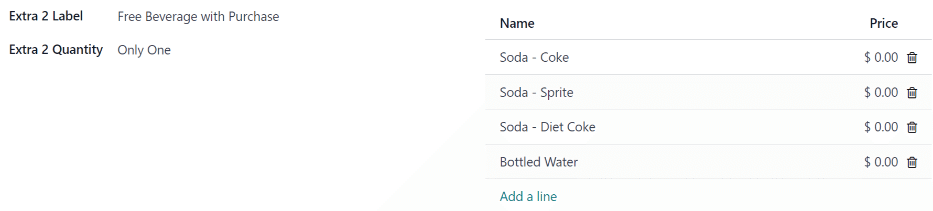
供应商: 在此字段中输入供应商的名称。
Vendor (beneath the line for vendor name): Using the drop-down menu, select the corresponding vendor in the Contacts app. If the vendor has not already been created, type in the vendor name, and click Create “new vendor name” to add them. Alternatively, click Create and edit… to create the vendor and edit the vendor contact form. The vendor contact form allows for more details to be entered, such as contact information.
Note
If a selection is made to the drop-down Vendor field, the Vendor text field (above, for the vendor’s name) updates with the name of the vendor chosen from the drop-down menu.
The list of vendors that is presented in the drop-down menu is pulled from the Contacts application.
Address: Enter the vendor’s address in the various fields.
Email: Enter the vendor’s email in this field.
Phone: Enter the vendor’s phone number in this field.
Company: If this vendor is only available to a specific company, select the company from the drop-down menu. If this field is left blank, the vendor’s items are available to all companies. This field only appears in a multi-company database.
可用性
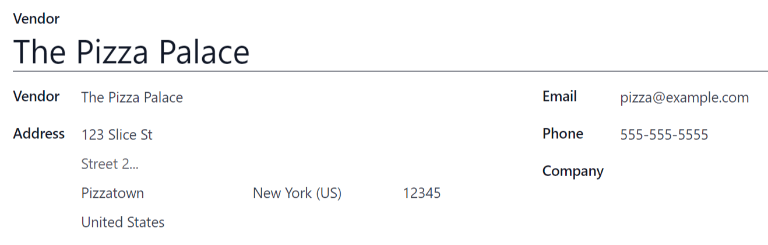
The AVAILABILITY section presents a table with two rows. The days of the week populate the top row, and the bottom row has checkboxes. Tick the corresponding checkbox for each day of the week the vendor is available.
By default, Monday through Friday are ticked.
订单
The ORDERS section of the vendor form details which locations the vendor is available for, in addition to how and when orders are placed and received.
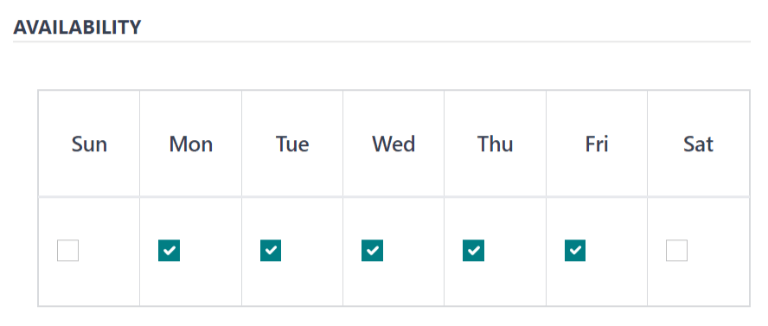
Delivery: Using the drop-down menu, select Delivery if the vendor delivers to the office, or select No Delivery if orders must be picked up.
Location: Select which locations are able to order from this vendor. Multiple locations can be selected. If this field is left blank, all locations can order from the vendor.
Note
An
HQ Officelocation is created by default when creating a database, and is available to select from the list.Send Order By: Click the radio button to select how orders are sent to the vendor. The available options are Phone or Email.
Order Time: This field only appears if Email is selected in the Send Order By field. Enter the time that an order must be emailed for it to be accepted. Enter the time in the following format:
HH:MM. Then select either AM or PM from the drop-down menu, next to the time field.
额外
When ordering an item in the Lunch app, optional extra items, sometimes referred to as add-ons, can be shown. These can be configured in any manner that suits the products being offered.
By default, Odoo allows for three types of extra items, which can be thought of as categories. By
default, the first type (or category) of add-ons is labeled Extras, the second is labeled
Beverages, and the third is labeled Extra Label 3.
Important
When configuring the extras, it is important to keep in mind that all the extras configured appear for every item offered by the vendor. That means that only items which apply to all products from the vendor should be added.
Configure extras
Enter the following information for each of the three available extra sections:
Extra (#) Label: Enter a name for the type of extra, such as
Toppings. This can be thought of as a category.Extra (#) Quantity: Select how the extras are selected. The options are:
None or More: Select this option if the user is not required to make a selection.
One or More: Select this option to require the user to make at least one selection.
Only One: Select this option to require the user to make only one selection.
Add extras
为额外类别配置标签和数量后,必须为每个类别添加单个额外项目。
点击额外类别右侧列表底部的 添加行 。为添加的每个项目输入 名称 和 价格 。如果没有成本,价格可以保持为 $0.00 。这种情况常见于一次性银器或调味品等物品。
Example
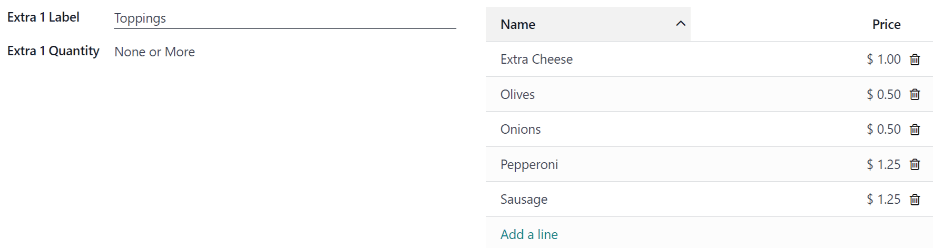
如果比萨店只提供个人比萨,请查看其额外配置如下:
第一个额外配置是针对他们提供的各种馅料。 Extra 1 标签 被设置为 Toppings ,而 Extra 1 数量 被设置为 不限或更多 。 然后添加了各种馅料,并标注了相应的价格。
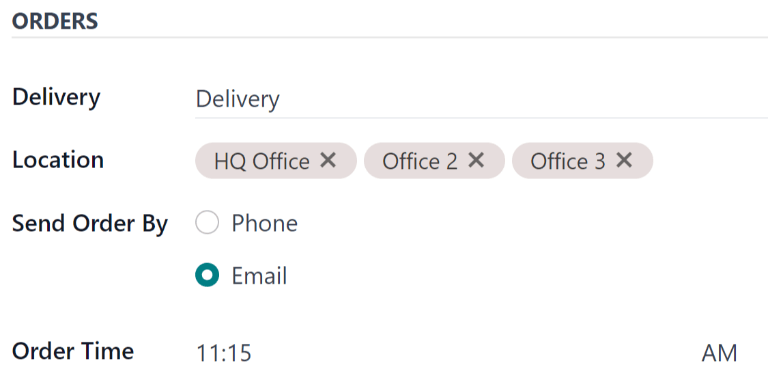
The pizzeria also offers a free beverage with any purchase. To set this up, the Extra
2 Label is set to Beverages, and the Extra 2 Quantity is set to Only
One. The various beverage choices are added, and the cost for each remains zero.