Electronic invoicing (EDI)
EDI, or electronic data interchange, is the inter-company communication of business documents, such as purchase orders and invoices, in a standard format. Sending documents according to an EDI standard ensures that the system receiving the message can interpret the information correctly. Various EDI file formats are available depending on your company’s country.
The EDI feature allows companies to automate administrative processes. It may also be required by some governments for fiscal control or to support administrative procedures. Electronic sending of documents such as customer invoices, credit notes, or vendor bills is one application of EDI.
Odoo supports e-invoicing in many countries. Refer to the country’s page for more details.
Configuration
By default, the format available in the send window depends on the customer’s country.
To define a specific e-invoicing format for a customer, go to , access the customer form, go to the Accounting tab, and select the appropriate Format in the Customer invoices section.
E-invoice generation
From a confirmed invoice, click Send. In the Print & Send window, enable the relevant e-invoicing format option (e.g., by Peppol), then click Send to generate and attach the corresponding e-invoicing XML file.
Peppol
The Peppol network ensures the exchange of documents and information between companies and governmental authorities. It is primarily used for electronic invoicing, and its access points (connectors to the Peppol network) allow companies to send electronic documents such as customer invoices and credit notes and receive documents like vendor bills and refunds.
In this case, Odoo acts as both an access point and an SMP and enables electronic invoicing transactions without the need to send invoices or bills by email or post.
Note
Peppol registration is free and available in Odoo Community.
Supported formats for sending documents include BIS Billing 3.0, XRechnung CIUS, and NLCIUS.
- The following countries are eligible for Peppol registration in Odoo:Albania, Andorra, Austria, Belgium, Bosnia and Herzegovina, Bulgaria, Croatia, Cyprus, Czech Republic, Denmark, Estonia, Finland, France, Germany, Greece, Holy See (Vatican City State), Hungary, Iceland, Ireland, Italy, Latvia, Liechtenstein, Lithuania, Luxembourg, Malta, Monaco, Montenegro, Netherlands, North Macedonia, Norway, Poland, Portugal, Romania, San Marino, Serbia, Slovakia, Slovenia, Spain, Sweden, Switzerland, Turkey, United Kingdom.
Registration
To register on Peppol, go to and scroll down to the Electronic Invoicing section. Then, follow these steps:
Click Activate Peppol and fill in the following fields:
Select an identifying method for your company (VAT, company registry number, or the relevant option) and enter the related information.
Email.
Phone, including the country code (e.g.,
+32in Belgium).
Click Activate Peppol. The registration is then pending activation and should be automatically activated within a day.
See also
Peppol endpoint - OpenPeppol eDEC Code Lists (open the “Participant Identifier Schemes” as HTML page)
Tip
To disconnect from Peppol, click Disconnect Peppol.
To manually trigger the scheduled action used to check the Peppol registration status, enable developer mode, open the Settings app, go to , and search for Peppol: update participant status. Open the scheduled action, then click Run Manually.
To try Peppol without sending real data, enable demo mode by selecting Odoo Demo ID as the Peppol endpoint identifier. To switch back to production mode, deregister from the demo mode and register in production.
Configuration
Once Peppol is activated:
Go to , and scroll down to the Electronic Invoicing section.
By default, the Peppol Contact Email is automatically filled in using the company’s record. This email is used by Odoo to contact you for KYC purposes, information regarding your database, and other exceptional cases. It is recommended not to change this email.
Select the Peppol Participation Role:
Sending & Receiving: to both send and receive Peppol documents.
Sending Only: to send Peppol documents only.
If Sending & Receiving is selected as the Peppol Participation Role, define where Peppol documents should be received:
Recieve as Bills: If multiple purchase journals are used, select the journal where the bills should be posted in the Incoming Accounting Journal field.
Receive as Documents: Select the Document Folder where the Peppol documents should be stored and the Document Tags to assign to them.
Note
If you are using an access point from a previous provider, deregister from it before registering with the new access point. No action is required if the previous access point was Hermes (BOSA), as this migration is handled automatically.
Contact verification
Before sending an invoice to a contact using Peppol, make sure the contact is registered as a Peppol participant. To do so, follow these steps:
Go to and access the customer’s form.
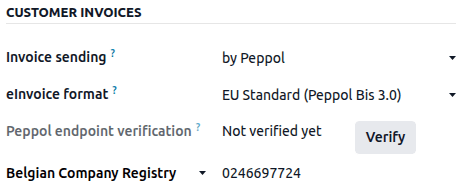
In the Accounting tab, check the following information in the Customer invoices section:
eInvoice format: Select the relevant format.
Using the (down arrow) icon, make sure the relevant country-specific Peppol endpoint identifier is selected in the dropdown list, then enter the customer’s endpoint identifier, usually a Company Registry or VAT number.
To verify the contact, enable developer mode and click Verify. Its Peppol endpoint verification is marked as Valid if the contact is found on the Peppol network.
Important
While Odoo prefills the endpoint number based on the information available for a contact, verifying these details with the contact is recommended.
Send invoices
All posted invoices that are ready to be sent via Peppol can be viewed in the Invoices list view in the following ways:
Use the (adjust settings) button to add the Peppol status column.
Apply the Peppol Ready filter in the search bar.
To send the invoice to the customer via Peppol, click Send on the confirmed invoice form. In the Send window, enable the by Peppol option and click Send.
Tip
Multiple invoices can also be sent in batches via Peppol.
Set the preferred Invoice sending method for a customer to by Peppol in the Customer Invoices section of the customer form’s Accounting tab.
The status is updated to Done once the invoices have been successfully delivered to the contact’s access point.
Receive vendor bills
New documents received via Peppol are checked multiple times a day. Depending on the registration settings, received documents are automatically:
either imported into the purchase journal set in the Electronic Invoicing section, and corresponding vendor bills are created as drafts;
or received via the Documents app, in the folder set in the Electronic Invoicing section.
Tip
To manually trigger the scheduled action used to retrieve incoming Peppol documents, enable developer mode, open the Settings app, go to , and search for Peppol: retrieve new documents. Open the scheduled action, then click Run Manually.
Vendor bills reception in Documents
Note
Make sure the Documents - Import from Peppol (documents_account_peppol) module is
installed.
To receive vendor bills via the Documents app, follow these steps:
In the Documents app, create a specific folder or enable file centralization for Accounting documents.
Open the Accounting app, go to , and scroll to the Electronic Invoicing section.
In the Document Folder field, choose the relevant folder.
Use the Document Tags field to add tags to incoming Peppol documents for easy identification.
Click Save.
Then, open the Documents app, navigate to the appropriate folder, select the relevant vendor bills, and click Create Vendor Bill. The corresponding vendor bill is then created.
Note
It is also possible to send self-bills via Peppol.
Add extra fields
Important
Adding fields requires the Studio app.
Odoo supports the most common Peppol fields by default, but additional Peppol data can be included when sending e-invoices via Peppol by adding extra fields to the invoice using Studio.
The table below shows:
the extra Peppol fields that can be added. Fields in the:
the data type, which must match the field type when adding the field using Studio
the exact field label that must be entered when adding the field using Studio
Important
Odoo uses a new field’s label to automatically generate the technical name of the field. To ensure the field’s technical name is formatted correctly, it is crucial to use the exact text from the Studio field label column below.
Peppol technical name (XML) |
Data type |
Studio field label |
|
|---|---|---|---|
Main invoice |
TaxPointDate |
Date |
|
ContractDocumentReference.ID |
Text |
|
|
DespatchDocumentReference.ID |
Text |
|
|
AccountingCost |
Text |
|
|
ProjectReference.ID |
Text |
|
|
InvoicePeriodStartDate |
Date |
|
|
InvoicePeriodEndDate |
Date |
|
|
OrderReference.ID |
Text |
|
|
Invoice lines |
OrderLineReference/LineID |
Text |
|
item.buyersItemIdentification |
Text |
|
To add a new field to the invoice form view or invoice line list view, as relevant, follow these steps:
Activate developer mode.
Navigate to (or for Invoicing users).
Open an existing invoice, or click New.
Open Studio by clicking the (Toggle Studio) icon.
If adding a field to invoice line list view, click in the Invoice Lines tab and click Edit List view.
Click and drag a Text or Date field from the panel on the left to the desired location in the view on the right.
Enter the Label exactly as it appears in the Studio field label column in the table above, then click outside the field label to see the Technical Name update automatically.
Click Close to save all changes.
Note
The Technical Name in Odoo should match the format of
x_studio_peppol_tax_point_date. If a mistake is made and the technical name is incorrect,
edit the technical name.
Tip
After a new field has been created as explained above, it can be added to other views such as the invoice list view.
Country-specific e-invoicing details
Refer to the following pages for detailed, country-specific information:
