Hiring velocity
The Hiring Velocity report provides information on how long applicants stay in each stage of the recruitment process. This is important, as every job position has specific hiring process details that state the length of time applicants should expect to wait between specific stages.
Knowing how long applicants remain in each stage can help highlight possible bottlenecks. Analyzing this data allows the recruitment team to assess each stage, identify any issues, and pivot their strategies to move applicants through each stage, within the expected time interval.
Hiring velocity report
To access the Hiring Velocity report, navigate to . The report displays data for all job positions, with the stages populating the x-axis, and the number of days populating the y-axis, in a default (Line Chart).
The default filter is Last 365 Days Applicant, showing information for the last 365 days.
Hover over a stage in the line chart to reveal a popover window listing all the job positions within it, and the average number of days each job position sat in each stage.
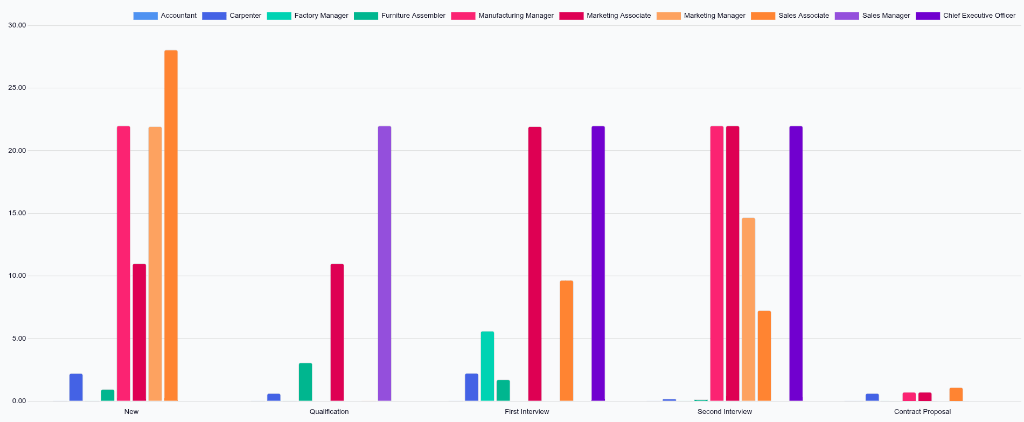
For a more visually digestible view of the information in the Hiring Velocity report, click the (Bar Chart) icon in the corner. This displays all the information in a bar chart.
In this view, it is easier to visualize the differences between the job positions, regarding how long applicants stay in each stage. From this view, recruiters can determine which job positions have delays or bottlenecks at certain stages.
Use case: comparing times by month
With the Hiring Velocity report, it is possible to see if there are certain months where applicants take longer to be moved through the pipeline. To view this data, switch to the pivot table view by clicking the (Pivot) icon in the corner.
This presents the data in a detailed pivot table, with the rows representing the different job positions, and the columns representing the stages. The Average Days in Stage populates the various boxes.
Note
If a field is empty, it indicates no applicant has been in that stage. Instead, all applicants moved from a previous stage without being placed in the stage with an empty field.
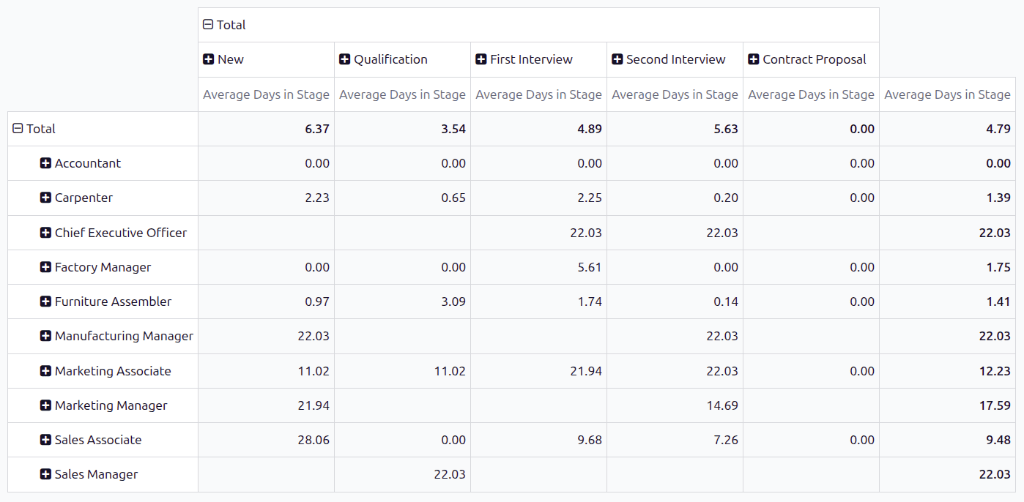
Click Total above the job position rows to collapse the information. Next, click Total again, revealing a drop-down menu. Click Custom Group at the bottom of the list, revealing further grouping options. Click Start Date from the expanded list.
After doing so, the data presented is grouped with the various months from the previous 365 days for the rows, leaving the Average Days in Stage as the columns.
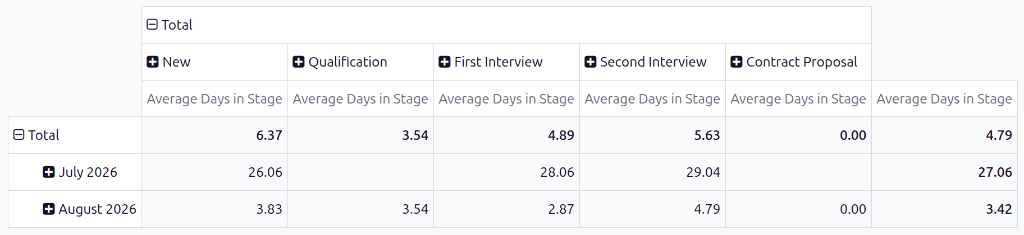
In this example, July 2026 had the longest time that applicants spent in each stage, on average. In addition, the Second Interview stage had the longest wait time in July, with an average of 29.04 days in that stage.
While this report does not display the reasons applicants stayed in the various stages for these lengths of time, it can be helpful to know when delays occur.
