Create a rental order
In Odoo Rental, quotations are created and sent to customers, similar to Sales quotations. Once a quotation is confirmed, it becomes a rental order and can be invoiced and paid for. Only after a rental order is confirmed can rental products be picked up.
Important
To configure quotation settings, the Sales app must be installed. Refer to Configuration section on the Create quotations page for detailed instructions.
Create a rental quotation
Important
Users can convert a sales quotation to a rental quotation by adding a rental product. Doing so automatically adds the Rental period field. To convert a rental quotation to a sales quote, remove the rental start and return dates.
To create a rental quotation, open the Rental app and create one from the Rental Orders dashboard or navigate to , click New and select New Quotation. Then complete the following steps:
Add a customer: Enter or select a customer from the Customer drop-down menu.
Add a rental product: In the Order Lines tab, click Add Line or Catalog, and select the desired rental product.
Set the rental duration: Select the desired dates and times via the pop-up calendar for the Rental period.
Apply a pricelist (optional): Select an option from the Pricelist drop-down menu.
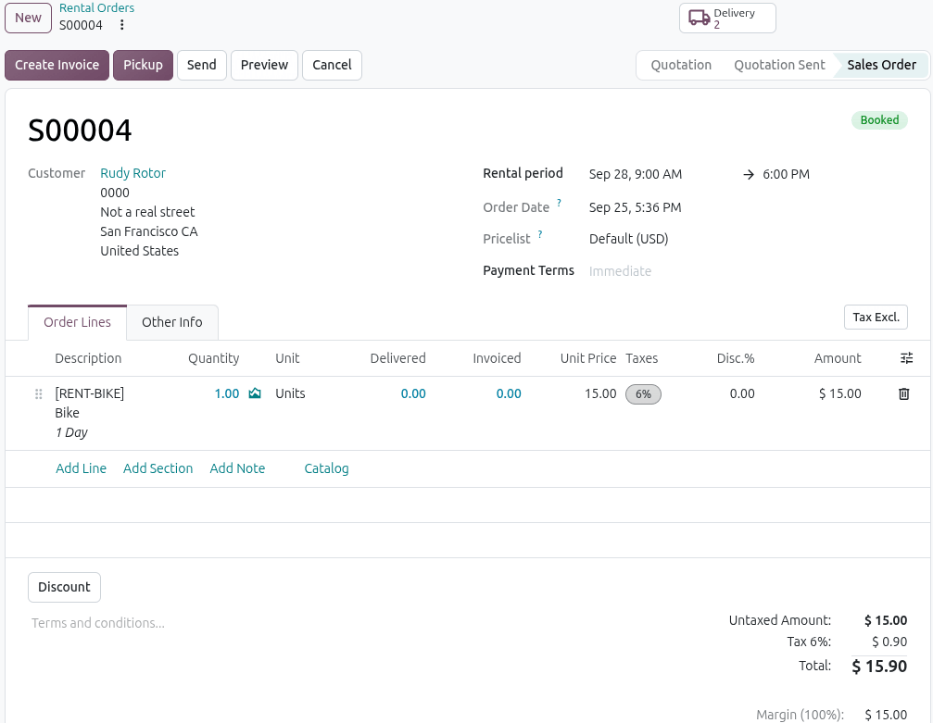
Send and confirm rental quotation: Click Send to send the quotation to the customer. When the customer confirms the quotation, click Confirm to finalize the order. A Booked badge displays on the rental order.
Important
There can only be one rental period per rental order. Multiple rental product orders with different rental periods require a rental order for each rental period.
Tip
If quotation templates are enabled, users can select and modify a template from the New button drop-down menu.
As long as the rental quotation isn’t confirmed, the user can change the Rental period or Pricelist on the rental quotation. The Rental app automatically updates the rental product’s Hours, Unit Price, and Amount on the product line and the quotation Total after the change.
When a rental order is confirmed, smart buttons may appear at the top of the form, depending on the app integrations:
Tasks: Linked to the Projects app and shows any projects or tasks related to the rental order.
Recorded: Linked to the Timesheets app and shows how many hours are related to the rental order.
Planned: Linked to the Planning app and shows how many shifts are related to the rental order.
Delivery: Linked to the Inventory app and shows any delivery and receipt orders related to the rental order.
Request a customer signature
Odoo can request that the customer sign a rental agreement outlining the arrangement between the company and the customer before they pick up the rental products. This document ensures everything is returned on time and in its original condition.
Note
Requesting a signature can be done during any stage of the order. This feature also requires the Sign app.
If signatures are required, go to the app, and from the default Rental Orders dashboard, select the desired rental order:
In the chatter section, click Activity.
In the Schedule Activity pop-up window, click Signature Request.
After sending the request, a link to the signature request appears in the record’s chatter. The document is accessible to the customer via the customer portal or email.
See also
Manage shifts for rental services
Confirmed rental orders containing service products with Planned Services enabled trigger the automatic creation of shifts. When the availability matches the designated rental period, shifts are generated for the assigned employee role or material. This automation is made possible by the integration with the Planning app and by configuring the service product.
To edit a shift for a rental service, complete the following steps:
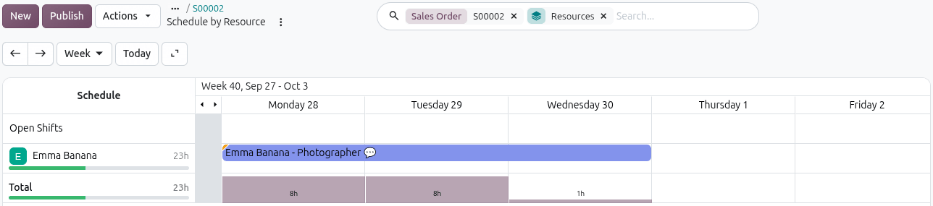
Click the Planned smart button to open the Schedule by Resource page. The page defaults to a Gantt view of all the open shifts and shifts for the associated role that are available for the rental period of the rental order.
Edit or delete the shift as needed.
Track time for an employee shift
Important
The rental pickup process should be completed before entering time for an employee shift. Otherwise, the rental order status remains Reserved on the Rental Orders dashboard, which can make filtering confusing.
Open the rental order for the rental service by going to and selecting the desired rental order.
Click the Planned smart button to open the Schedule by Resource page.
Click the employee shift, and in the pop-up window, click Start to begin tracking time for the shift.
Click Complete when the employee has completed their shift.
Manage a project created from a rental order
Click the Tasks smart button at the top of the rental order to display a Kanban view of all the tasks automatically created when confirming the rental order. Customize the project’s tasks as needed.
To enter time for a rental service associated with a project task, refer to the Track time for an employee shift section.
Tip
Configuring the use of Project templates on the product form creates new projects with predefined tasks, priority levels, and assigned employees. When integrated with the Planning app, the system automatically schedules and publishes an employee’s shift if their availability matches the rental period. Priority is given to employees with the relevant roles if applicable.
Create an invoice
Open the Rental app to display the Rental Orders dashboard. Click the To Invoice smart button to view all rental orders that have no invoices created for them.
Click the desired rental order, then click Create Invoice. Select Regular invoice from the Create invoice(s) window and click Create Draft.
See also
Finalize the quantity for physical service products
For physical service products, such as hotel rooms, workstations, and conference rooms, a final adjustment to the quantity may be needed on the invoice.
If there is a change in the number of units rented, enter the amount in the Quantity column. If new charges were accrued during the rental period, click Add a line to include them in the invoice draft.
Confirm and pay
If all the details are correct on the invoice draft, either click Confirm and click Send to email the invoice to the customer, or click Print and then click Pay if the customer is in person. In the Pay pop-up window, select a Journal and click Create Payment.
Click the Payments smart button that appears at the top of the rental order. Click Validate on the Payment page.
