Manage sales teams
The Sales Teams feature within Odoo’s CRM app allows for the creation and management of multiple sales teams, each with their own assignment rules, invoicing targets, and roster of salespeople. This in turn makes it easy to have different sales teams for different regions, different languages, different compensation structures, performance tracking purposes, and more.
Create a sales team
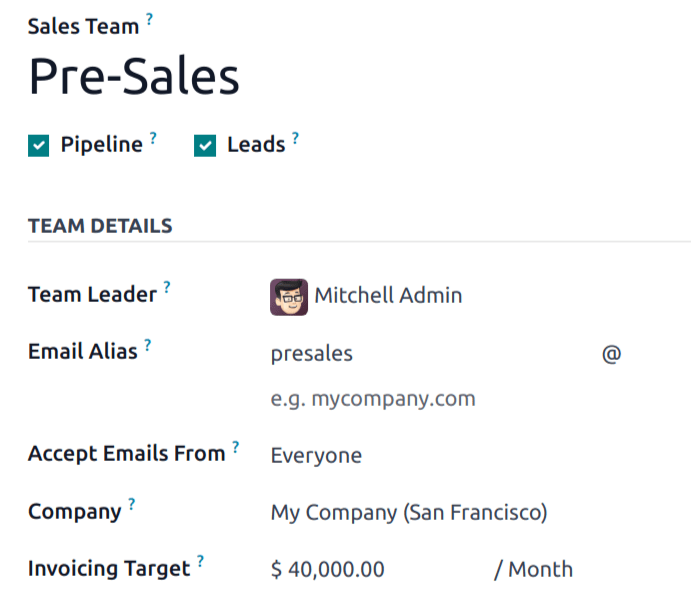
To create a new sales team, go to , then click New. On the blank sales team form, enter a name in the Sales Team field. Click the Pipeline or Leads box to ensure that leads and opportunities can be assigned to the sales team.
Next, select a Team Leader from the drop-down list.
Set an Email Alias to automatically generate a lead/opportunity for this sales team whenever a message is sent to that unique email address. Choose whether to accept emails from Everyone, Authenticated Partners, Followers only, or Authenticated Employees.
For databases with multiple companies, select a Company from the drop-down menu to assign this team to. Please note, this field is not required.
If Leads have been enabled in the CRM app’s Configuration settings, two checkboxes appear that determine whether leads assigned to the sales team should go directly into the pipeline or be set as leads first.
Note
If the Sales app is installed on the database, an Invoicing Target field appears on the sales team form. This is the revenue target for the current month. The amount entered in this field is used to populate the invoicing progress bar on the sales team dashboard.
Add sales team members
The workflow for adding members to a sales team varies slightly if the Rule-Based Assignment option is enabled in . Both workflows begin on a sales team’s configuration page. By default, rule-based assignment is not enabled.
With rule-based assignment
To add team members with rule-based assignment enabled, click the Add Sales Team Members link under the Members tab. This opens the Create Sales Team Members pop-up window. Assign a salesperson in the title field and adjust their lead assignment rules if desired under the Lead Assignment tab. Click the Save & Close button to finish, or click Save & New to open a blank form and keep adding sales team members.
Note
When using rule-based assignments, Odoo automatically limits the maximum number of leads an individual team member can be assigned in a day. This limit is determined by the number in the Capacity field and is equal to that number divided by 30 (for the number of days in the period). This may result in leads going unassigned if all sales team members’ daily capacity has been met.
Example
Sales team member John Doe has a Capacity maximum of 120 leads in a 30-day period. This means that the database automatically assigns John a maximum of 4 leads per day. If John were the only member of the sales team and 10 leads were created in a single day, only 4 would be assigned to him. The other 6 would go unassigned.
If it’s necessary to prevent this salesperson from being automatically assigned leads, click the Pause assignment checkbox. If auto assignment is paused, the salesperson can still be assigned leads manually.
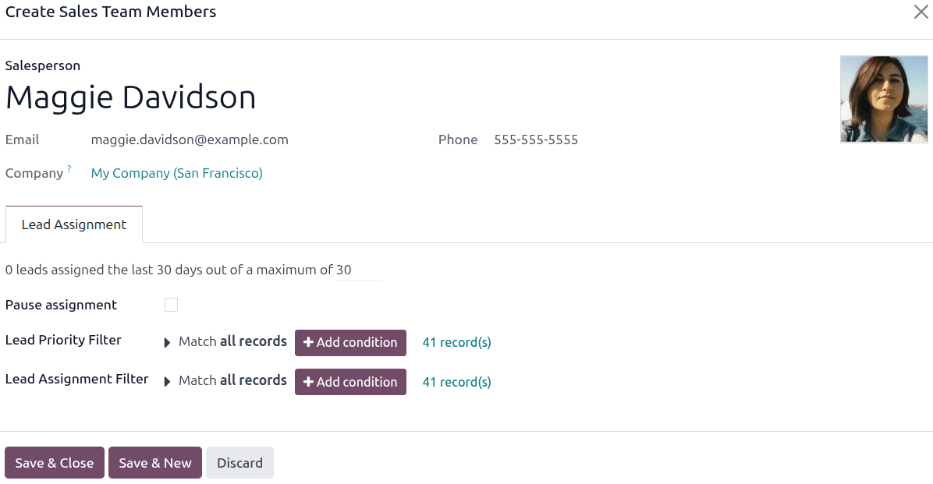
The Leads (30 days) graphic on the sales team members’ cards tracks how many leads a salesperson has been assigned in the past thirty days for this team relative to the maximum number that they should be assigned. A sales team member’s maximum number of leads may be set on their Open: Sales Team Members form.
Tip
Assignment rules can be configured for individual salespeople using the Domain section.
Without rule-based assignment
To add team members without rule-based assignment enabled, click the + Add Sales Team Members link under the Members tab. This opens the Add: Salespersons pop-up window. Click the checkbox to the left of the salesperson to be added to the team, then click Select. New salespersons can be created from this window by clicking the New button, as well.
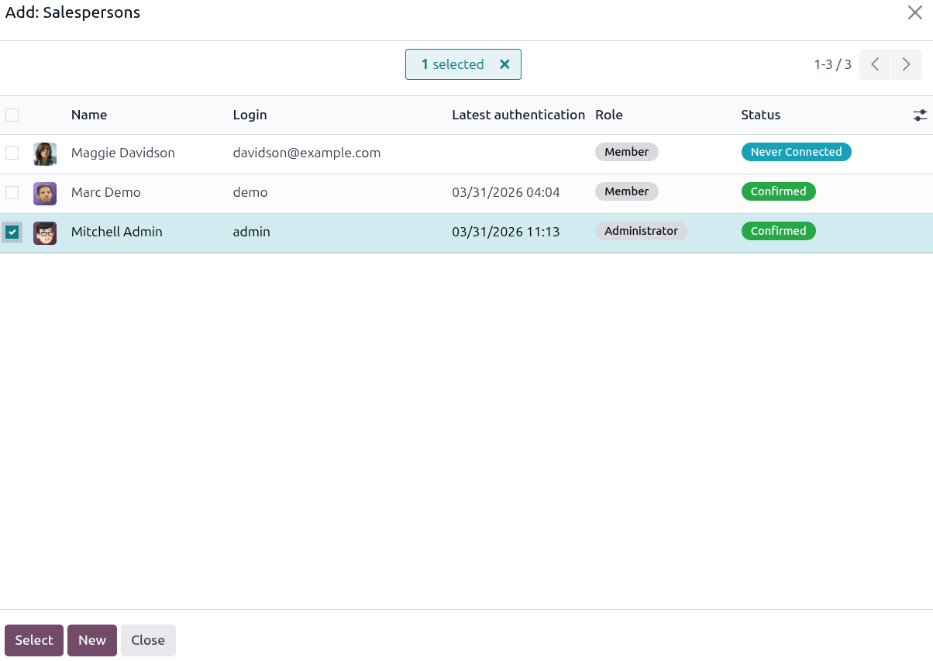
If creating a new salesperson, click Save & Close when finished, or Save & New to add additional members.
Enable multi teams
To allow salespeople to be assigned to more than one sales team, the Multi Teams setting needs to be enabled. First, navigate to . Under the CRM section, click the checkbox labeled Multi Teams. Then, click Save at the top of the page. Salespeople may then be assigned to multiple teams at the same time without having to be manually moved between team pipelines.
Sales team dashboard
To view the sales team dashboard, go to . Any team the user is a member of appears in the dashboard.

Click on the (vertical ellipsis) icon in the top-right corner of team’s card to open a drop-down menu. Then, to view or edit the team’s settings, click Configuration.
View teams in the pipeline
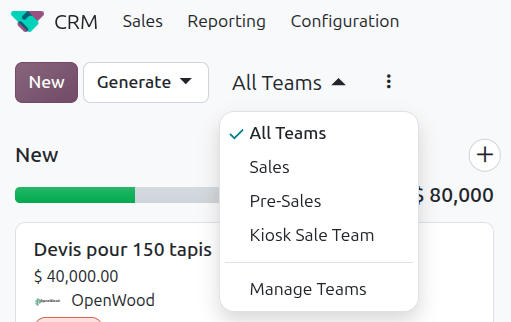
On the CRM pipeline, a drop-down labeled All Teams allows for rapidly switching between defined salesteams. Click the drop-down menu to choose from teams. Teams may be created or deleted from this drop-down by clicking Manage Teams.