Process receipts and deliveries with barcodes
The Barcode app can be used to process receipts, deliveries, and other types of operations in real time using a barcode scanner or the Odoo mobile app.
This allows operations on the warehouse floor to be processed in real time, rather than waiting to validate transfers from a computer. This real-time processing ensures barcodes are accurately assigned to the correct products, packages, packaging, transfers, locations, and more. This helps reduce errors and keeps inventory data in sync.
Enable Barcode app
To use the Barcode app to process transfers, it must be installed by enabling the feature from the settings of the Inventory app.
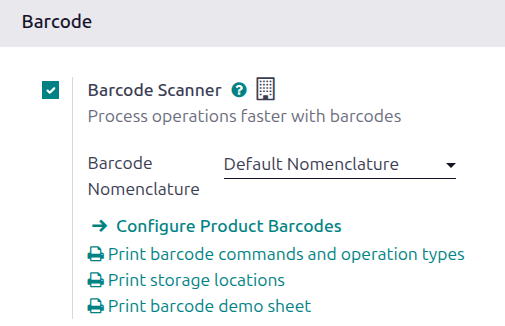
To do so, navigate to . Then, scroll down to the Barcode section, and select the checkbox next to the Barcode Scanner feature.
After selecting the checkbox, click Save at the top of the page to save changes.
After the page has refreshed, a new option is displayed under the Barcode Scanner feature: Barcode Nomenclature (with a corresponding drop-down menu). Select either:
Default Nomenclature: The barcode actions using UPC and EAN, detailed in the default nomenclature list, are available for use. By default, Odoo automatically handles UPC/EAN conversion.
Default GS1 Nomenclature: Scan barcodes of sealed boxes and identify essential product information, such as Global Trade Item Numbers (GTINs), lot number, quantity information, and more.
There is also an internal link arrow to Configure Product Barcodes, a set of Print buttons for printing barcode commands and operation types, and a barcode demo sheet.
Scan barcodes for receipts
Purchase orders (POs) are used to process warehouse receipts for incoming products, packages, and product packagings. First, create a request for quotation, then confirm it to create a PO.
See also
To process and scan barcodes for warehouse receipts, navigate to the Barcode app.
Once inside the Barcode app, a Barcode Scanner screen displaying different options is presented.
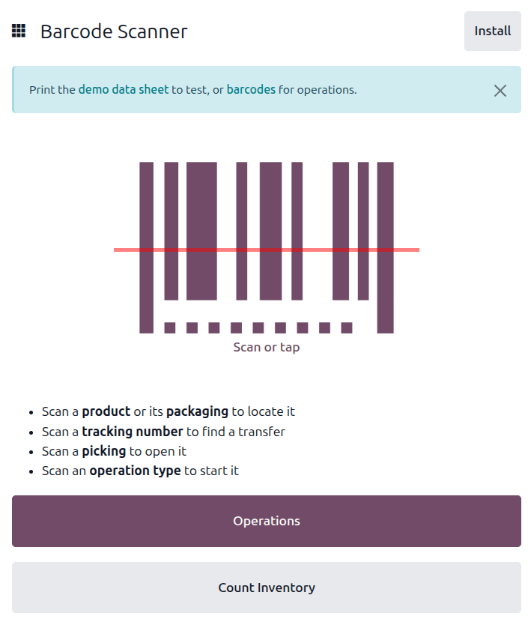
To process receipts, click the Operations button at the bottom of the screen. The Operations overview page opens.
From this page, tap the Receipts card to view all outstanding receipts. Then, select the desired receipt operation to process. This navigates to the barcode transfer screen.
Note
If only using a barcode scanner or the Odoo mobile app, scan each barcode transfer for the corresponding operation type to process them. Once scanned, the products that are part of an existing transfer can be scanned, and new products can be added to the transfer, as well. Once all products have been scanned, validate the transfer to proceed with the stock moves.
From this screen, an overview of all receipts to process within that transfer (WH/IN/000XX) is shown. At the bottom of the screen, there are options to Add Product or Validate, depending on whether products need to be added to the operation or if the whole operation should be validated at once. If the Packages setting is enabled in the Inventory settings, the Put in Pack button is also available. If quality checks are required for a product, the Quality Checks button displays.
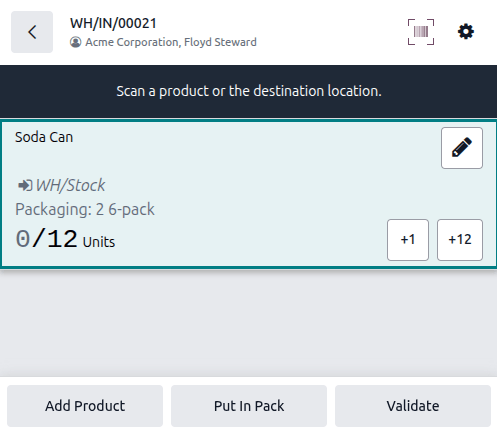
To process and scan each product individually, scan a product, package, or product packaging, or
choose a specific product line. Click the +# button (for example, +10) to indicate
receipt of that product.
Example
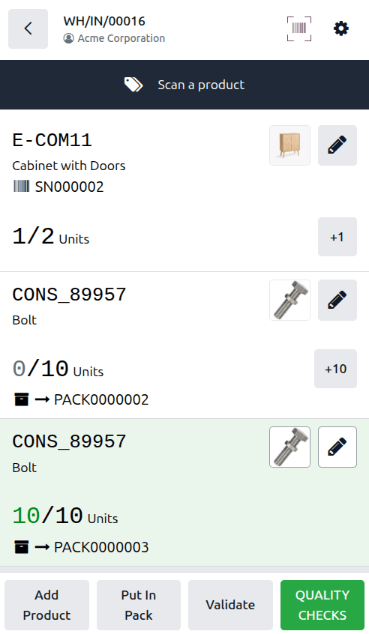
A PO is created for 20 Bolts and 2 Cabinet with Doors products. There are two packages
(PACK000002 and PACK000003) for the incoming products, each containing 10 Bolts and 1
Cabinet with Doors.
A warehouse employee scans the PACK000003 barcode. 10 Bolts and 1 Cabinet with Doors are processed.
Editing a product line
To manually adjust received quantities for a product, click the (pencil) icon to open a new screen to edit that product line.
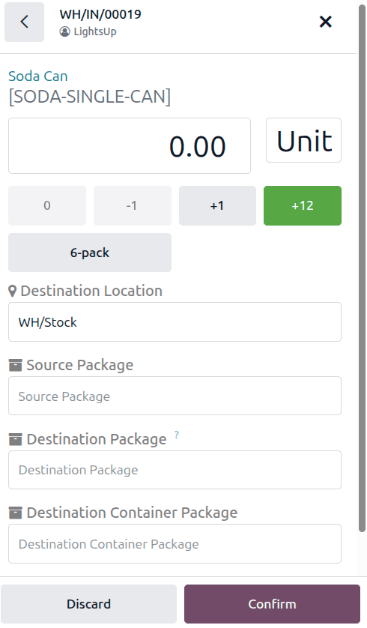
On this screen, the product that is being received is listed. Under the product name, edit the
Quantity line. Change the 0.00 in the line to the desired quantity, or click the
+# button (for example, +12) to automatically fill the quantity ordered from the PO.
Additionally, click the +1 and -1 buttons to add or subtract a quantity of
the product. Click the product packaging button (for example, 6-pack) to add a product packaging.
Below the quantity buttons is the Destination Location line, which reads WH/Stock by
default, unless another location is listed on the product itself. Click this line to reveal a
drop-down menu of additional locations to choose from.
When the Packages feature is enabled in the Inventory app’s settings, the following fields appear:
Source Package: If incoming products are part of their own source package, select or create the package.
Destination Package: If the products should be stored in a package in inventory, select or create the package.
Destination Container Package: If a package must be nested inside another (pack-in-pack), select or create the parent package. See Pack-in-pack for more details.
When ready, click Confirm to confirm the changes made to the product line.
Example
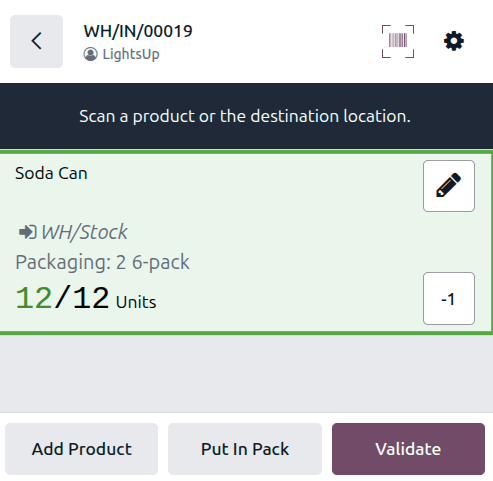
In the reception operation WH/IN/00019, 12 Units of the Soda Can product are expected to be
received. [SODA-SINGLE-CAN] is the barcode set on the product form. Warehouse employees can
scan the barcode of the Soda Can product to receive one unit, or because they can be purchased
in 6-pack packaging, they can scan the packaging barcode. Alternatively, they can click the
(pencil) icon to manually enter the received quantities.
Batch receipts
When receiving products from a vendor, scanning an item associated with a different open receipt prompts Odoo to suggest batching those orders together. This allows warehouse workers to combine multiple receipts from the same vendor into a single receiving operation.
To find receipts to batch, open the . The Barcode Scanner page opens. Click the Operations button to open the Operations page, then click Receipts. Open a receipt, or scan a transfer, product, lot, or packaging to filter records and find a receipt to open.
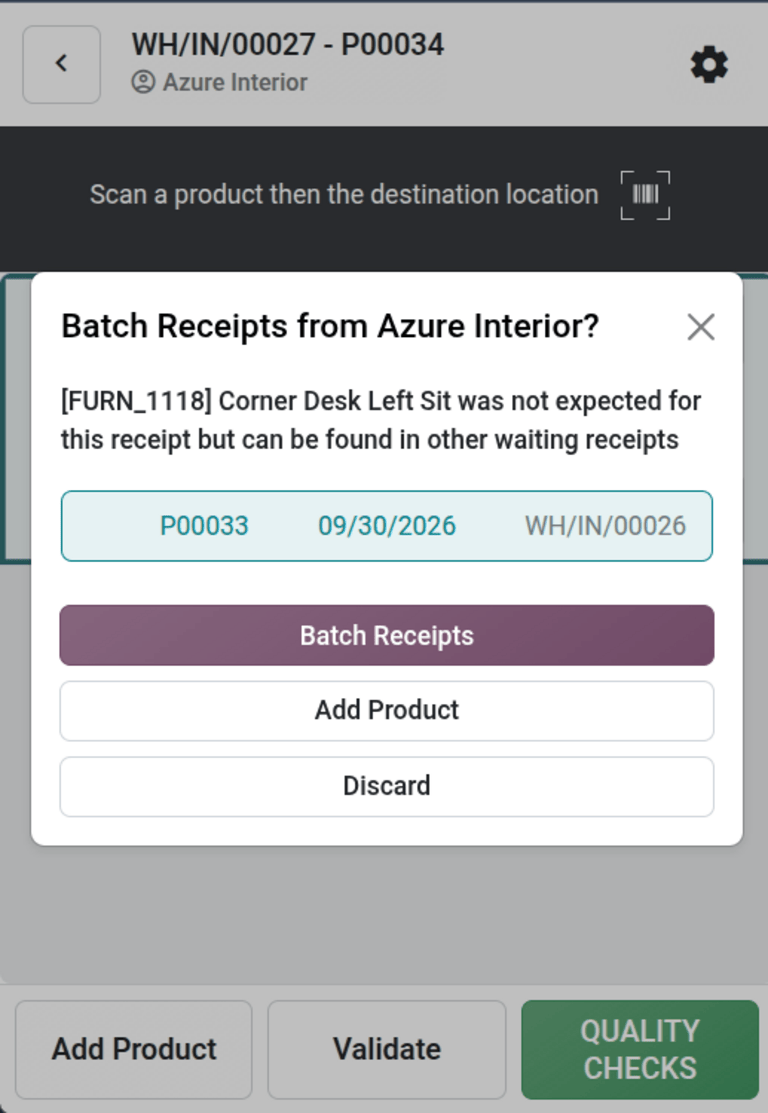
Once in the receipt, scan a received product. If the product belongs to a different receipt, the Batch Receipts from (vendor name)? pop-up window opens. In this window, Odoo suggests batching the receipts.
To batch the receipts, click Batch Receipts. To add the product to the current receipt as an additional product, click Add Product. To discard the scan, click Discard.
Continue processing the receipts.
Example
Stealthy Wood has multiple open purchase orders with Azure Interior. Two shipments arrive
together on the same day: receipt WH/IN/00027 (containing office chairs) and a second receipt
containing corner desks (WH/IN/00026).
A warehouse worker scans an office chair barcode, opening receipt WH/IN/00027, and clicks
+25 to process the full quantity. Next, he scans a corner desk barcode. Because the
desk belongs to the second open receipt from Azure Interior, Odoo prompts him to batch the
receipts. He clicks Batch Receipts to combine both orders into a single operation.
From there, the warehouse worker can continue to process products in the two receipts.
Validating the transfer
If not all products were scanned or manually entered from the pencil icon, click the +# button on the product line for the products being received, or scan the product, package, or product packaging barcode.
Finally, click Validate. The receipt is processed, and the Barcode app can be closed.
Scan barcodes for delivery orders
To process warehouse deliveries for outgoing products, a sales order (SO) must be created to create a delivery operation to process. First, create a quotation, then confirm it to create the SO.
See also
To process and scan barcodes for warehouse deliveries, navigate to the app.
In the Barcode app, a Barcode Scanner screen opens, displaying different options. To process deliveries, click the Operations button at the bottom of the screen. This opens an Operations overview page.
On this page, click the Delivery Orders card to view all outstanding deliveries.
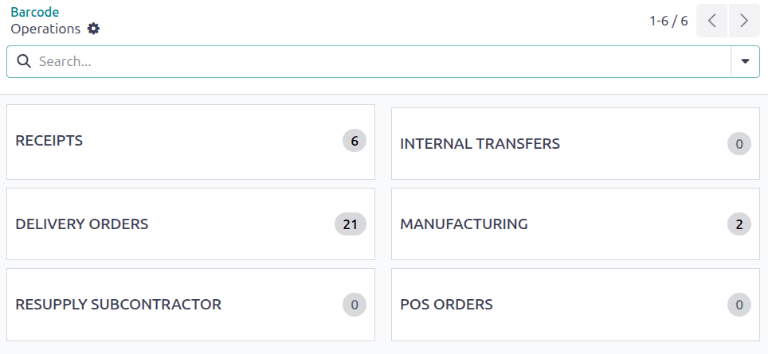
Select the desired delivery order to process. This navigates to the barcode transfer screen.
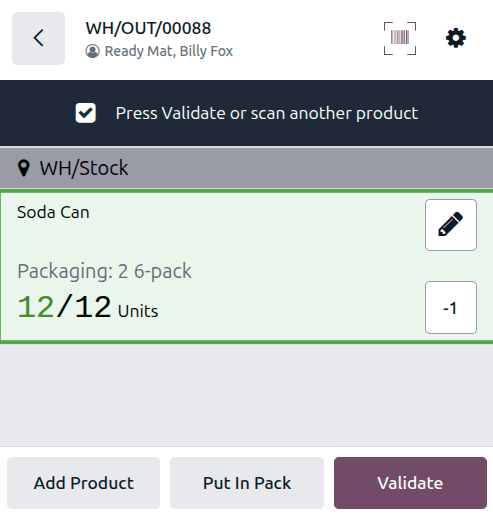
On this screen, first scan the source location of the products to deliver. Then, review the overview of all products, packages, and packagings to process within that transfer (WH/OUT/000XX). At the bottom of the screen, there are buttons to Add Product or Validate, depending on whether products need to be added to the operation or if the whole operation should be validated at once.
To process and scan each product individually, choose a specific product line. Scan a product,
package, or product packaging, or click the +# (for example, +6) button to indicate
delivery of that product.
Editing a product line
To manually adjust quantities for a product, click the (pencil) icon to open a new screen to edit that product line.
The product that’s being delivered is listed on this screen. Under the product name, edit the
Quantity line. Change the 0.00 in the line to the desired quantity, or click the
+# button (for example, +6) to automatically fill the quantity ordered from the SO.
If the product is sold in a packaging, click the packaging button (for example, 6-pack).
Alternatively, click the +1 and -1 buttons to add or subtract a quantity of
the product.
When the Packages feature is enabled in the Inventory settings, the following fields appear:
Source Package: If outgoing products should be picked from a package in inventory, select or create the package.
Destination Package: If the products should be stored in a package before delivery, select or create the package.
Destination Container Package: If a package must be nested inside another (pack-in-pack), select or create the parent package. See Pack-in-pack for more details.
The Quantity in Stock section lists the locations from which products can be picked. The selected location is the location from which the product is being pulled for delivery. Click this line to reveal a menu of additional locations to choose from (if this product is stored in multiple locations in the warehouse).
Tip
For warehouses with multiple different storage locations, putaway rules, and removal strategies, additional steps can be added for various operation types while using the Barcode app.
When ready, click Confirm to confirm the changes made to the product line.
Validating the delivery
If not all products, packages, or product packagings have been scanned or entered on the overview page, scan the products, packages, or packagings, or click the +# button on the product line for the products. Finally, click Validate. The delivery is processed, and the Barcode app can be closed.