Receipts
Point of Sale allows users to configure receipts to be printed or shared with customers via email or text message.
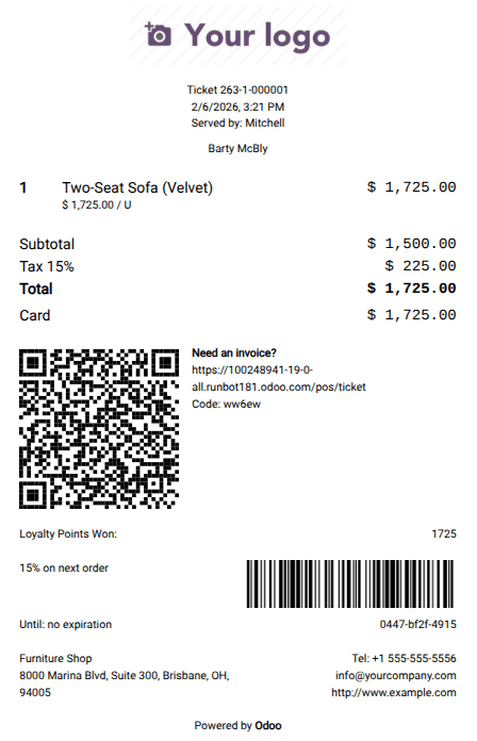
POS receipts display the following elements:
|
|
Configuration
To set up POS receipts, go to , scroll down to the Bills & Receipts section, then:
Enable Custom header & Footer, then enter the desired text in the Header and Footer fields to customize receipts.
Enable Automatic Receipt Printing to print receipts automatically upon payment confirmation.
Enable Gift Receipt to generate receipts that do not display product prices.
Enable SMS Enabled and/or, if the WhatsApp app is installed, WhatsApp Enabled to allow users to share receipts with customers via SMS or WhatsApp. Then, create or select a template from the Receipt template field.
Enable Self-service invoicing to add a QR code and URL on the receipt, allowing customers to request an invoice.
Enable Early Receipt Printing to generate and print the receipt before the payment process.
Enable Customise info to add the point of sale’s phone number, email address, website, address, and/or logo if they differ from those of your company.
Note
If a fiscal data module (black box) is connected to your Odoo database, the Automatic Receipt Printing setting must be enabled.
Receipt printing, sending, and reprinting
To print the receipt from the POS register, click Print Full Receipt on the payment confirmation screen after the payment is completed.
To send the receipt from the POS register via email or text message/WhatsApp after the payment process, enter the customer’s email address and/or phone number in the dedicated field, then click the relevant icon.
To reprint a receipt, follow these steps:
Access the POS register.
Click Orders on the POS interface.
Open the dropdown selection menu next to the search bar, and set the filter to Paid.
Select the desired order and click Receipt.
Click Full Receipt or Simplified Receipt to determine the type of receipt to print.
Tip
Filter the list of orders using the search bar: type in your reference, then select Receipt Number, Date, or Customer.
To generate and print the receipt if the Early Receipt Printing setting is enabled, add products to the cart, click the (vertical ellipsis) icon, then Bill.
Note
If a receipt printer is configured and the Automatic Receipt Printing setting is enabled, the receipt is automatically printed when the payment is completed.
If a receipt printer is not configured, clicking Print on the payment confirmation screen, then Full Receipt or Simplified Receipt, triggers the browser’s print function.
