Offer job positions
After an applicant has successfully passed the various interview stages, the recruitment team is ready to send an offer for employment. The first step in this process is to send the applicant a contract. Once the contract is fully signed, the new employee record is created.
Important
The Salary Configurator module must be installed to send an offer using the Generate Offer button.
Contract proposal
When an offer is ready to be sent, first move the applicant to the Contract Proposal stage.
Navigate to the Recruitment app, click on the job position Kanban card, then click the desired applicant card. Click the Contract Proposal stage in the status bar at the top of the applicant’s record.
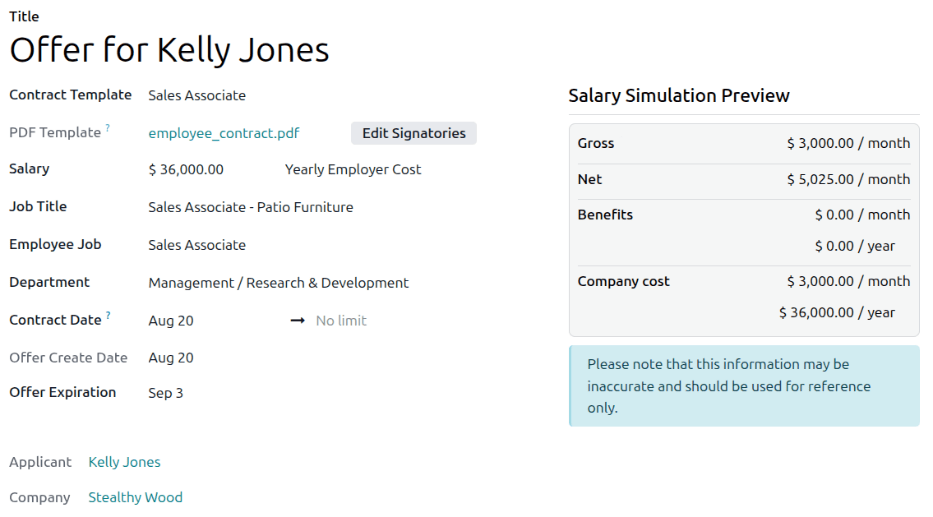
Next, send an offer to the applicant by clicking the Generate Offer button. This loads the Offer for (applicant) page.
Most fields are pre-populated with information from the job position. Update or add any relevant information in the corresponding fields.
Note
Depending on the localization setting for the company and which applications are installed, some fields may differ or not appear on the Offer for (applicant) page.
Contract fields
The following fields appear in the Offer for (applicant) page regardless of the localization.
Title: The name for the contract appears in a default
Offer for (applicant)format.Contract Template: The template currently being used to populate the Offer for (applicant) page. Use the drop-down menu to select a different Contract Template, if desired.
Note
To modify the template, hover over the current template name, click the (Internal link) icon that appears to the right of the field, and make any desired changes.
PDF Template: The PDF document the applicant must sign to accept the offer.
Salary: The salary being offered to the applicant.
Job Title: The selected Employee Job populates this field by default. The title can be modified to suit the specific applicant’s position and provide more details.
Example
An applicant is offered a marketing manager job at a shoe company, specifically for the children’s line.
The Employee Job selected from the drop-down menu is
Marketing Manager, and the Job Title is modified for their specific responsibilities,Marketing Manager: Children's Shoes.Employee Job: The name of the Job Title being offered to the applicant. The selections available in the drop-down menu correspond to the configured job positions.
Department: The department the job position falls under.
Contract Date: The date the proposed contract takes effect. The default date is the current date. To modify the date, click on the displayed date to reveal a calendar popover window. Navigate to the desired month, then click the day to select it. If the contract has a specific end date, enter the end date in the second field, next to the icon.
Offer Create Date: The day the offer is created. The current date populates this field by default and cannot be modified.
Offer Expiration: The last day the offer is valid. After this date the contract cannot be signed. Click into the field to reveal a calendar popover window. Navigate to the desired date, and click on it to select it.
Applicant: The name of the applicant appears in this field and cannot be modified. Click the name to view the detailed applicant form.
Company: The name of the company offering the job position appears in this field and cannot be modified. This only appears in a multi-company database.
Salary Simulation Preview: The various costs for the contract appear in this box, including the Gross, Net, and Benefits, along with the total Company Cost. These numbers are estimates and should be used for reference only.
Send offer
Once all desired modifications have been made to the Offer for (applicant) page, click the Send By Email button to reveal an email pop-up window.
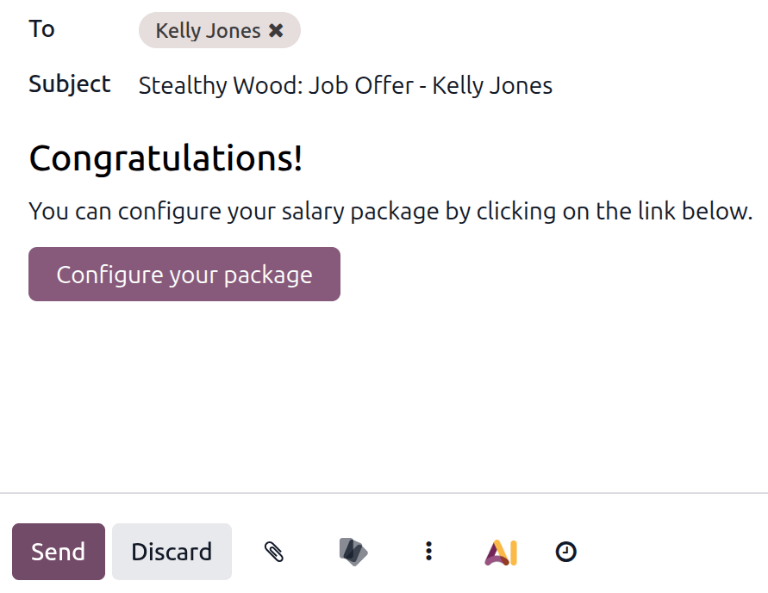
The default Recruitment: Your Salary Package email template is used, and the To,
Subject, and email body are pre-populated based on the email template.
If any attachments need to be added, click the (Add Attachment) button, and a file explorer window appears. Navigate to the desired file, then click Open to attach it to the email. The attachment loads and is listed at the bottom of the email body.
Once the email is ready, click Send, and then the email pop-up window closes. Return to the applicant’s card, and an Offers smart button appears at the top.
Note
The Sign application must be installed for the applicant to digitally sign the contract in Odoo. The applicant does not need any software installed to sign the offer.
Configure your package
If applicable, the applicant can modify their salary package. This option is not available for all localizations. Depending on where the company is located, this option may not be available.
The email template includes a Configure your package button. This link takes the applicant to a webpage where they can modify the proposed salary package.
Applicant signature
On the offer page, which is linked in the offer email, the applicant enters their contact information along with any personal information requested on the form. The information entered is transferred to the employee’s record once created.
The applicant clicks the Review Contract & Sign button to accept the offer, and the contract loads. Click Click to start to begin signing the document. All fields are populated according to the applicant’s information, but can be modified if necessary.
Click Next to navigate to the subsequent fields of the contract. Once all fields are configured, click Sign it, and an Adopt Your Signature pop-up window loads. Modify the default signature if desired, then click Sign all to apply the signature. Click Next once more to enter the Date in the corresponding field. When done, click the Validate & Send Completed Document button, and the contract is signed.
Management signatures
Once the applicant has signed the contract, the next step is for the person responsible within the company (the HR Responsible) must then sign the contract.
The person responsible for signing the contract receives an activity alert that their signature is requested of them in the Sign app.
Contract signed
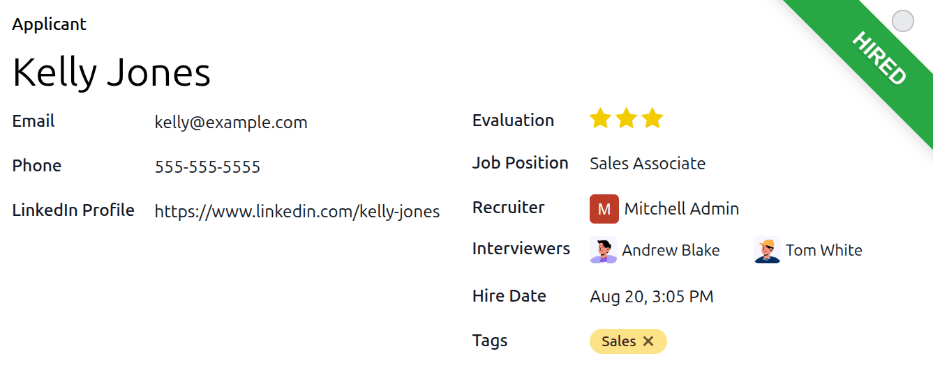
Once all parties have fully signed the contract, the applicant is automatically moved to the Contract Signed stage, and a green Hired banner appears in the corner of both the applicant’s card and form.
Create employee
Once the applicant has been hired, the next step is to create their employee record. Click the Create Employee button in the corner of the hired applicant’s form.
An employee form loads with information pulled from the applicant’s card and the employee contract.
Fill out the rest of the employee form. For detailed information on the fields, refer to the New employees documentation.
Once completed, the employee record is saved in the Employees app.
