Physical rental products
The Odoo Rental app allows users to customize scheduling, pricing, and inventory for physical rental products that require stock movement, otherwise known as Goods. Users can set up multiple pickup and drop-off locations and track rental products by serial number. Some examples are:
Bikes
Clothes
Furniture
Configuration
The Rental app offers many app-integration features. Depending on the installed Odoo apps, specific settings are available. To learn more about the default settings for rental products, refer to the Configuration section on the Rental product types page.
To access the Rental app’s settings, navigate to .
The following configurations assume the Rental, Inventory, and Sales apps are installed.
Create a new physical product
To set up a new physical rental product, go to the , then click New. A new product window displays with the General Information tab open as a default.
Initial product configuration
In the new form, the Sales checkbox is already ticked by default. In the General Information tab, select Goods for the Product Type. The Tracking field is set to By Quantity by default. For the Category field, select Goods from the drop-down menu or create a new category by typing in the name and clicking Create.
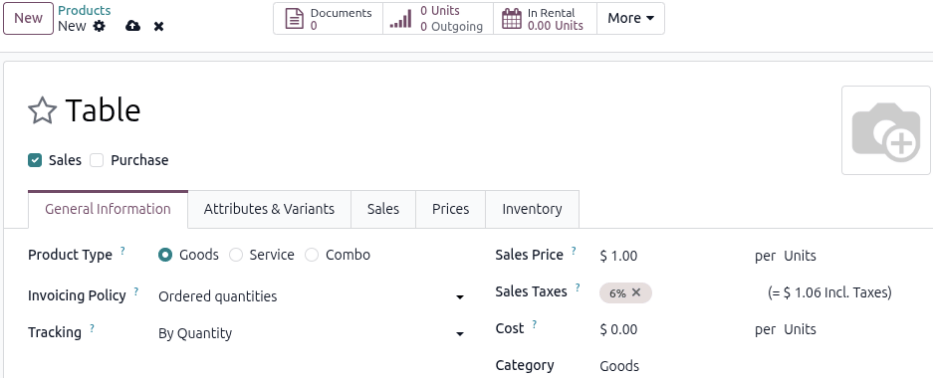
Click the (Save manually) icon and in the new Quantity on Hand field, enter the number of products that are available to rent.
Note
For products that have the By Lots or By Unique Serial Number enabled, refer to the Configure product tracking section.
Set a base rental period and price
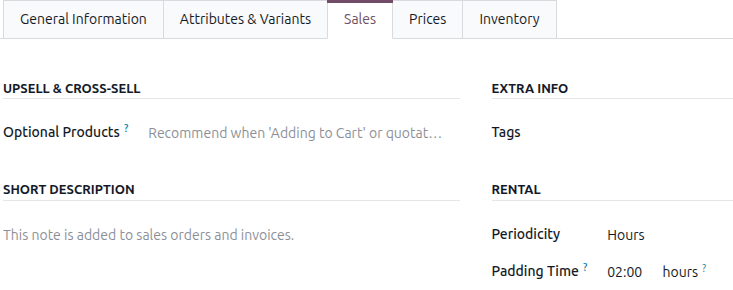
Set up a base rental rate by entering the lowest rental price in the Sales Price field. Next, click the Sales tab, then in the Rental section select a unit of time from the Periodicity drop-down menu.
The Pickup and Return fields are displayed for every Periodicity field option except Hours (which only displays the Padding Time field). The Pickup and Return times only apply to online rental orders. The Padding Time field makes the product unavailable to rent for the selected duration (in hours).
Additional rental rates can be configured on the Prices tab, though these rates are restricted to the Periodicity value selected in the Sales tab. In other words, a rental product can only have one Periodicity value (or unit of time) configured at a time.
Optional: specifying rental variants
Important
The Variants feature in the Inventory app must be enabled for this tab to display.
In the Attributes & Variants tab, add the appropriate attribute and its values by clicking Add a line. Attributes and values are useful for keeping the product library manageable, tracking and differentiating the inventory, and providing more detailed reports. Examples of rental variants for a Goods product are: sizes, brand, color, and material.
Adding multiple rental prices
Important
The Sales app must be installed and the Pricelists feature enabled for this tab to display.
There are two ways to configure additional rental rates in the Rental app: Pricelists method and the Prices tab method. The Rental app follows specific conditions when using pricelists. Refer to the Rental pricelist rules section on the Rental page.
Tip
It is recommended to create a new Pricelist first, then select the customized Pricelist in the Prices tab instead of using the Default pricelist. Keeping the Default pricelist blank ensures there is a clean pricelist for the base rental rate.
Using the Pricelists method
Creating a new pricelist allows for better customization when applying rental rates to specific time periods, products, or customers by using Pricelist Rules. It is a separate form that users can apply to quotations or select on the rental product form to add new price rules to.
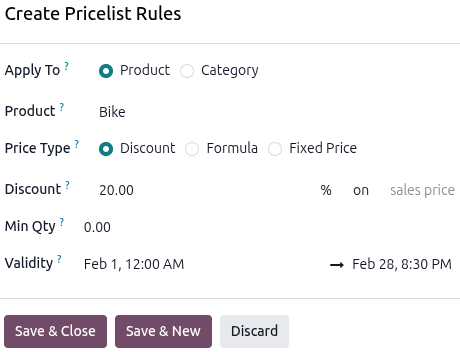
Navigate to and click New. A Create Pricelist Rules window displays.
Example
Part 1
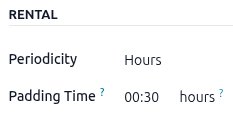
A bike rental business rents out its bikes on an hourly basis, but offers a 20% discount for summer break. The regular hourly rate for their bikes is $20.
Enter the Sales Price in the General Information tab of the product form, then
click the Sales tab to set the Periodicity to Hours and enter
30 min for the Padding Time.
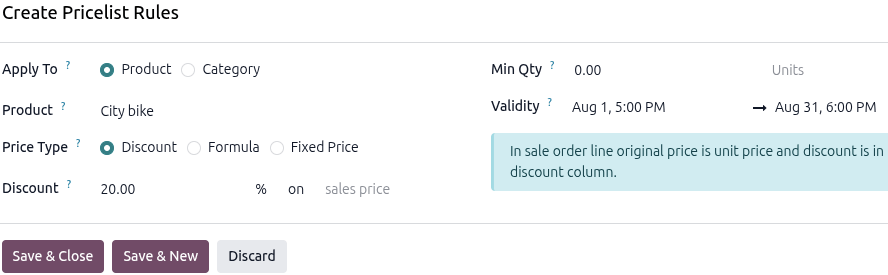
Using the Pricelist method, navigate to and click New. Configure Pricelist Rules for the 20% discount using the following settings:
Apply To: Select Product
Product: Select City bike from the drop-down menu
Price Type: Select Discount
Discount: Enter
20Validity: Select
Aug 1toAug 31
Using the Prices tab method
Prices can also be configured directly on the product using the Prices tab. It is recommended to create a new Pricelist first, then select the customized Pricelist in the Prices tab instead of using the Default pricelist. Keeping the Default pricelist blank ensures there is a clean pricelist for the base rental rate.
Navigate to , then click the desired product. Click the Prices tab and click Add a price.
Select the desired Pricelist. In the Min. Quantity column, enter the minimum amount needed to trigger the price change. The Min. Quantity column is based on the unit of time selected in the Periodicity field in the Sales tab.
Lastly, enter the Price rate.
Example
Part 2
Using the same scenario in the Pricelists method example, use the Prices tab method by navigating to
and clicking the bike product. Click the
Prices tab, then select the desired pricelist for the Pricelist column.
Enter 16 for the Unit Price column.
To add the Validity column, click the (Settings
adjust) icon and select Validity. Then select Aug 1 to Aug 31 for the date range
in which the discount is applicable.

eCommerce features
Important
This tab is only available if the Website app and eCommerce module are installed.
The eCommerce tab configures the product page on the website. Refer to the Product visibility and Product configuration sections for the eCommerce module for configuration instructions.
Refer to the Availabilities setting in the Rental app’s settings to set what days and business hours of the week customers can book or return rental products online at a company level. If the product isn’t published to the website then the setting does not go into effect.
Configure product tracking
Important
To configure a physical rental product for product tracking, the Inventory app must be installed, and Lots & Serial Numbers must be enabled.
For rental products, only By Unique Serial Number tracking can be used. Selecting By Lots instead results in an error message, since that setting doesn’t apply to rentals.
Go to the , then click New. In the new product window, the Sales checkbox is already selected by default. Select Goods as the Product Type. The Tracking field defaults to By Quantity.
Click into the Tracking field and select By Unique Serial Number. Enter the number of products available to rent in the Quantity On Hand field.
For the Category field, select Goods from the drop-down menu or create a new category by typing in the name and clicking Create. Configure basic rental rate and any additional rates.
Rental Transfers feature
The Rental Transfers feature automatically creates a delivery receipt when the rental product is picked up and a return receipt when it is returned to stock. Documenting stock movement creates a clean paper trail and has a variety of uses:
Tracking high-value products.
Tracking stock levels across multiple stores or warehouse locations.
Tracking products between different store locations that allow pick up and returns.
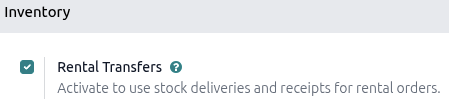
To enable Rental Transfers, navigate to the and in the Inventory section, select the Rental Transfers checkbox.
Note
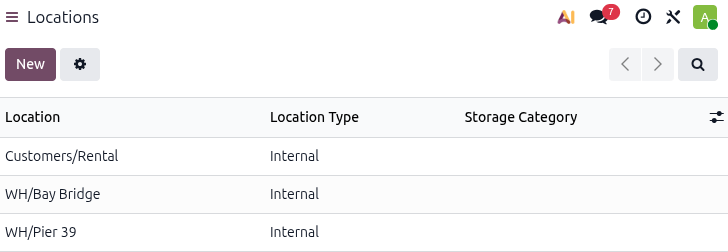
The Inventory app automatically creates an internal default location once the Rental
Transfers feature is enabled. Odoo uses the new default location, Customer/Rental, to track
products during the rental period (moving them from Stock to Customer/Rental upon rental, and
back upon return).
Do not modify Customer/Rental to avoid corrupting inventory tracking.
Multi-location management and transfers
Important
Refer to the Rental Transfers note for information about internal location configuration and inventory tracking.
Tracking the location of high-value physical products between locations is essential. The Rental app helps with the Rental Transfers feature. Activating rental transfers means the system treats rental movements similarly to sales, requiring a receipt and a delivery order every time a physical product is rented or returned.
For multi-location management and rental item transfer tracking, navigate to the and in the Inventory section, select the Rental Transfers checkbox.
Next, go to the and in the Warehouse section, select the Storage Locations checkbox. Click Save to apply the changes.
Create a new location and on the new location page, enter the Location Name and ensure the Parent Location field is set to WH.
Example
A bike rental business has two store locations within the same city. Both locations allow for pickup and dropoff of their bikes. The company wants to track its bikes accurately at each location.
Ensure the Rental and Inventory apps are configured by enabling Rental Transfers in the Rental app and Storage Locations in the Inventory app.
Next, go to the . Create a new location for each storefront.