Archive employees
In Odoo, when an employee leaves the company they must be archived. This step should be done after the employee has been fully offboarded. To archive an employee, first navigate to the . From here, locate the employee leaving the company, and click on their employee card.
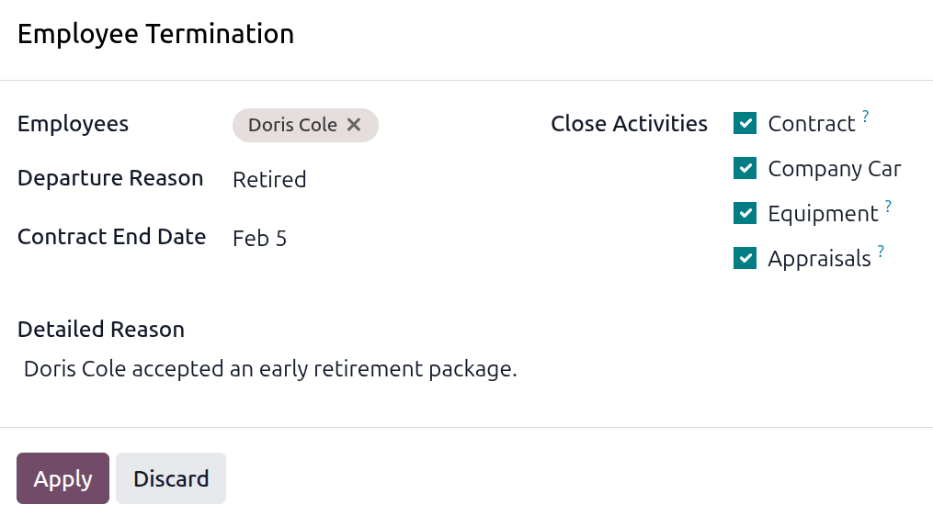
The employee form loads, displaying all their information. Click the (gear) icon in the top-left corner, and a drop-down menu appears. Click Archive, and an Employee Termination pop-up window appears.
Fill out the following fields on the form:
Employees: The selected employee populates this field by default. Multiple employees can be archived at once by adding the additional employees to archive in this field.
Departure Reason: Select a reason the employee is leaving from the drop-down menu. The default options are:
Fired: Select this option when an employee is being let go, and the company has given notice.
Resigned: Select this option when the employee no longer wishes to be employed, and the employee has given notice.
Retired: Select this option when the employee is retiring.
Note
If a new departure reason is needed, a new one can be created. Close the Employee Termination pop-up window, and navigate to . Click the New button, and a blank line appears at the bottom of the list. Enter the new reason, and click Save.
Contract End Date: Using the calendar selector, select the last day the employee is working for the company.
Detailed Reason: Enter a short description for the employee’s departure in this field.
Close Activities: Click the checkbox next to each type of activity to close or delete any open activities associated with it. It is recommended to click all checkboxes that are applicable. The available options are:
Contract: Applies an end date for the current contract.
Company Car: Removes the employee as the driver for their current company car, and assigns the next driver, if applicable.
Equipment: Unassigns the employee from any assigned equipment.
Appraisals: Cancels all appraisals scheduled after the contract end date.
When the form is complete, click Apply. The employee record is archived, and a red Archived banner appears in the top-right corner of the employee form. The chatter logs the various details, including the Departure Date, Departure Reason, Contract End Date, the dates for the last work entries, and the employee version that was archived.
Note
If any issues exist that prevent Odoo from archiving the employee, the detailed reasons appear in
a red warning box in the Employee Termination pop-up window. The warning states The plan
"(Plan Name)" cannot be launched, then lists the various steps that must be done before
archiving the employee.
