Audience targeting
In Odoo Marketing Automation, each campaign is initiated by a trigger that defines the campaign’s target audience and how these target records become participants in the campaign.
A campaign consists of exactly one trigger. The following documentation covers the various configuration options for a trigger.
Define a trigger
When creating a new campaign, click the Define a Trigger button to open the configuration window.
Note
An existing campaign trigger can also be modified by clicking the first activity node in the workflow view.
On the Define a Trigger pop-up window, begin by entering a name for the campaign.
Enrollment tab
The Enrollment tab provides options to define the target audience and campaign triggers.
In the Target field, specify the model the participant comes from (e.g., Contact, Event Sponsor, Applicant).
Then, select the Trigger type to specify when a record becomes a participant via one of the following options:
Filter: Add any record that matches the filter rules set in the Dynamic Lists or Filter fields.
Event: Add a record when one of the following events occurs: Subscribed to List, Page Visited, Form Submitted, Product in Cart, or Product Bought. This option only applies to Contacts or Leads.
Date: Add a record at a specific time before or after a date. In the Date field, specify the appropriate date on the chosen Target. In the Delay field, choose a duration before or after which the record should be created.
Anniversary: Add a record at a specific time relative to its date, repeating every year. In the Date field, specify the appropriate date on the chosen Target. In the Delay field, choose a duration before or after which the record should be created.
Manual: Add a record manually only.
Webhook: Add a record when an external app sends a request to a specified URL.
Defining filters
Use the Extra Filter section to further restrict the target audience:
Dynamic Lists: Select a filter rule saved as a template.
Filter: Define filter rules to restrict target records based on specific criteria.
By default, the campaign Filter is set to Match all records (i.e., the campaign targets all records of the chosen Target model). The # record(s) link below opens a Selected records pop-up window listing the targeted records.
To modify the filter, click the Edit Domain button to reveal a Domain pop-up window with configurable rule parameters.
Tip
After a filter rule is modified, users can save it by clicking Save as a Dynamic List. Saved filters can be managed from the page.
Options tab
The Options tab contains additional trigger settings:
Participants can re-enroll: Select the checkbox to allow records to re-enter the activity workflow.
Deduplication via: Select the specific field of the chosen target model for which to avoid duplicate records.
Use Calendar: If using a date-related trigger type, select a calendar by which to calculate specific dates.
Finally, click Save to add the trigger to the workflow builder.
Tip
A Responsible user can be assigned to the campaign by activating Developer mode (debug mode).
Note
Each activity in a campaign’s workflow can target a subset of the target audience; see the Campaign workflow activities documentation for more information.
Example
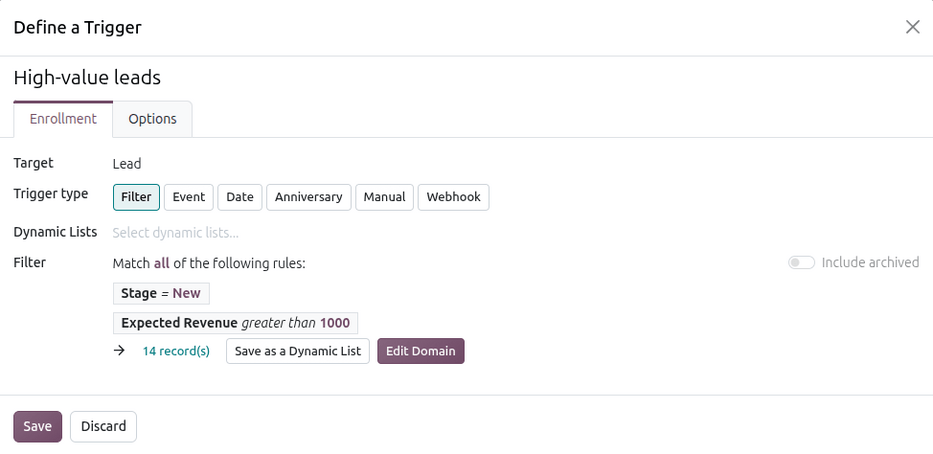
To target all leads and opportunities from the CRM app that are in the New stage and have an expected revenue greater than $1,000, the following trigger options should be entered:
Target:
LeadTrigger type:
FilterDomain: Match
allof the following rules:Stageis equal toNewExpected Revenuegreater than1,000
Additionally, in the Options tab, duplicate records are removed by setting
Deduplication via to Email (Lead).
With the above configuration, the campaign targets 14 record(s).