Rental Orders dashboard
The Rental Orders dashboard serves as the landing page for the Rental app. It provides a high-level view of all rental orders, with smart buttons to navigate to filtered lists of rentals. This includes Pickups, Returns, Late returns, rentals To Confirm, To Invoice, and any action items for Today.
To view the Rental Orders dashboard, open the Rental app or go to , and the dashboard loads in the default (List) view. Other available views are: (Kanban), (Calendar), (Pivot), (Graph), and (Activity).
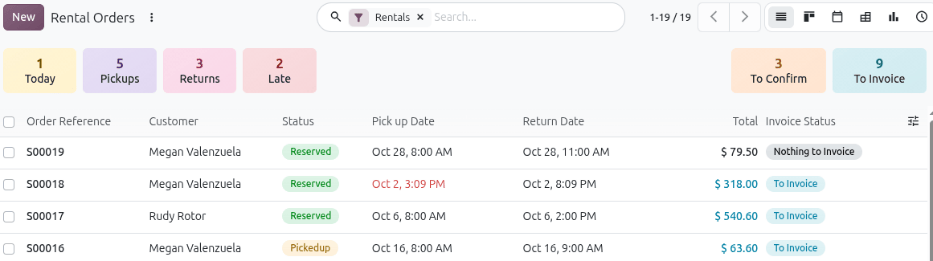
At the top of the dashboard, there are six smart buttons:
Today: Filters the dashboard to show rental orders whose Pick up Date or Return Date is the present date. These are rental orders with the status of Reserved or Pickedup. It also includes orders with late pickup or return dates. This filter is the default filter for the Rental Orders dashboard.
Pickups: Filters the dashboard to show only rental orders with the Reserved status that are waiting to be picked up by the customer.
Returns: Filters the dashboard to show only rental orders with the Pickedup status that have not been returned yet. This includes both on-time and past-due returns.
Late: Filters the dashboard to show only rental orders whose Pick up Date or Return Date is overdue.
To Confirm: Filters the dashboard to show only unconfirmed rental quotations.
To Invoice: Filters the dashboard to show all rental orders without an invoice created. This includes both Reserved and Pickedup rentals.
Every smart button displays the number of rental orders or quotations within its category. Click the smart button to apply the filter to the search bar. Click it again to remove the filter. Multiple smart buttons can be applied at the same time, further filtering the results.
The (List) view has the following columns:
Order Reference: The unique number Odoo gives to rental quotes and orders.
Customer: The name of the customer who requested the rental quote or order.
Status: Displays the progression of the rental order using one of the following options:
Quotation: The rental quotation is not confirmed.
Reserved: The rental order is confirmed, and the rental products have been scheduled for pickup.
Pickedup: The rental order is confirmed, and the rental products have been picked up.
Returned: The rental order is confirmed, and the rental products have been picked up and returned.
Cancelled: The rental quote or order is terminated.
Pick up Date: The scheduled date on the rental order for the rental product to be picked up.
Return Date: The scheduled date on the rental order for the rental product to be returned.
Total: The rental quote or order’s total amount with tax.
Invoice Status: Displays the invoice stage using one of the following options:
To invoice: The rental order has no associated invoice.
Fully invoiced: The rental order has either a drafted or posted invoice. However, the filter doesn’t include invoice payment status.
Nothing to invoice: The rental quote has not been confirmed yet, and thus the invoice amount is not finalized.
The following columns can be enabled using the (adjust settings) icon: Salesperson, Order Date, Sales Team, Tags, and Activities.
Rental orders that are late for their specified Pick up Date or Return Date columns display in red text. Rental orders without an invoice display in blue text in the Total column. At the bottom of the Total column, the total amount of all the rental quotations and orders together is shown.
Another way to filter the dashboard is to use the search bar filters. Click the search bar to view the preconfigured filters.
Filters
Refine the results using the following Filters:
My Orders: Only shows rental quotations and orders created by the user.
Rentals (default): Only shows rental orders.
Important
When this filter is removed from the search bar, the dashboard lists sales orders. Therefore, always keep the Rentals filter as the default one.
Today: Shows rental orders that have the current date as the Pickup or Return date. It also includes orders with late pickup or return dates.
Late: Shows rental orders with the Pickedup status and a past Return date.
Pickup Date: Shows rental orders that have the Reserved status.
Return Date: Shows rental orders that have the Pickedup status.
Group by
Group orders using any of the following options in the Group By menu:
Status: Creates and sorts rental quotations and orders by three different stages: Quotation, Reserved, and Pickedup.
Salesperson: Creates and sorts rental quotations and orders by the user who created them.
Customer: Creates and sorts rental quotations and orders by the listed customer on the rental quotation and order.
Custom Group: Creates and sorts rental quotations and orders by customized groups created in Odoo.
Use cases
Managing a sales team
A manager wants to view all the rental quotes and orders from their sales team. To view their sales team rental orders on the Rental Orders dashboard:
Click into the search bar.
Select Salesperson in the Group By section of the drop-down menu.
Click the (setting adjust) icon and enable Sales Team.
Now the manager can group rental orders using the Sales Team column and see all the rental quotes and orders each team member has created.
Managing priority rental orders for the day
A rental store employee wants to check all rental quotes and orders that are due today or overdue. To view these rental orders and those that have actions due today on the Rental Orders dashboard:
Click into the search bar.
From the Filters section, select My Orders, Today, and Late.
The Rental Orders dashboard filters rental orders with a pickup or return date for the current day or an overdue date.
