New employees
When a new employee is hired, the first step is to create a new employee record. This record is a centralized place where all important information about the employee is stored, including general information, job history and skills, various work information, personal details, payroll-related information, and various settings that affect integrations with other apps in the database.
To begin, open the app, then click the New button in the corner. Doing so reveals a blank employee form.
Proceed to fill out the required information, along with any additional details.
Tip
The employee form automatically saves as data is entered. However, the form can be saved manually at any time by clicking the (Save manually) icon.
Important
All employee records are considered light users and incur any corresponding fees. For more information, refer to Odoo’s billing page.
General information
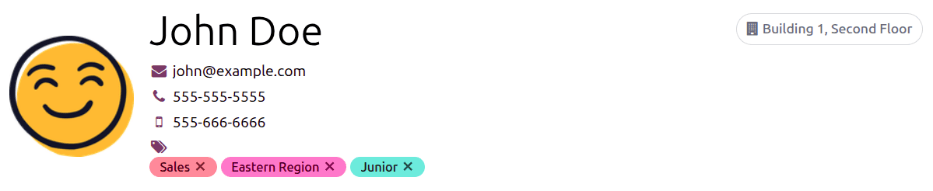
Fill out the following employee details in the top section of the employee form.
Employee’s Name: Enter the employee’s name. This field is required.
(Work Email): Enter the employee’s work email address.
(Work Phone): Enter the employee’s work phone number.
(Work Mobile): Enter the employee’s work mobile number.
(Tags): Select any tags from the drop-down menu to add relevant tags to the employee. Any tag can be created in this field by typing it in. Once created, the new tag is available for all employee records. There is no limit to the amount of tags that can be added on an employee form.
Photo: Upload a photo of the employee in the photo placeholder.
Payroll tab
Depending on the installed payroll localization, the sections and fields in this tab may vary considerably. Due to the specific nature of localizations and the variety of information that may be requested in this tab, it is recommended to check with the accounting department to fill out this section correctly.
The Contract overview and Schedule sections are the only universal sections for all payroll localizations. All other sections in the Payroll tab are country-specific.
See also
Contract overview
This section contains all the various details from the employee contract. Refer to the contracts document for detailed information on creating and modifying employee contracts.
Schedule
This section defines when the employee is expected to work. Configure the following fields:
Working Hours: Select the hours the employee is expected to work, using the drop-down menu. By default, a Standard 40 hours/week working schedule is selected. If the Timesheets app is installed, an Appointment Resource Default Calendar option is also available.
To view and modify the specific daily working hours, click the (Internal link) arrow at the end of the Working Hours line. Working hours can be modified or deleted here.
Note
Working Hours are related to a company’s working schedules, and an employee cannot have working hours that are outside of a company’s working schedule.
Each individual working schedule is company-specific. For multi-company databases, each company must have its own working hours set.
If an employee’s working hours are not configured as a working schedule for the company, new working schedules can be added, or existing working schedules can be modified.
Working hours can be modified in both the Employees and Payroll apps, where they are referred to as Working Schedules.
For more information on how to create or modify Working Schedules, refer to the working schedules documentation.
After the new working hours are created, or an existing one is modified, the Working Hours can be selected on the employee form.
See also
Attendance Based: Click this checkbox to have payslips created using the employee’s badge records when signing in and out of work in an attendance kiosk. If left unchecked, Odoo uses the employee’s selected Working Hours to create work entries when processing payroll.
Payslip adjustments tab
This Payslip Adjustments tab houses all additional payslip adjustments, including salary adjustments, child support, commissions, tips, bonuses, expense reimbursements, and any other deduction taken out of the employee’s paycheck.
Add each individual payslip adjustment to this tab.
Work tab
This tab is visible for all employees, and does not require any other apps to be installed.
Work
Company: Select the company the new employee was hired by using the drop-down menu. This field is required, but only appears when in a multi-company database.
Department: Select the employee’s department from the drop-down menu.
Job Position: Select the employee’s job position from the drop-down menu. If using the Recruitment app, this list reflects configured job positions.
Job Title: This field is automatically populated with the selection made in the Job Position field. Adjust the text, if desired, to best reflect the employee’s role.
Example
Specific details can be added in the Job Title field, if desired.
For example, a sales representative position configured as Sales Associate in the Recruitment app can be selected for the Job Position field.
The Job Title field can be more specific, such as
Sales Associate - Europeif the employee is focused solely on European sales.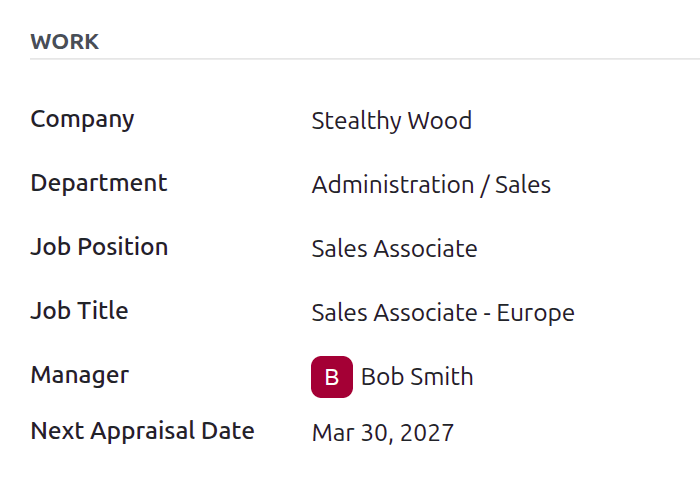
Manager: Select the employee’s manager using the drop-down menu.
Next Appraisal Date: If the Appraisals app is installed, this field displays the next scheduled appraisal for the employee. This field is set to six months from the employee’s contract date, by default.
Location
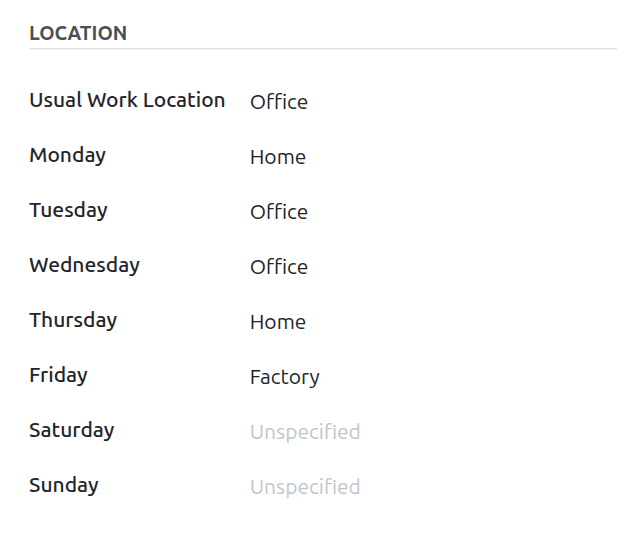
This section states where the employee is expected to work on any given workday.
Using the drop-down menu, select the typical place the employee works from in the Usual Work Location field. The default options are Home, Office, or Other. This field is required.
Tip
To create a new location, type the location in the field, click Create and edit, and a Create Usual Work Location pop-up form loads.
The entered name populates the Work Location field, but can be modified. Select the Work Address using the drop-down menu. Click the corresponding button to select the Location Type. In a multi-company database, a Company field appears, and is populated with the current company by default but can be modified if needed.
Click Save when the form is complete. The window closes, and the newly configured location appears in the field.
Below the Usual Work Location field is a list of the days of the week. For each day of the work week, select where the employee works that day using the drop-down menu. The selected location is reflected on the employee’s Kanban card, indicating their location that day.
Leave the field blank (Unspecified) for non-working days, such as Saturday and Sunday.
Note
Enter any relevant notes in this field.
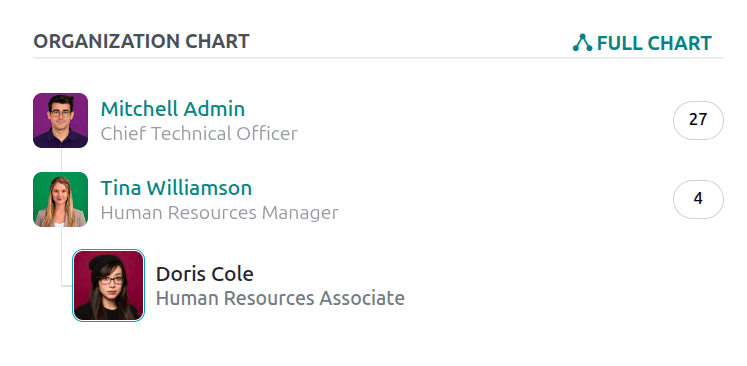
Organization chart
The related departments appear in this section, illustrating where in the company the employee works. The numbers to the right of each person listed indicates how many direct or indirect reports each employee has.
Note
After a Department is selected, the department’s configured manager automatically populates the Manager field.
Resumé tab
Resumé
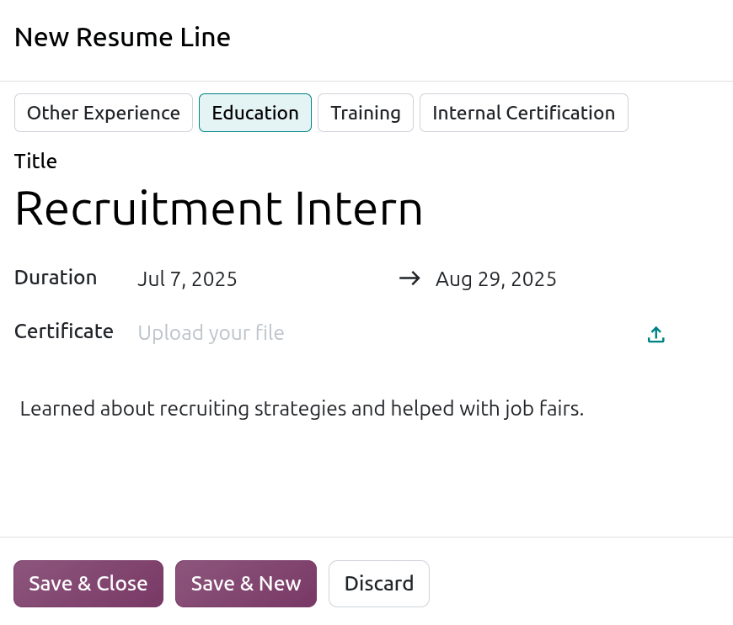
Enter the employee’s work history in the Resumé tab. Each resumé line must be entered individually. When creating an entry for the first time, click the Create Resume Lines button, and a New Resumé Line form appears. After an entry is added, the Create Resume Lines button is replaced with an ADD button. Enter the following information for each entry:
Type: Click the corresponding button to reflect the type of experience being added. The available options are Other Experience, Education, Training, or Internal Certification.
Title: Type in the title from the previous work experience.
Duration: Enter the start and end dates for the work experience using the calendar module in the corresponding fields.
Certificate: If there is a relevant certificate to attach, click the (Upload) icon, select the desired file, and click Select. The file name appears in the field, not an image of the certificate.
Description: Enter any relevant details in this field.
Once all the information is entered, click the Save & Close button if there is only one entry to add, or click the Save & New button to save the current entry and create another resumé line.
Note
After the new employee form is saved, the current position and company is automatically added to
the Resumé tab, with the end date listed as Current.
Skills & certifications
An employee’s skills and certifications can be entered in the Resumé tab in the same manner that a resumé line is created.
To add a skill to an employee record, the skill type must first be configured. By default, Odoo comes with two Skill Types preconfigured: Languages and Soft Skills. Configure the rest of the skill types before adding any skills to the employee record.
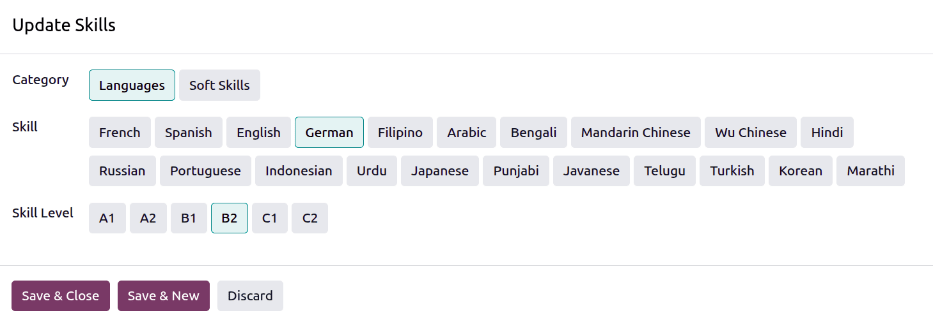
When adding the first skill to an employee record, a Pick a skill from the list button appears in the Skills section of the Resumé tab. Click the Pick a skill from the list button, and a blank Update Skills pop-up window loads. Configure the following information for each skill:
Category: Select a skill type by clicking it.
Skill: After selecting the Category, all corresponding skills associated with that selected category appear in individual buttons. For example, selecting Languages for the Category presents a variety of languages to select from in the Skill section. Click the appropriate skill from the list.
Important
If the desired skill does not appear in the list, it is not possible to add the new skill from this window. New skills must be added from the Skill Types dashboard.
Skill Level: Pre-defined skill levels associated with the selected Category appear. Click on a Skill Level to select it. Skill levels can be created and modified from the Skill Types dashboard.
Click the Save & Close button if there is only one skill to add, or click the Save & New button to save the current entry and immediately add another skill.
At any point, a new line can be added by clicking the Add button.
Important
Only users with Officer: Manage all employees or Administrator rights for the Employees app can add or edit skills.
Skill types
To add a skill to an employee’s form, the Skill Types must be configured. Navigate to to view the currently configured skill types and create new skill types.
Note
The default skill of Languages is preconfigured with twenty-one skills, and the default Soft Skills is preconfigured with fifteen skills.
Click the New button in the corner, and a new Skill Type form loads. Fill out the following details for the new skill type. Repeat this for all the needed skill types.
Skill Type: Enter a name for the type of skill. This acts as the parent category for more specific skills and should be generic.
Color: Click on the existing color to view the available colors. Click the desired color to select it.
Certification: Click the toggle to indicate the skill is a certification. The toggle turns green, indicating it is active and the skill can be added to the certifications tab.
Skills: Click Add a line and enter the Name for the new skill, then repeat for all other needed skills.
Levels: Click Add a line, and enter a Name and Progress percentage (
0-100) for each level.Set a Default Level by clicking the toggle on the desired line. Only one level can be selected. The toggle turns green to indicate the default level. Typically, the lowest level is chosen, but any level can be selected.
Example
To add math skills in yellow, enter
Mathin the Skill Type field, and click the colored circle next to Color, and select yellow. Then, in the Skills field, enterAlgebra,Calculus, andTrigonometry. Next, in the Levels field, enterBeginner,Intermediate, andExpert, with the Progress listed as25,50, and100, respectively. Click Set Default on theBeginnerline to set this as the default skill level.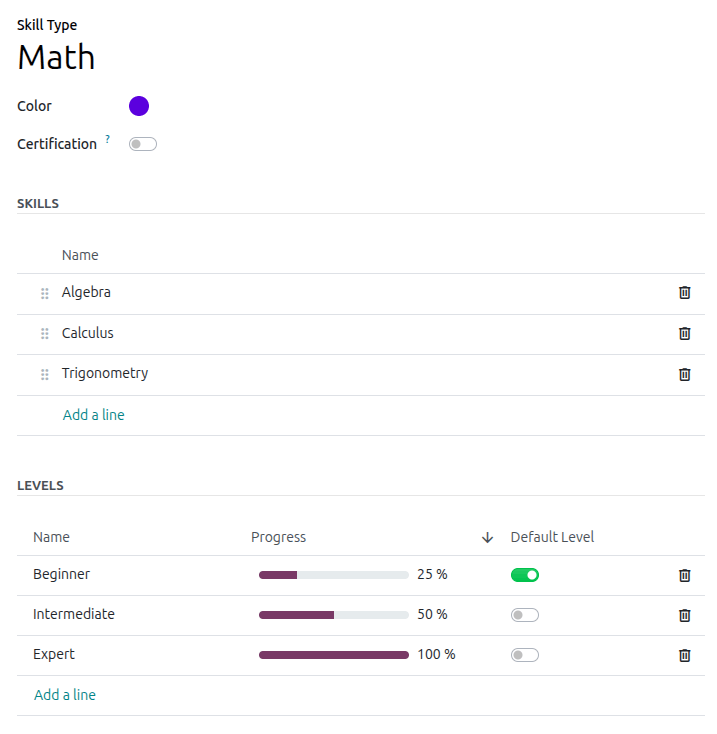
Tip
Once the form is completely filled out, click the (Save manually) icon at the top of the screen, and the Levels rearrange in descending order, with the highest level at the top, and the lowest at the bottom, regardless of the default level and the order they were entered.
Certifications tab
This tab houses all the employee’s certifications, which can be important for employees who are required to hold specific certifications to perform their job, such as a CPA certification for accountants, or a CSM certification for a construction manager.
The tab lists each Certification in a line, and displays the validity period in the From and To fields.
Note
This tab only appears if at least one skill type is configured as a certification. When adding certifications, only skill types marked as a certification can be selected.
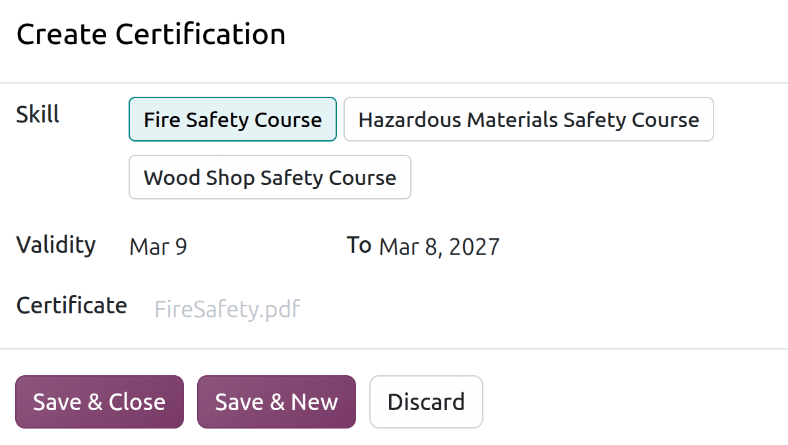
To add a certification, click Add a line in the Certifications tab and a blank Create Certification pop-up window loads. Enter the following information on the form:
Skill: Click on the specific certification being added.
Validity: Click into the two fields, and select the start and end dates for the certification, using the calendar selector.
Certificate: If a proof of certification document is available, such as a course completion certificate, it can be added in this field. Click the (Upload) icon, navigate to the file, and click Select.
When the form is complete, click Save & New to add the certification and add another, or Save & Close to add the certification and close the pop-up window.
Personal tab
No information in the Personal tab is required to create an employee. However, some information in this section may be necessary for the company’s payroll department.
To properly process payslips and ensure all deductions are accounted for, it is recommended to check with the accounting department and payroll department to ensure all required fields are populated. For example, to pay employees with direct deposit, they must have a trusted account listed in the Bank Accounts field.
Enter the various information in the following sections and fields of the Personal tab. Fields are entered either using a drop-down menu, clicking a checkbox, or typing in the information.
Note
Depending on the localization setting, other fields or sections may be present.
Private contact
Fill out the following fields in this section:
Email: Enter the employee’s personal email address.
Phone: Enter the employee’s personal phone number.
Bank Accounts: Enter the bank account number using the drop-down menu. If the bank account does not exist, create a new bank account and select it.
Add a bank account
When an employee is added to the database, their bank account must also be added to pay them using the Payroll app. To add a new bank account, click into the Bank Accounts field in the Private Contact section, then click Create.
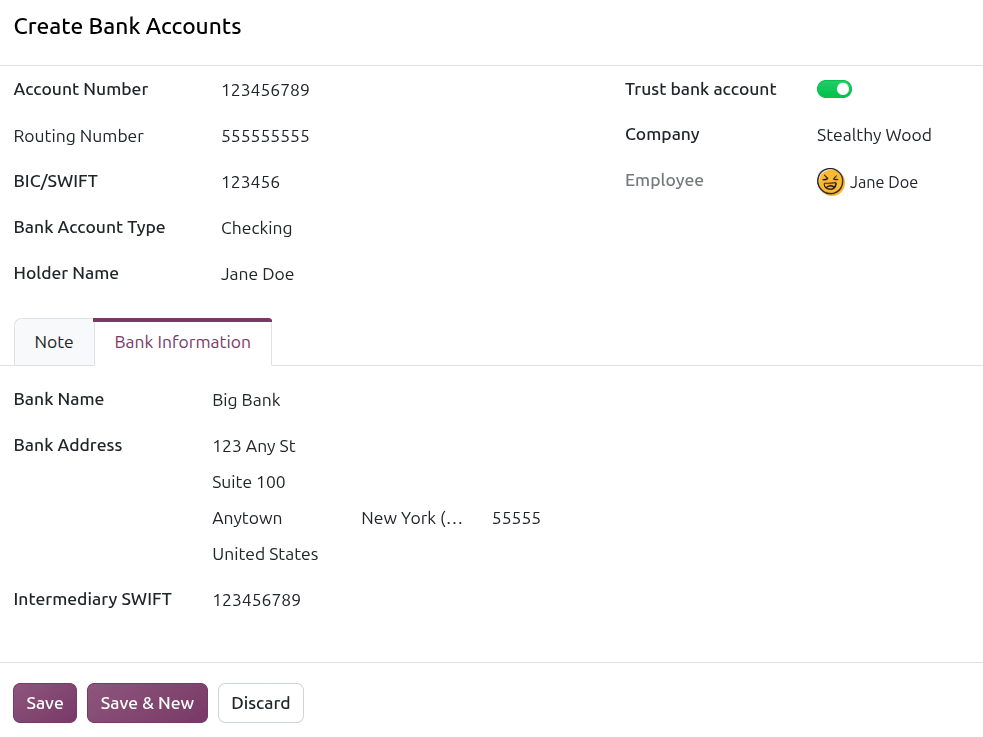
A blank Create Bank Accounts pop-up window loads. Enter the following information on the form:
Account Number: Enter the bank account number in this field.
Clearing Number: The default name for this field is Clearing Number but may be different depending on the installed payroll localization. Using the drop-down menu, select the country-specific name for this field. For example, the United States displays Routing Number while the United Kingdom displays Sort Code. Next, enter the corresponding code in this field.
BIC/SWIFT: Enter the Bank Identifier Code in this field. This is used for international wire transfers.
Bank Account Type: Select the kind of account being added. The options are Checking or Savings.
Holder Name: Enter the account holder’s name in this field.
Trust bank account: Click the toggle so it appears green, indicating it is a trusted bank account.
Company: This field only appears in a multi-company environment. Select a company to restrict the bank account to be used only with the selected company. Leaving this field blank makes this information visible to all companies.
Employee: The employee record the bank account is being added to automatically appears in this field and cannot be modified.
Note tab: Enter any relevant notes in the Note tab.
Bank Information tab: Enter the Bank Name, Bank Address, and the Intermediary SWIFT code in the corresponding fields.
Important
To ensure payments are processed and sent to the bank account, mark the bank account as Trusted. Having an untrusted bank account for an employee causes an error in the Payroll application when processing direct deposits.
If issuing paper checks or paying via cash, the Bank field does not need to be configured.
Personal information
The Personal Information section houses some basic information used primarily for payroll and tax purposes. Fill out the following fields in this section:
Legal Name: Enter the employee’s legal name in this field. By default, the name entered in the general information section populates this field. This is the name that typically is used for filing taxes.
Birthday: Select the birthday of the employee using the calendar selector.
Place of Birth: Enter both the city or town the employee was born in the first field, and select the country in the second field using the drop-down menu.
Sex: Select the employee’s legal sex recognized by the state from the drop-down menu. The default options are Male and Female.
Disabled: Check this box if the employee is considered legally disabled.
Payslip Language: Select the language used when printing the employee’s payslips. Each language must be added to the database to appear in the drop-down menu.
Citizenship
The Citizenship section outlines all the information relating to the employee’s citizenship. This section is primarily for employees who are working in a different country than their citizenship. For employees working outside of their home country, for example on a work visa, this information may be required. Different fields may be visible, depending on the localization installed. Fill out the following fields in this section:
Nationality (Country): Select the country the employee is from using the drop-down menu.
Non-resident: Click this checkbox if the employee is not a legal resident of the country where they are employed.
Identification No: Enter the employee’s national identification number issued by the government in this field. Some examples are Aadhaar, SIN, SSN, or NIN.
Passport No: Enter the employee’s passport number.
Note
Depending on the installed payroll localization, additional fields may appear in this section.
Visa & work permit
This section should be filled in if the employee is working on some type of work permit or visa. This section may be left blank if they do not require any work permits or visas for employment. Enter the applicable following fields in this section:
Visa No: Enter the employee’s visa number. When entered, an Expires on field appears. Select the date the visa expires using the calendar selector.
Work Permit No: Enter the employee’s work permit number. When entered, an Expires on field appears. Select the date the work permit expires using the calendar.
Document: click the (Upload) icon, then navigate to the work permit or visa file in the file explorer, and click Select to upload it.
Note
Typically, an employee needs either a visa or a work permit, not both. For this reason, only one document can be added to the Document field.
Emergency contact
This section details the person to contact in the event of an emergency. Enter the following fields:
Contact: Enter the emergency contact’s name.
Phone: Enter the emergency contact’s phone number. It is recommended to enter a phone number that the person has the most access to, typically a mobile phone.
Location
The Location section is visible for all employees, and does not require any other apps to be installed for this section to be visible. Enter the following information in this section:
Private Address: Enter the employee’s current home address in this field.
Home-Work Distance: Enter the number of miles or kilometers the employee commutes to work, in one direction. The unit of measure can be changed from kilometers (km) to miles (mi) using the drop-down menu. This field is only required if the employee is receiving any type of commuter benefits or tax deductions based on commute distances.
Family
The Family section is used for tax purposes and affects the Payroll app. Enter the following information in the following fields:
Marital Status: Select the marital status for the employee using the drop-down menu. The default options are Single, Married, Legal Cohabitant, Widower, and Divorced.
If Married or Legal Cohabitant is selected, two additional fields appear: Spouse Legal Name and Spouse Birthdate. Enter these fields with the respective information.
Dependent Children: Enter the number of dependent children. This number is the same number used for calculating tax deductions, and should follow all tax regulations regarding applicable dependents.
Education
The Education section allows for only one entry, and should be populated with the highest degree the employee has earned. Configure the following fields:
Certificate Level: Select the highest degree the employee has earned using the drop-down menu. The default options are: Graduate, Bachelor, Master, Doctor, and Other.
Field of Study: Type in the subject the employee studied, such as
BusinessorMarketing and Communications.
Documents
The Documents section allows for uploading any relevant documents on the employee form. Click the (Upload) icon next to the corresponding document name, navigate to the file, then click Select to upload the file.
The documents that can be uploaded are:
ID Card Copy: Upload any relevant IDs that may be required by the payroll or HR department.
Driving License: Upload the employee’s driver’s license. This field may be necessary if the employee drives as part of their job, or is given a company car to use.
SIM Card Copy: Upload a copy of the SIM card if the employee is using a work-issued mobile phone.
Internet Subscription Invoice: If the employee is receiving benefits or compensation for their internet service, upload their invoice in this field.
Note
The Internet Subscription Invoice field is for documentation purposes only. Employees must use the Expenses app to request reimbursement for expenses, or define compensation in the Payslip Adjustments tab.
Badges tab
The Badges tab is where all earned and awarded badges are housed.
Settings tab
The Settings tab provides various fields for different applications within the database. Depending on the installed applications, different fields and sections may appear in this tab.
User
User: If desired, select a user in the database to link to this employee using the drop-down menu, or create a new user.
Timezone: Select the timezone for the employee using the drop-down menu.
Create a user
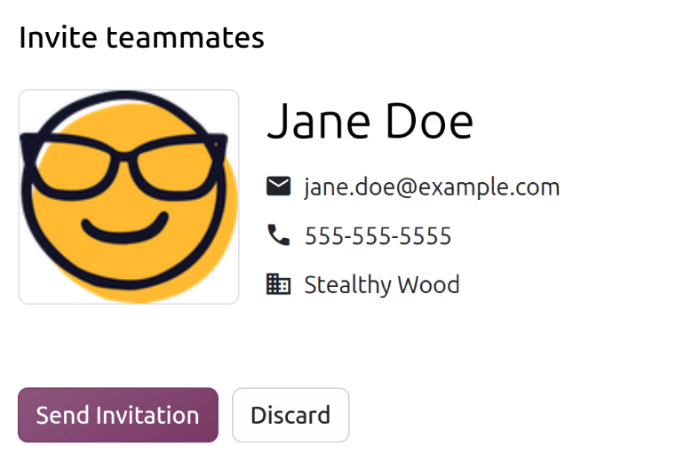
If the new employee also needs access to the database, click into the drop-down menu next to the User field. Click Invite teammates via email and an Invite teammates pop-up window appears.
The employee name populates the Name field by default. The Email Address, Phone, Company, and photo fields are populated with the corresponding fields from the general information section of form.
Click the Send Invitation button, an email is sent, and a notification briefly appears.
Once the user is created, it populates the User field.
Tip
Users can also be created manually.
Approvers
To view this section, the user must have Administrator rights set for the Employees app. For the category to appear, the respective app must be installed. For example, if the Time Off app is not installed, the Time Off approvers field does not appear. Only one selection can be made for each field.
Important
Only users with Administrator rights for the corresponding human resources role appear in the drop-down menu.
To check these rights, navigate to , and click on a user. Scroll to the Human Resources section in the Access Rights tab, and check the Employees settings.
HR Responsible: Select the user responsible for validating the employee’s contracts using the drop-down menu.
Expense: Select the user responsible for approving all expenses for the employee using the drop-down menu.
Time Off: Select the user responsible for approving all time off requests from this employee using the drop-down menu.
Timesheet: Select the user responsible for approving all the employee’s timesheet entries using the drop-down menu.
Attendance: Select the user responsible for approving all attendance entries for the employee using the drop-down menu.
Tip
If any approver field is left empty, the approval is done by an Administrator or Approver.
Planning
This section is only visible if the Planning app is installed, as this section affects what the employee can be assigned in the Planning app.
Roles: Select all the roles the employee can perform using the drop-down menu. There are no preconfigured roles available, so all roles must be configured in the Planning app. There is no limit to the number of roles assigned to an employee.
Default Role: Select the default role the employee will typically perform using the drop-down menu. If the Default Role is selected before the Roles field is configured, the selected role is automatically added to the list of Roles.
Application settings
This section affects the Manufacturing app. Enter the following information in this section.
Hourly Cost: Enter the hourly cost for the employee, in a
##.##format. This cost is factored in when the employee is working at a work center.Note
Manufacturing costs are added to the costs for producing a product if the value of the manufactured product is not a fixed amount. This cost does not affect the Payroll application.
Attendance/Point of Sale/Manufacturing
This section determines how employees sign in to the Attendances, Point Of Sale, and Manufacturing apps, and only appears if any of those apps are installed.
PIN Code: Enter the employee’s PIN code in this field. This code is used to sign in and out of Attendances app kiosks, the Point Of Sale app, and the Manufacturing app’s Shop Floor companion module.
RFID/Badge Number: Click Generate at the end of the RFID/Badge Number line to create a unique number. Once generated, the number populates the RFID/Badge Number field, and the Generate option is hidden. Click Print Badge to create a PDF file of the employee’s badge. The badge can be printed and used to log into a POS system or check in on an Attendances app kiosk.
If the employee uses an RFID token or already has an ID badge issued with a barcode, click Read a badge and the system allows the barcode or RFID token to be read. Once read, the number populates the RFID/Badge Number field.
Tip
To create a new RFID/Badge Number, delete the current number, and the Generate option reappears. Click Generate and a new number appears.
ZKTeco Employee ID: If the Attendances ZKTeco BioTime module is installed, this field appears. Enter the ZKTeco BioTime employee ID in this field.
Export
This section is used when exporting data to a third party. Enter the relevant code in the External Code field.
Invite the employee
After the employee is created, click the Invite button in the top corner of the employee
record. An email is sent to the address entered in the (Work Email)
field in the General Information section, and a notification stating
Notification. A signup link was sent by email briefly appears.
